3.1 Workbench
After you open RDK Studio, start from the Workbench. Here you can chat with Moss, and view the current device, project folder, diagnostics, files, and terminal.
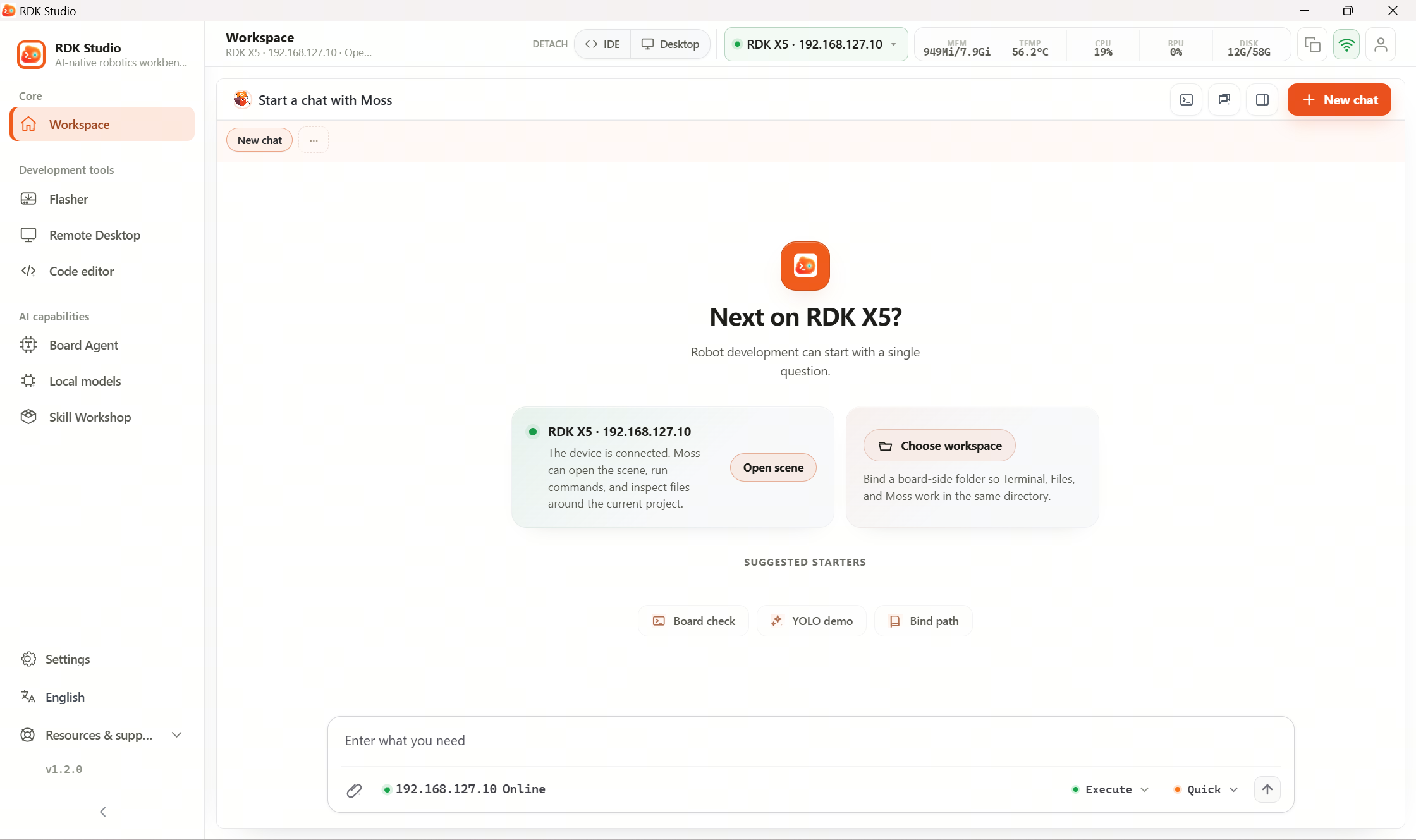
What to check the first time you open it
| Step | What to look at |
|---|---|
| 1 | Whether the left sidebar is on Core → Workbench |
| 2 | Whether the input area shows the correct device |
| 3 | Whether the right side shows the project folder, device status, and diagnostics entry |
| 4 | If you have no device yet, add one first; if the device is online, you can ask Moss directly |
Common areas
| Area | Purpose |
|---|---|
| Moss chat | Enter tasks, upload attachments, choose Execute/Plan, choose Fast/Think |
| Live | View current project, device, remote folder, changes, and diagnostics summary |
| History | Open local chat history and continue the last task |
| Diagnostics | Collect device runtime status and send it to Moss in one step |
| Changes | View file changes in the project |
| Files | Browse and edit files on the current device/host |
| Terminal | Open an SSH terminal on the current device |
| Browser | Open web pages or preview pages related to the current task |
Device and project binding
The Workbench organizes information around the current device + current project directory. After you pick a remote directory, Terminal, Files, Changes, and Moss all work against that same directory.
Without a bound directory, Moss can still answer questions and propose plans; actions that touch project files will first prompt you to choose a directory.
Device status affects what Moss can do next:
| Status | Moss behavior |
|---|---|
| Online | Terminal, Files, Diagnostics, and other device features are available |
| Pending verification | Verify SSH first, then run device-related tasks |
| Offline | Plans and knowledge Q&A can continue; on-device execution waits for reconnect or confirmation |
| Not connected | You can draft a plan first; connect the device before execution |
Viewing device status
If you only want to see device status, open Live or Diagnostics from the workspace. If you need to operate the device, enter your goal in Moss, or open the Terminal or Files panel and work manually.
When the device is offline
When the device is offline, the Workbench shows the last fetched state and marks the device as offline. Moss can still organize plans, analyze existing logs, and answer knowledge questions; actions that must run on the board wait until the device is connected again.
After you switch devices, the Workbench reloads that device’s status, files, and diagnostics—it does not keep using the previous device’s information.