3.8 Network configuration
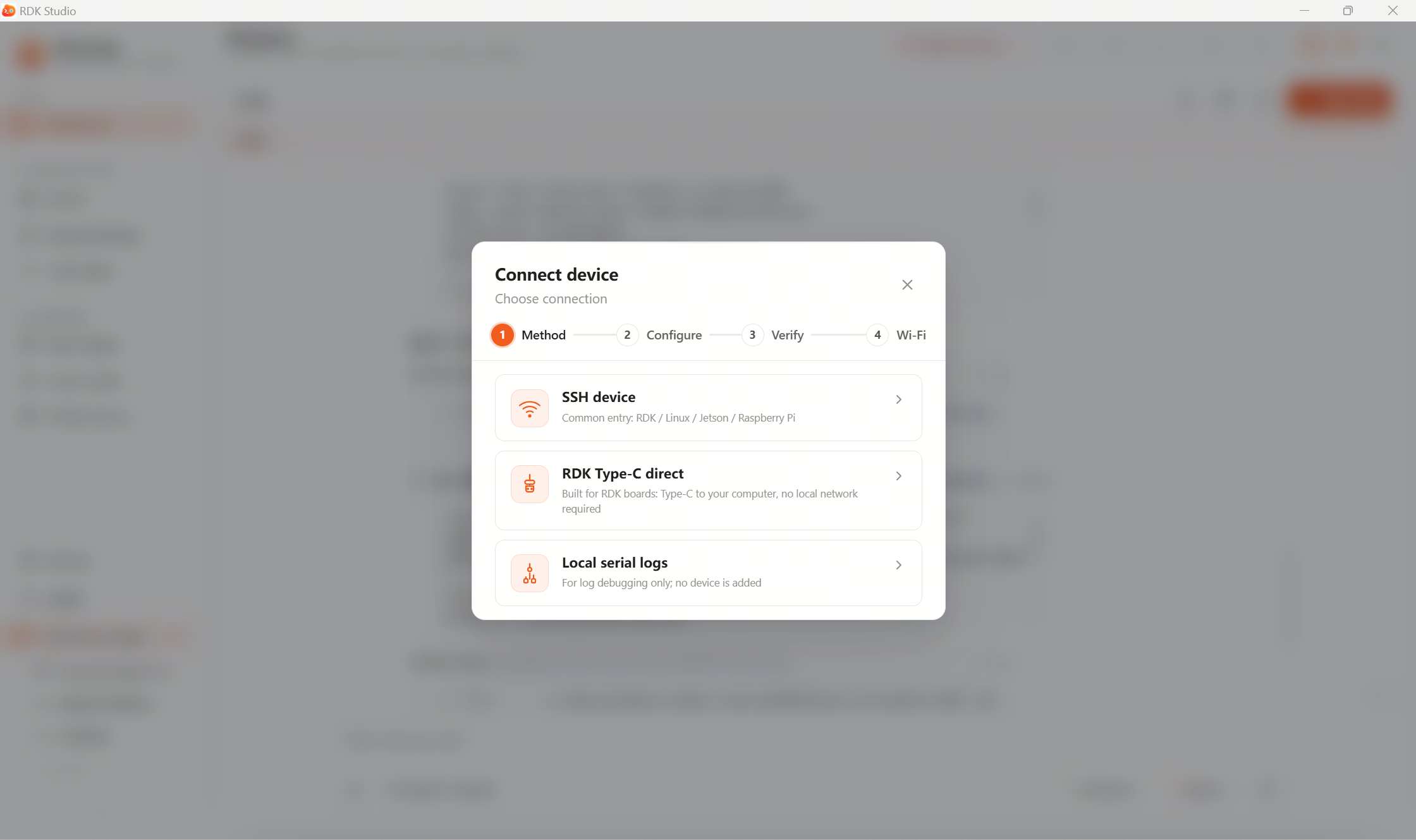
Network configuration connects your device to Wi‑Fi. For first‑time setup, follow 2.4 Configure network for the shortest path.
After you are familiar, handle network switching, manually adding SSIDs, and edge cases below.
Suggested order
| Step | What to do |
|---|---|
| 1 | Add the device over SSH or Type‑C |
| 2 | Open the Wi‑Fi configuration dialog |
| 3 | Select or enter the SSID and password |
| 4 | Click Connect and wait for the result |
| 5 | Note the new Wi‑Fi IP; re-add SSH with the new address if needed |
After a successful join, reboots normally reconnect without re-entering the password.
Common situations
- Network missing from scan: use Add SSID manually with details from your router or admin.
- No automatic reconnect after reboot: check password, signal, whether the router allows new devices, and DHCP health.
- Unstable Wi‑Fi: give 2.4 GHz and 5 GHz different SSIDs—pick whichever is stabler.
- Long‑running devices: prefer Ethernet and fixed IPs when practical.
Read next
- 3.8.1 Open Wi‑Fi configuration: entry point, connection status, and failure triage.