3.6 Remote desktop
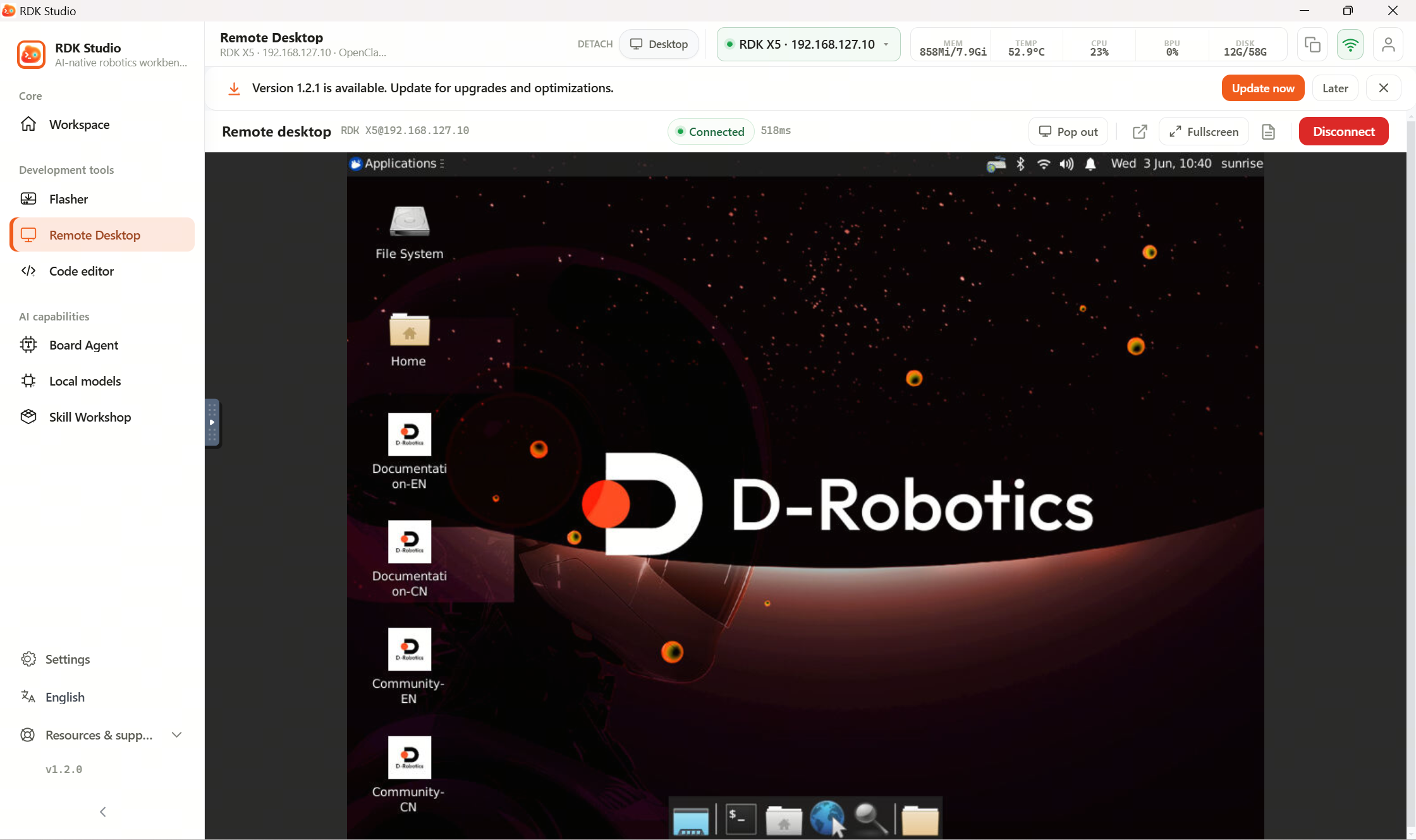
Once connected Studio shows device desktop inline — mouse, keyboard, and UI like controlling a thin client.
No extra viewer install on PC. First launch verifies device bits; installer triggers if absent.
First-time workflow
| Step | What to do |
|---|---|
| 1 | Device online, Terminal reachable |
| 2 | Open Remote desktop |
| 3 | Approve component install if prompted |
| 4 | Wait for picture before driving input |
| 5 | If laggy, lower quality or resolution |
Typical uses
| Use case | Examples |
|---|---|
| ROS tooling | rviz, rqt_graph, rqt_image_view |
| Camera | hobot_usb_cam → image_view |
| Desktop apps | Qt, GTK demos |
| HDMI peek | Matches wall monitor output |
| Full desktop | Ubuntu Desktop on RDK boards |
Guidance
Desktop streaming is sensitive to network quality. When the picture stutters, lower resolution or bitrate first. If connection fails for a long time, check that the device is online, desktop software is installed, and the remote desktop passphrase is correct.
Read next
- 3.6.1 Open remote desktop: first‑run prep and viewer password auth