3.4 Files
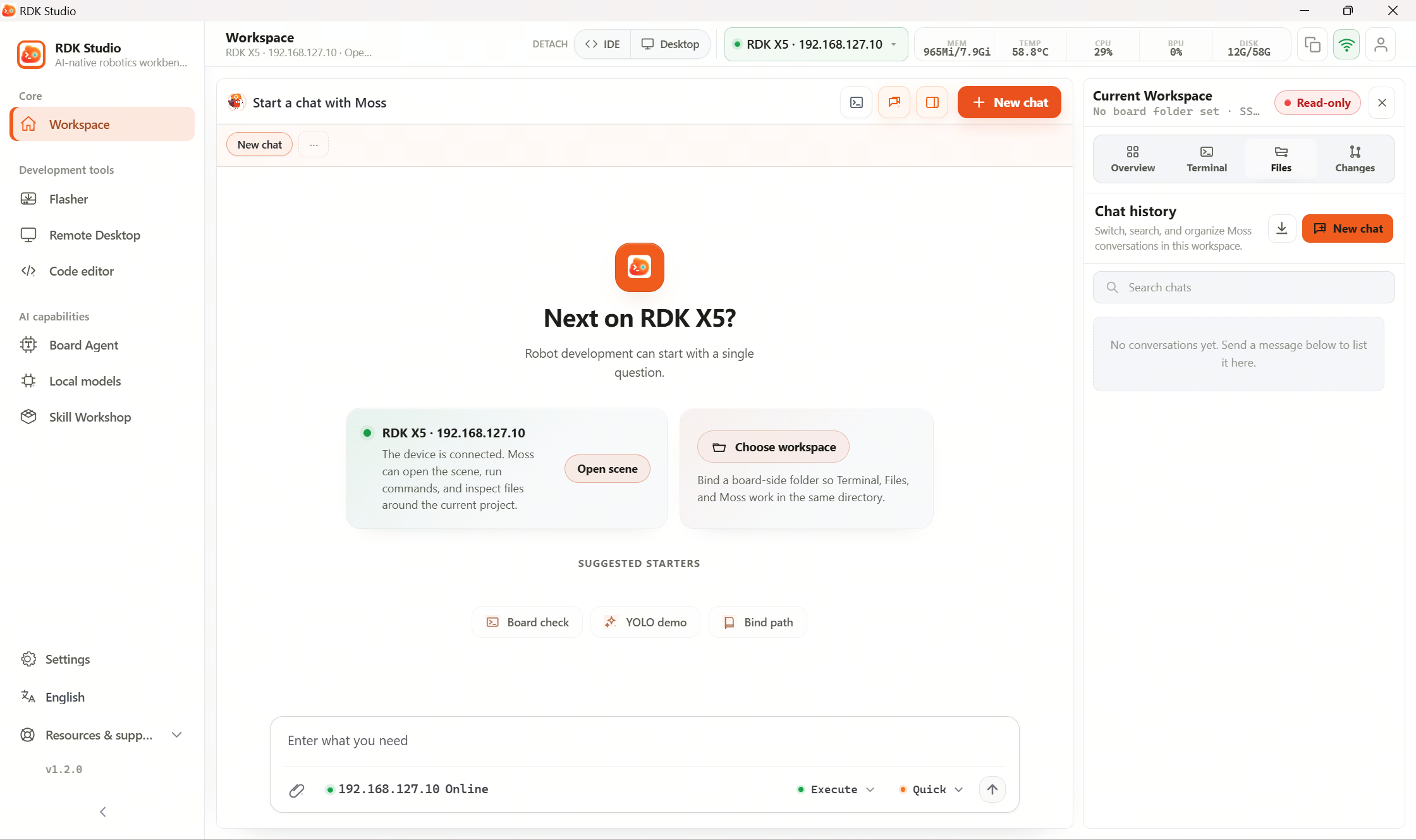
The Files page is for browsing and managing files on the device. You can browse folders, upload, and download files like a local file explorer, or open small files for editing inline.
First-time workflow
| Step | What to do |
|---|---|
| 1 | Confirm the device is online and a remote folder is selected |
| 2 | Open the Files page and review the folder tree on the left and list on the right |
| 3 | To transfer files, drag and drop or use upload/download |
| 4 | For one-off text edits, double-click a file to open and save |
| 5 | If you lack permissions or hit a restricted path, confirm you really need to change it |
Files and Moss see the same filesystem on the same device. Edits saved in Files can be read by Moss later; after Moss modifies files, refresh Files to see updates.
System and sensitive paths may block writes. If save fails due to permission or non-writable location, verify you really need that path, then share the UI message with Moss for troubleshooting.
Read next
- 3.4.1 Browse and transfer files: browse folders, upload, download
- 3.4.2 Edit files: edit common text files directly in Studio