3.11 Skill Workshop
Skill Workshop manages Moss and OpenClaw skills. Think of a skill as reusable instructions for the AI—when it triggers, what context to load, and what precautions apply.
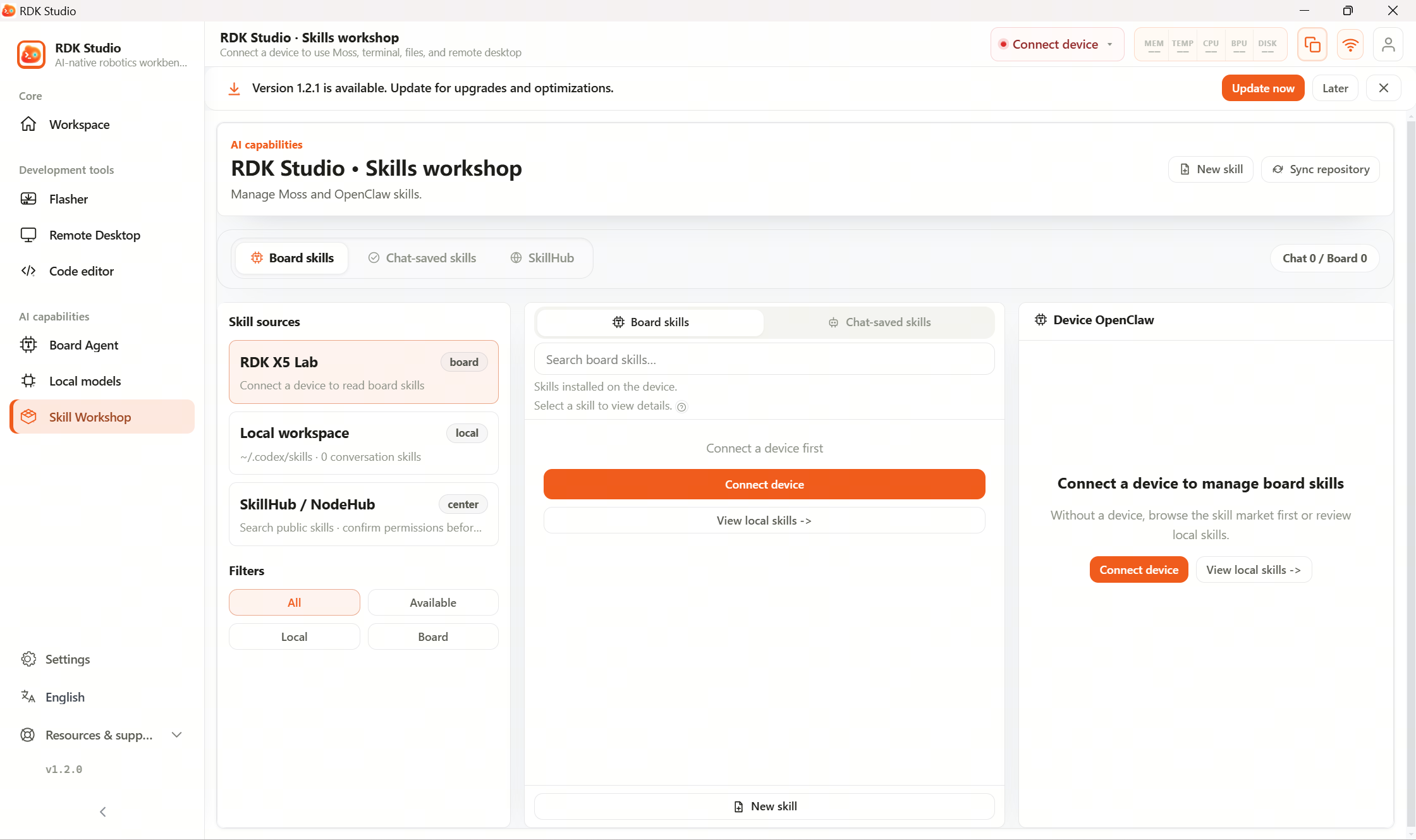
Suggested workflow
| Step | What to do |
|---|---|
| 1 | Look in SkillHub or local skills for something ready-made |
| 2 | Preview description and caveats |
| 3 | When only desktop AI is needed, add to local Moss |
| 4 | When OpenClaw on the board must run it, deploy to the current device |
| 5 | If nothing fits, create or generate from a link |
Non-RDK hosts typically cannot deploy OpenClaw skills, yet local Moss skills still work.
Where skills come from today
| Source | Target | Notes |
|---|---|---|
| Device OpenClaw | Current RDK hardware | Inspect, deploy, redeploy, or delete device-side skills |
| Local Moss | Skill workspace on this PC | Conversation capture, hand-authored skills, marketplace installs |
| Skill marketplace / SkillHub | Remote catalog | Search, preview, add locally, or deploy to device |
| Create skill | Moss-assisted draft | Draft first, confirm, then save or deploy |
| Generate from link | GitHub / NodeHub / web pages | Moss drafts from URL; confirm before deploy |
Before you start
Creating or importing skills prints drafts plus warnings first; saving locally or deploying needs your confirmation. Read carefully when commands, background services, or networking are involved.
Sync to the board
Skills install on the PC for Moss by default. To let board OpenClaw use them, pick skills under Skill Workshop → Installed (board) and choose sync.
Sync copies PC skills to the active device—after edits on the PC, sync again.
Further reading
- 3.11.3 Find skills: Search, preview, add, or deploy from SkillHub.
- 3.11.4 Create skills: Author skills, Moss-assisted drafting, or URL import.