3.3 Terminal
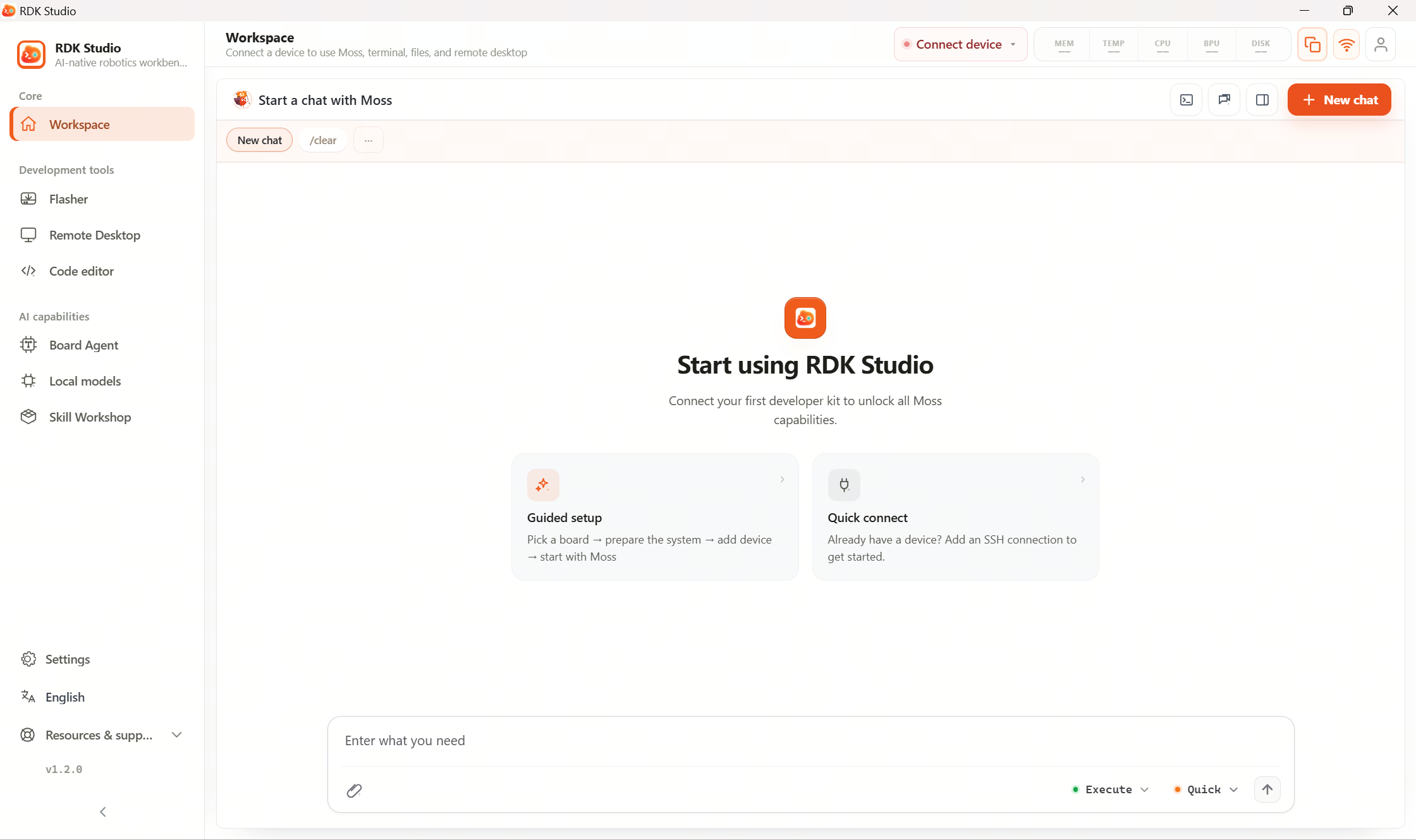
The terminal is for logging into the device, running commands, and viewing output. It feels like typical SSH tooling, while sharing the UI with RDK Studio’s device list and Moss workspace.
First-time flow
| Step | What to do |
|---|---|
| 1 | Confirm the device was added successfully via SSH or Type-C |
| 2 | Open the Terminal page and select the current device |
| 3 | Create a new SSH tab and wait for the shell prompt |
| 4 | Run a simple check such as pwd or uname -a |
| 5 | Add a serial connection only when you need boot logs |
When Moss runs commands for you, output also appears in the workspace so you can see what ran, whether it succeeded, and any errors.
Under brief network fluctuation the terminal tries to reconnect. Avoid spam-critical commands mid-reconnect; after repeated failures check power, network, host/IP, and SSH.
Next
- 3.3.1 Open SSH terminal: multiple terminal tabs at once
- 3.3.3 View serial logs: view boot logs when there is no network