3.7.2 TF card flashing
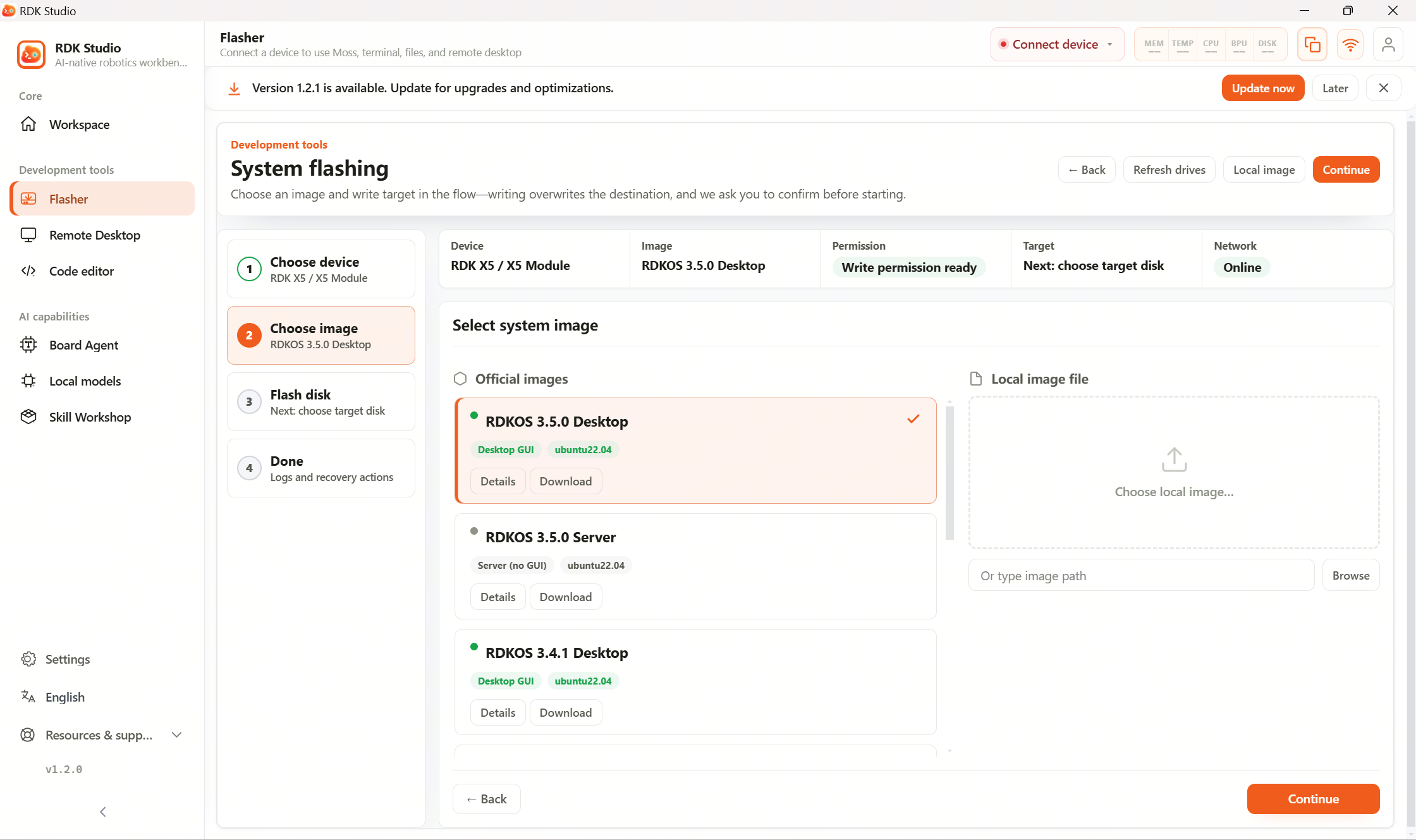
TF card flashing is the most common way to install the system on RDK X3 and RDK X5. You only need a TF card and a reader—in RDK Studio pick the board type, image, target TF card, then start writing.
Steps
- Insert the TF card into your PC’s card reader.
- Open RDK Studio and go to Flashing.
- Choose RDK X3 or RDK X5.
- Pick an officially recommended image; for a team image, upload from your PC.
- In the TF card list, select the card to write.
- After confirming the prompts, click Start flashing.
- Wait for progress to finish, then safely eject the TF card as instructed.
Flashing erases whatever was on that TF card. Before you start, make sure you selected the TF card—not a PC disk or external drive.
Speed modes
The flashing page may offer “stable mode” and “fast mode”:
- Stable mode: broader compatibility—prefer this by default.
- Fast mode: better for higher‑quality fast TF cards.
If you are unsure about card quality, use stable mode.
Choosing an image
The flashing page lists recommended official images per board—prefer those:
| Board | Recommended image | Desktop |
|---|---|---|
| RDK X3 | Official RDKOS image recommended on the page | As labeled on the page |
| RDK X5 | Official RDKOS image recommended on the page | As labeled on the page |
If the project does not pin a version, the page default is usually fine.
Supported image formats
RDK Studio supports common formats such as .img, .img.xz, and .img.gz. Compressed images are handled automatically—you do not need to decompress manually.
Using a local image
If your team provides a custom image, upload the file in the image step. The rest of the flow is the same: pick the TF card and start flashing.
Troubleshooting
| Symptom | What to try |
|---|---|
| TF card not detected | Try another reader or USB port; the card may be faulty |
| Write or verify failed | Card may have bad blocks—format and retry or replace the card |
| Board won’t boot after flash | Image/board mismatch—re‑flash with an officially matched build |
If it still fails, copy the flashing page error message to Moss so it can suggest next steps.