3.16.1 rdkstudio
rdkstudio is RDK Studio’s command-line entry point. After enabling it you can list devices, run short commands, browse remote files, or hand a question to Moss from the terminal.
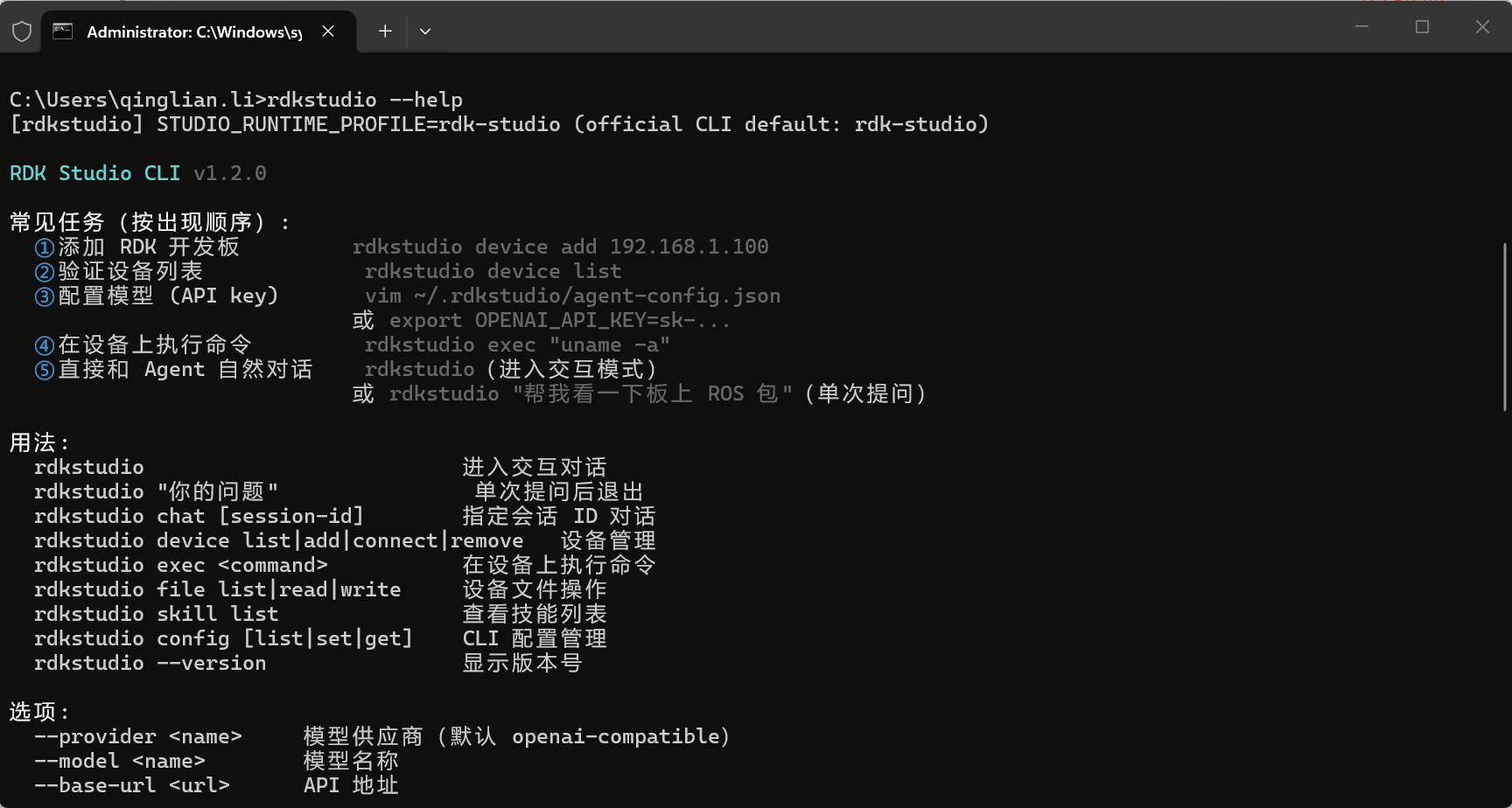
When to use it
| Goal | Typical command |
|---|---|
| Verify install | rdkstudio --version |
| List known devices | rdkstudio device list |
| Ask Moss something | rdkstudio "Check current device status" |
| Run one remote command | rdkstudio exec "uname -a" |
| List a remote path | rdkstudio file list /userdata |
Device commands need working SSH; Moss commands need a valid model profile.
Enable the CLI
- Open the RDK Studio desktop app.
- Go to Settings center → Apps & updates.
- Find “CLI tool rdkstudio”.
- Click Enable CLI (or Re-enable if already done).
On Windows, close and reopen terminals after enabling. On macOS (Apple Silicon) the current shell often works immediately; if you see command not found, open a new terminal or run hash -r.
First check
rdkstudio --version
rdkstudio device list
--version proves the binary is on PATH. device list empty means CLI works but no devices are registered yet.
For full help:
rdkstudio --help
rdkstudio device --help
Add and use devices
Provide host/IP; the CLI prompts for SSH password (hidden echo).
rdkstudio device add <device-ip>
rdkstudio device list
Then run quick commands or list paths:
rdkstudio exec "uname -a"
rdkstudio file list /userdata
exec suits short commands. For installs, builds, or long jobs, return to AI Dock or the in-app terminal for clearer progress and errors.
Moss from the shell
If model config is ready:
rdkstudio "Check current device status"
cat error.log | rdkstudio --pipe
Model/API/URL/key errors → fix under Settings center → AI engine in the desktop app.
Config sources and safety
| Source | Good for |
|---|---|
| Desktop client | Daily use, least friction |
| CLI flags | One-off overrides |
| Environment variables | Automation or disposable shells |
rdkstudio config | Non-secret local preferences |
Prefer storing API keys in the desktop AI engine or env vars—never paste real secrets into docs, scripts, screenshots, or chat.
Temporary model override example:
rdkstudio --provider openai-compatible --model qwen3.6-plus "Summarize this directory"
rdkstudio config is for ordinary prefs, not long-term secret storage.
Common subcommands
| Command | Role |
|---|---|
device list | List devices |
device add <host> [user] [port] | Add device |
device connect <id> | Reconnect |
device remove <id> | Remove local record |
exec <command> --device <device> | Remote exec |
file list <remote-path> | Remote listing |
file read <remote-path> | Print remote file |
file write <remote-path> <content> | Write small text blob |
skill list | Skills visible in workspace |
config list / set / get / delete | Local config keys |
See rdkstudio --help and each subcommand’s --help for the full flag set.
Prerequisites
| Command | Needs |
|---|---|
rdkstudio --version, rdkstudio --help | Nothing |
device list, config list, skill list | Local config / cwd only |
device add <host> | SSH reachable host |
exec, file | Device added + SSH ok |
rdkstudio, rdkstudio "...", rdkstudio --pipe | Working model profile |
If devices are missing, run rdkstudio device list; if SSH fails, verify host/IP, user, password, and network.
Interactive slash commands
Inside rdkstudio interactive mode:
| Command | Action |
|---|---|
/help | Help |
/clear | Clear session reference context |
/reset | Reset Moss state |
/history | This session history |
/sessions | List sessions |
/model | Temporarily switch model |
/quit (or Ctrl + D) | Exit |