3.14.1 Connect Feishu
The Feishu channel connects Moss to an enterprise Feishu bot. Team members can:
- @ the bot in a Feishu group so Moss checks status, analyzes logs, or triggers on-device tasks you have already approved
- Chat 1:1 with Moss in direct messages
- See Moss replies and key actions in Feishu for easier tracking
Configuration fields
In Settings center → Message channels · Feishu, set:
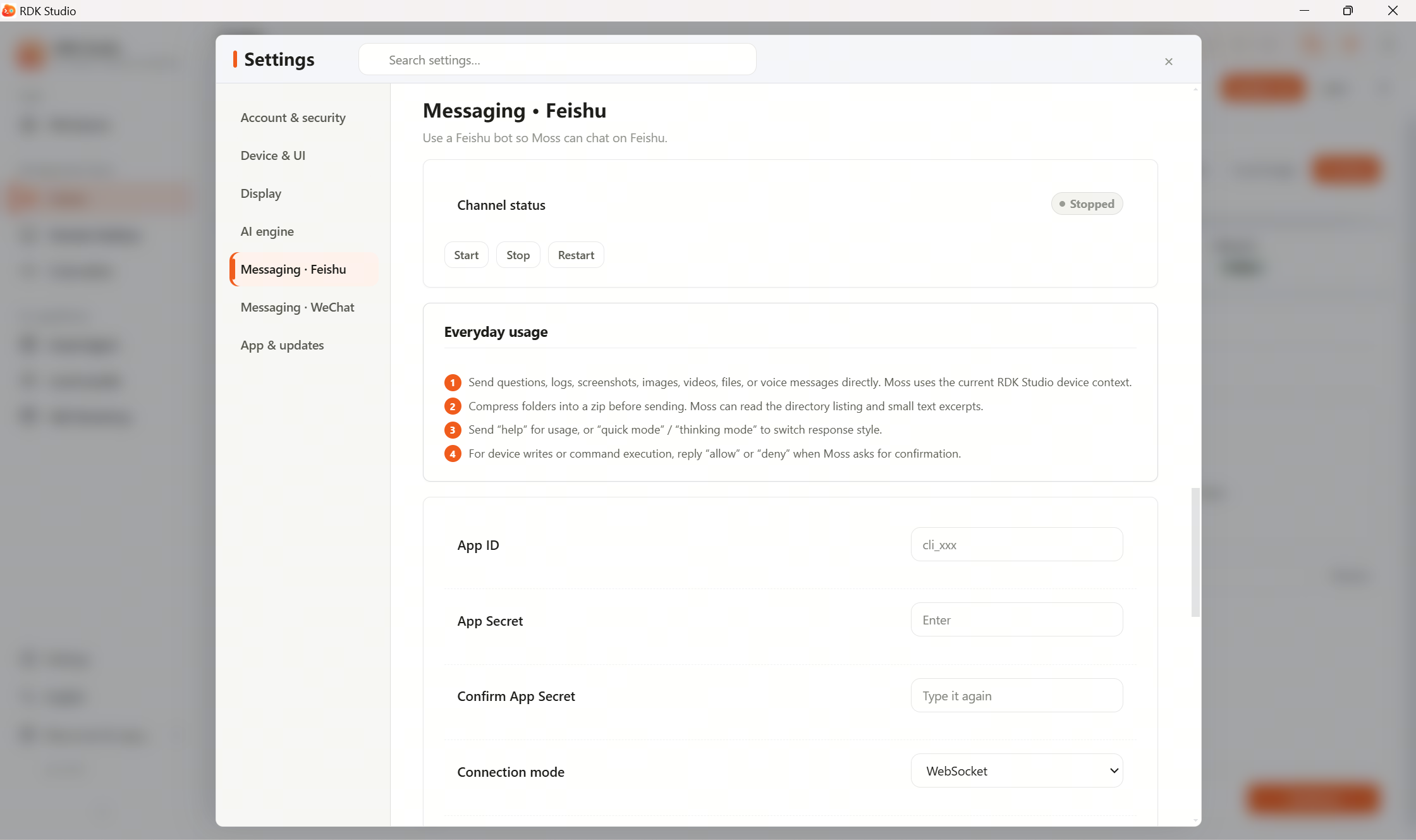
| Field | Required | Where to get it |
|---|---|---|
| App ID | Yes | Feishu developer console → your app → Credentials & basic info |
| App secret | Yes | Same as above |
| Encryption key | No | Feishu console → Event subscription |
| Verification token | No | Same as above |
App ID and app secret identify your Feishu custom app. The encryption key and verification token tighten event verification; fill them according to the Feishu console.
Create a Feishu custom app
If your team does not have a custom app yet:
- Open the Feishu developer console
- Create a new custom app and set name, icon, and description
- Under Permission management, enable required permissions: read messages, send messages, group info, etc.
- Under Event subscription, subscribe to “receive messages” and set the callback URL
- Under Version release, submit the app and wait for enterprise admin approval
- After approval, obtain the app ID and app secret
For full steps, refer to Feishu Open Platform official documentation.
Direct message access modes
| Mode | Behavior | When to use |
|---|---|---|
| Allowlist | Only listed Feishu users can DM the bot | Strongly recommended in production |
| Approval | Anyone can send a message; an admin approves once before continued use | Internal teams that want light control |
| Open | Anyone who can see the bot can use it | Testing or when there is clearly no sensitive operation |
Use allowlist mode in production. Open mode means anyone who sees the bot may trigger Moss to act on devices—high risk.
User management
| Action | Where |
|---|---|
| View bound users | Feishu → User management |
| Approve pending pairing | Feishu → Pending approval |
| Remove a user | User management → select user → Remove |
| Start / stop the whole Feishu channel | Feishu → Channel switch |
What the bot can do in Feishu
The Feishu bot capabilities are nearly the same as AI Dock:
- Device status: “Show BPU usage on RDK-X5-workstation1”
- Files: “Send me /tmp/log.txt” (bot sends the file as an attachment to Feishu)
- Commands: “Restart ROS node camera_publisher”
- Use loaded related skills
For high‑risk commands, file writes, or tasks that might change device state, the bot will ask you to confirm again in Feishu. Because Feishu is external, confirmation is stricter than inside Studio.