TROS Body Detection
Application Scenarios
RDK Studio helps beginners get started quickly and enables an efficient workflow for human body keypoint detection: The human body keypoint detection algorithm is primarily used to capture skeletal keypoints of the human body, suitable for multi-person pose recognition tasks in real-time application scenarios.
Preparations
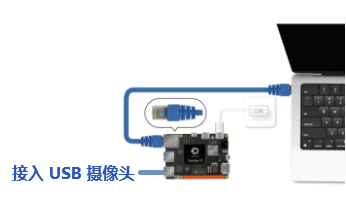
Supports connecting both USB and MIPI cameras. This section uses a USB camera as an example. The connection method for a USB camera is as follows:
Running Process
-
Click Node-RED under the
TROS Body Detectionexample.
-
Enter the example application flow interface.
TipClick the
 icon in the top right corner of RDK Studio to quickly open the example in a browser!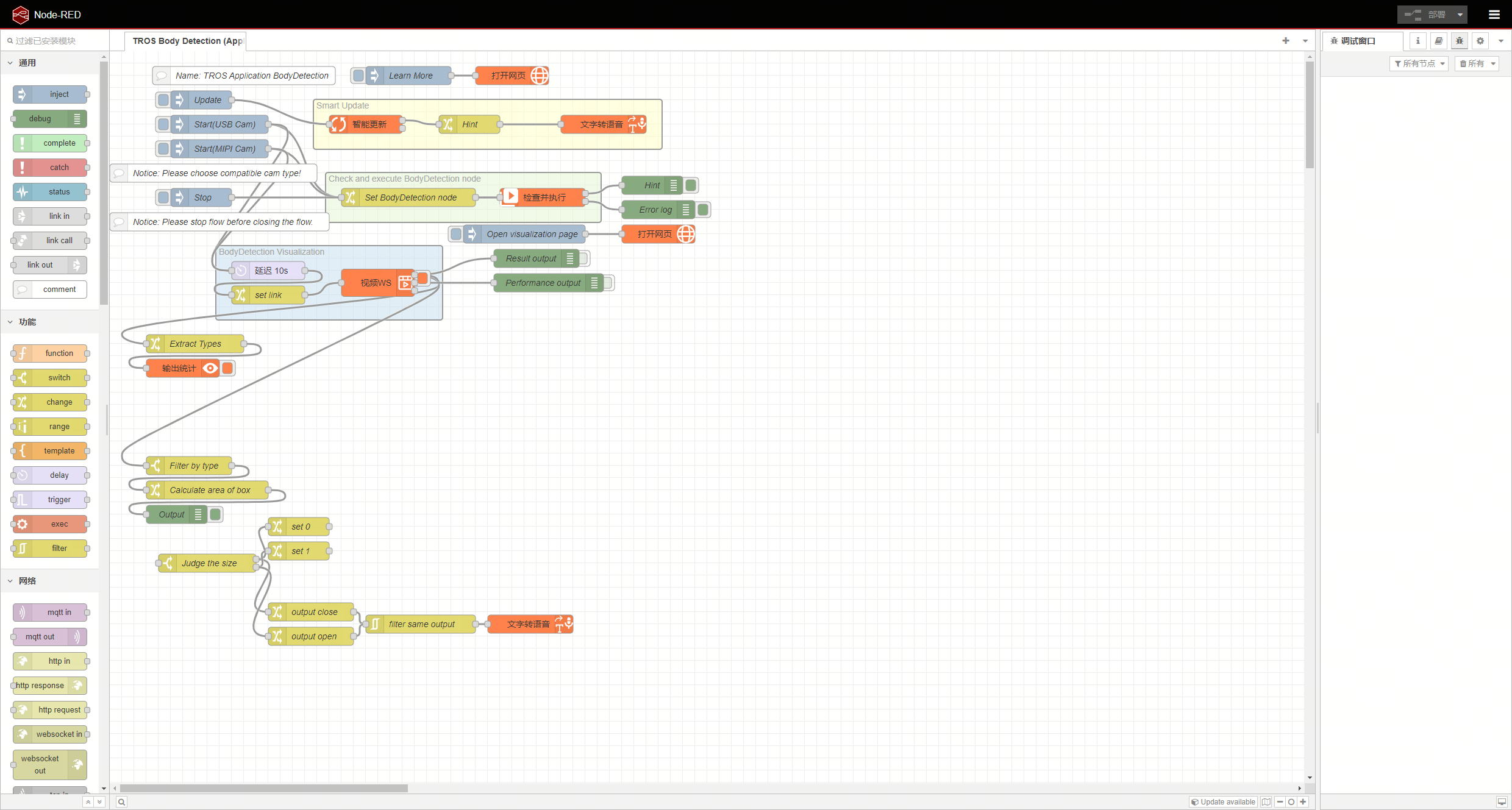
-
Select the type of camera connected, click the corresponding
Start(USB Cam)command, and wait for about 10 seconds for the visualization window to open automatically.
-
Performance Result: Click the debug icon on the right to position the sidebar to the debug window. You can view the performance information output results in the debug window.
-
Output Statistics: Can output statistical results of detected human body keypoints.
-
Click to execute the
Stopcommand to turn off the camera. Note
NoteIf you have modified nodes, flows, etc., you need to click the
 button in the upper right corner for the changes to take effect!
 -
Click the
×icon in the upper right corner,Select "Close APP" to exit the Node-RED application.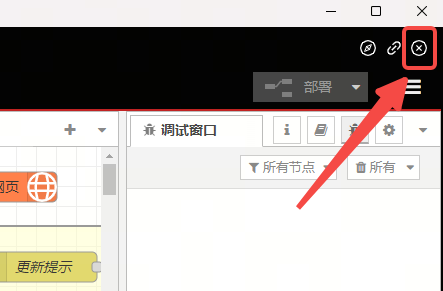
More Features
Visualization Page
-
Click to execute the
Visualization Interfacecommand to automatically open TogetherROS Web Display.
-
Click
Web Displayto enter the visualization page for real-time target detection.

- Click the
×in the upper right corner of the visualization page to exit.
Learn More
Click to execute the Learn More command to open the online documentation to find more information about the examples.
