
1.6 Image Classification Algorithm Example

Video: https://www.youtube.com/watch?v=lGFel8uabLY&list=PLSxjn4YS2IuFUWcLGj2_uuCfLYnNYw6Ld&index=3

The development board is installed with the program test_mobilenetv1.py for testing the functionality of the mobilenet v1 image classification algorithm. This program reads the static image zebra_cls.jpg as the input of the model, and outputs the classification result cls id: 340 Confidence: 0.991851 in the command line terminal.

Execution Method 1: Command Line Execution

Execute the program test_mobilenetv1.py as follows:

sunrise@ubuntu:~$ cd /app/pydev_demo/01_basic_sample/
sunrise@ubuntu:/app/pydev_demo/01_basic_sample$ sudo ./test_mobilenetv1.py

Expected Effect

Output the predicted result of the image classification algorithm, id and confidence.

zebra_cls.jpg is an image of a zebra. According to the classification of the ImageNet dataset, the returned result id is 340, with a confidence of 0.991851.

========== Classification result ==========
cls id: 340 Confidence: 0.991851
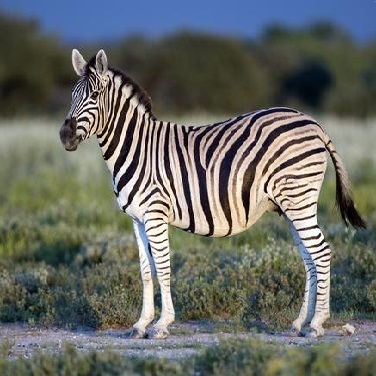
zebra_cls

Execution Method 2: Experience Image Classification Algorithm Using RDK Studio

Note
  1. Click on Node-RED under the Basic Static Image Inference example.

    Example Page

  2. Enter the example application flow interface.

    Tip

    Click the Link Icon icon in the top-right corner of RDK Studio to quickly open the example in your browser!

    Basic Static Image Inference Example Page

  3. Click the View Image command to automatically display the image.

    Example Image

  4. Click the debug icon on the right to position the right sidebar to the debug window, then click Run to view the image classification algorithm output results in the debug window. Click other Run buttons in sequence to see the output results of different algorithms.

    Example Image

    Important

    If you modify nodes, flows, etc., you must click the Deploy Image button in the top-right corner for the changes to take effect!

  5. Click the × icon in the top-right corner and select "Close Program" to exit the Node-RED application.

    Example Image