3.3.8 USB Camera Sample Introduction
Sample Overview
The USB camera sample contains two Python interface development code examples located at /app/pydev_demo/02_usb_camera_sample/, demonstrating how to use USB cameras for image acquisition and processing. These two examples respectively showcase:
usb_camera_fcos.py: Real-time object detection, using the FCOS model for real-time inference on video streams captured by the USB camera, and displaying detection results via HDMI.
usb_camera_snap.py: Single image capture, capturing one image from the USB camera and saving it as a file.
Effect Demonstration
Effect of usb_camera_fcos.py
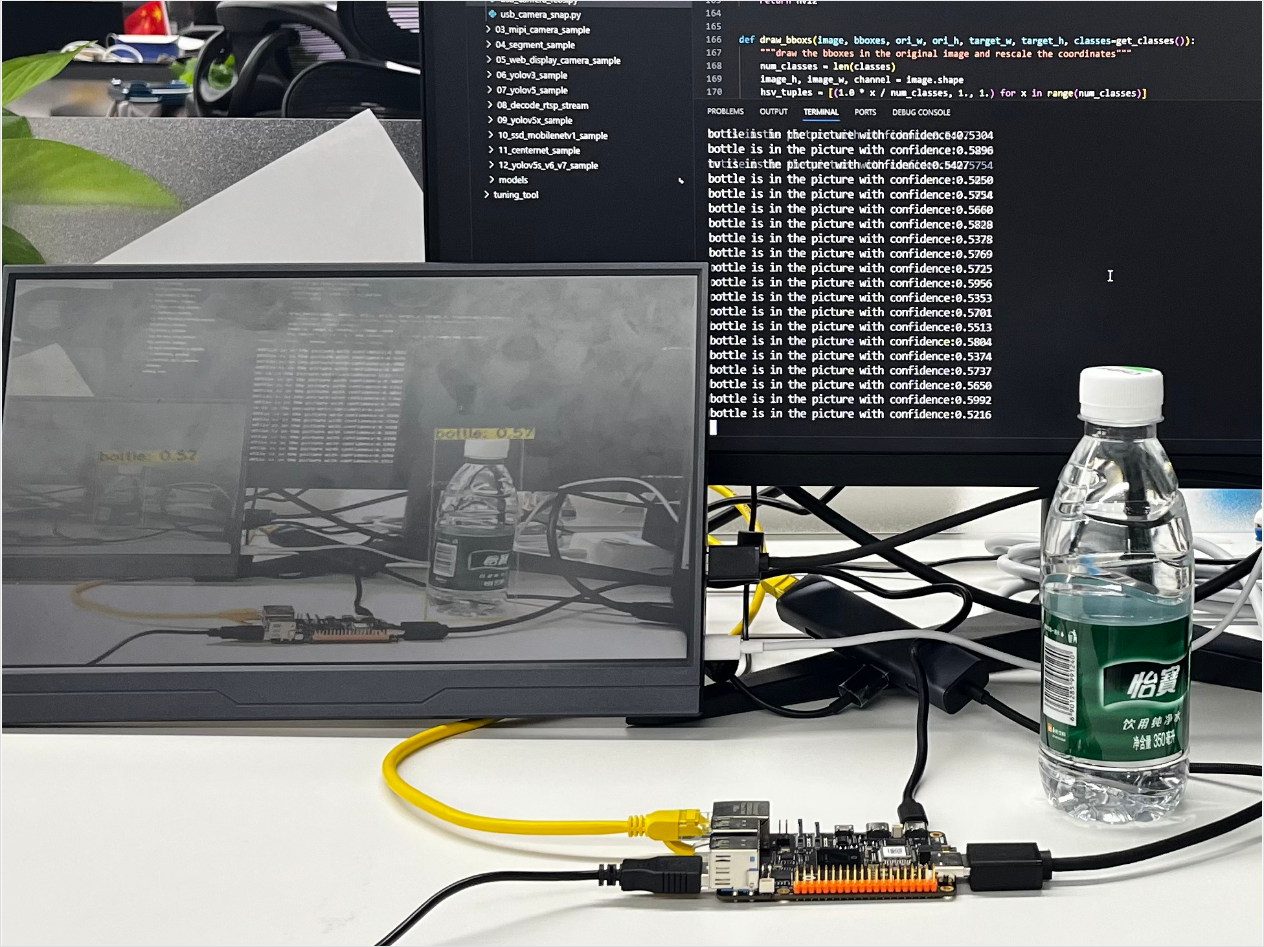
Effect of usb_camera_snap.py
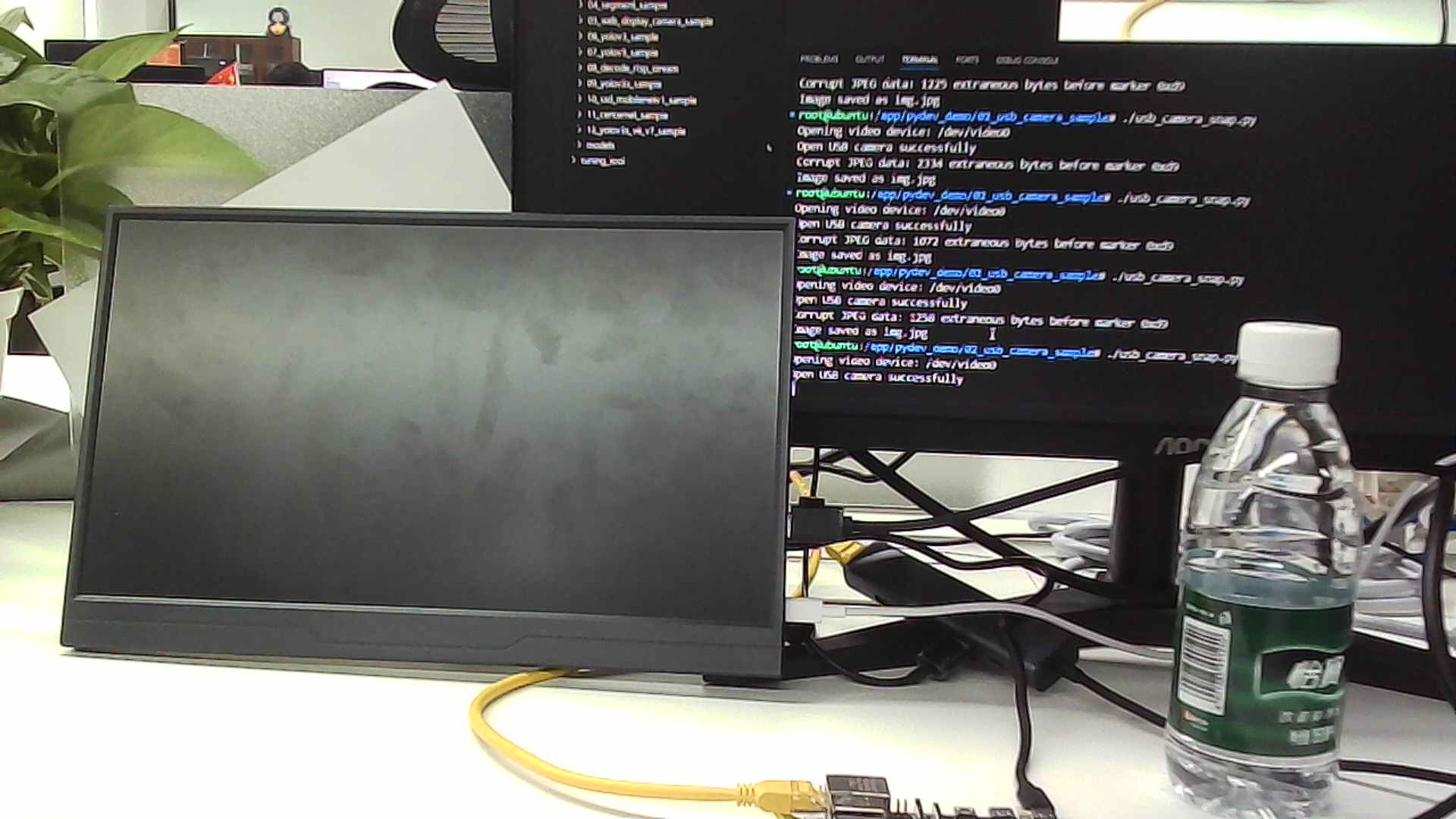
Hardware Preparation
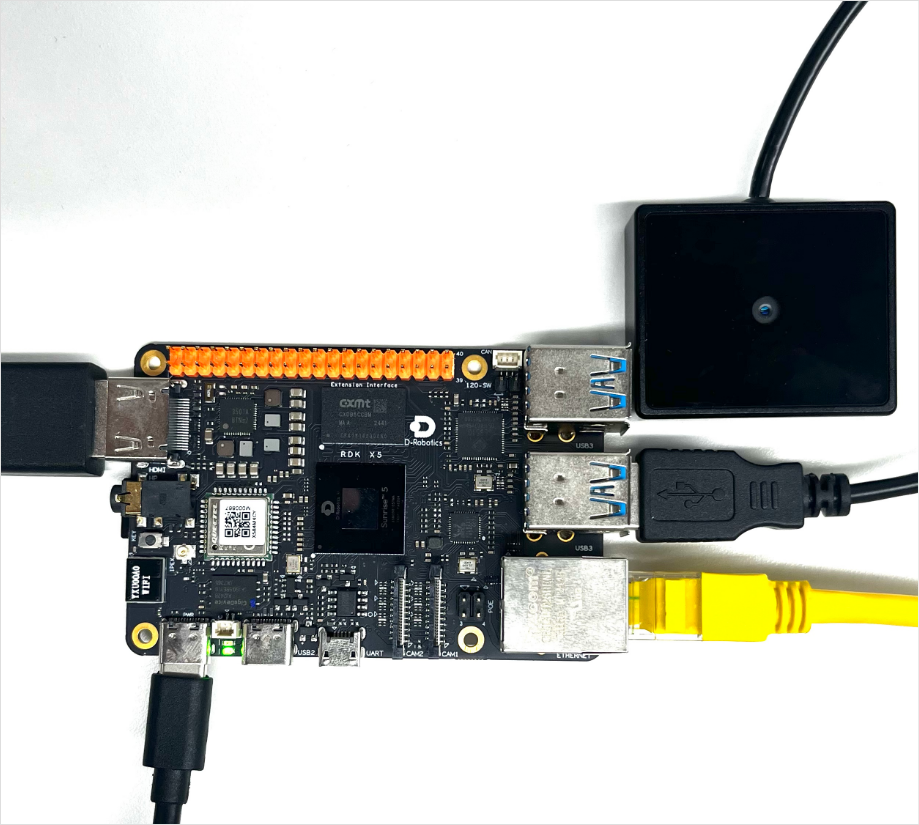
Hardware Connection
Prepare an RDK development board
Connect the USB camera to the USB interface of the development board
Connect the monitor to the development board via HDMI cable (only required for usb_camera_fcos.py display)
Connect the power cable and network cable
Quick Start
Code and Board Location
Navigate to /app/pydev_demo/02_usb_camera_sample/ location, where you can see the USB camera sample contains two files:
root@ubuntu:/app/pydev_demo/02_usb_camera_sample# tree
.
├── usb_camera_fcos.py
└── usb_camera_snap.py
Compilation and Execution
Python examples do not require compilation and can be run directly.
Run usb_camera_snap.py
python3 usb_camera_snap.py
Run usb_camera_fcos.py
python3 usb_camera_fcos.py
Execution Results
usb_camera_snap.py Execution Results: After running, the program will automatically search for available USB camera devices, capture one frame of image and save it as img.jpg in the current directory.
root@ubuntu:/app/pydev_demo/02_usb_camera_sample# ./usb_camera_snap.py
Opening video device: /dev/video0
Open USB camera successfully
Corrupt JPEG data: 766 extraneous bytes before marker 0xd9
Image saved as img.jpg
usb_camera_fcos.py Execution Results: After running, the program will automatically search for available USB camera devices and start real-time object detection. Detection results will be displayed via HDMI, and target information with FPS will be printed to the console.
root@ubuntu:/app/pydev_demo/02_usb_camera_sample# ./usb_camera_fcos.py
[BPU_PLAT]BPU Platform Version(1.3.6)!
[HBRT] set log level as 0. version = 3.15.55.0
[DNN] Runtime version = 1.24.5_(3.15.55 HBRT)
[A][DNN][packed_model.cpp:247][Model](2000-01-01,08:05:40.810.884) [HorizonRT] The model builder version = 1.23.5
[W][DNN]bpu_model_info.cpp:491][Version](2000-01-01,08:05:40.891.732) Model: fcos_efficientnetb0_512x512_nv12. Inconsistency between the hbrt library version 3.15.55.0 and the model build version 3.15.47.0 detected, in order to ensure correct model results, it is recommended to use compilation tools and the BPU SDK from the same OpenExplorer package.
tensor type: NV12
data type: uint8
layout: NCHW
shape: (1, 3, 512, 512)
15
tensor type: int32
data type: int32
layout: NHWC
shape: (1, 64, 64, 80)
tensor type: int32
data type: int32
layout: NHWC
shape: (1, 32, 32, 80)
tensor type: int32
data type: int32
layout: NHWC
shape: (1, 16, 16, 80)
tensor type: int32
data type: int32
layout: NHWC
shape: (1, 8, 8, 80)
tensor type: int32
data type: int32
layout: NHWC
shape: (1, 4, 4, 80)
tensor type: int32
data type: int32
layout: NHWC
shape: (1, 64, 64, 4)
tensor type: int32
data type: int32
layout: NHWC
shape: (1, 32, 32, 4)
tensor type: int32
data type: int32
layout: NHWC
shape: (1, 16, 16, 4)
tensor type: int32
data type: int32
layout: NHWC
shape: (1, 8, 8, 4)
tensor type: int32
data type: int32
layout: NHWC
shape: (1, 4, 4, 4)
tensor type: int32
data type: int32
layout: NCHW
shape: (1, 64, 64, 1)
tensor type: int32
data type: int32
layout: NCHW
shape: (1, 32, 32, 1)
tensor type: int32
data type: int32
layout: NCHW
shape: (1, 16, 16, 1)
tensor type: int32
data type: int32
layout: NCHW
shape: (1, 8, 8, 1)
tensor type: int32
data type: int32
layout: NCHW
shape: (1, 4, 4, 1)
Opening video device: /dev/video0
Open usb camera successfully
1920x1080
1280x800
1280x720
720x576
720x480
640x480
No suitable display method found.
Running without preview window
person is in the picture with confidence:0.5758
Frame#1 (1 fps) [2000-01-01 08:05:41]
person is in the picture with confidence:0.6214
person is in the picture with confidence:0.6050

...............
Detailed Introduction
Sample Program Parameter Options
Both examples support specifying the USB camera device node. If not specified, they will automatically search for the first available USB camera.
- Run with specified device node:
python3 usb_camera_snap.py /dev/video8
python3 usb_camera_fcos.py /dev/video8
Software Architecture Description
This sample contains two different functions, so the software architecture differs slightly. They are explained separately here.
usb_camera_snap.py
-
Camera Discovery: Automatically searches for available USB camera devices.
-
Camera Configuration: Sets camera output format to MJPEG, resolution 1920x1080.
-
Image Capture: Reads one frame of image.
-
Image Saving: Saves the image as a jpg file.

usb_camera_fcos.py
-
Model Loading: Loads the FCOS object detection model.
-
Camera Discovery and Configuration: Same as usb_camera_snap.py, but resolution set to 640x480.
-
Display Initialization: Initializes HDMI display.
-
Real-time Inference Loop:
-
Read camera frame
-
Preprocess image (scaling, color space conversion)
-
Model inference
-
Post-processing (parse detection results)
-
Draw detection boxes and display
-
Calculate and print FPS

API Flow Description
usb_camera_snap.py This example does not use SP API, but uses basic OpenCV APIs.

usb_camera_fcos.py This example uses OpenCV interfaces as well as display resource interfaces and model operation interfaces in sp_dev.

FAQ
Q: What should I do when the sample prompts "No USB camera found" during execution?
A: Please check if the USB camera is correctly connected and ensure the device node (such as /dev/video8) exists. You can try using the command v4l2-ctl --list-devices to view available camera devices.
Q: What should I do if HDMI display is abnormal when running usb_camera_fcos.py?
A: Please check the HDMI connection and ensure the display service has been stopped (such as using systemctl stop lightdm).
Q: How to adjust the detection threshold of usb_camera_fcos.py?
A: Modify the value of fcos_postprocess_info.score_threshold in the code, for example, change it to 0.5.
Q: How to modify the save path of usb_camera_snap.py?
A: Modify the cv2.imwrite parameter in the code to specify the full path, such as /home/root/image.jpg.
Q: What should I do if the frame rate is very low when running usb_camera_fcos.py?
A: You can try reducing the camera resolution or switching to a lighter model version.