3.3.10 Web Display Camera Example Introduction
Example Overview
The Web display camera example is a Python interface development code example located in /app/pydev_demo/05_web_display_camera_sample/, demonstrating how to stream MIPI camera video and object detection results to a browser in real-time through a web service. This example combines MIPI camera capture, AI object detection, video encoding, and WebSocket real-time transmission technologies, providing a complete web video monitoring solution.
Effect Demonstration
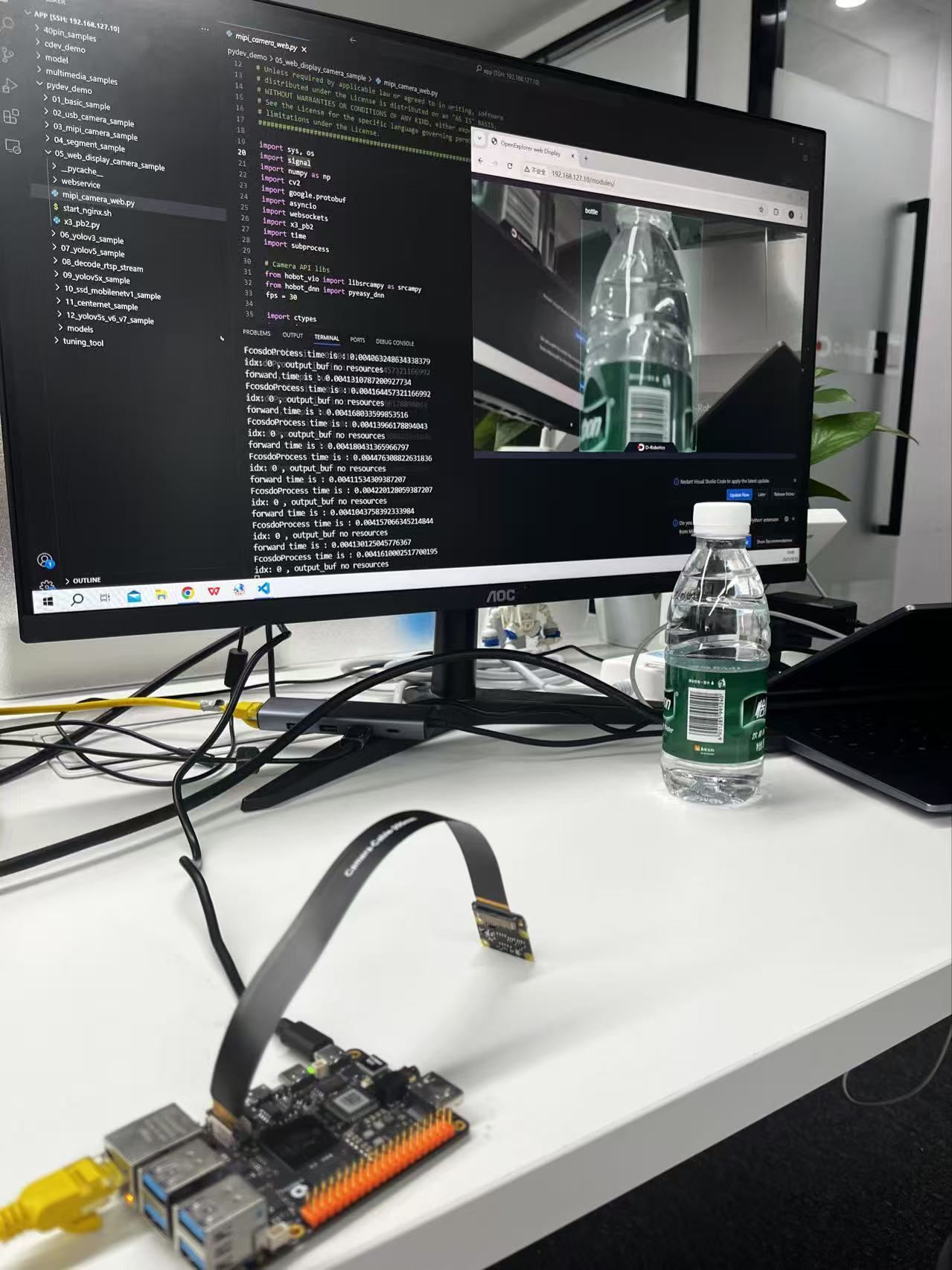
Hardware Preparation
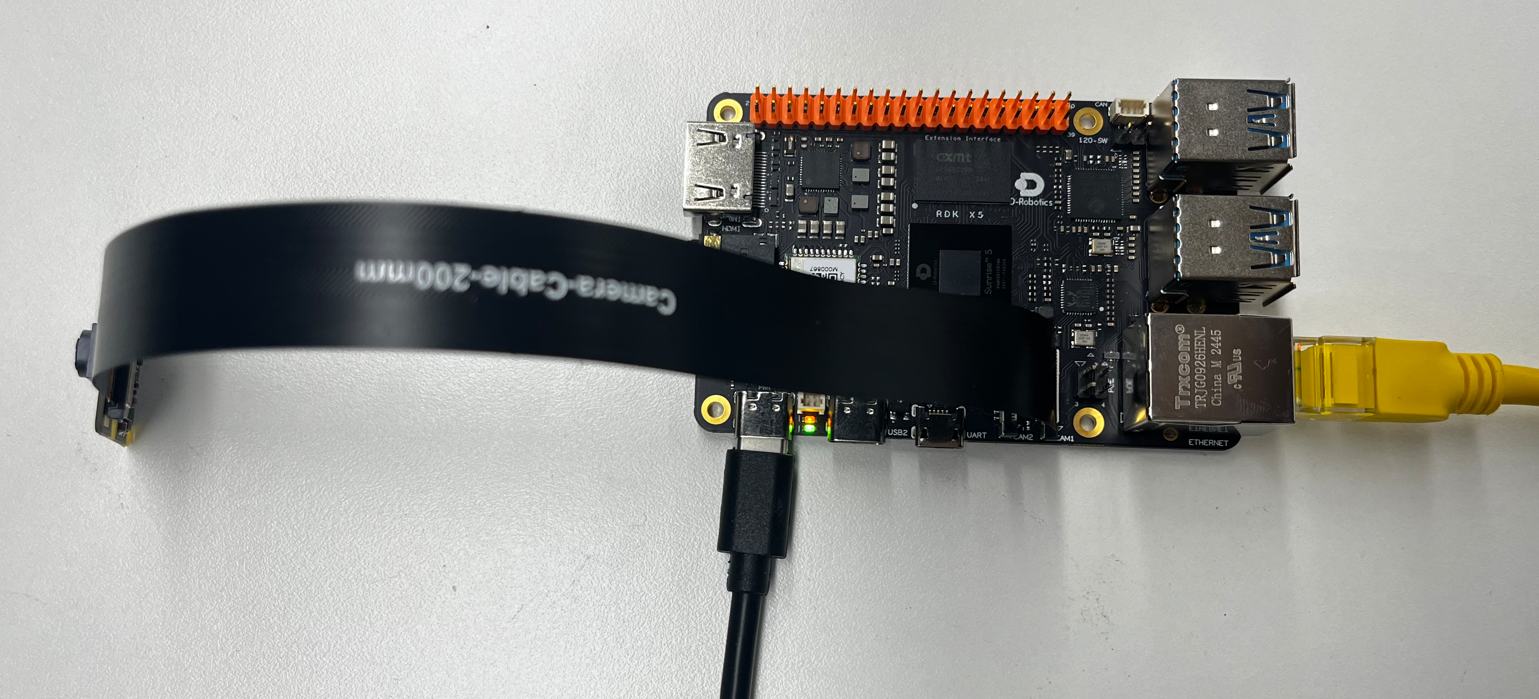
Hardware Connection
- Prepare an RDK development board
- Connect the officially compatible MIPI camera
- Connect an Ethernet cable to the development board
- Connect the power cable
Quick Start
Code and Board Location
Navigate to /app/pydev_demo/05_web_display_camera_sample/ location, where you can see the Web display camera example contains the following files:
root@ubuntu:/app/pydev_demo/05_web_display_camera_sample# tree
.
├── mipi_camera_web.py
├── start_nginx.sh
├── webservice
│ ├── conf
│ │ ├── nginx.conf
│ │ └── ...
│ ├── html
│ │ ├── index.html
│ │ ├── assets
│ │ └── ...
│ ├── logs
│ └── sbin
│ └── nginx
└── x3_pb2.py
Compilation and Execution
First, you need to start the Nginx server, then run the Python script:
When using the IMX477 camera, it is necessary to set fps=50 in the mipi_camera_web.py file (around line 39).
# Start Nginx server
./start_nginx.sh

# Run Web camera example
python3 mipi_camera_web.py
Execution Effect
After running, the program will start the web service, and you can access the development board's IP address through a browser to view the real-time video stream and object detection results.
Access http://[Development Board IP] in your browser, default is http://192.168.127.10。

Click Web Display in the browser to see the real-time video stream and object detection results. The effect can be viewed in the Effect Demonstration section at the beginning of the article.
Detailed Introduction
Example Program Parameter Options Description
The Web display camera example does not require command line parameters and can be run directly. The program will automatically initialize the MIPI camera and WebSocket service.
Software Architecture Description
The Web display camera example involves not only the mipi_camera_web.py source code but also the nginx server and web client, so the software architecture is relatively more complex than previous examples, including the following core components:
-
MIPI Camera Capture: Using srcampy.Camera() to initialize the MIPI camera and capture video stream
-
Object Detection Model: Loading FCOS object detection model for real-time inference on video frames
-
Video Encoding: Using srcampy.Encoder() to encode video frames in JPEG format
-
WebSocket Service: Creating WebSocket server to push video frames and detection results in real-time
-
Web Frontend: Providing HTML pages and JavaScript code for displaying video and detection results in the browser
-
Nginx Server: Providing static file service and HTTP proxy functionality

API Process Description
-
Camera Initialization: cam.open_cam()
-
Encoder Initialization: enc.encode()
-
Model Loading: models = pyeasy_dnn.load('../models/fcos_512x512_nv12.bin')
-
WebSocket Service Startup: websockets.serve(web_service, "0.0.0.0", 8080)
-
Real-time Processing Loop:
-
Get image frames from the camera
-
Perform object detection using the model
-
Encode image frames to JPEG format
-
Push images and detection results via WebSocket

FAQ
Q: What should I do if the example reports that the port is occupied when running?
A: Please check if other programs are occupying port 8080. You can use the netstat -tlnp command to check port usage.
Q: What should I do if the browser cannot access the video stream?
A: Please check the development board's network connection and ensure the firewall is not blocking access to relevant ports.
Q: What should I do if the video stream has high latency?
A: You can try reducing the video resolution or frame rate, or use a lighter object detection model.
Q: How to modify the web frontend interface?
A: You can modify the HTML, CSS, and JavaScript files in the webservice/html/ directory to customize the interface.
Q: How to add new detection categories?
A: You need to modify the get_classes() function to add new category names, and either retrain the model or use a model that supports the new categories.
Q: How to save the video stream?
A: You can add video saving logic in the code, such as using OpenCV's VideoWriter class to save video files.