3.4.1 Using MIPI Camera
Video: https://www.youtube.com/watch?v=nabpS2CUkjY&list=PLSxjn4YS2IuFUWcLGj2_uuCfLYnNYw6Ld&index=18
The development board is installed with the mipi_camera.py program to test the data path of the MIPI camera. This example will capture the image data of the MIPI camera in real time, then run the object detection algorithm, and finally output the image data and detection results through the HDMI interface.
Environment Preparation
- Connect the MIPI camera module to the development board's MIPI CSI interface. For specific connection methods, please refer to the MIPI Camera Connection Tutorial chapter.
- Connect the development board to the monitor via an HDMI cable.
Running the Program
- Desktop
- Server
Execute the following command to shut down the desktop service
sudo systemctl stop lightdm
Log in to the development board via SSH and execute the program according to the following commands
sunrise@ubuntu:~$ cd /app/pydev_demo/03_mipi_camera_sample/
sunrise@ubuntu:/app/pydev_demo/03_mipi_camera_sample$ sudo python3 ./mipi_camera.py
The Server version system outputs results through the terminal. If you need to view the camera feed and the results of the Object Detection algorithm (target type, Confidence Level), please connect the development board to the monitor via an HDMI cable.
Execute the program according to the following commands
sunrise@ubuntu:~$ cd /app/pydev_demo/03_mipi_camera_sample/
sunrise@ubuntu:/app/pydev_demo/03_mipi_camera_sample$ sudo python3 ./mipi_camera.py
Expected Result
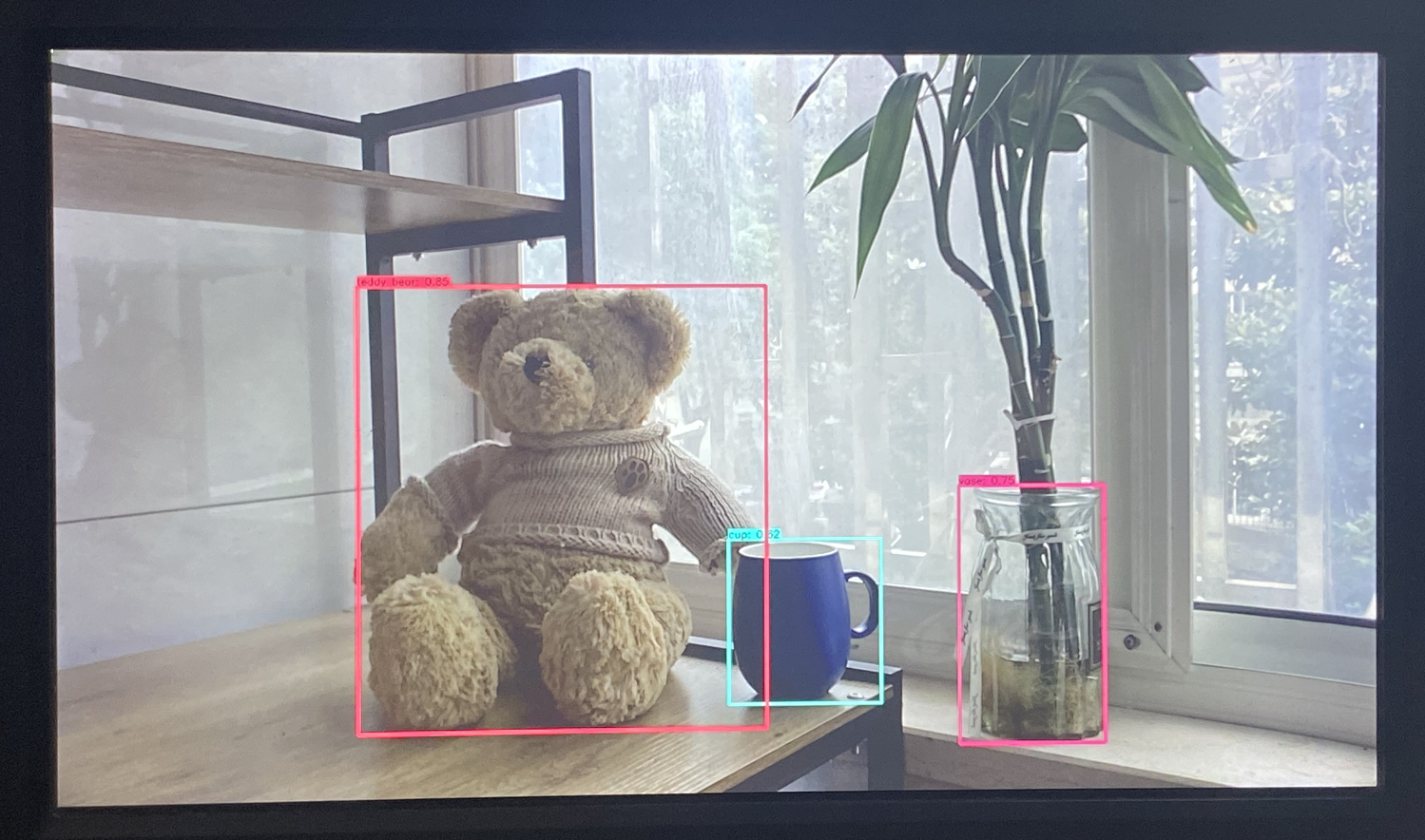
After the program is executed, the monitor will display the camera image and the results of the object detection algorithm (object type, confidence), as shown below:
For detailed code implementation explanation, please refer to the MIPI Camera Inference chapter.