1.2.2.1 Full image flashing
Full image flashing writes a complete OS image to storage (usually an SD card or eMMC). It prepares the board with user-space apps, drivers, and core services.
- Do not hot-plug any device other than USB, HDMI, or Ethernet while power is on.
- RDK X3 Module is powered from the DC jack on the carrier; use a 12V/2A adapter as listed in the accessory list.
- Do not power from a computer USB port; insufficient power can cause abnormal shutdowns and repeated reboots.
Boot medium
RDK X3 Module has on-board eMMC and supports microSD or eMMC as the boot medium.
- Use at least an 8GB microSD card.
- An SD card reader.
Flashing tools
RDK X3 Module can flash Ubuntu with RDK Studio or Rufus.
RDK Studio
- Local image or download while flashing.
- Windows,macOS.
- microSD flashing.
RDK Studio Download Links
Installation
Windows
Double-click the .exe to install and launch.
macOS
Double-click the package and drag the app into Applications.

Rufus
- Local image only.
- Windows only.
- microSD or eMMC (UMS).
Download
[Click here] for Rufus.

Installation
Double-click the .exe to install and launch.
Image download
-
[Click here] and choose an RDK X3 image.
About the images-
RDK X3 provides Ubuntu 20.04 and 22.04 in server or desktop form:
- desktop: Ubuntu with a desktop.
- server: Headless Ubuntu.
-
Boards ship with a test image; reflash for the latest release.
- 3.x.x (Ubuntu 22.04): RDK X3 and RDK X3 Module.
- 2.x.x (Ubuntu 20.04): Same.
- 1.x.x: Legacy RDK X3 only; image name
system_sdcard.img.
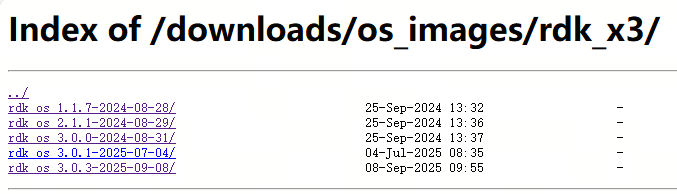
-
-
Open the version folder—for 3.0.3 as an example—and download server or desktop.

-
Extract the image, e.g.
rdk-x3-ubuntu22-preinstalled-desktop-3.0.3-arm64.img.
Flashing procedure
Flashing the SD card
RDK Studio
Rufus
Same steps as RDK X3 — Using Rufus.
Flashing eMMC
Driver check
Before flashing on Windows, confirm drivers as follows.
-
Connect the carrier Micro USB (flashing port) to the PC with a USB cable (see figure).

-
Power on. If Device Manager shows unknown USB download gadget, update the driver.

Download and install the driver
-
[Click here] to download and extract
android_hobot.zip. -
Run
5-runasadmin_register-CA-cer.cmdas Administrator.
-
Double-click the unknown USB download gadget, point to the driver folder, and continue.
-
After installation, Android Device should appear.

Flash the system
-
Set the carrier jumper to 3.3V power.

-
On first use of the debug Micro USB, install CH340: [click here]. Connect the debug Micro USB to the PC.

-
Connect the flashing Micro USB to the PC.
-
Install MobaXterm.
-
Session → Serial, set the port (e.g.
COM3), OK.Settings:
Setting Value Baud rate 921600 Data bits 8 Parity None Stop bits 1 Flow control None 
-
Power on and hold Space to enter U-Boot.

-
In U-Boot run
watchdog off, thenums 0 mmc 0to expose eMMC (device 0) as a USB mass-storage device.watchdog off
ums 0 mmc 0
-
The PC should see a standard USB drive—the module’s eMMC.

Rufus
In Rufus, pick that drive letter; other steps match RDK X3 — Using Rufus.

If flashing is interrupted, repeat the steps above.