1.9.7.2 Configuring Feishu Bot
This chapter describes how to integrate OpenClaw with the Feishu bot, enabling interaction with the AI assistant through Feishu.
Creating a Feishu Application
Creating the Application
-
Log in to the Feishu Open Platform using your Feishu account.
-
Click
Create Custom App.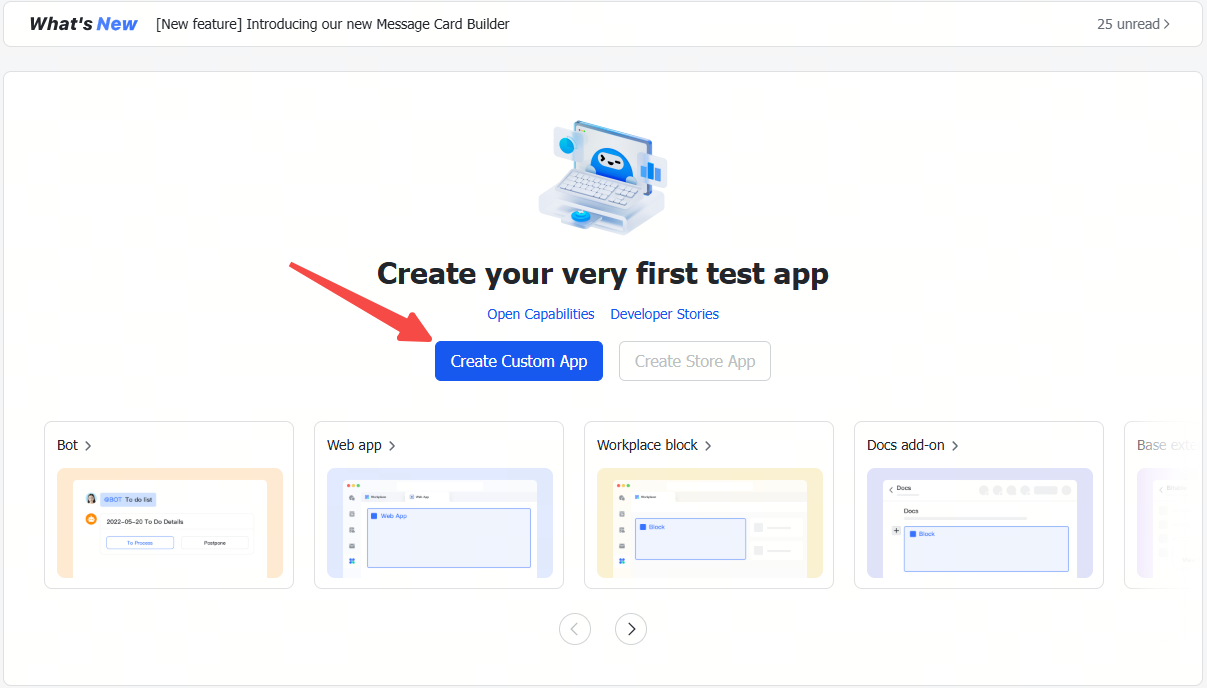
-
Fill in the application name and description, select an application icon, and click the
Createbutton.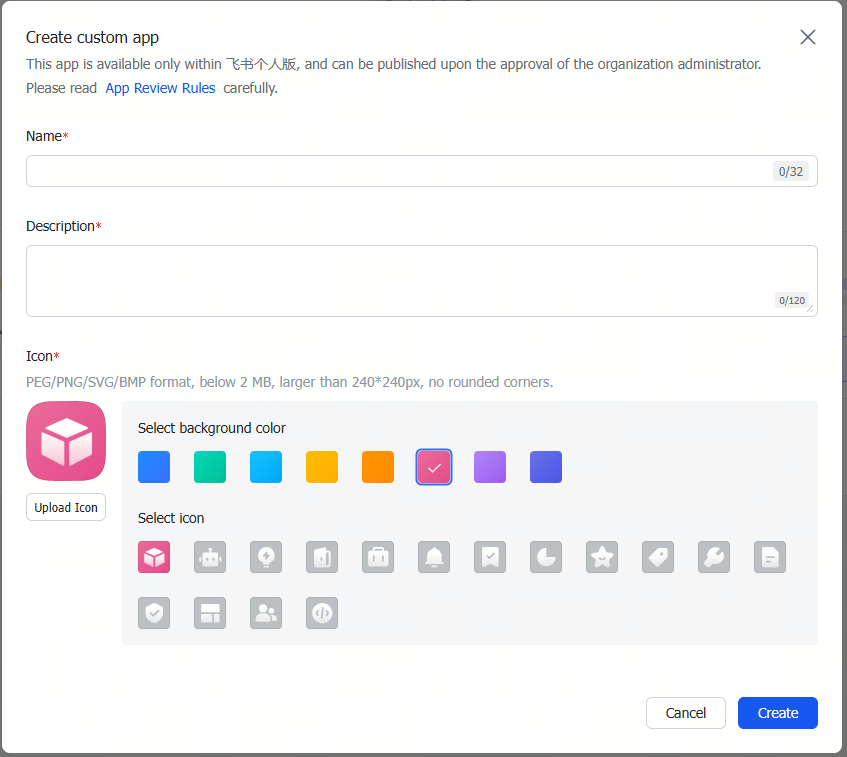
-
Click
Version Management & Release→Create a Version.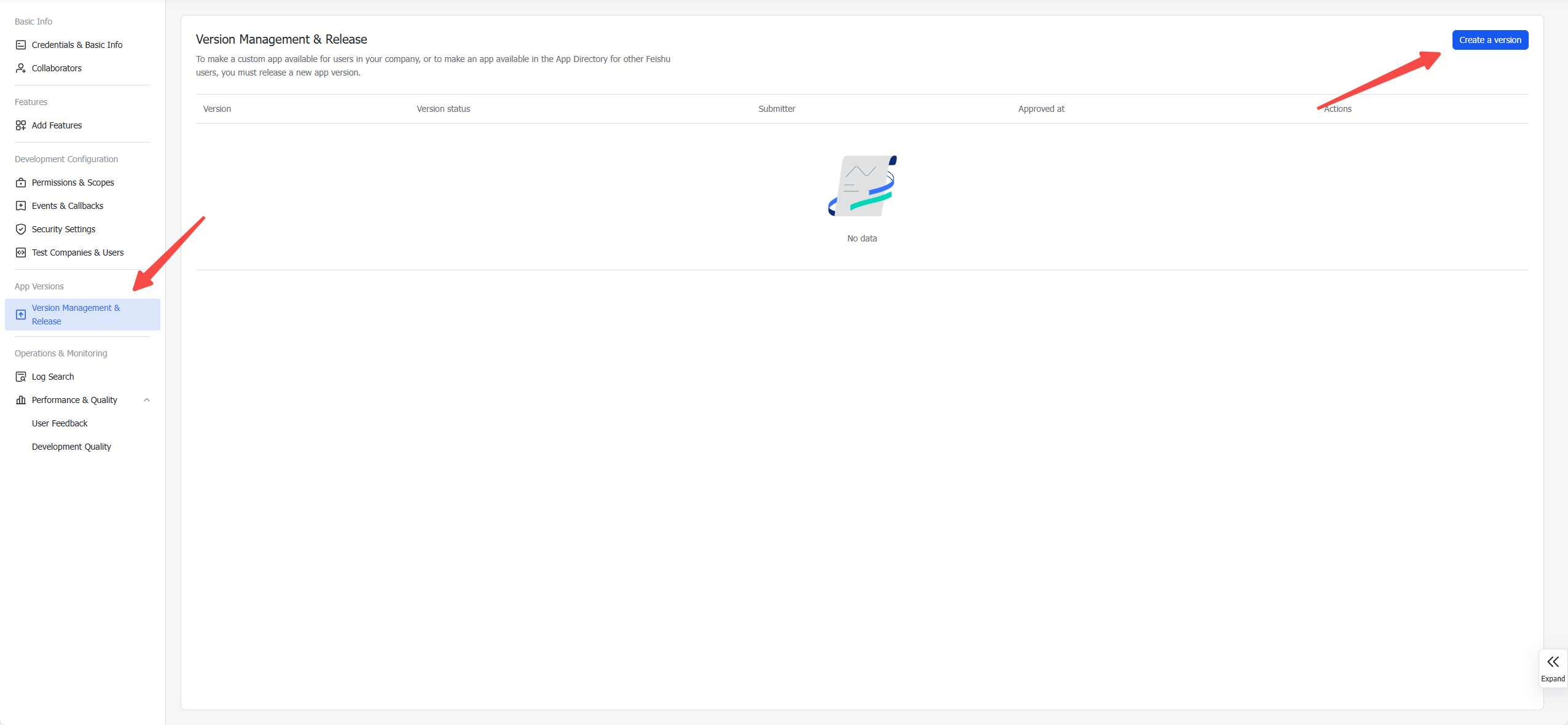
-
Fill in the version information and click the
Savebutton.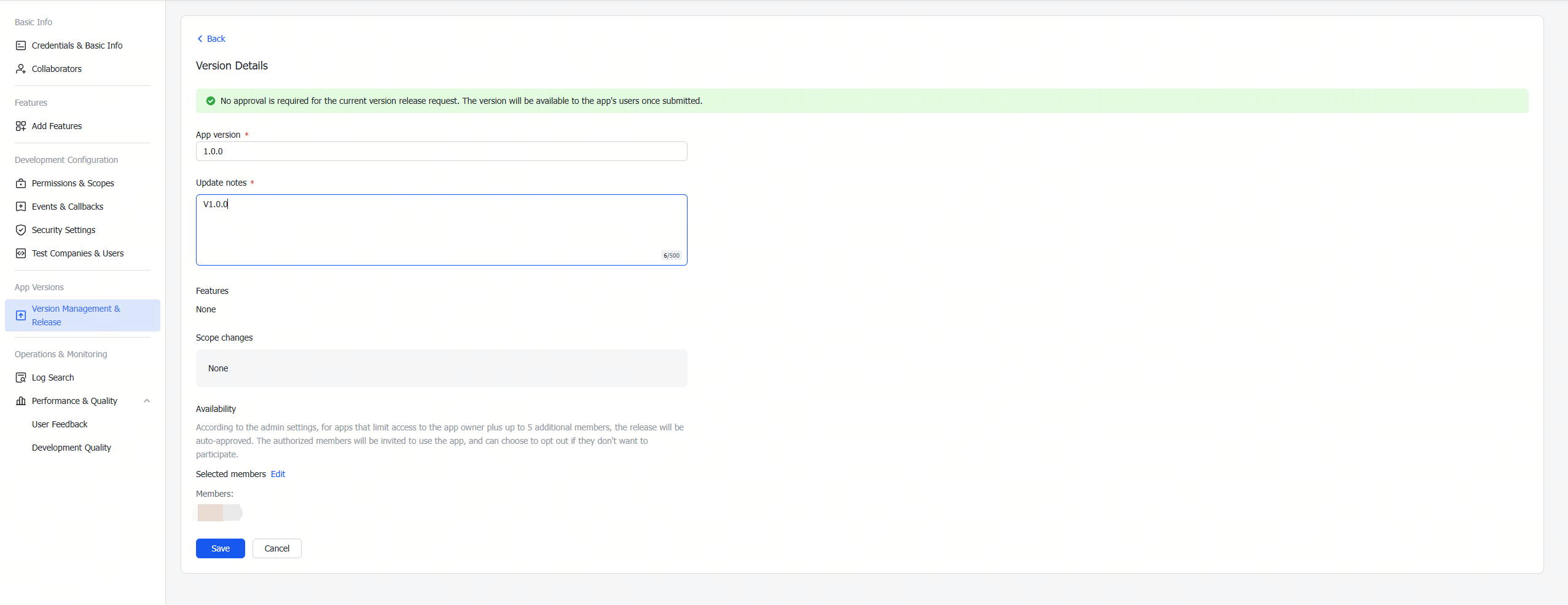
Configuring Application Permissions
-
On the
Permissions & Scopespage, click theBatch Import/export scopesbutton.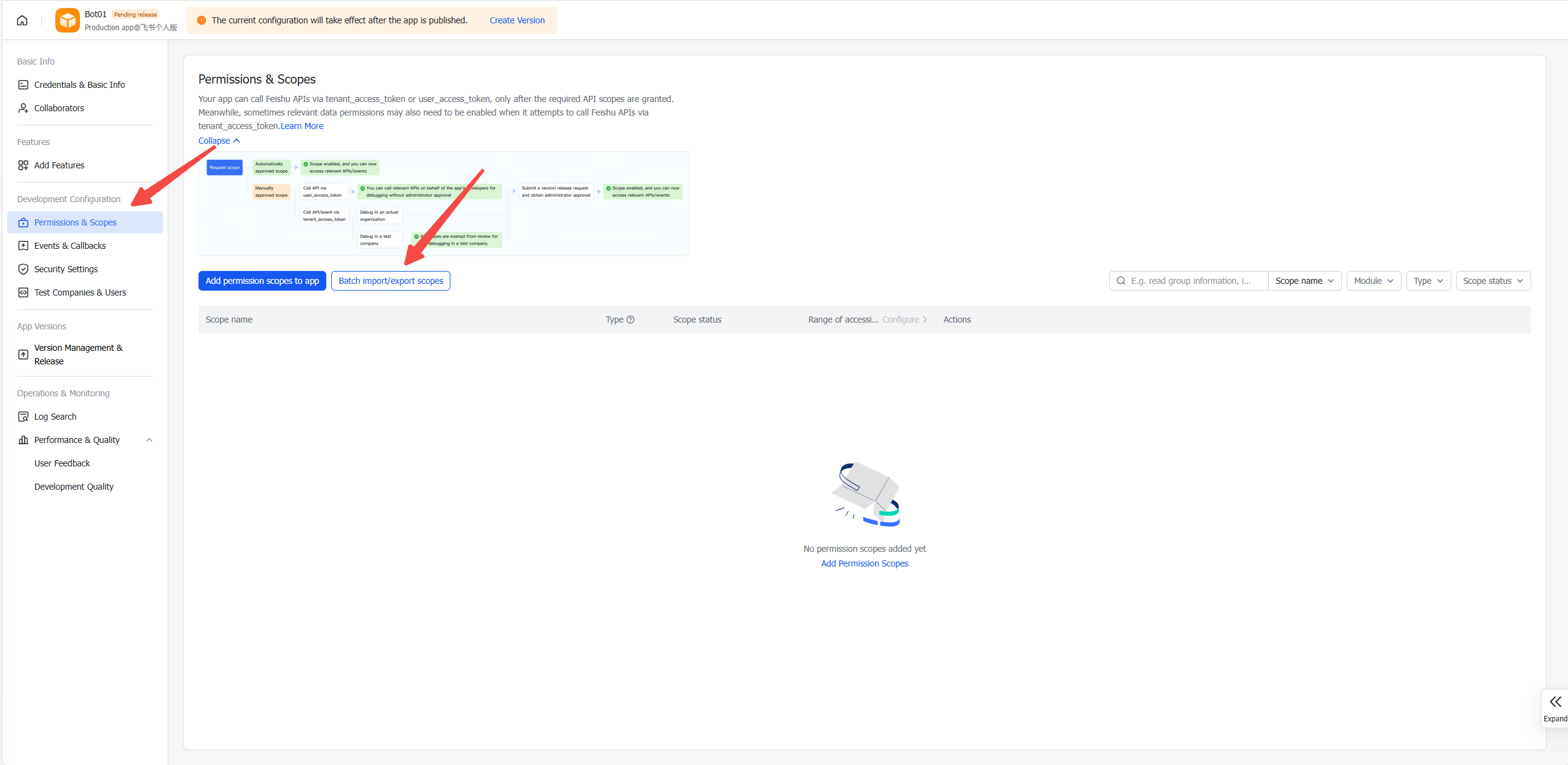
-
Paste the following JSON configuration to import the required permissions in one click:
{
  "scopes": {
    "tenant": [
      "aily:file:read",
      "aily:file:write",
      "application:application.app_message_stats.overview:readonly",
      "application:application:self_manage",
      "application:bot.menu:write",
      "cardkit:card:write",
      "contact:user.employee_id:readonly",
      "corehr:file:download",
      "docs:document.content:read",
      "event:ip_list",
      "im:chat",
      "im:chat.access_event.bot_p2p_chat:read",
      "im:chat.members:bot_access",
      "im:message",
      "im:message.group_at_msg:readonly",
      "im:message.group_msg",
      "im:message.p2p_msg:readonly",
      "im:message:readonly",
      "im:message:send_as_bot",
      "im:resource",
      "sheets:spreadsheet",
      "wiki:wiki:readonly"
    ],
    "user": ["aily:file:read", "aily:file:write", "im:chat.access_event.bot_p2p_chat:read"]
  }
} -
After importing the permissions, click
Next, Review New Scopes, then clickAdd→Confirmto enable the permissions.
Enabling Bot Capabilities
-
Go to the
Add Features > Botpage.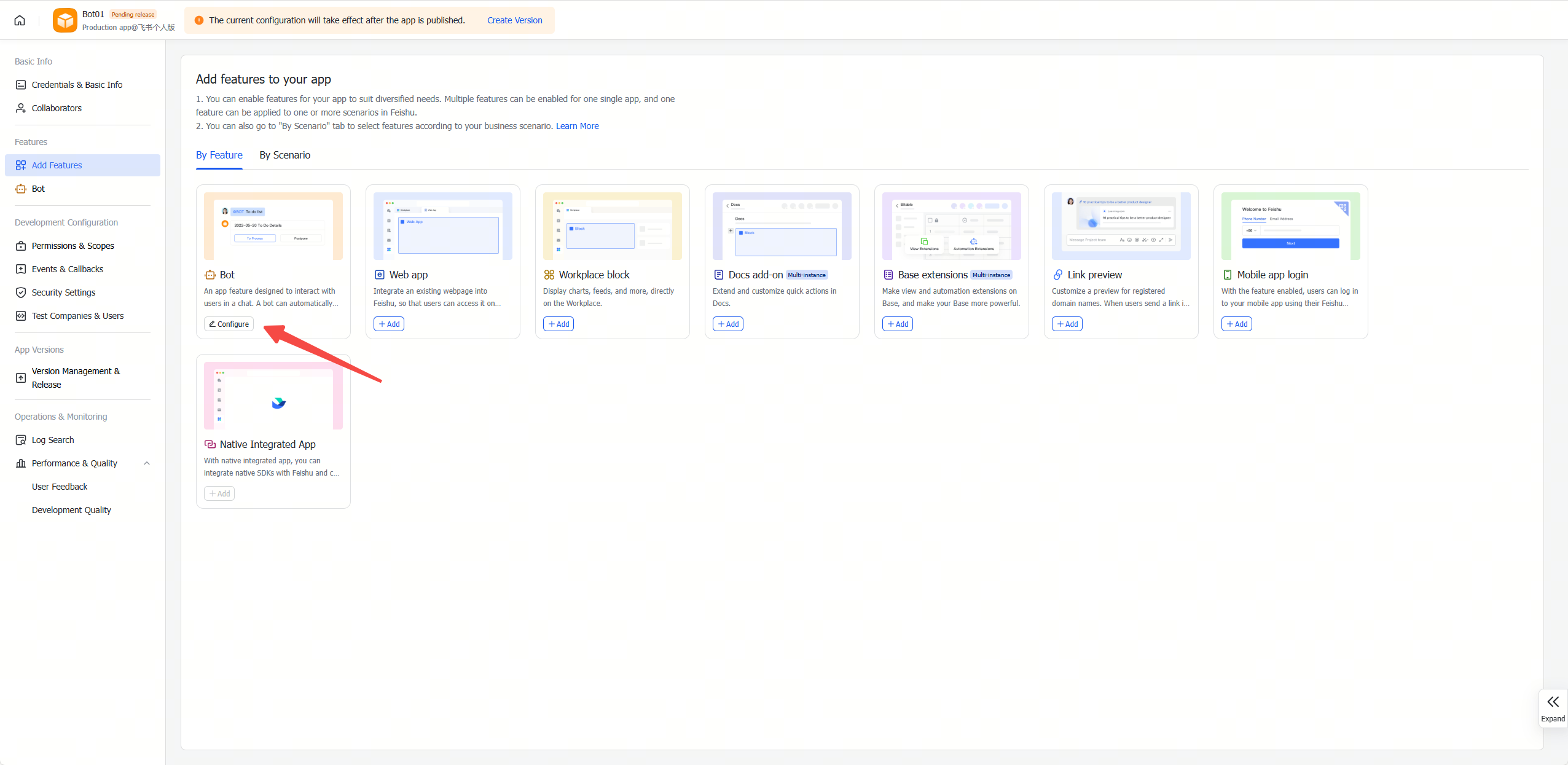
-
Enable bot capabilities, fill in the "Bot guide" information, and click the
Savebutton.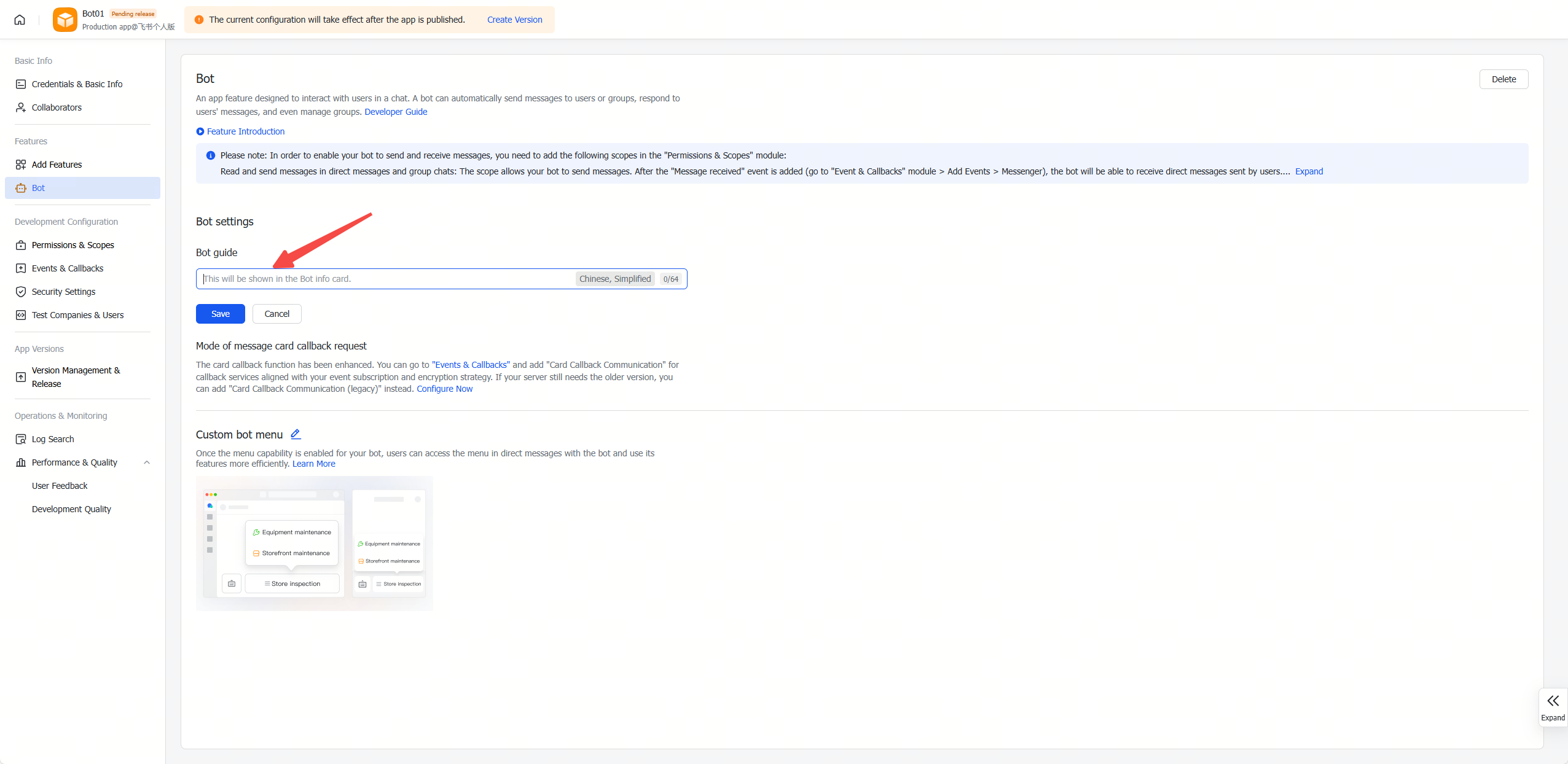
Configuring OpenClaw
Obtaining Application Credentials
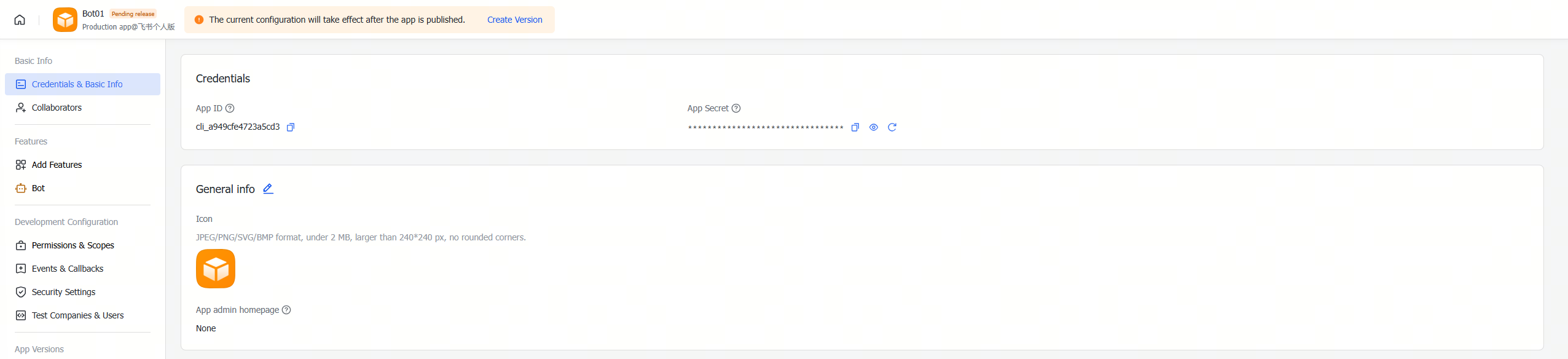
Please keep the App Secret secure and do not share it with others.
On the application's Credentials & Basic Info page, copy:
- App ID
- App Secret
Configuring Application Credentials
-
Click
Feishu Configin RDK Studio.
-
Enter the App ID and App Secret, and click the
Save Configbutton.
Configuring Event Subscriptions
If the gateway is not started or the channel is not added, the long connection settings will fail to save.
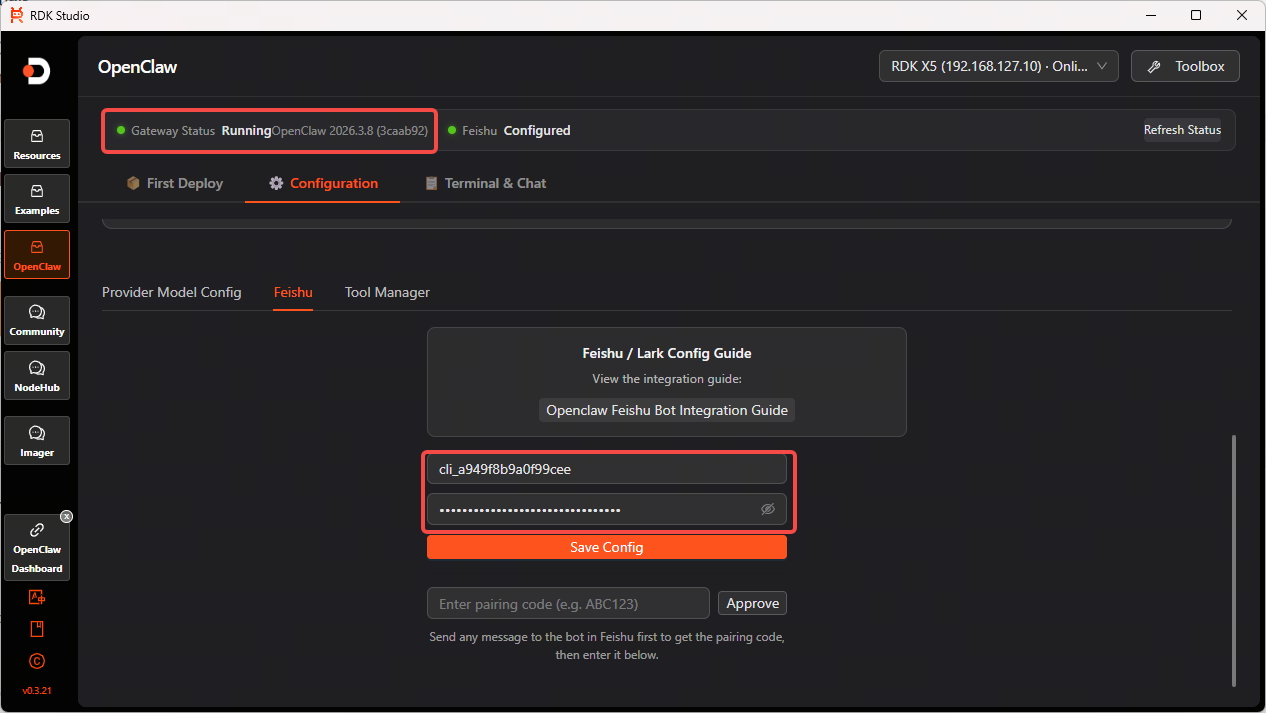
-
On the
Events & Callbackspage, under the Event Configuration tab, selectReceive events through persistent connectionand click theSavebutton.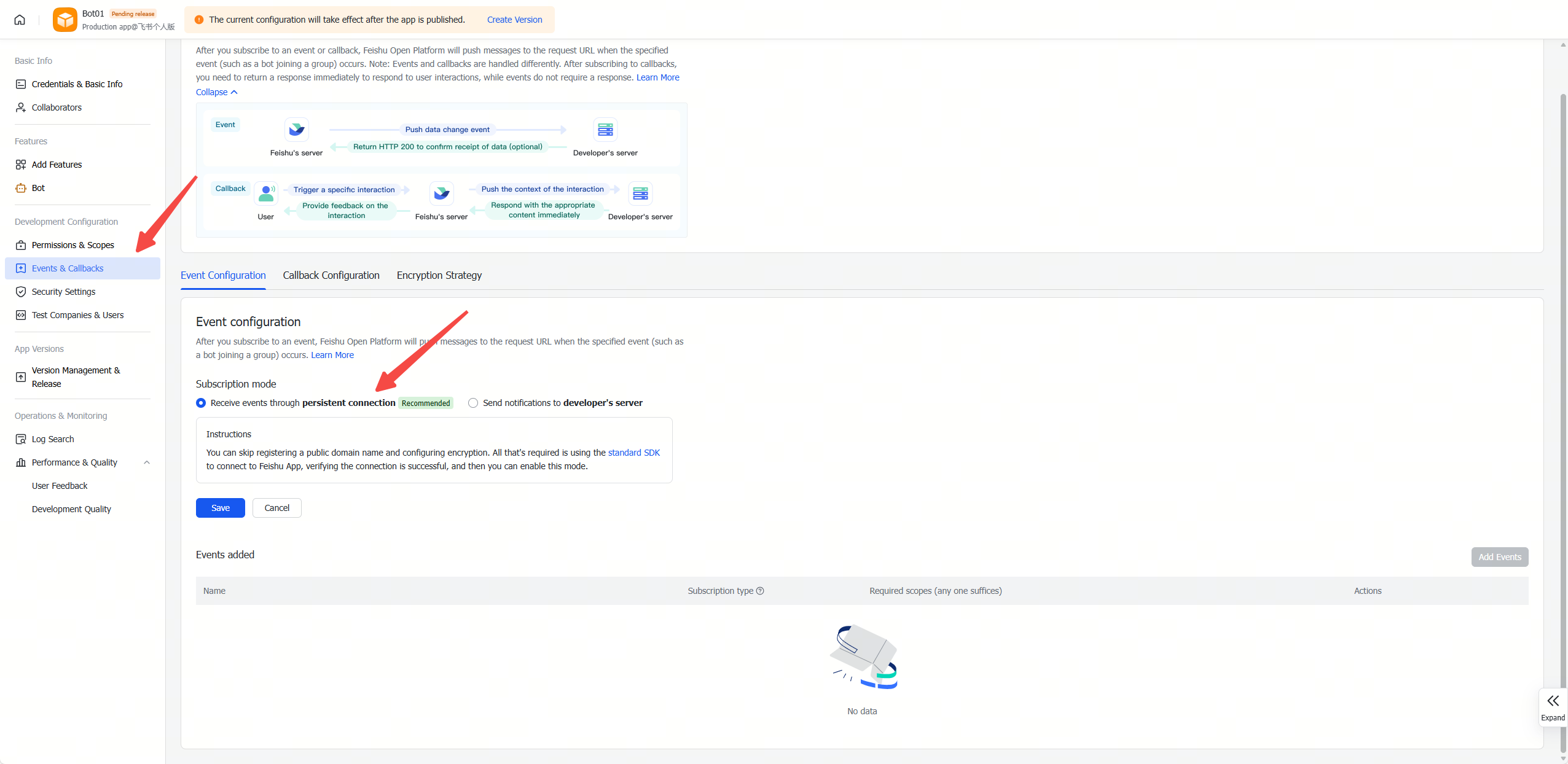
-
Click the
Add Eventsbutton, enterim.message.receive_v1in the search box to search for the message reception event, check it, and click theAddbutton.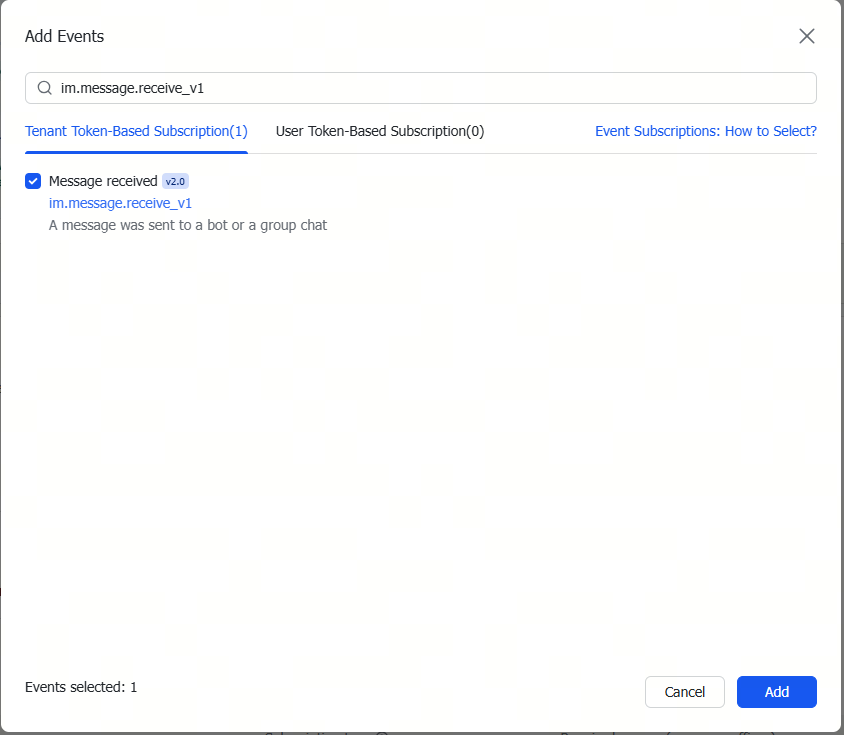
-
The added event will appear in the
Added Eventslist.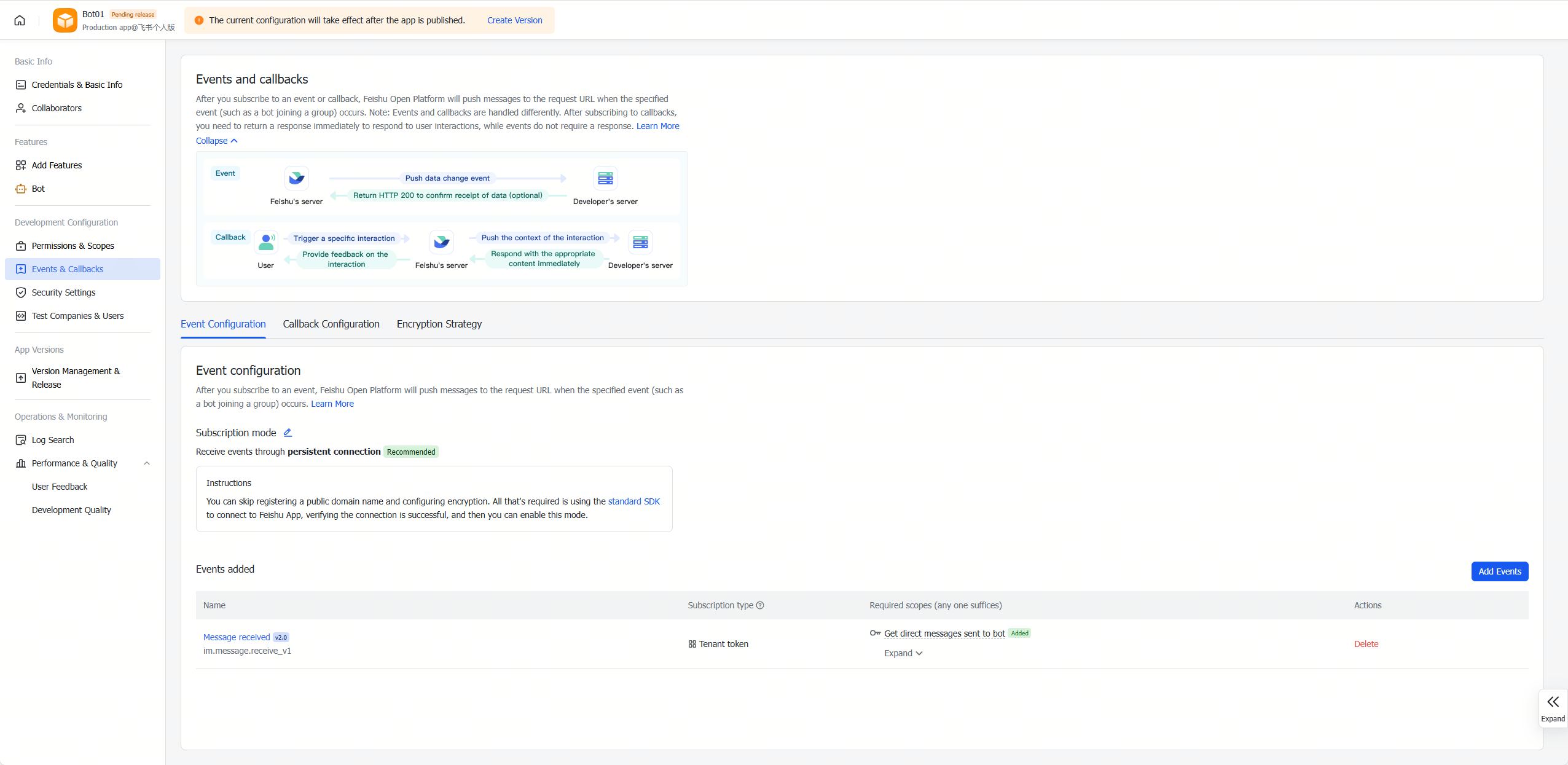
Publishing the Application
-
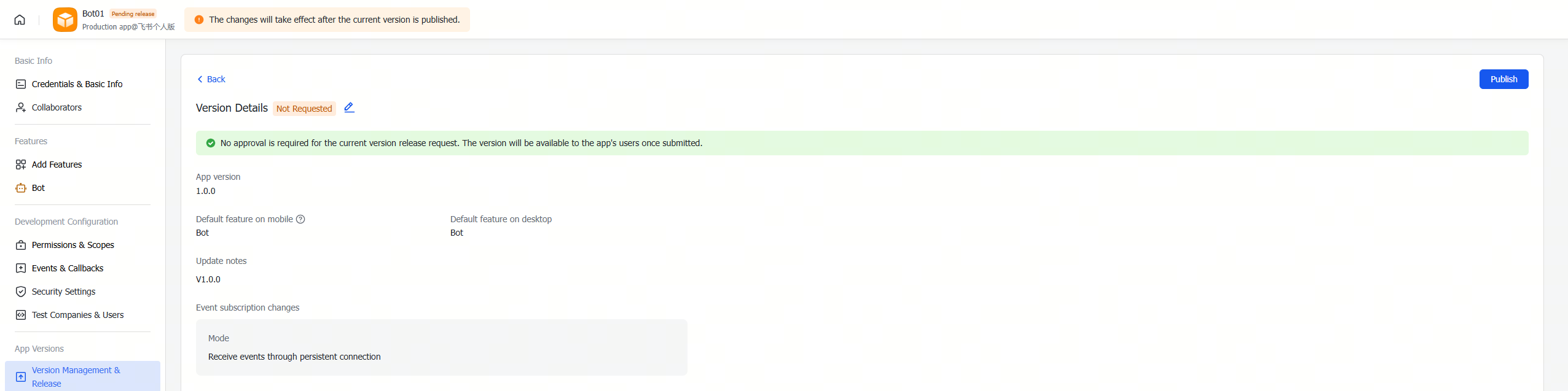
On the
Version Management & Releasepage, open the previously created version and clickPublish. -
Wait for administrator approval. Enterprise self-built applications are usually approved automatically.
Pairing Authorization
-
Send any message to the bot in Feishu. By default, the bot will reply with a pairing code.
-
Click
Feishu Configin RDK Studio, enter the pairing code, and click theApprovebutton.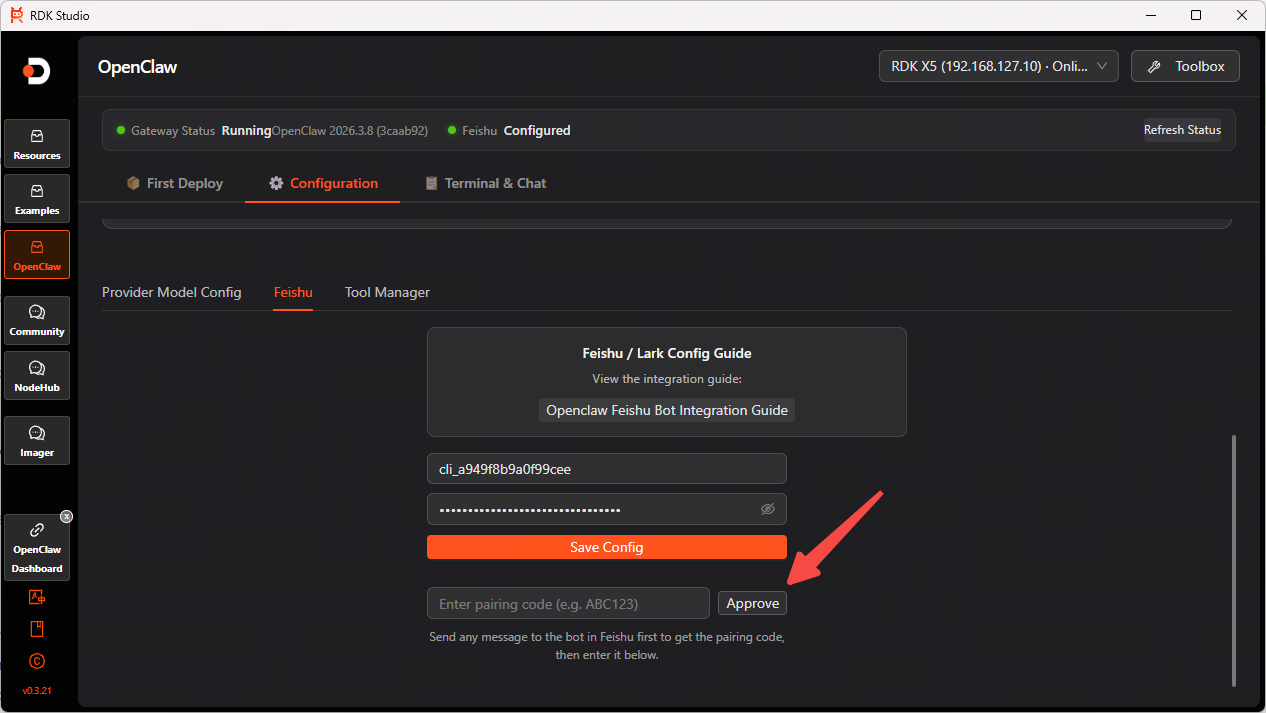
-
Wait for the prompt indicating that Feishu pairing is complete. Once paired, restart and you can communicate via Feishu.