Flashing Steps on Windows Platform
Hardware Connection
Use a Type-C data cable to connect the USB port of the PC to the Type-C port of the development board.
Please ensure that the Type-C data cable is of high quality to guarantee the stability of the burning process.
- It should have a shielding layer.
- The shorter the length, the better.
- It should have high data transmission quality.
Driver Download and Installation
Before using the flashing tool, Windows users need to confirm whether the driver has been installed.
USB Driver Download and Installation
Download the USB driver (you can click here to download)
Download the sunrise5_winusb.zip compressed package and proceed with the driver installation. The steps are as follows:
- Unzip
sunrise5_winusb.zip. - Navigate to the
sunrise5_winusbfolder, right-click oninstall_driver.bat, and select "Run as administrator."
Verify Driver Installation
-
Connect the serial port. For the first connection, you need to install the CH340 serial port driver. The driver can be obtained from the Tool Download section in the resource summary.
-
After the driver is installed, the Device Manager will correctly recognize the serial port board, as shown in the figure below:

-
Download the remote connection tool Mobaxterm.
-
Open the
MobaXtermtool, clickSession, then selectSerial. Configure the port number, for example,COM3. The actual serial port number used should match the one recognized by the PC. After completing the settings, clickOK.The serial port configuration parameters are as follows:
Configuration Item Value Baud rate 921600 Data bits 8 Parity None Stop bits 1 Flow Control None 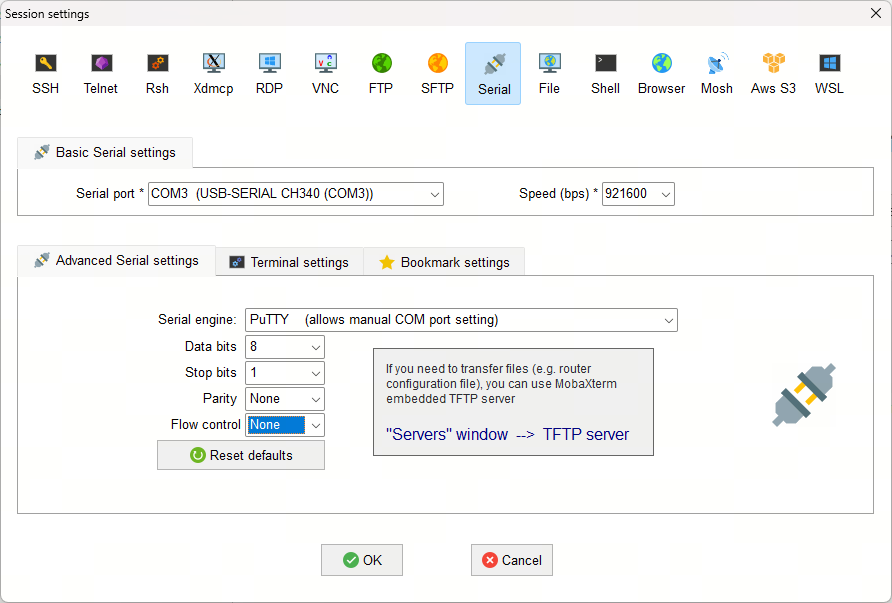
-
After powering on the development board, immediately press and hold the space bar to enter the uboot command line mode. Type
fastboot 0to make the development board enter fastboot mode: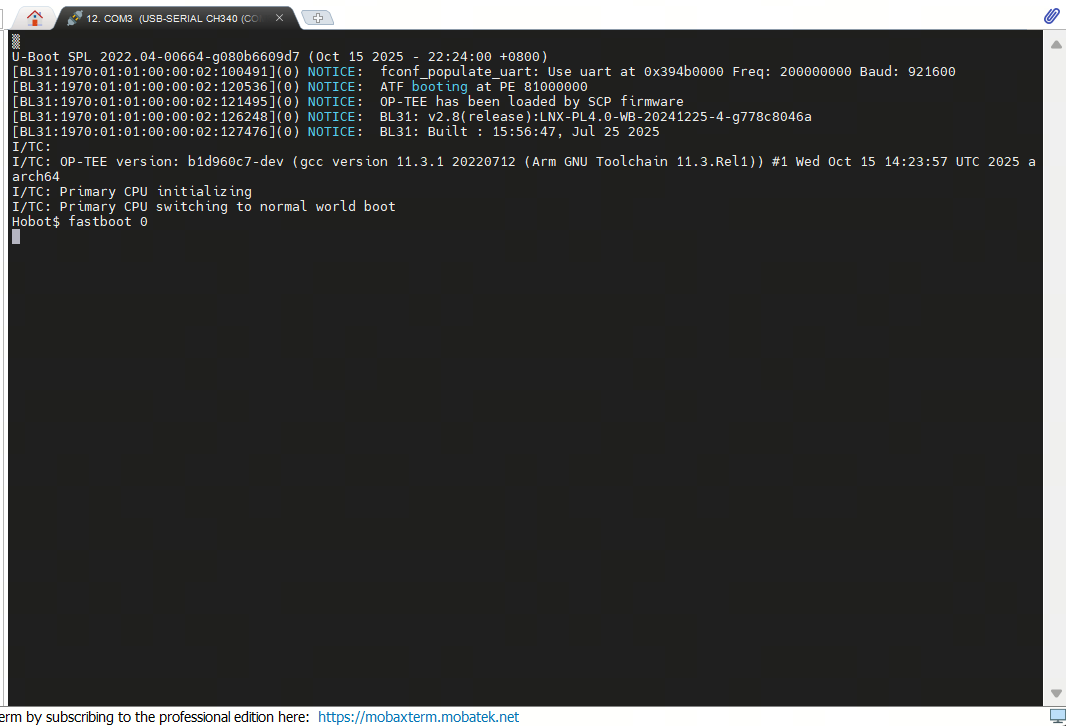
-
After successfully installing the driver, the Device Manager will show an Android Device, as shown below:
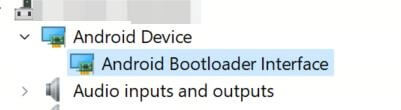
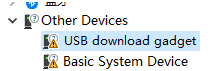
If the driver installation is unsuccessful, the Device Manager will indicate an unknown device named USB download gadget, as shown below:
System Flashing
Full Image Flashing
DFU-Fastboot Flashing
- Currently, you need to set the SW3 switch to [Boot from onboard eMMC]; booting from an M.2 NVMe SSD is not supported at this time.
- The Xburn tool on Windows PC can only be used after successfully installing the driver. Please ensure the driver is installed successfully before use.
Put the RDK S100 into DFU Boot Mode
- Set the SW1 switch to ↑ and turn off the power.
- Set the SW2 switch to ↑ to enter Download mode.
- Set the SW1 switch to ▽ and turn on the power.
- If the
DOWNLOADLED lights up, the board is in DFU mode. Otherwise, pressK1to reset the system.
Flashing with Xburn
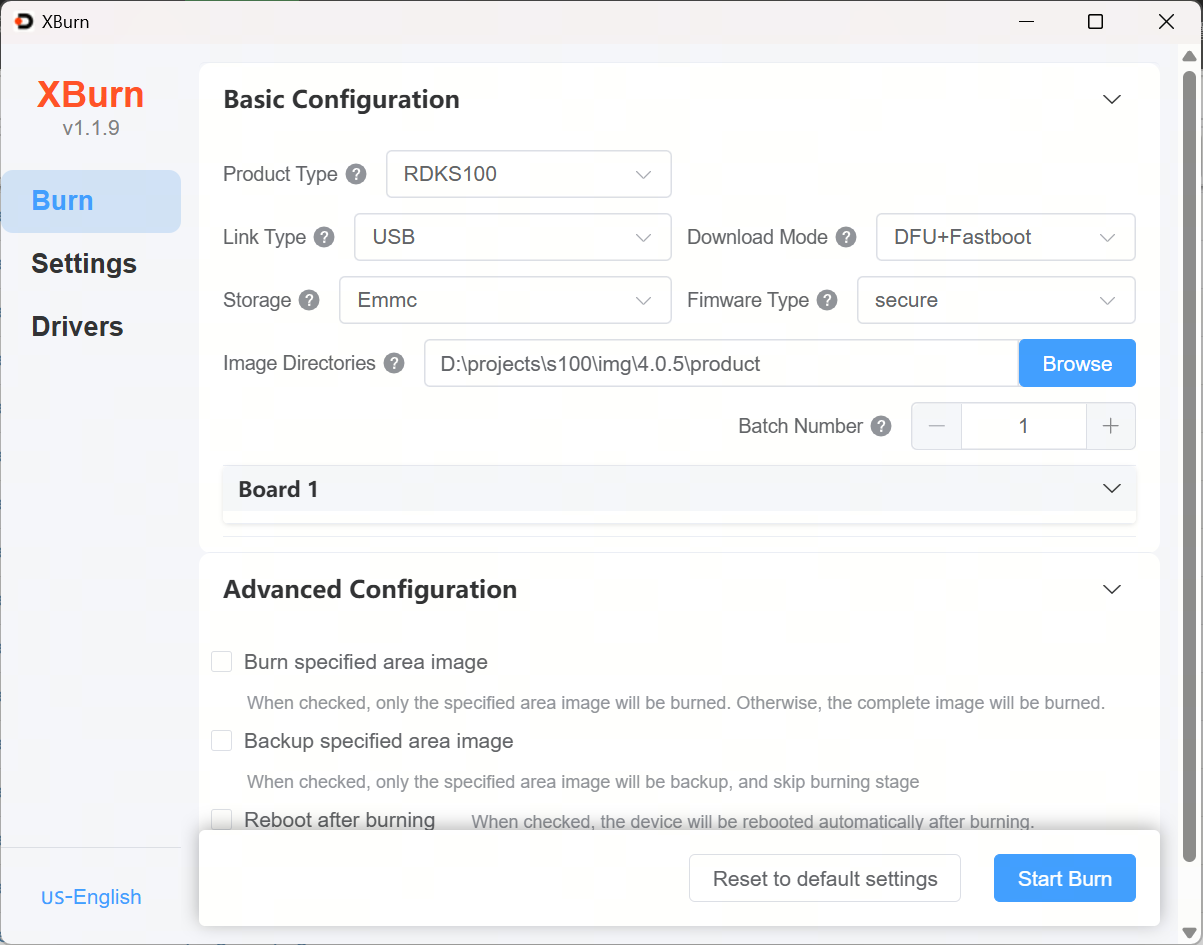
Configuration method is as follows:
-
Select Product Model:
RDKS100 -
Connection Mode:
usb, Download Mode:DFU+Fastboot -
Storage Medium:
emmc, Firmware Type:secure -
Image Directory: Click Browse and select the product folder containing the firmware
-
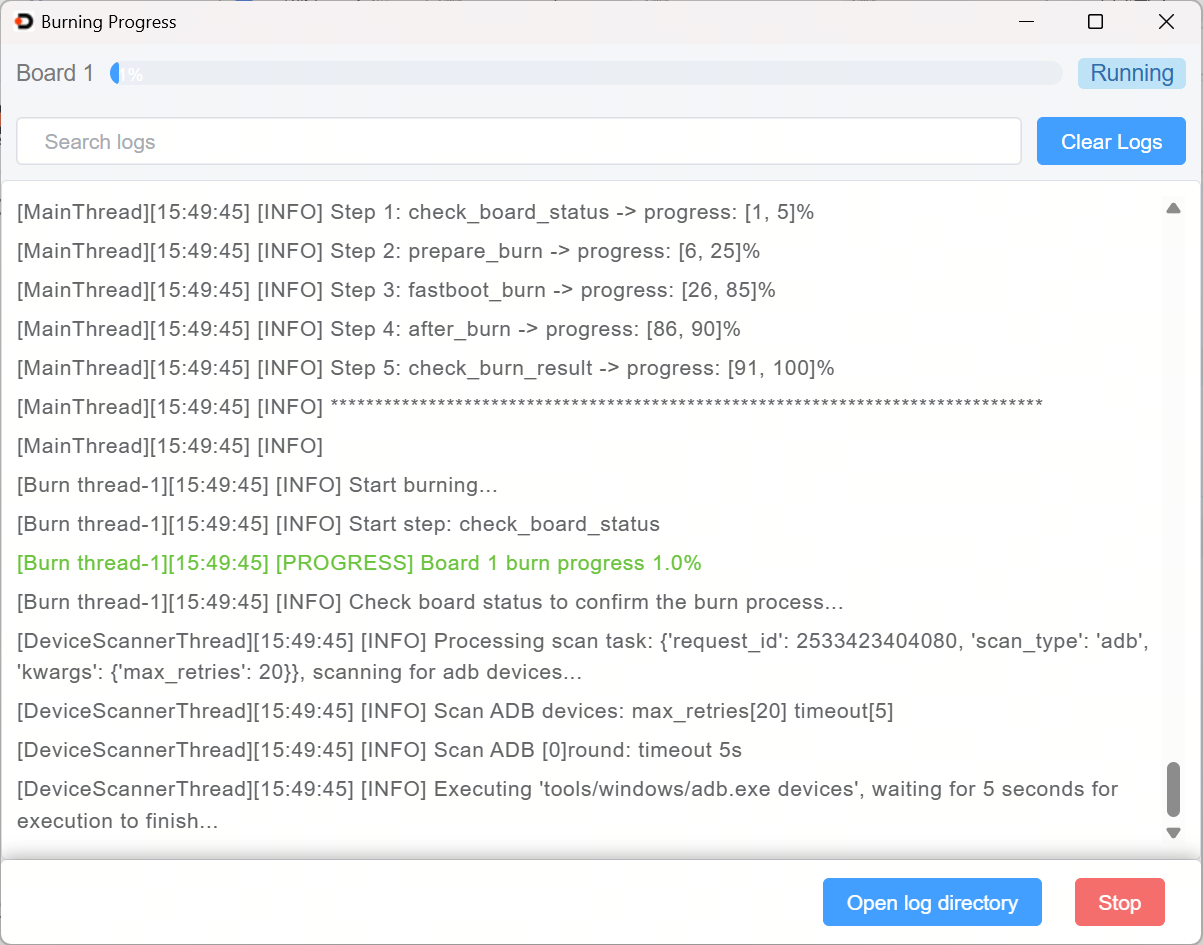
Click Start Upgrade, power on the device, and wait for the upgrade to complete
-
After the upgrade is complete, turn off the power, flip the flashing switch downward (to exit DFU mode), and then power on again.
Fastboot Flashing
- Fastboot uses the normal boot mode.
- Ensure the system U-boot starts normally and enters Fastboot.
Put the RDK S100 into Fastboot Mode
There are two ways to enter Fastboot:
- Enter Fastboot automatically: After the system starts, an ADB device is generated. Xburn detects the ADB device and sends a command to the board to enter Fastboot.
- Enter Fastboot manually: After the board starts and enters uboot, enter
fastboot 0to enter Fastboot.
Flashing with Xburn in Fastboot Mode
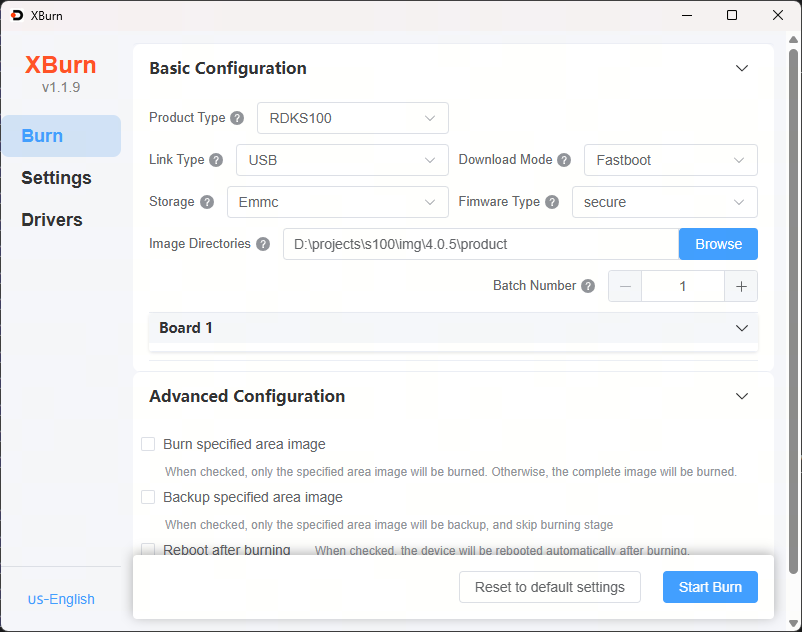
Configuration method is as follows:
-
Select Product Model:
RDKS100 -
Connection Mode:
usb, Download Mode:Fastboot -
Storage Medium:
emmc, Type:secure -
Image Directory: Click Browse and select the product folder containing the firmware
-
Click Start Upgrade, the device will enter Fastboot mode and wait for the upgrade to complete
-
After the upgrade is complete, power on again.
Flashing Specific Partitions
Partition Flashing Description
The RDK S100 supports flashing specific partitions via Xburn. The supported partitions are as follows:
| Partition | Storage Medium | ||
|---|---|---|---|
| miniboot_flash | Norflash | Basic boot images on Norflash, including images for system components like HSM/MCU0 etc. | img_packages/disk/miniboot_flash.img |
| miniboot_emmc | eMMC | Basic boot images on eMMC, including images for system components like BL31/Uboot etc. | img_packages/disk/miniboot_emmc.img |
| emmc | eMMC | Full eMMC image, already includes miniboot_emmc | img_packages/disk/emmc_disk.img |
Flashing Specific Partitions with Xburn
Example: Flashing miniboot_flash and miniboot_emmc specifically.
Configuration method is as follows:
-
Select Product Model:
RDKS100 -
Connection Mode:
usb, Download Mode:DFU+Fastboot -
Storage Medium:
emmc, Type:secure -
Image Directory: Click Browse and select the product folder containing the firmware
-
Advanced Configuration: Check
Flash specific partitions, checkminiboot_flashandminiboot_emmc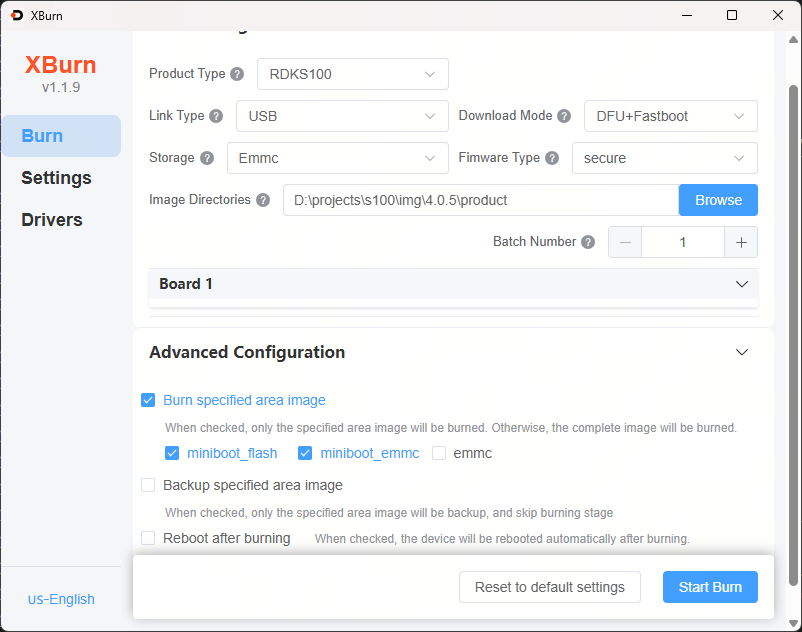
-
Click Start Upgrade, power on the device, and wait for the upgrade to complete
Backing Up Specific Partitions
Backup Partition Description
The RDK S100 supports backing up specific partitions via Xburn. The supported backup partitions are as follows:
| Partition | Storage Medium | ||
|---|---|---|---|
| miniboot_flash | Norflash | Full Norflash image | img_packages/disk/miniboot_flash_backup.img |
| emmc | eMMC | Full eMMC image | img_packages/disk/emmc_disk_backup.img |
Backing Up Specific Partitions with Xburn
Take the specified backup miniboot_flash as an example.
Configuration method is as follows:
-
Select Product Model:
RDKS100 -
Connection Mode:
usb, Download Mode:DFU+Fastboot -
Storage Medium:
emmc, Type:secure -
Image Directory: Click Browse and select the product folder where the backup image should be saved
-
Advanced Configuration: Check
Backup specific partitions, checkminiboot_flash
-
Click Start Upgrade, power on the device, and wait for the operation to complete
-
After the operation is complete, open
img_packages/disk/and check for the backup image fileminiboot_flash_backup.img.
- Backing up the entire storage medium data takes a long time. Please wait patiently for the backup to finish.
- The backup image format is
.img. When burning, you need to select a file in.simgformat; simply replace the.imgextension of the backup image file with.simg.
Starting the System
First, ensure the development board is powered off. Connect the development board to the monitor using an HDMI cable. Finally, power on the development board.
During the first system startup, default environment configuration will be performed. This process lasts about 45 seconds. After the configuration is complete, the Ubuntu system desktop will be displayed on the monitor.
- Green Indicator: Illuminated indicates normal hardware power-on.
If there is no display output for a long time after powering on (more than 2 minutes), it indicates an abnormal startup. Debugging via a serial cable is required to check the board's status.
After the Ubuntu Desktop version system has fully started, the system desktop will be output to the monitor via the Display interface, as shown below: