1.2.1.1 Flashing Instructions
- Do not hot-plug any devices other than USB, HDMI, and Ethernet cables.
- Use a power adapter from a reputable brand; otherwise, abnormal power supply may cause unexpected system shutdowns.
- It is recommended to use the onboard POWER ON/OFF button to power the motherboard on and off, and to plug or unplug the DC connector only when the adapter is disconnected from the power source.
Flashing Modes
The full system image flashing process supports two modes: dfu-fastboot and fastboot. These can be selected in the Download Mode option on the Xburn tool interface. The differences between the two modes are as follows:
| Download Mode | Connection Type | ||
|---|---|---|---|
| DFU+Fastboot | USB | Special cases such as a blank board or system corruption causing the device to become bricked | The startup mode must be set to enter the dfu state |
| Fastboot | USB | Updating the system on a non-blank board, covering common flashing scenarios | Requires a non-blank board state, and the system must be able to enter uboot mode |
Flashing Tool
The RDK S100 development kit can use the PC-side tool Xburn to flash the Ubuntu system.
- Supported Platforms: Windows, macOS, Linux
- Can perform the following firmware update operations:
- Full system image flashing
- Flashing specific partitions
- Backing up specific partitions
Flashing Tool Interface Description
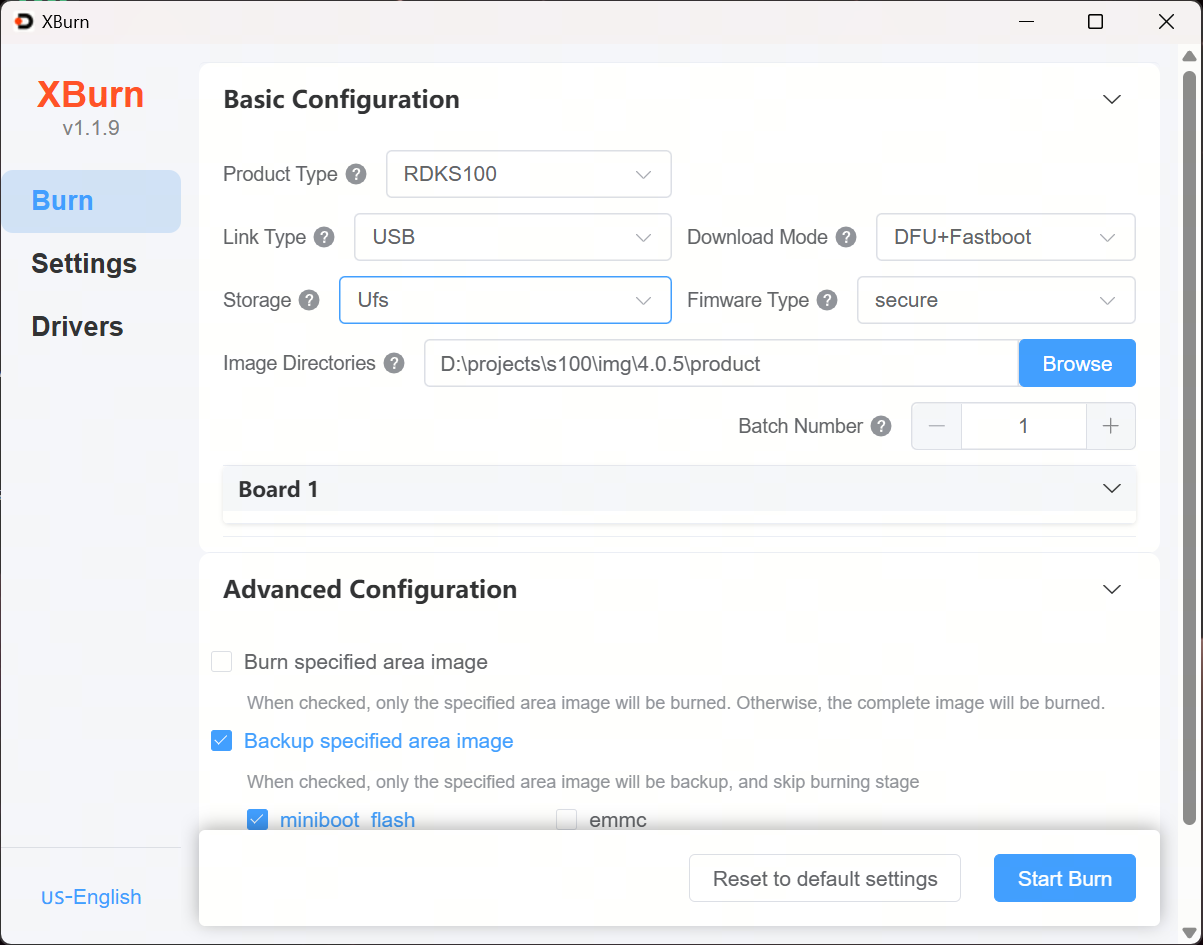
-
Product Type: Please select the product type corresponding to the device you want to flash.
- Each product type corresponds to a specific hardware model or configuration (e.g., X5, RDKS100, etc.).
- Ensure you select the option matching your device's actual model to guarantee firmware compatibility and avoid flashing failures.
-
Connection Type: Please select the communication method between the device and the host computer. It supports Serial Port, USB, and Ethernet.
- Different connection methods can be used in combination, such as Serial Port + USB, to meet various flashing requirements.
- The choice of connection type directly affects the download mode during the flashing process.
- The protocol and operation method for each connection type may differ. Please choose the appropriate connection method based on the target device's compatibility and usage scenario.
-
Download Mode: Based on the selected device's connection type, the system will automatically match the applicable download mode. Common download modes are as follows:
- fastboot (Recommended):
- Connection Type: USB
- Suitable for non-blank board devices, enabling fast flashing. This is the fastest method.
- dfu_fastboot (Blank Board Flashing):
- Connection Type: USB
- Suitable for blank board devices for full system flashing. Requires manually setting DIP switches to put the device into DFU boot mode. This method is relatively fast.
- fastboot (Recommended):
-
Image File Directory: Please select the directory containing the image files to be flashed.