Flashing Steps on Linux Platform
Hardware Connection
Use a Type-C data cable to connect the USB port of your PC to the Type-C port of the development board.
Please ensure that the Type-C data cable is of high quality to guarantee the stability of the burning process.
- It should have a shielding layer.
- The shorter the length, the better.
- It should have high data transmission quality.
Install Required Tools
Ubuntu users can install the tools using the following commands:
sudo apt update
sudo apt install android-tools-adb android-tools-fastboot
sudo apt install dfu-util
System Flashing
Full Image Flashing
DFU-Fastboot Flashing
- Currently, you need to set the SW3 switch to [Boot from onboard eMMC]; booting from an M.2 NVMe SSD is not supported at this time.
- The Xburn tool on Windows PC requires successful driver installation before use. Ensure the driver is installed successfully before proceeding.
Put the RDK S100 into DFU boot mode
- Set the SW1 switch to ↑ and power off.
- Set the SW2 switch to ↑ to enter Download mode.
- Set the SW1 switch to ▽ and power on.
- If the
DOWNLOADLED lights up, the device is in DFU mode. Otherwise, press theK1button to reset the system.
Flashing with Xburn
Configuration steps:
-
Select Product Model:
RDKS100 -
Connection Mode:
usb, Download Mode:DFU+Fastboot -
Storage Medium:
emmc, Firmware Type:secure -
Image Directory: Click Browse and select the
productfolder containing the firmware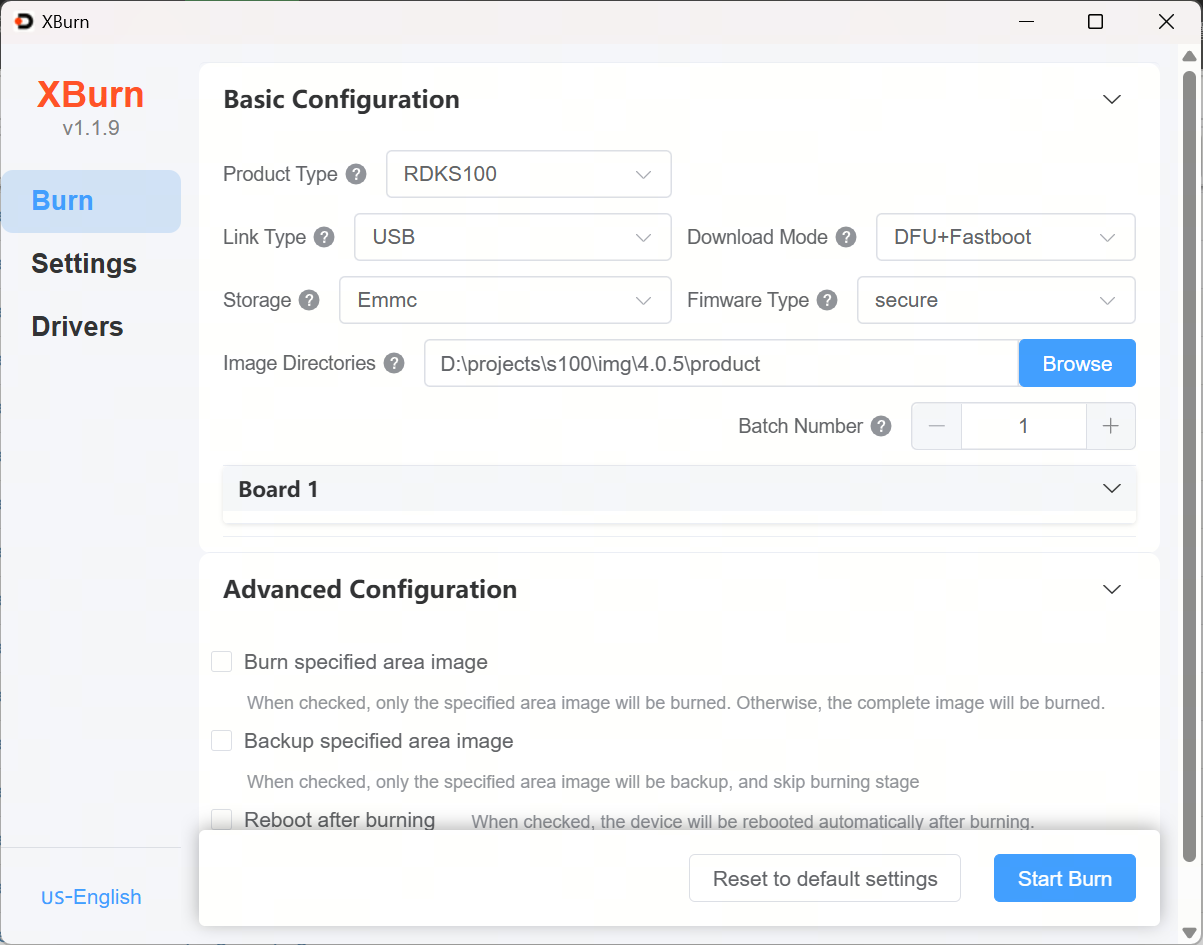
-
Click
Start Upgrade, power on the device, and wait for the process to complete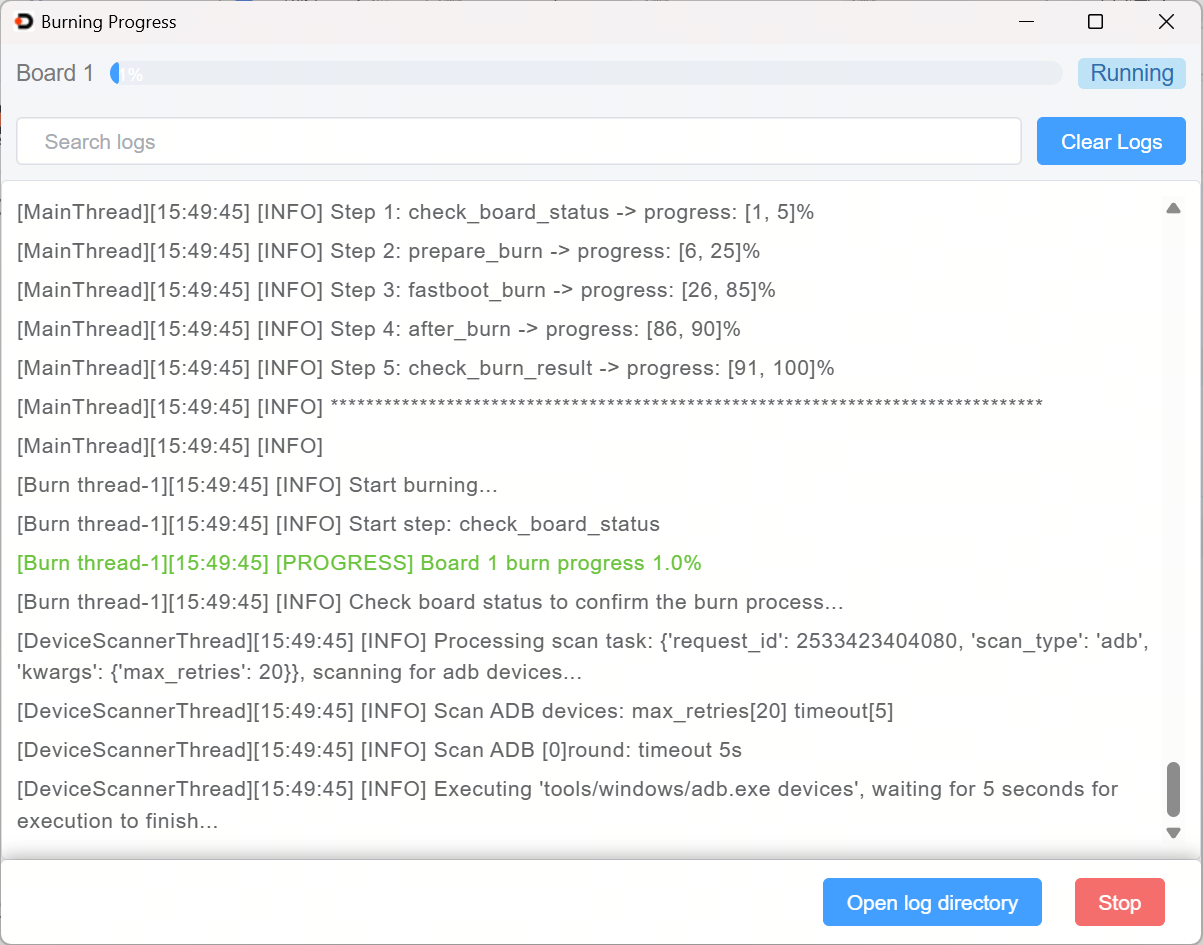
-
After the upgrade is complete, power off, set the programming switch downward (to exit DFU mode), and then power on again.
Fastboot Flashing
-
Fastboot uses the normal boot mode.
-
Ensure the system U-boot starts normally and enters Fastboot.
Put the RDK S100 into Fastboot mode
There are two ways to enter Fastboot:
- Automatic entry: An ADB device is automatically generated after system boot. Xburn detects the ADB device and sends a command to put the board into Fastboot.
- Manual entry: After the board boots into U-boot, enter
fastboot 0to enter Fastboot.
Flashing with Xburn using Fastboot
Configuration steps:
-
Select Product Model:
RDKS100 -
Connection Mode:
usb, Download Mode:Fastboot -
Storage Medium:
emmc, Type:secure -
Image Directory: Click Browse and select the
productfolder containing the firmware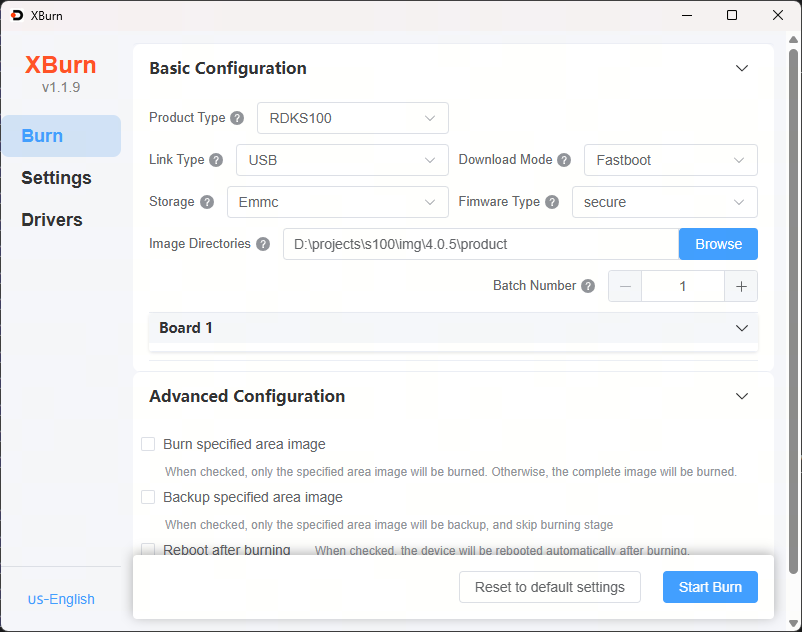
-
Click
Start Upgrade. The device will enter Fastboot mode. Wait for the process to complete. -
Power cycle the device after the upgrade is complete.
Flashing Specific Partitions
Partition Description
The RDK S100 supports flashing specific partitions via Xburn. The supported partitions are as follows:
| Partition | Storage Medium | Firmware Content | Image Path |
|---|---|---|---|
| miniboot_flash | Norflash | Basic boot images on Norflash, including images for HSM, MCU0, etc. | img_packages/disk/miniboot_flash.img |
| miniboot_emmc | eMMC | Basic boot images on eMMC, including images for BL31, Uboot, etc. | img_packages/disk/miniboot_emmc.img |
| emmc | eMMC | Complete eMMC image, already includes miniboot_emmc | img_packages/disk/emmc_disk.img |
Flashing Specific Partitions with Xburn
Example: Flashing miniboot_flash and miniboot_emmc only.
Configuration steps:
-
Select Product Model:
RDKS100 -
Connection Mode:
usb, Download Mode:DFU+Fastboot -
Storage Medium:
emmc, Type:secure -
Image Directory: Click Browse and select the
productfolder containing the firmware -
Advanced Settings: Check
Flash specified partitions, then checkminiboot_flashandminiboot_emmc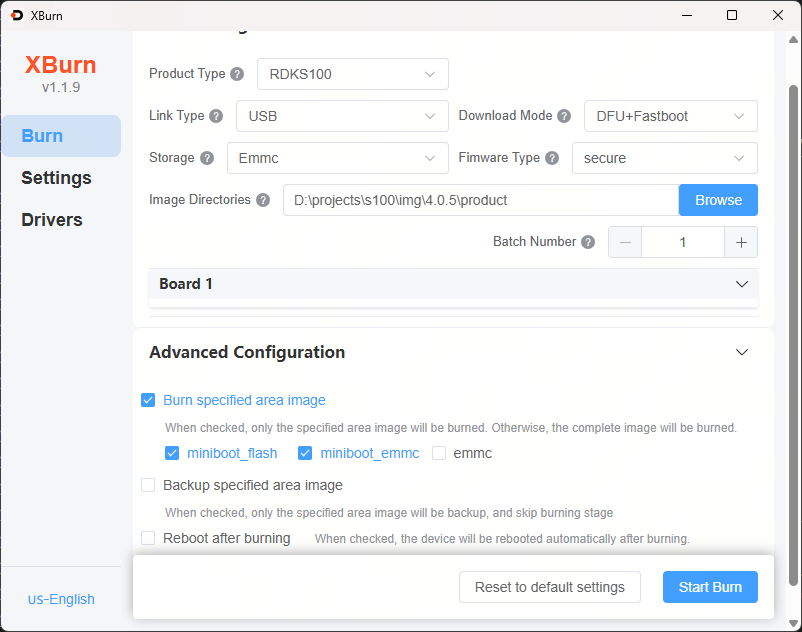
-
Click
Start Upgrade, power on the device, and wait for the process to complete.
Backing Up Specific Partitions
Backup Partition Description
The RDK S100 supports backing up specific partitions via Xburn. The supported backup partitions are as follows:
| Partition | Storage Medium | Firmware Content | Backup Image Path |
|---|---|---|---|
| miniboot_flash | Norflash | Complete Norflash image | img_packages/disk/miniboot_flash_backup.img |
| emmc | eMMC | Complete eMMC image | img_packages/disk/emmc_disk_backup.img |
Backing Up Specific Partitions with Xburn
Take the specified backup miniboot_flash as an example.
Configuration steps:
-
Select Product Model:
RDKS100 -
Connection Mode:
usb, Download Mode:DFU+Fastboot -
Storage Medium:
emmc, Type:secure -
Image Directory: Click Browse and select the
productfolder where the backup image will be saved -
Advanced Settings: Check
Backup specified partitions, then checkminiboot_flash
-
Click
Start Upgrade, power on the device, and wait for the operation to complete. -
After completion, navigate to the
img_packages/disk/folder to view the backup image fileminiboot_flash_backup.img.
- Backing up the entire storage medium data can be time-consuming. Please wait patiently for the backup to finish.
- The backup image format is
.img. When burning, you need to select a file in.simgformat; simply replace the.imgextension of the backup image file with.simg.
Booting the System
First, ensure the development board is powered off. Connect the board to a monitor using an HDMI cable. Finally, power on the development board.
During the first boot, the system will perform default environment configuration. This process takes about 45 seconds. Once completed, the Ubuntu system desktop will be displayed on the monitor.
- Green LED: Illuminated indicates normal hardware power-on.
If there is no display output for an extended period (over 2 minutes) after powering on, it indicates a boot failure. You will need to debug using a serial cable to check the board's status.
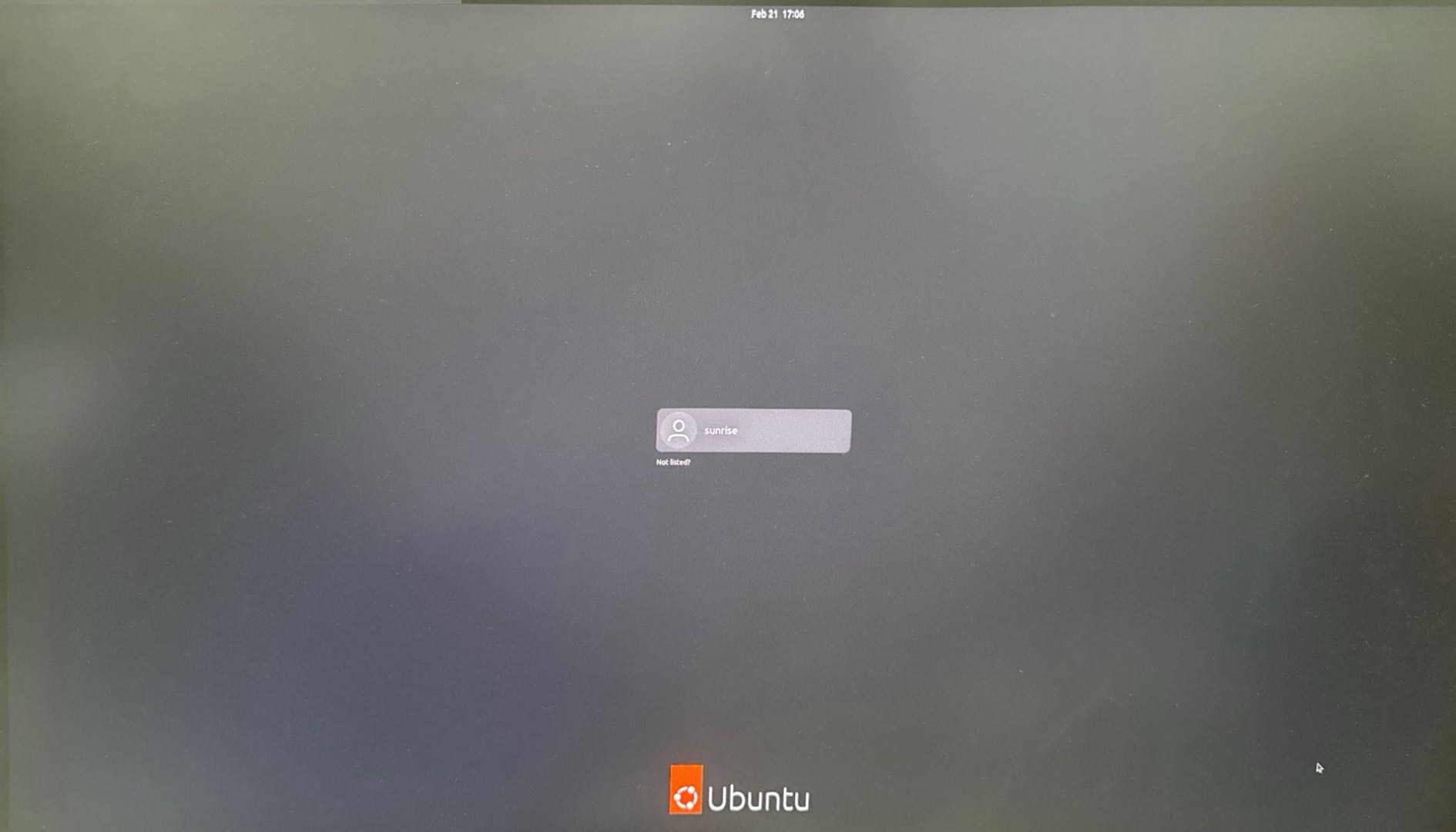
After the Ubuntu Desktop system boots successfully, the system desktop will be displayed on the monitor via the Display interface, as shown below: