Object Tracking & Segmentation (EdgeTAM)
Feature Introduction
EdgeTAM (Edge Track Anything Model) is an on-device tracking and segmentation application based on Facebook Research's EdgeTAM model, deployed on RDK platforms. It enables continuous tracking and segmentation of arbitrary objects in a video stream using point prompts or box prompts.
mono_edgetam consists of two sub-projects:
- mono_edgetam_prompt: Handles prompt initialization — performs model inference with input images and point/box prompts, generates and saves memory feature files for downstream use.
- mono_edgetam_track: Handles continuous tracking and segmentation — loads the feature files produced by the prompt stage and performs frame-by-frame tracking with result publishing.
Workflow: start mono_edgetam_prompt first to initialize the target, then start mono_edgetam_track to load the initialization features and begin tracking.
Code repository:
(https://github.com/D-Robotics/mono_edgetam)
Application scenarios: EdgeTAM enables continuous tracking and segmentation of arbitrary objects via point/box prompts, making it suitable for video object segmentation, interactive video editing, autonomous driving, video analysis, and intelligent interaction.
Supported Platforms
| Platform | Runtime Environment | Example Functionality |
|---|---|---|
| RDK S100, RDK S100P | Ubuntu 22.04 (Humble) | Launch MIPI/USB camera or local image replay, display results via web |
Algorithm Information
| Model | Platform | Input Size | Inference FPS |
|---|---|---|---|
| EdgeTAM Prompt | S100 | 1x1024x1024x3 | - |
| EdgeTAM Track | S100 | 1x1024x1024x3 | - |
Prerequisites
RDK Platform
- The RDK has been flashed with an Ubuntu 22.04 system image.
- TogetheROS.Bot has been successfully installed on the RDK.
- An MIPI or USB camera has been installed on the RDK. If no camera is available, you can use local JPEG image replay to experience the algorithm.
- Ensure your PC can access the RDK over the network.
Download Models and Data
# Download the prompt model
wget https://archive.d-robotics.cc/downloads/models/edgetam/s100/model_prompt_to_memory_points.hbm

# Download the track model
wget https://archive.d-robotics.cc/downloads/models/edgetam/s100/model_track_step_s7.hbm

# Download the sample dataset
wget https://archive.d-robotics.cc/downloads/models/edgetam/bedroom.tar
tar -xvf bedroom.tar
Usage Guide
EdgeTAM tracking and segmentation consists of two stages: prompt stage and track stage.
-
Prompting Stage: Before tracking object, The target embedding, a specific prompt feature must be obtained to facilitate the tracking process. This step utilizes the SAM mechanism: by providing a point or bounding box as a prompt input on the image, the system generates both the image segmentation result and the required target embedding feature. Please ensure that the target object is positioned within the area defined by the prompt point or bounding box. You can modify the point/box region settings in the Advanced Usage section located at the bottom of this document.
-
Tracking Stage: Once the 'prompt stage' is deactivated, the previously generated target embedding feature is loaded to initiate the tracking process. Note: These two nodes cannot be active simultaneously.
1. Launch mono_edgetam_prompt (Initialization Stage)
The prompt initialization node performs model inference with input images and point/box prompts, generates memory feature files, and saves them locally for the tracking node.
Publish images using an MIPI camera
- Humble
# Configure ROS2 environment
source /opt/tros/humble/setup.bash

# Set MIPI camera type
export CAM_TYPE=mipi

# Launch the launch file
ros2 launch mono_edgetam_prompt mono_edgetam_prompt.launch.py edgetam_prompt_mode:=0
Publish images using a USB camera
- Humble
# Configure ROS2 environment
source /opt/tros/humble/setup.bash

# Set USB camera type
export CAM_TYPE=usb

# Launch the launch file
ros2 launch mono_edgetam_prompt mono_edgetam_prompt.launch.py edgetam_prompt_mode:=0
Use a single replay image
- Humble
# Configure ROS2 environment
source /opt/tros/humble/setup.bash

# Set replay image mode
export CAM_TYPE=fb

# Launch the launch file
ros2 launch mono_edgetam_prompt mono_edgetam_prompt.launch.py edgetam_prompt_mode:=0
Open a web browser on your PC and navigate to http://IP:8000 to view the image and algorithm rendering results (replace "IP" with the RDK's IP address). Open the settings menu in the upper-right corner and select the "Full Image Segmentation" option to display the segmentation rendering.
Prompt initialization stage rendering:
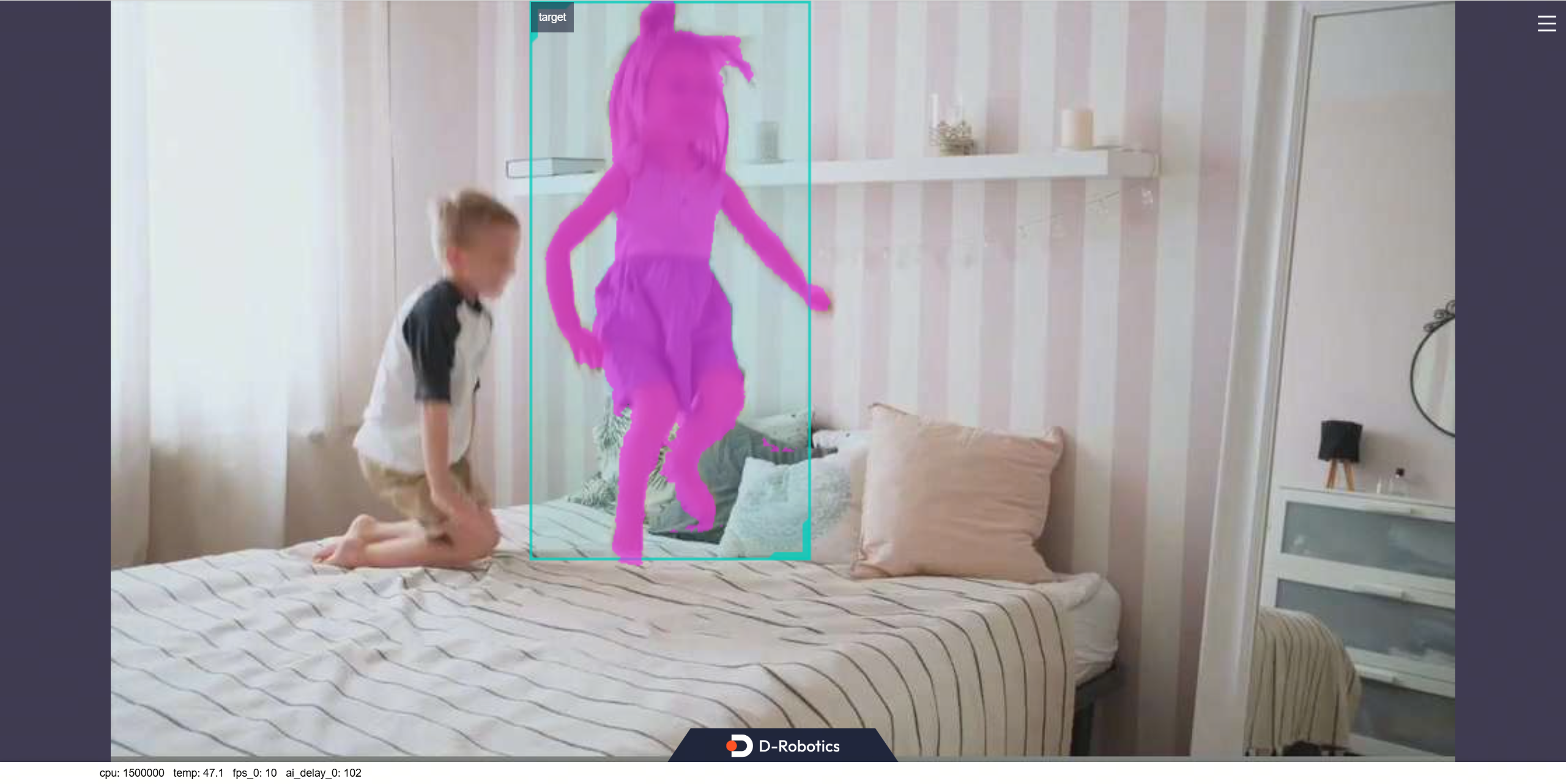
After the prompt node completes one inference cycle, it automatically saves the generated feature files to the current working directory for the tracking node to use.
How Prompt Features Are Saved
- Saving trigger: Once the node receives an image and completes inference, it writes the memory feature tensors to local files immediately. You can exit node when get best prompt feature.
- Generated files:
cond_maskmem_features.bin:mask memory feature filecond_maskmem_pos_enc.bin:memory positional encoding filecond_obj_ptr.bin:object pointer file
Note: The tracking node loads feature files from its current working directory on startup. If you switch directories between the prompt stage and the track stage, copy the generated .bin files to the track node's working directory, or run both stages in the same directory.
2. Launch mono_edgetam_track (Tracking Stage)
The tracking node loads feature files (cond_maskmem_features.bin, cond_maskmem_pos_enc.bin, cond_obj_ptr.bin) and performs continuous tracking and segmentation on the video stream.
Important: Run mono_edgetam_track in the same directory where the prompt-generated bin files reside, ensuring the track node picks up your custom features instead of the defaults.
- Humble
# Configure ROS2 environment
source /opt/tros/humble/setup.bash

# Set MIPI camera type
export CAM_TYPE=mipi

# Launch the launch file
ros2 launch mono_edgetam_track mono_edgetam_track.launch.py edgetam_is_overwrite_features:=0
Publish images using a USB camera
- Humble
# Configure ROS2 environment
source /opt/tros/humble/setup.bash

# Set USB camera type
export CAM_TYPE=usb

# Launch the launch file
ros2 launch mono_edgetam_track mono_edgetam_track.launch.py edgetam_is_overwrite_features:=0
Use a single replay image
- Humble
# Configure ROS2 environment
source /opt/tros/humble/setup.bash

# Set replay image mode
export CAM_TYPE=fb

# Launch the launch file
ros2 launch mono_edgetam_track mono_edgetam_track.launch.py edgetam_is_overwrite_features:=0
Result Analysis
Web Display
Open a web browser on your PC and navigate to http://IP:8000 to view the image and algorithm rendering results (replace "IP" with the RDK's IP address). Open the settings menu in the upper-right corner and select the "Full Image Segmentation" option to display the segmentation rendering.
Tracking stage rendering:
Advanced
Prompts Mode Setting (Prompt Only)
The prompt mode is controlled by the edgetam_prompt_mode parameter:
0: Box prompt (default) — The algorithm uses a bounding box to define the target region. Anything inside the box is treated as the target to track and segment.1: Point prompt — The algorithm uses point coordinates to define the target region. The SAM-based mechanism selects the most salient object in the vicinity of the specified point. You can specify multiple points to refine the selection.
How Point Prompt Selects the Region
When edgetam_prompt_mode:=1 (point prompt mode), you need to specify at least one point coordinate. Each point is represented by a rect with width=0 and height=0, where x_offset and y_offset define the point's pixel coordinates on the image. The algorithm identifies the target object near the given point using SAM's segmentation capability.
In the example below, two points are specified:
- The first point
{x_offset: 210, y_offset: 350}acts as a positive point — the algorithm will include the object near this location in the segmentation. - The second point
{x_offset: 250, y_offset: 220}acts as an additional reference point to help the algorithm better localize the target object.
Using two (or more) positive points on the same object produces a more accurate segmentation mask. Alternatively, you can use a single point if the target is well-separated from the background.
Dynamically Modifying Prompts (Prompt Only)
While the prompt node is running, you can dynamically update the prompt box/point by publishing to a topic:
- Humble
# Configure ROS2 environment
source /opt/tros/humble/setup.bash
# In another terminal, publish a box prompt
# rect parameters:
#   x_offset: X-coordinate of the top-left corner of the bounding box (in pixels)
#   y_offset: Y-coordinate of the top-left corner of the bounding box (in pixels)
#   width: width of the bounding box (in pixels). Set to 0 for point prompt mode.
#   height: height of the bounding box (in pixels). Set to 0 for point prompt mode.
#   When width > 0 and height > 0: the region is treated as a box prompt.
#   When width = 0 and height = 0: the (x_offset, y_offset) is treated as a point prompt.
ros2 topic pub /hobot_dnn_detection ai_msgs/msg/PerceptionTargets \
  '{"targets": [{"rois": [{"rect": {"x_offset": 240, "y_offset": 135, "width": 480, "height": 270}, "type": "anything"}]}]}'
# Or publish a point prompt (set width and height to 0)
# The two points below define two positive points that help the algorithm
# localize the target object more accurately.
# rect parameters:
#   x_offset: X-coordinate of the prompt point (in pixels)
#   y_offset: Y-coordinate of the prompt point (in pixels)
ros2 topic pub /hobot_dnn_detection ai_msgs/msg/PerceptionTargets \
  '{"targets": [{"rois": [{"rect": {"x_offset": 210, "y_offset": 350, "width": 0, "height": 0}, "type": "anything"}, {"rect": {"x_offset": 250, "y_offset": 220, "width": 0, "height": 0}, "type": "anything"}]}]}'