5.2.2 数据展示
Web 展示
功能介绍
Web 展示用于预览摄像头图像(JPEG 格式)和算法效果,通过网络将图像和算法结果传输到 PC 浏览器,然后进行渲染显示。该展示端还支持仅显示视频,而不渲染智能结果。
代码仓库:https://github.com/D-Robotics/hobot_websocket
支持平台
| 平台 | 运行方式 | 示例功能 |
|---|---|---|
| RDK X3, RDK X3 Module | Ubuntu 20.04 (Foxy), Ubuntu 22.04 (Humble) | 启动 MIPI 摄像头,并通过 Web 展示图像 |
| RDK X5, RDK X5 Module,RDK S100 | Ubuntu 22.04 (Humble) | 启动 MIPI 摄像头,并通过 Web 展示图像 |
| RDK S600 | Ubuntu 24.04 (Jazzy) | 启动 MIPI 摄像头,并通过 Web 展示图像 |
准备工作
RDK 平台
-
确认摄像头 F37 正确接到 RDK 上
-
确认 PC 可以通过网络访问 RDK
-
确认已成功安装 TogetheROS.Bot
使用方式
RDK 平台
-
通过 SSH 登录 RDK,启动板端相关程序
a. 启动 mipi_cam
- Foxy
- Humble
# 配置tros.b环境
source /opt/tros/setup.bash
# 配置tros.b环境
source /opt/tros/humble/setup.bash- Humble
# 配置tros.b环境
source /opt/tros/humble/setup.bash- Humble
# 配置tros.b环境
source /opt/tros/humble/setup.bash- Jazzy
# 配置tros.b环境
source /opt/tros/jazzy/setup.bashros2 launch mipi_cam mipi_cam.launch.py mipi_video_device:=F37b. 启动编码
- Foxy
- Humble
# 配置tros.b环境
source /opt/tros/setup.bash# 配置tros.b环境
source /opt/tros/humble/setup.bash- Humble
# 配置tros.b环境
source /opt/tros/humble/setup.bash- Humble
# 配置tros.b环境
source /opt/tros/humble/setup.bash- Jazzy
# 配置tros.b环境
source /opt/tros/jazzy/setup.bash
ros2 launch hobot_codec hobot_codec_encode.launch.pyc. 启动 websocket
- Foxy
- Humble
# 配置tros.b环境
source /opt/tros/setup.bash
# 配置tros.b环境
source /opt/tros/humble/setup.bash- Humble
# 配置tros.b环境
source /opt/tros/humble/setup.bash- Humble
# 配置tros.b环境
source /opt/tros/humble/setup.bash- Jazzy
# 配置tros.b环境
source /opt/tros/jazzy/setup.bashros2 launch websocket websocket.launch.py websocket_image_topic:=/image_jpeg websocket_only_show_image:=true -
PC 浏览器(chrome/firefox/edge)输入
http://IP:8000,即可查看图像,IP 为 RDK IP 地址。
注意事项
-
websocket 需要使用 8000 端口,如果端口被占用,则会启动失败,解决方法如下:
-
使用
lsof -i:8000命令查看 8000 端口占用进程,使用kill <PID>关闭占用 8000 端口进程,然后重新启动 websocket 即可。 -
若用户不想停止当前正在占用 8000 端口的服务,可以修改
/opt/tros/${TROS_DISTRO}/lib/websocket/webservice/conf/nginx.conf配置文件中的listen端口号,改为大于 1024 且未使用的端口号。修改端口号后,浏览器端使用的 URL 也要同步修改。
-
HDMI 展示
功能介绍
本章节介绍通过 HDMI 展示 camera nv12 图像的使用,RDK 通过 HDMI 接显示器即可显示实时图像效果,对应于 hobot_hdmi package。
代码仓库:https://github.com/D-Robotics/hobot_hdmi
支持平台
| 平台 | 运行方式 | 示例功能 |
|---|---|---|
| RDK X3, RDK X3 Module | Ubuntu 20.04 (Foxy), Ubuntu 22.04 (Humble) | 启动 MIPI 摄像头,并通过 HDMI 展示图像 |
| RDK X5, RDK X5 Module | Ubuntu 22.04 (Humble) | 启动 MIPI 摄像头,并通过 HDMI 展示图像 |
HDMI 展示EOL说明:
RDK X3和RDK X3 Module平台支持到2.1.0版本,对应 TROS 版本2.2.0 (2024-04-11)。RDK X5和RDK X5 Module平台支持到2.4.2版本,对应 TROS 版本2.3.1 (2024-11-20)。
准备工作
RDK 平台
-
RDK 已烧录好 Ubuntu 系统镜像。
-
RDK 已成功安装 TogetheROS.Bot。
-
RDK 已 HDMI 连接显示器。
使用介绍
RDK 平台
通过 SSH 登录开发板,启动板端相关程序:
- Foxy
- Humble
# 配置tros.b环境
source /opt/tros/setup.bash
# 配置tros.b环境
source /opt/tros/humble/setup.bash
- Humble
# 配置tros.b环境
source /opt/tros/humble/setup.bash
使用 RDK X5 时, 需要额外使用下面命令:
# 关闭桌面显示
sudo systemctl stop lightdm
# 复制运行依赖
cp -r /opt/tros/${TROS_DISTRO}/lib/hobot_hdmi/config/ .
# HDMI图像渲染
ros2 launch hobot_hdmi hobot_hdmi.launch.py device:=F37
结果分析
在运行终端输出如下信息:
[INFO] [launch]: All log files can be found below /root/.ros/log/2022-07-27-15-27-26-362299-ubuntu-13432
[INFO] [launch]: Default logging verbosity is set to INFO
[INFO] [mipi_cam-1]: process started with pid [13434]
[INFO] [hobot_hdmi-2]: process started with pid [13436]
显示器显示图像如下:

RViz2 展示
功能介绍
TogetheROS.Bot 兼容 ROS2,为了方便预览图像效果,可以通过 RViz2 获取图像。
支持平台
| 平台 | 运行方式 |
|---|---|
| RDK X3, RDK X3 Module | Ubuntu 20.04 (Foxy), Ubuntu 22.04 (Humble) |
| RDK X5, RDK X5 Module, RDK S100 | Ubuntu 22.04 (Humble) |
| RDK S600 | Ubuntu 24.04 (Jazzy) |
准备工作
RDK 平台
-
RDK 已烧录好 Ubuntu 桌面版本系统镜像。
-
RDK 已成功安装 tros.b。
使用方式
RDK 平台
-
通过 SSH 登录 RDK,启动板端相关程序
- Foxy
- Humble
# 配置tros.b环境
source /opt/tros/setup.bash# 配置tros.b环境
source /opt/tros/humble/setup.bash- Humble
# 配置tros.b环境
source /opt/tros/humble/setup.bash- Humble
# 配置tros.b环境
source /opt/tros/humble/setup.bash- Jazzy
# 配置tros.b环境
source /opt/tros/jazzy/setup.bash# 启动mipi camera发布BGR8格式图像
ros2 launch mipi_cam mipi_cam.launch.py mipi_out_format:=bgr8 mipi_image_width:=480 mipi_image_height:=272 mipi_io_method:=ros mipi_video_device:=F37注意: mipi_out_format 请勿随意更改,RViz2 只支持 RGB8, RGBA8, BGR8, BGRA8 等图像格式.
如程序输出如下信息,说明节点已成功启动:
[INFO] [launch]: All log files can be found below /root/.ros/log/2022-08-19-03-53-54-778203-ubuntu-2881662
[INFO] [launch]: Default logging verbosity is set to INFO
[INFO] [mipi_cam-1]: process started with pid [2881781] -
RDK 新建一个窗口,查询话题命令及返回结果如下:
- Foxy
- Humble
# 配置tros.b环境
source /opt/tros/setup.bash
# 配置tros.b环境
source /opt/tros/humble/setup.bash- Humble
# 配置tros.b环境
source /opt/tros/humble/setup.bash- Humble
# 配置tros.b环境
source /opt/tros/humble/setup.bash- Jazzy
# 配置tros.b环境
source /opt/tros/jazzy/setup.bash# 查询topic
ros2 topic list输出:
/camera_info
/image_raw
/parameter_events
/rosout -
RDK 上启动 RViz2 订阅话题,并预览摄像头数据;
- Foxy
- Humble
source /opt/tros/setup.bash
source /opt/tros/humble/setup.bash
- Humble
source /opt/tros/humble/setup.bash
- Humble
source /opt/tros/humble/setup.bash
- Jazzy
source /opt/tros/jazzy/setup.bash
# 安装RViz2
sudo apt install ros-${TROS_DISTRO}-rviz-common ros-${TROS_DISTRO}-rviz-default-plugins ros-${TROS_DISTRO}-rviz2
# 启动RViz2
ros2 run rviz2 rviz2
注意:RDK 上运行 rviz,需要使用 mobaxterm 等工具进行 ssh 连接,或者命令行 ssh 连接时加上“-Y” 参数。
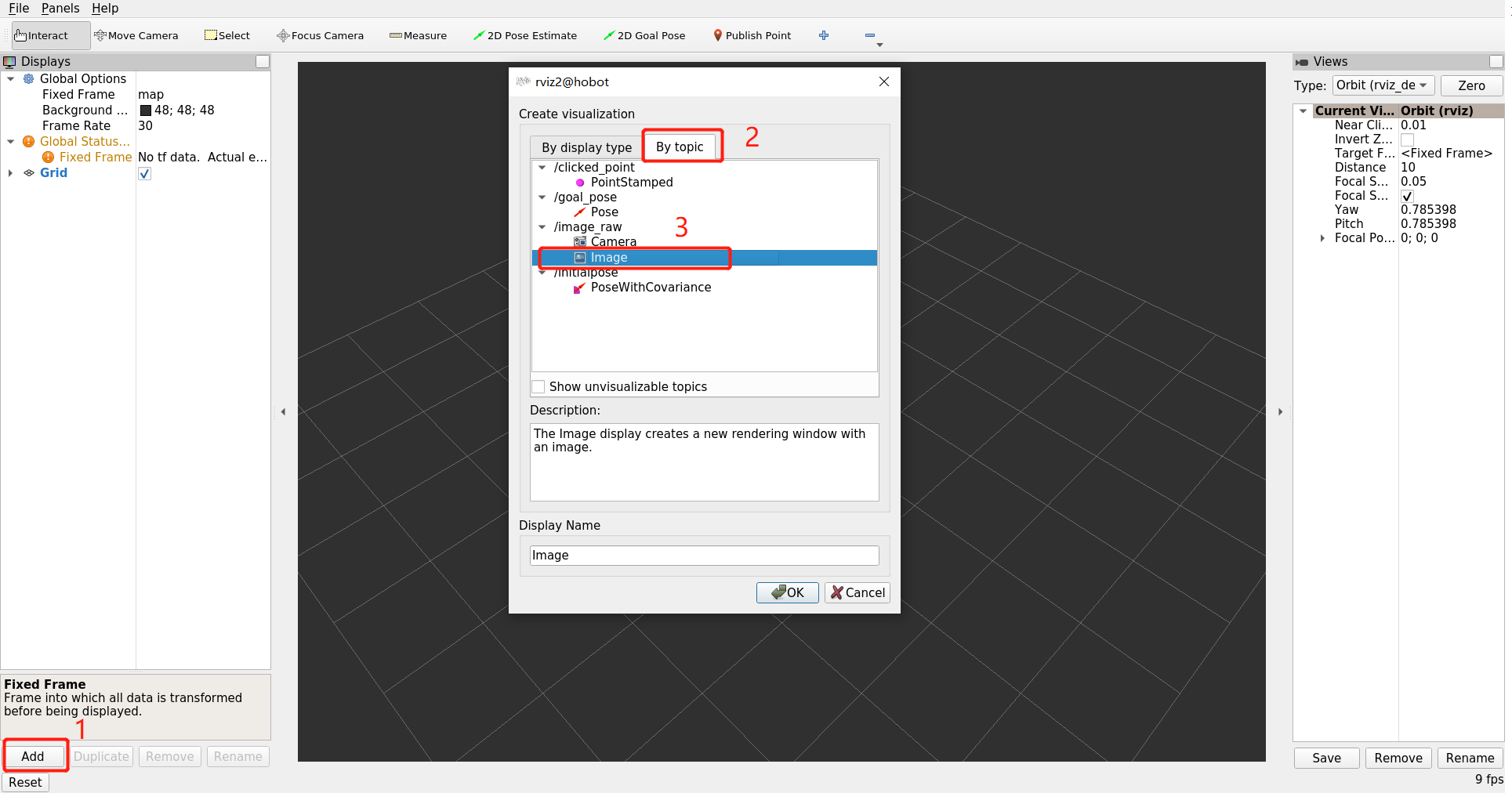
在 RViz2 界面上首先点击 add 按钮,然后按照 topic 选择发布的图像,在该示例中 topic 名为/image_raw,然后点击 image:
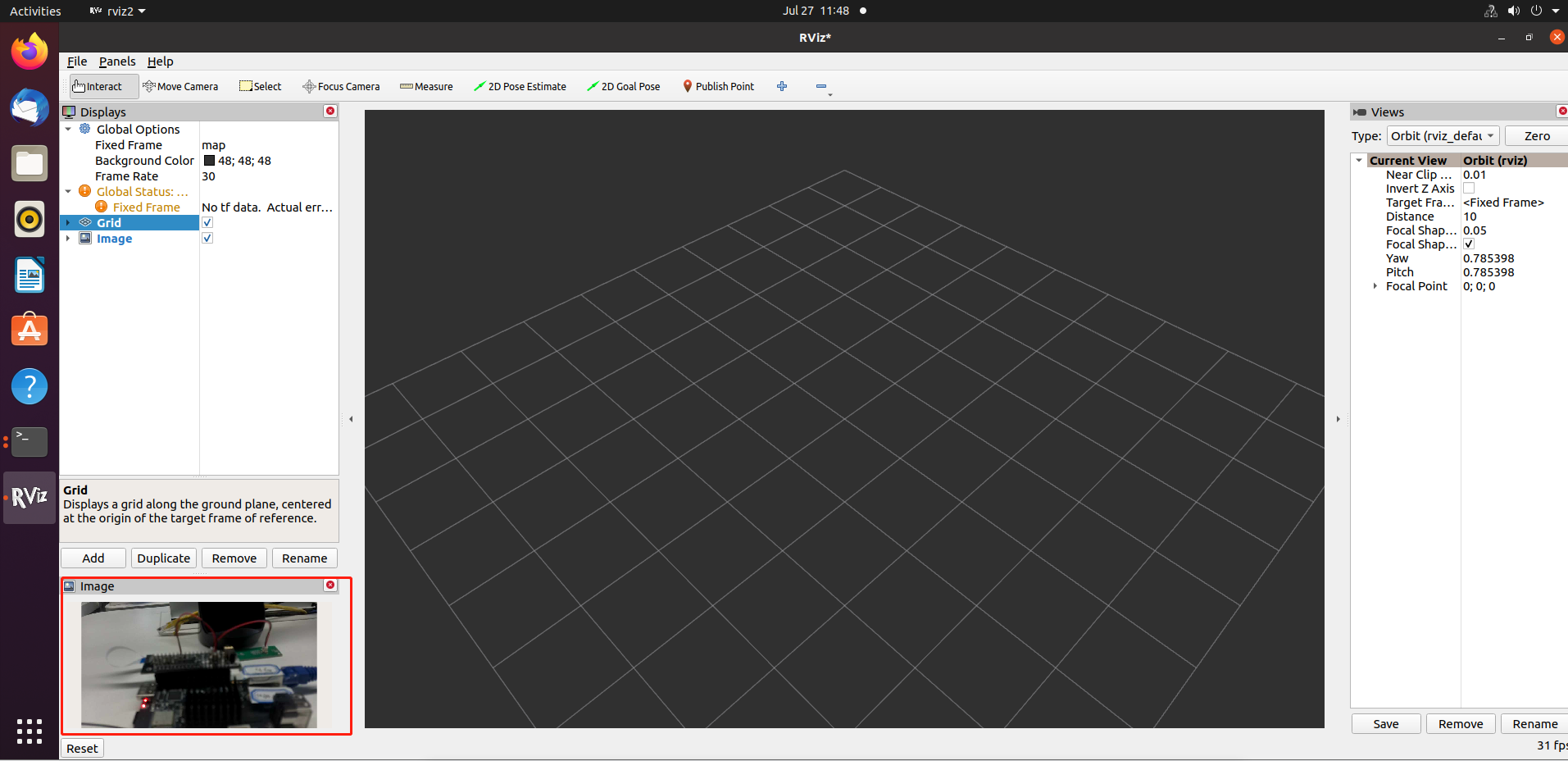
图像效果图如下:
RQt 展示
功能介绍
TogetheROS.Bot 兼容 ROS2,支持通过 RQt 预览压缩格式图像,可以大幅度降低网络带宽消耗。本章节的示例将会在 RDK 上启动 MIPI 摄像头获取图像,然后在 RDK 上使用 RQt 预览。
支持平台
| 平台 | 运行方式 |
|---|---|
| RDK X5, RDK X5 Module | Ubuntu 22.04 (Humble) |
| RDK S600 | Ubuntu 24.04 (Jazzy) |
准备工作
RDK 平台
-
RDK 已烧录好 Ubuntu 桌面版本系统镜像。
-
RDK 已成功安装 tros.b。
-
PC 已安装 Ubuntu 24.04 系统、ROS2 Jazzy 桌面版和数据可视化工具 RQt,并且和 RDK 在同一网段(IP 地址前三位相同)。
-
ROS2 安装参考:Jazzy 版本
-
PC 端安装 rqt-image-view :
ros-$ROS_DISTRO-rqt-image-view ros-$ROS_DISTRO-rqt。其中$ROS_DISTRO为 ROS2 版本,如jazzy。
-
使用方式
RDK 平台
-
通过 SSH 登录 RDK 开发板,启动 mipi camera:
- Humble
# 配置tros.b环境
source /opt/tros/humble/setup.bash- Jazzy
# 配置tros.b环境
source /opt/tros/jazzy/setup.bash
ros2 launch mipi_cam mipi_cam.launch.py mipi_image_width:=640 mipi_image_height:=480 mipi_video_device:=F37 -
在 RDK 上启动 hobot_codec, 发布 compressed 格式图像:
- Humble
# 配置tros.b环境
source /opt/tros/humble/setup.bash- Jazzy
# 配置tros.b环境
source /opt/tros/jazzy/setup.bashros2 launch hobot_codec hobot_codec_encode.launch.py codec_out_format:=jpeg codec_pub_topic:=/image_raw/compressed -
RDK 上订阅话题,并预览摄像头数据;
- Humble
source /opt/tros/humble/setup.bash
- Jazzy
source /opt/tros/jazzy/setup.bash
# 安装rqt
sudo apt install ros-${TROS_DISTRO}-rqt-image-view ros-${TROS_DISTRO}-rqt ros-${TROS_DISTRO}-compressed-image-transport
# 启动rqt
ros2 run rqt_image_view rqt_image_view
注意:RDK 上运行 rqt,需要使用 mobaxterm 等工具进行 ssh 连接,或者命令行 ssh 连接时加上“-Y” 参数。
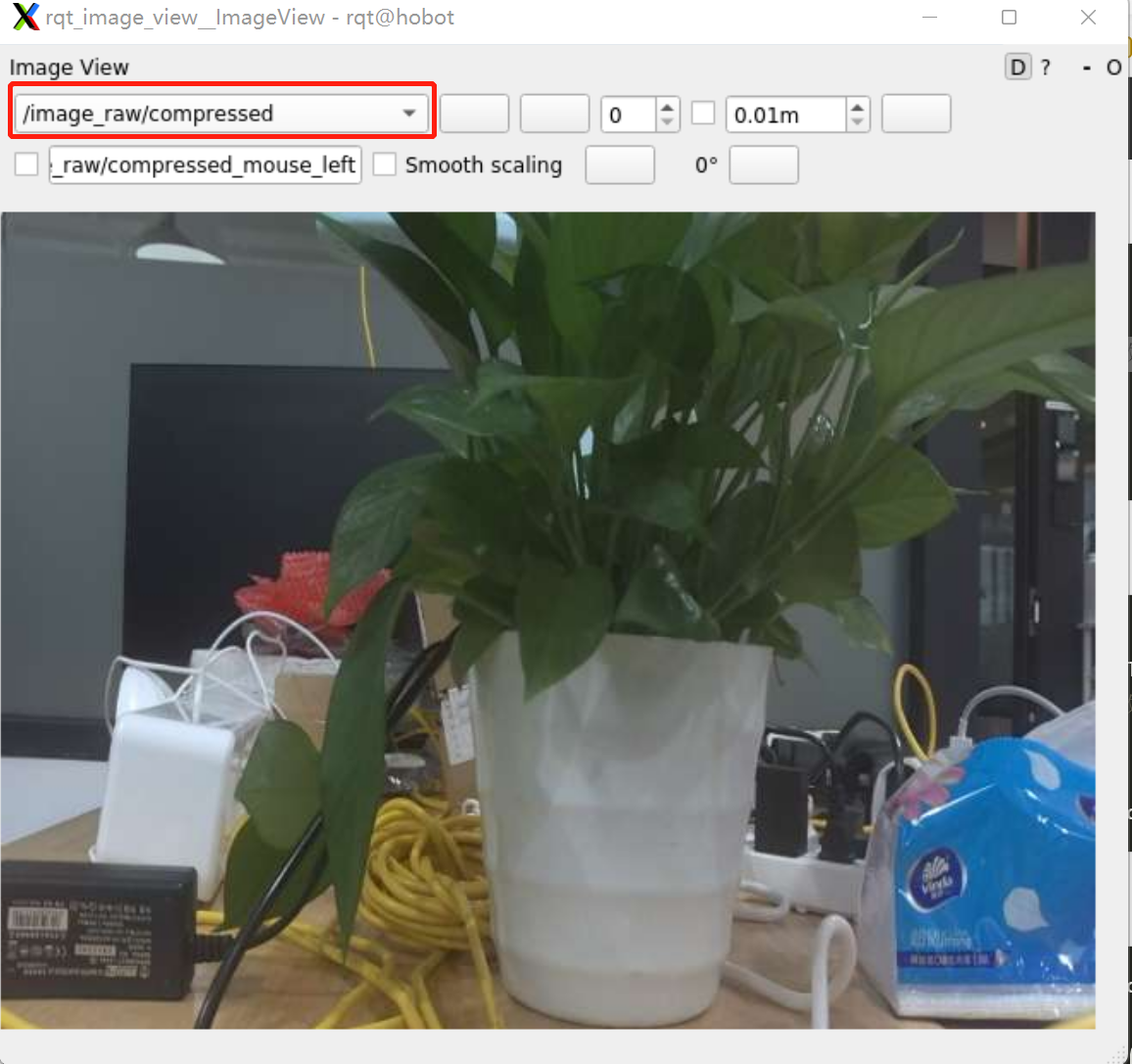
选择话题 /image_raw/compressed ,图像效果图如下:
Foxglove 展示
功能介绍
Foxglove 是一个开源的工具包,包括线上和线下版。旨在简化机器人系统的开发和调试。它提供了一系列用于构建机器人应用程序的功能。
本章节主要用到 Foxglove 数据记录和回放功能:Foxglove 允许将 ROS2 话题的数据记录到文件中,以便后续回放和分析。这对于系统故障诊断、性能优化和算法调试非常有用。
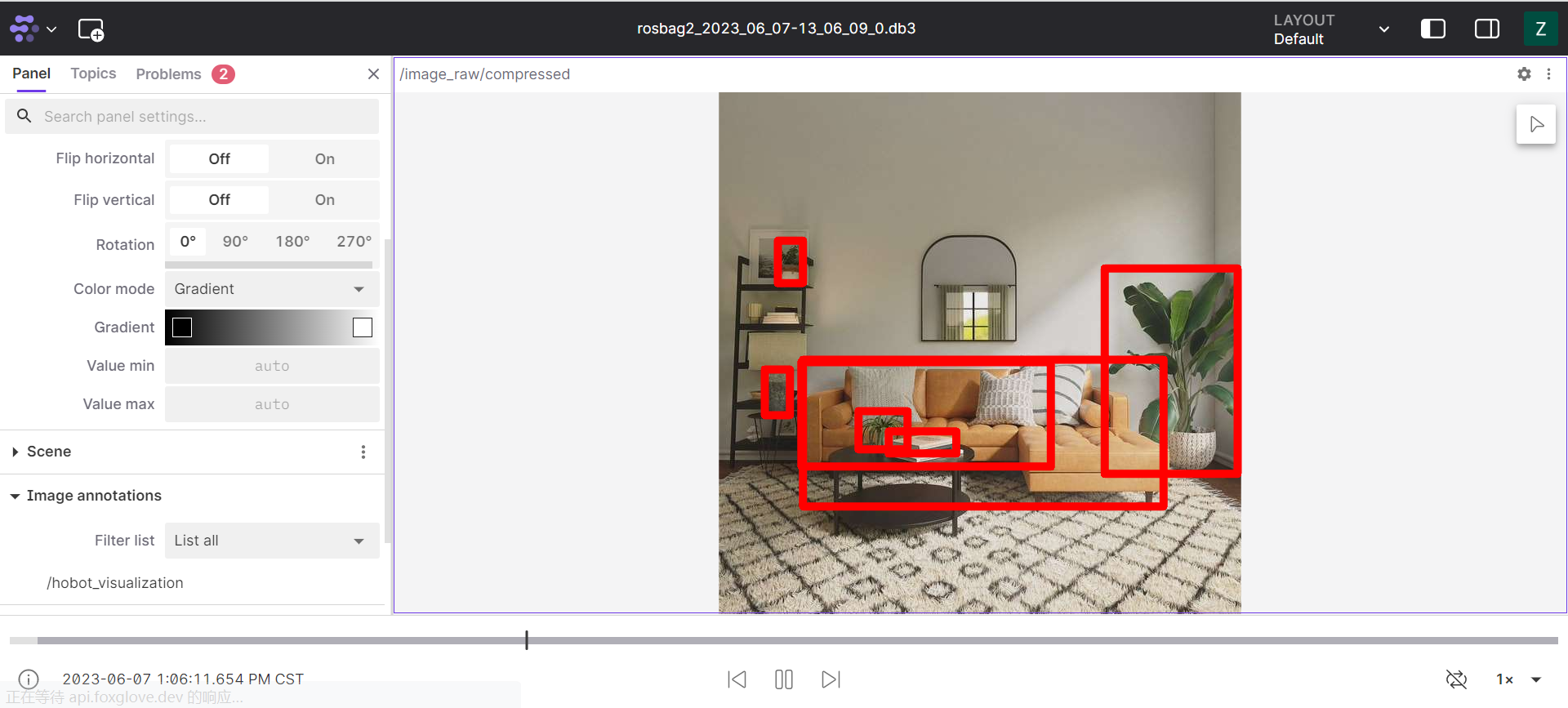
演示中,我们会利用 TogetheROS 开发的 hobot_visualization 功能包,将智能推理结果转换为 ROS2 渲染的话题信息。
代码仓库:https://github.com/D-Robotics/hobot_visualization
支持平台
| 平台 | 运行方式 |
|---|---|
| RDK X3, RDK X3 Module | Ubuntu 20.04 (Foxy), Ubuntu 22.04 (Humble) |
| RDK X5, RDK X5 Module, RDK S100 | Ubuntu 22.04 (Humble) |
| RDK S600 | Ubuntu 24.04 (Jazzy) |
准备工作
RDK 平台
-
确认摄像头 F37 正确接到 RDK 上
-
确认 PC 可以通过网络访问 RDK
-
确认已成功安装 TogetheROS.Bot
使用方式
RDK 平台
- 通过 SSH 登录 RDK 平台,启动板端相关程序:
- Foxy
- Humble
# 配置tros.b环境
source /opt/tros/setup.bash
# 配置tros.b环境
source /opt/tros/humble/setup.bash
- Humble
# 配置tros.b环境
source /opt/tros/humble/setup.bash
- Humble
# 配置tros.b环境
source /opt/tros/humble/setup.bash
- Jazzy
# 配置tros.b环境
source /opt/tros/jazzy/setup.bash
export CAM_TYPE=fb
cp -r /opt/tros/${TROS_DISTRO}/lib/dnn_node_example/config/ .
ros2 launch hobot_visualization hobot_vis_render.launch.py dnn_example_config_file:=config/yolov2workconfig.json
同时,利用 ssh 登录另一个终端,在板端记录话题信息:
- Foxy
- Humble
# 配置tros.b环境
source /opt/tros/setup.bash
# 配置tros.b环境
source /opt/tros/humble/setup.bash
- Humble
# 配置tros.b环境
source /opt/tros/humble/setup.bash
- Humble
# 配置tros.b环境
source /opt/tros/humble/setup.bash
- Jazzy
# 配置tros.b环境
source /opt/tros/jazzy/setup.bash
# 记录rosbag数据,会生成在当前工作目录下
ros2 bag record -a
- Foxglove 在线页面播放 rosbag 数据
1)PC 浏览器(chrome/firefox/edge)输入 (https://foxglove.dev/studio) , 进入 foxglove 官网
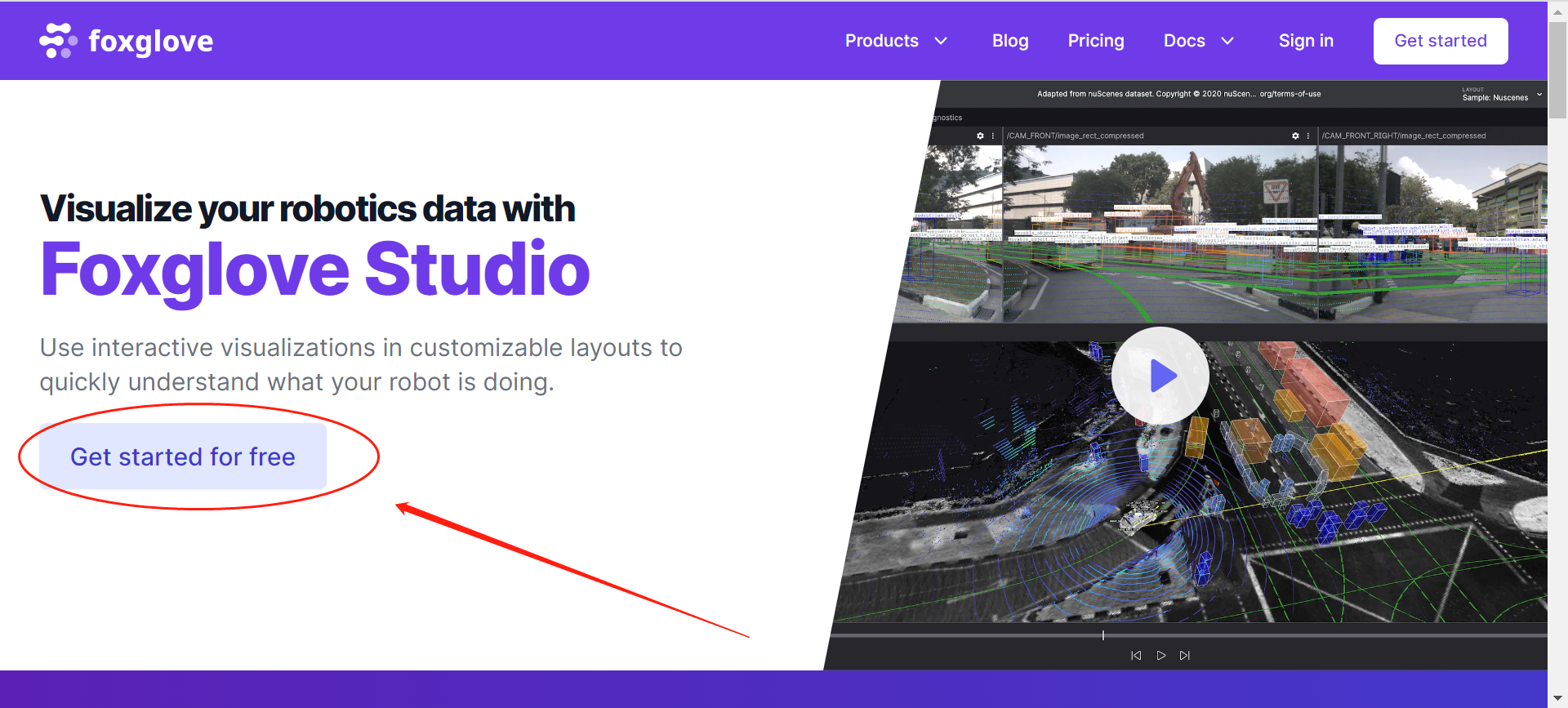
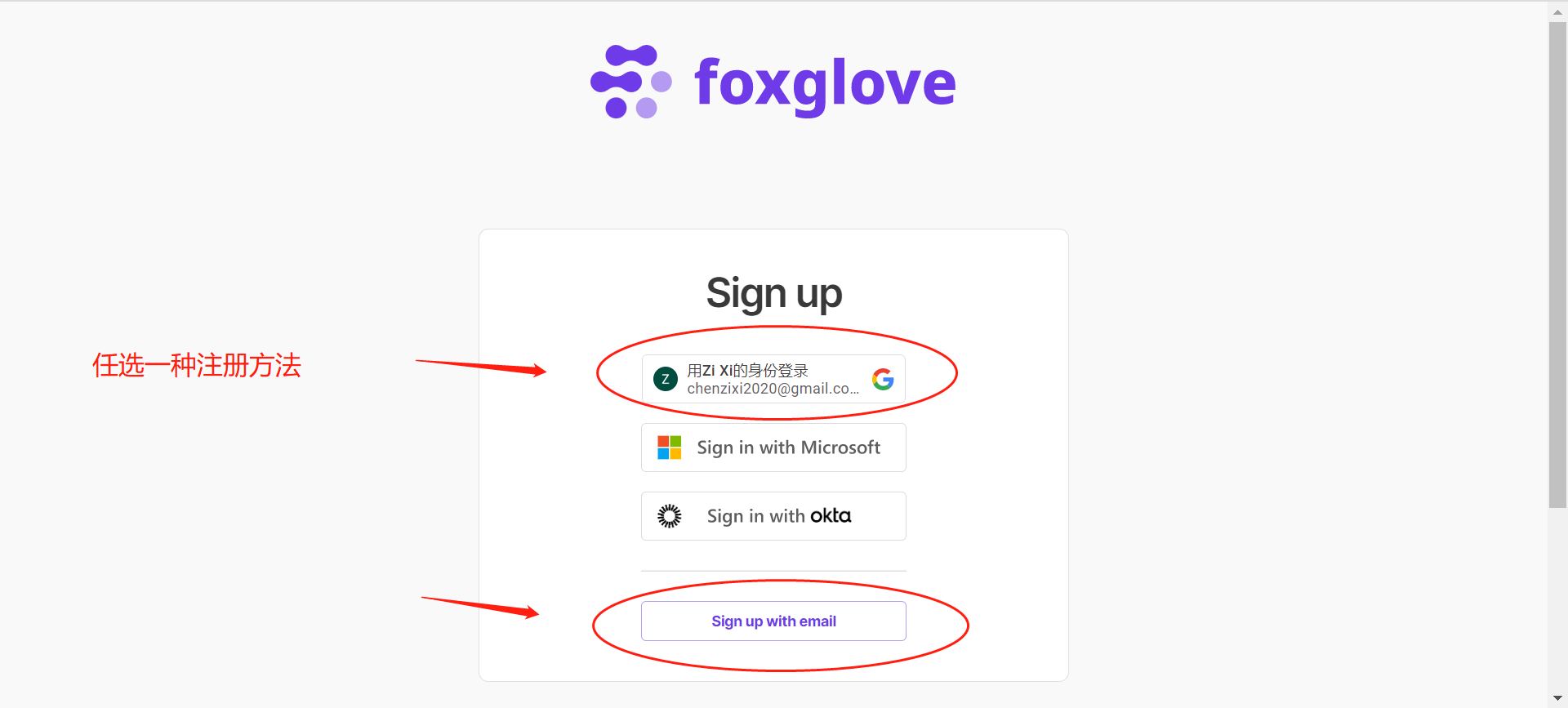
PS: 首次使用需要注册, 可使用谷歌账号或第三方邮箱进行注册。
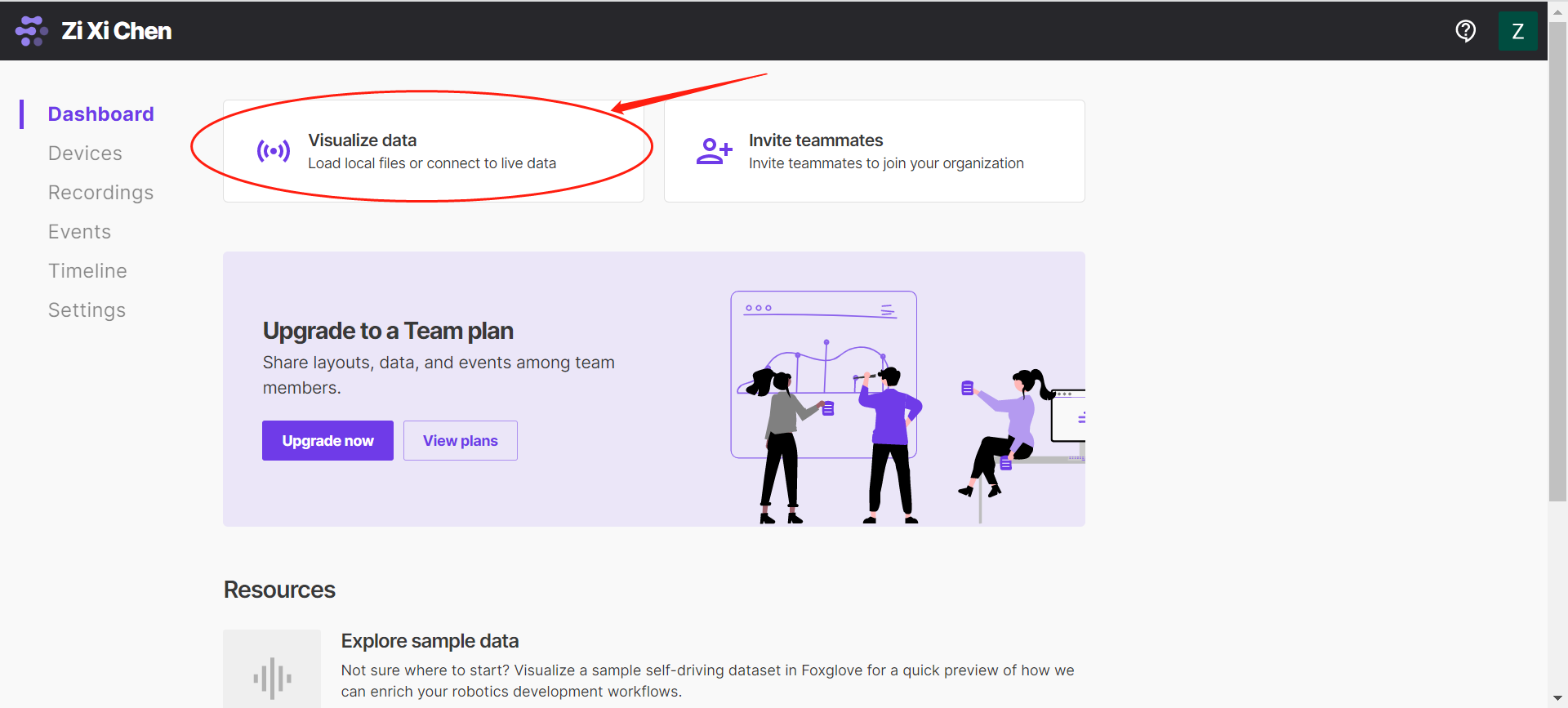
2)进入可视化功能界面
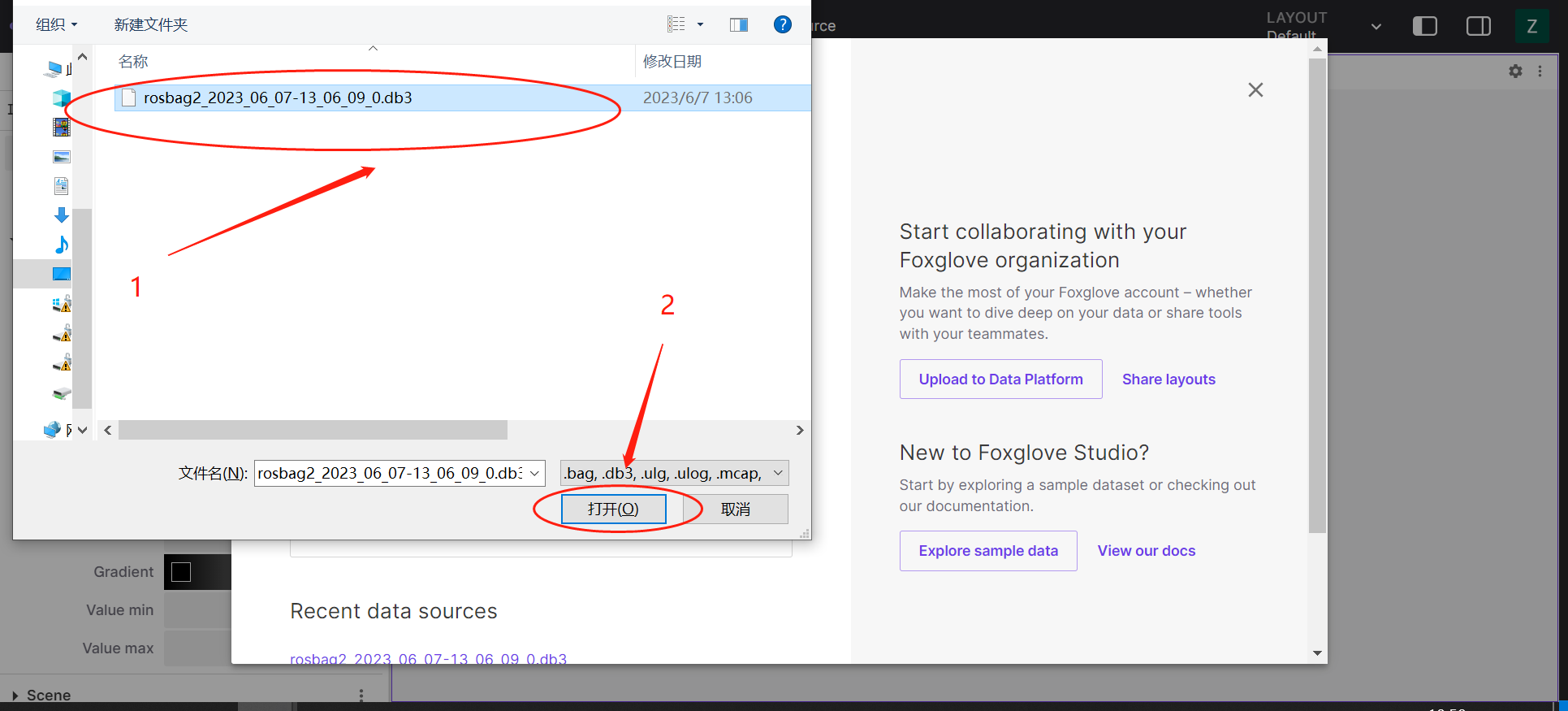
3)点击选中本地 rosbag 文件
4)打开布局界面,在布局界面右上角,点击设置,选中图标,打开播放 maker 渲染消息功能
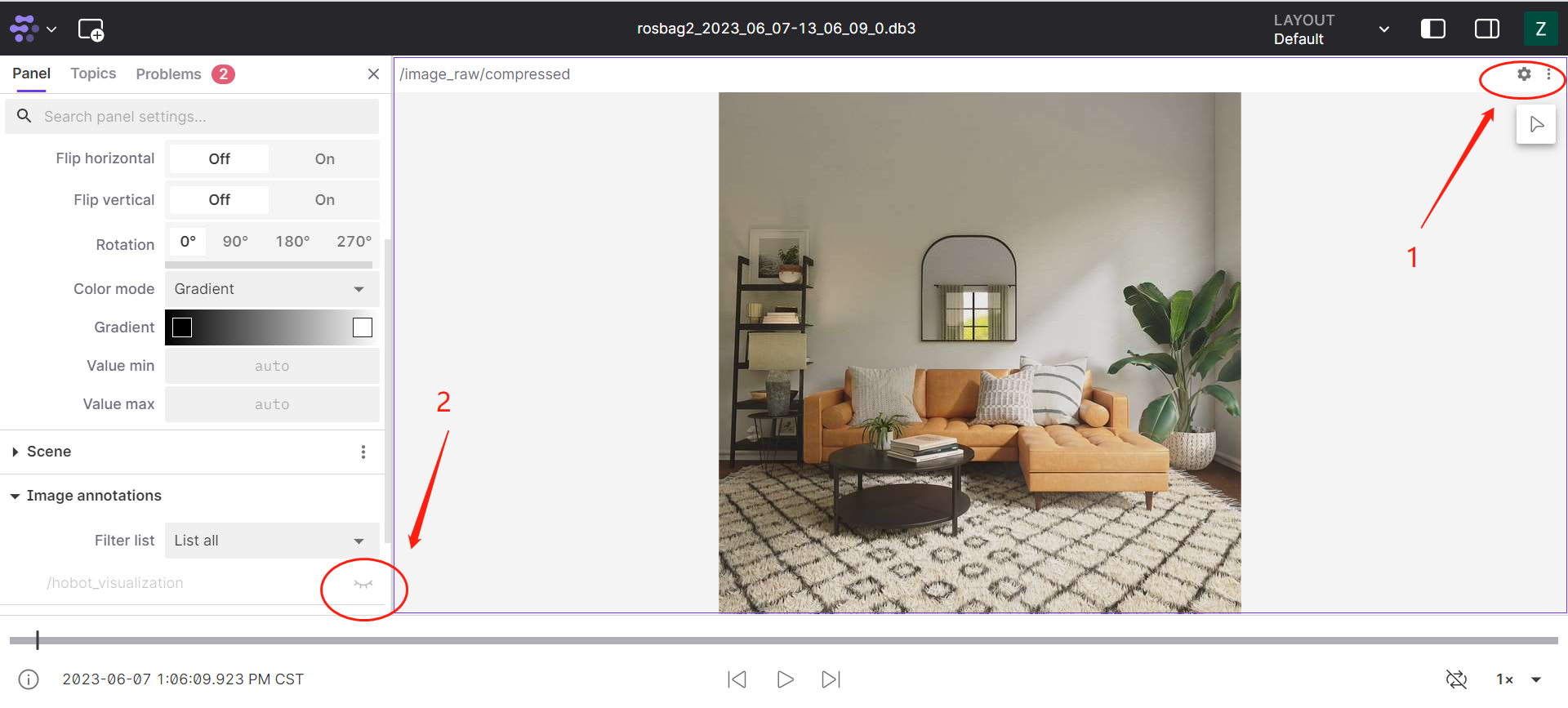
5)点击播放
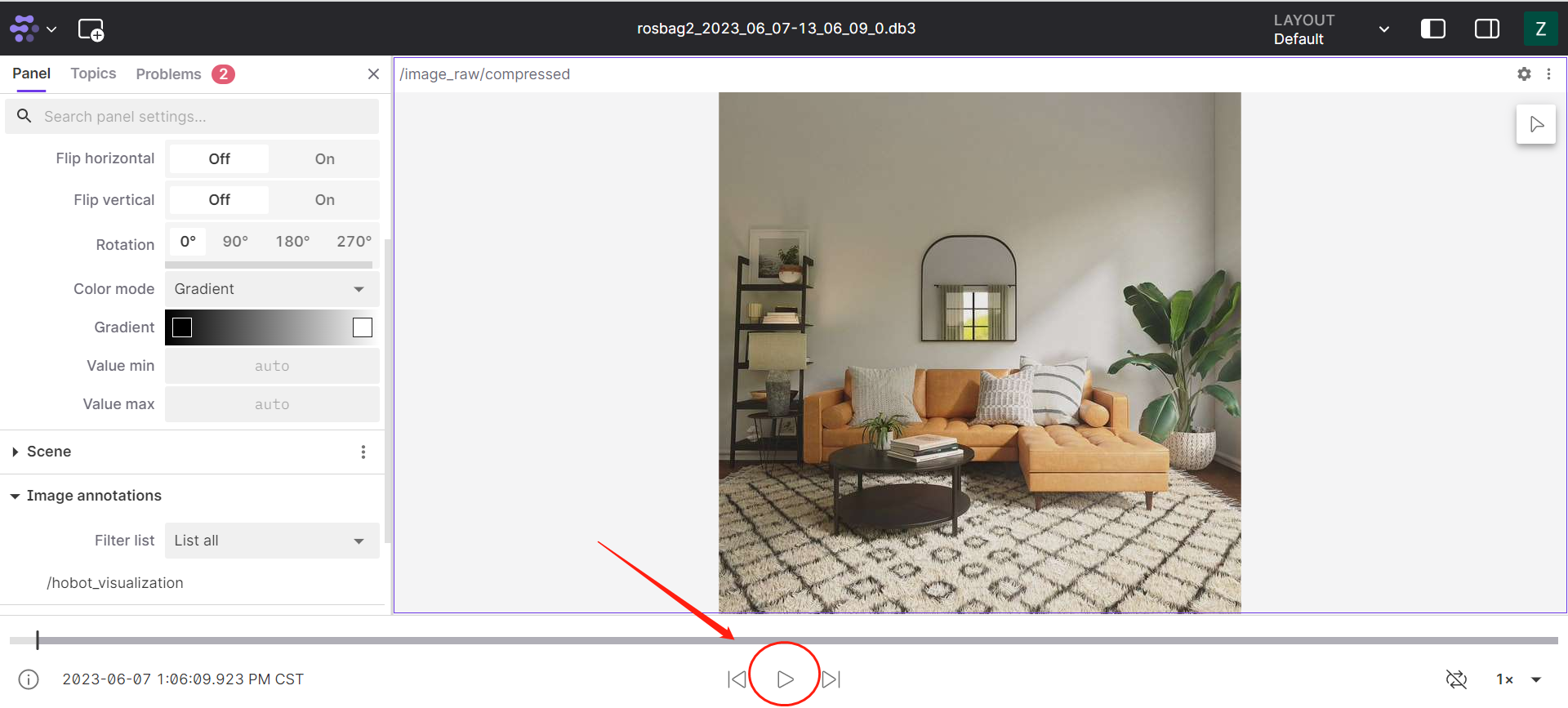
6)观看数据
注意事项
-
Foxglove 可视化图像数据,需采用 ROS2 官方的消息格式,使用 foxglove 支持的图像编码格式,详情请见 (https://docs.foxglove.dev/docs/visualization/panels/image )。
-
rosbag 进行消息记录时,可能会录制其他设备的话题信息,因此为了保证 rosbag 数据的干净,可以通过设置'export ROS_DOMAIN_ID=xxx' ,如'export ROS_DOMAIN_ID=1'的方法。