5.2.2 Data Display
Web Display
Overview
Web display is used to preview camera images (JPEG format) and algorithm results. Images and algorithm results are transmitted over the network to a PC browser for rendering. The display client also supports showing video only without rendering intelligent results.
Code repository: https://github.com/D-Robotics/hobot_websocket
Supported Platforms
| Platform | Runtime Environment | Example Function |
|---|---|---|
| RDK X3, RDK X3 Module | Ubuntu 20.04 (Foxy), Ubuntu 22.04 (Humble) | Start MIPI camera and display images via Web |
| RDK X5, RDK X5 Module,RDK S100 | Ubuntu 22.04 (Humble) | Start MIPI camera and display images via Web |
| RDK S600 | Ubuntu 24.04 (Jazzy) | Start MIPI camera and display images via Web |
Prerequisites
RDK Platform
-
Confirm the F37 camera is correctly connected to RDK
-
Confirm the PC can access RDK over the network
-
Confirm TogetheROS.Bot has been successfully installed
Usage
RDK Platform
-
Log in to RDK via SSH and start the board-side programs
a. Start mipi_cam
- Foxy
- Humble
# Configure tros.b environment
source /opt/tros/setup.bash
# Configure tros.b environment
source /opt/tros/humble/setup.bash- Humble
# Configure tros.b environment
source /opt/tros/humble/setup.bash- Humble
# Configure tros.b environment
source /opt/tros/humble/setup.bash- Jazzy
# Configure tros.b environment
source /opt/tros/jazzy/setup.bashros2 launch mipi_cam mipi_cam.launch.py mipi_video_device:=F37b. Start encoding
- Foxy
- Humble
# Configure tros.b environment
source /opt/tros/setup.bash# Configure tros.b environment
source /opt/tros/humble/setup.bash- Humble
# Configure tros.b environment
source /opt/tros/humble/setup.bash- Humble
# Configure tros.b environment
source /opt/tros/humble/setup.bash- Jazzy
# Configure tros.b environment
source /opt/tros/jazzy/setup.bash
ros2 launch hobot_codec hobot_codec_encode.launch.pyc. Start websocket
- Foxy
- Humble
# Configure tros.b environment
source /opt/tros/setup.bash
# Configure tros.b environment
source /opt/tros/humble/setup.bash- Humble
# Configure tros.b environment
source /opt/tros/humble/setup.bash- Humble
# Configure tros.b environment
source /opt/tros/humble/setup.bash- Jazzy
# Configure tros.b environment
source /opt/tros/jazzy/setup.bashros2 launch websocket websocket.launch.py websocket_image_topic:=/image_jpeg websocket_only_show_image:=true -
Enter
http://IP:8000in a PC browser (Chrome/Firefox/Edge) to view the image, where IP is the RDK IP address.
Notes
-
websocket requires port 8000. If the port is occupied, startup will fail. Solutions:
-
Use the
lsof -i:8000command to check which process is using port 8000, then usekill <PID>to close the process occupying port 8000, and restart websocket. -
If you do not want to stop the service currently using port 8000, you can modify the
listenport number in the/opt/tros/${TROS_DISTRO}/lib/websocket/webservice/conf/nginx.confconfiguration file to a port number greater than 1024 that is not in use. After changing the port number, the URL used in the browser must also be updated accordingly.
-
HDMI Display
Overview
This section describes how to display camera NV12 images via HDMI. Connect RDK to a display via HDMI to show real-time image output, corresponding to the hobot_hdmi package.
Code repository: https://github.com/D-Robotics/hobot_hdmi
Supported Platforms
| Platform | Runtime Environment | Example Function |
|---|---|---|
| RDK X3, RDK X3 Module | Ubuntu 20.04 (Foxy), Ubuntu 22.04 (Humble) | Start MIPI camera and display images via HDMI |
| RDK X5, RDK X5 Module | Ubuntu 22.04 (Humble) | Start MIPI camera and display images via HDMI |
HDMI display EOL notice:
RDK X3andRDK X3 Moduleplatforms are supported up to version2.1.0, corresponding to TROS version2.2.0 (2024-04-11).RDK X5andRDK X5 Moduleplatforms are supported up to version2.4.2, corresponding to TROS version2.3.1 (2024-11-20).
Prerequisites
RDK Platform
-
RDK has been flashed with the Ubuntu system image.
-
TogetheROS.Bot has been successfully installed on RDK.
-
RDK is connected to a display via HDMI.
Usage
RDK Platform
Log in to the development board via SSH and start the board-side programs:
- Foxy
- Humble
# Configure tros.b environment
source /opt/tros/setup.bash
# Configure tros.b environment
source /opt/tros/humble/setup.bash
- Humble
# Configure tros.b environment
source /opt/tros/humble/setup.bash
When using RDK X5, run the following additional commands:
# Disable desktop display
sudo systemctl stop lightdm
# Copy runtime dependencies
cp -r /opt/tros/${TROS_DISTRO}/lib/hobot_hdmi/config/ .
# HDMI image rendering
ros2 launch hobot_hdmi hobot_hdmi.launch.py device:=F37
Result Analysis
The terminal outputs the following information during execution:
[INFO] [launch]: All log files can be found below /root/.ros/log/2022-07-27-15-27-26-362299-ubuntu-13432
[INFO] [launch]: Default logging verbosity is set to INFO
[INFO] [mipi_cam-1]: process started with pid [13434]
[INFO] [hobot_hdmi-2]: process started with pid [13436]
The display shows the image as follows:

RViz2 Display
Overview
TogetheROS.Bot is compatible with ROS2. To conveniently preview image output, images can be obtained through RViz2.
Supported Platforms
| Platform | Runtime Environment |
|---|---|
| RDK X3, RDK X3 Module | Ubuntu 20.04 (Foxy), Ubuntu 22.04 (Humble) |
| RDK X5, RDK X5 Module, RDK S100 | Ubuntu 22.04 (Humble) |
| RDK S600 | Ubuntu 24.04 (Jazzy) |
Prerequisites
RDK Platform
-
RDK has been flashed with the Ubuntu desktop system image.
-
tros.b has been successfully installed on RDK.
Usage
RDK Platform
-
Log in to RDK via SSH and start the board-side programs
- Foxy
- Humble
# Configure tros.b environment
source /opt/tros/setup.bash# Configure tros.b environment
source /opt/tros/humble/setup.bash- Humble
# Configure tros.b environment
source /opt/tros/humble/setup.bash- Humble
# Configure tros.b environment
source /opt/tros/humble/setup.bash- Jazzy
# Configure tros.b environment
source /opt/tros/jazzy/setup.bash# Start mipi camera to publish BGR8 format images
ros2 launch mipi_cam mipi_cam.launch.py mipi_out_format:=bgr8 mipi_image_width:=480 mipi_image_height:=272 mipi_io_method:=ros mipi_video_device:=F37Note: Do not change mipi_out_format arbitrarily. RViz2 only supports image formats such as RGB8, RGBA8, BGR8, and BGRA8.
If the program outputs the following information, the node has started successfully:
[INFO] [launch]: All log files can be found below /root/.ros/log/2022-08-19-03-53-54-778203-ubuntu-2881662
[INFO] [launch]: Default logging verbosity is set to INFO
[INFO] [mipi_cam-1]: process started with pid [2881781] -
Open a new window on RDK and query topics. Command and return result:
- Foxy
- Humble
# Configure tros.b environment
source /opt/tros/setup.bash
# Configure tros.b environment
source /opt/tros/humble/setup.bash- Humble
# Configure tros.b environment
source /opt/tros/humble/setup.bash- Humble
# Configure tros.b environment
source /opt/tros/humble/setup.bash- Jazzy
# Configure tros.b environment
source /opt/tros/jazzy/setup.bash# Query topics
ros2 topic listOutput:
/camera_info
/image_raw
/parameter_events
/rosout -
Start RViz2 on RDK to subscribe to topics and preview camera data;
- Foxy
- Humble
source /opt/tros/setup.bash
source /opt/tros/humble/setup.bash
- Humble
source /opt/tros/humble/setup.bash
- Humble
source /opt/tros/humble/setup.bash
- Jazzy
source /opt/tros/jazzy/setup.bash
# Install RViz2
sudo apt install ros-${TROS_DISTRO}-rviz-common ros-${TROS_DISTRO}-rviz-default-plugins ros-${TROS_DISTRO}-rviz2
# Start RViz2
ros2 run rviz2 rviz2
Note: To run rviz on RDK, use tools such as MobaXterm for SSH connection, or add the "-Y" parameter when connecting via command-line SSH.
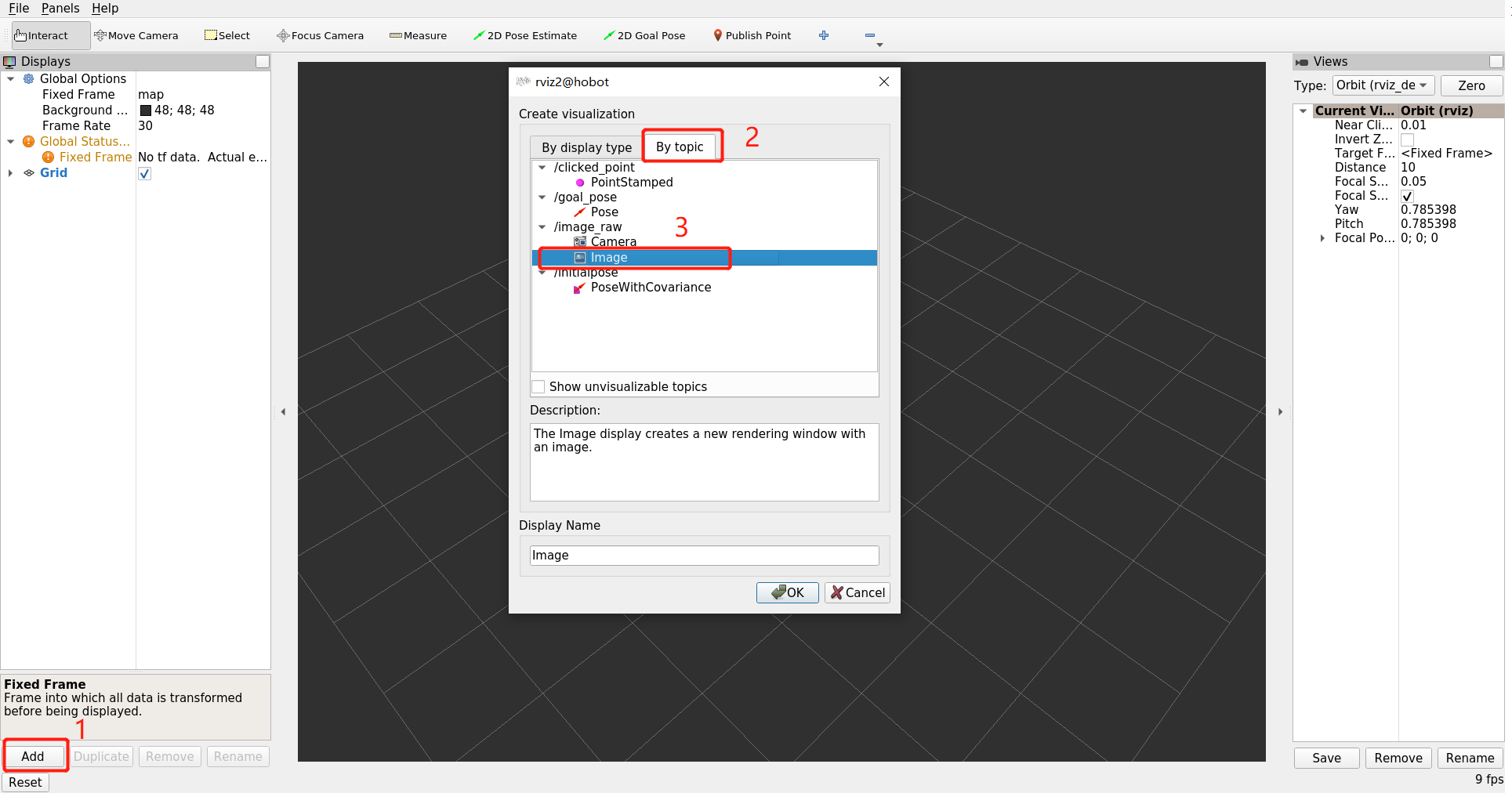
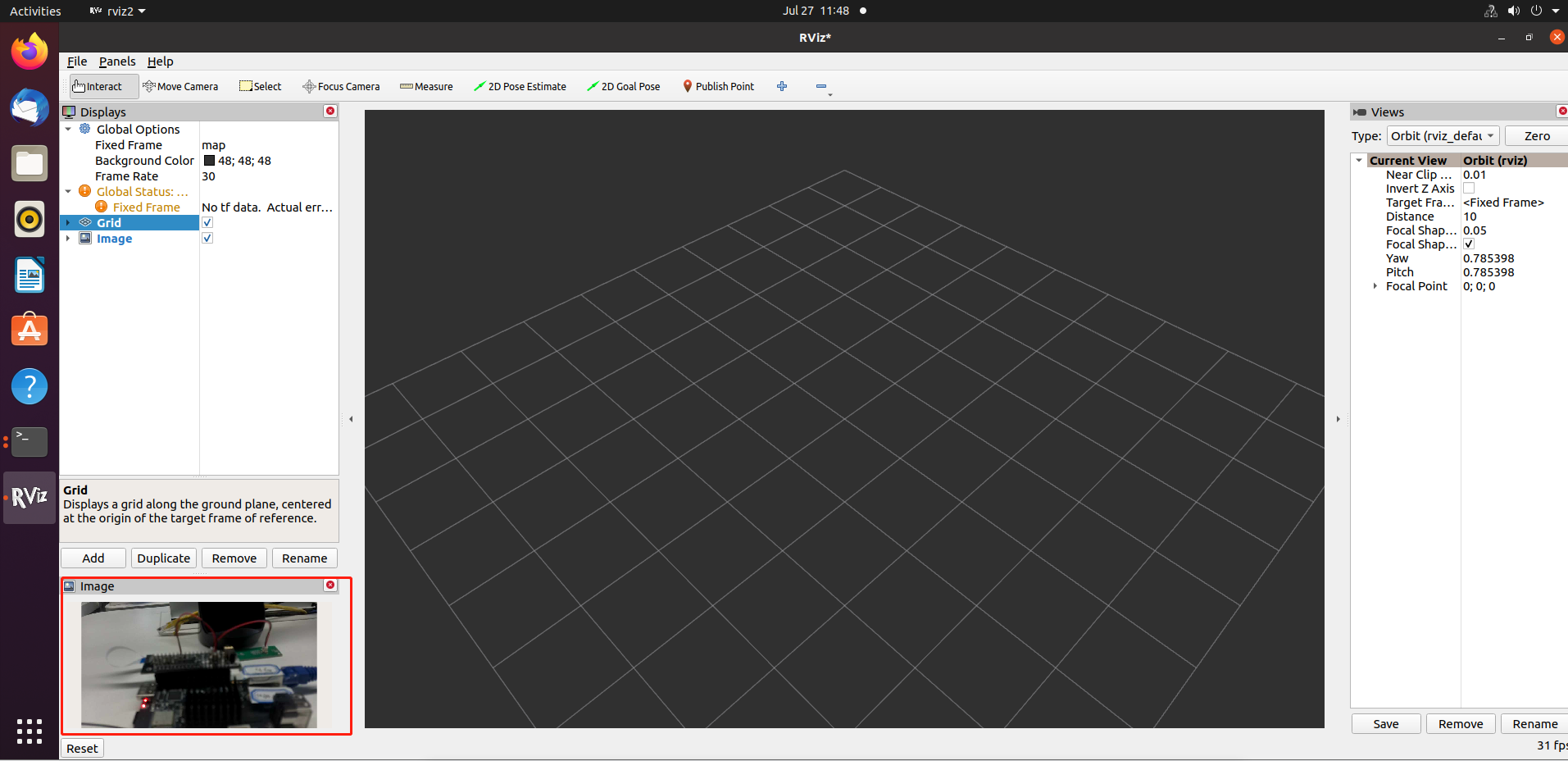
In the RViz2 interface, first click the add button, then select the published image by topic. In this example, the topic name is /image_raw, then click image:
The image output looks like this:
RQt Display
Overview
TogetheROS.Bot is compatible with ROS2 and supports previewing compressed format images through RQt, which can significantly reduce network bandwidth consumption. The example in this section starts the MIPI camera on RDK to capture images, then uses RQt on RDK for preview.
Supported Platforms
| Platform | Runtime Environment |
|---|---|
| RDK X5, RDK X5 Module | Ubuntu 22.04 (Humble) |
| RDK S600 | Ubuntu 24.04 (Jazzy) |
Prerequisites
RDK Platform
-
RDK has been flashed with the Ubuntu desktop system image.
-
tros.b has been successfully installed on RDK.
-
The PC has Ubuntu 20.04/Ubuntu 22.04, ROS2 Foxy/Humble desktop edition, and the RQt data visualization tool installed, and is on the same network segment as RDK (first three digits of IP address are the same).
-
ROS2 installation reference: Foxy version, Humble version
-
Install rqt-image-view on PC:
ros-$ROS_DISTRO-rqt-image-view ros-$ROS_DISTRO-rqt. Where$ROS_DISTROis the ROS2 version, such asfoxyorhumble.
-
-
The PC has Ubuntu 24.04, ROS2 Jazzy desktop edition, and the RQt data visualization tool installed, and is on the same network segment as RDK (first three digits of IP address are the same).
-
ROS2 installation reference: Jazzy version
-
Install rqt-image-view on PC:
ros-$ROS_DISTRO-rqt-image-view ros-$ROS_DISTRO-rqt. Where$ROS_DISTROis the ROS2 version, such asjazzy.
-
Usage
RDK Platform
-
Log in to the RDK development board via SSH and start the mipi camera:
- Humble
# Configure tros.b environment
source /opt/tros/humble/setup.bash- Jazzy
# Configure tros.b environment
source /opt/tros/jazzy/setup.bash
ros2 launch mipi_cam mipi_cam.launch.py mipi_image_width:=640 mipi_image_height:=480 mipi_video_device:=F37 -
Start hobot_codec on RDK to publish compressed format images:
- Humble
# Configure tros.b environment
source /opt/tros/humble/setup.bash- Jazzy
# Configure tros.b environment
source /opt/tros/jazzy/setup.bashros2 launch hobot_codec hobot_codec_encode.launch.py codec_out_format:=jpeg codec_pub_topic:=/image_raw/compressed -
Subscribe to topics on RDK and preview camera data;
- Humble
source /opt/tros/humble/setup.bash
- Jazzy
source /opt/tros/jazzy/setup.bash
# Install rqt
sudo apt install ros-${TROS_DISTRO}-rqt-image-view ros-${TROS_DISTRO}-rqt ros-${TROS_DISTRO}-compressed-image-transport
# Start rqt
ros2 run rqt_image_view rqt_image_view
Note: To run rqt on RDK, use tools such as MobaXterm for SSH connection, or add the "-Y" parameter when connecting via command-line SSH.
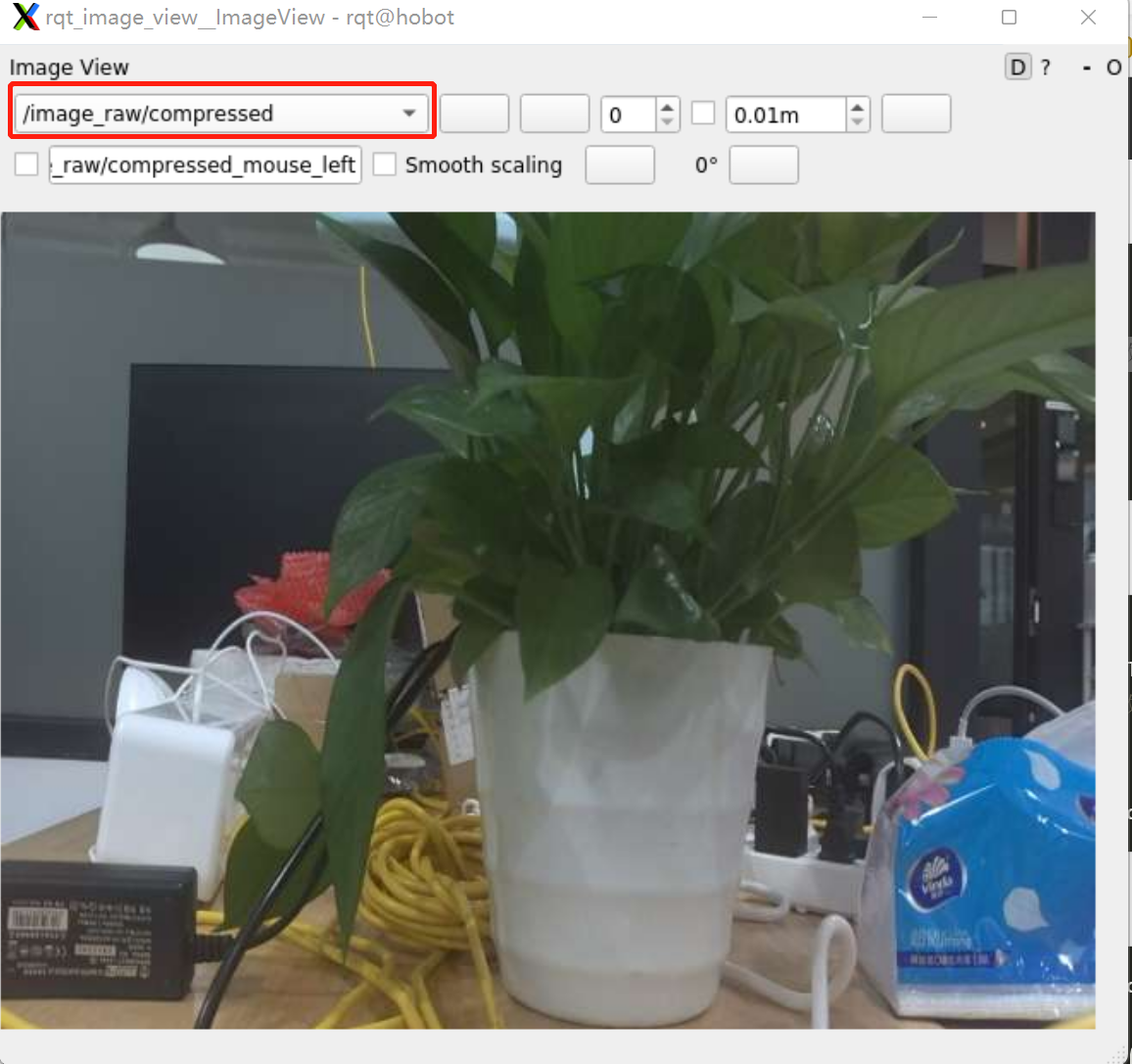
Select the topic /image_raw/compressed . The image output looks like this:
Foxglove Display
Overview
Foxglove is an open-source toolkit that includes online and offline versions, designed to simplify robot system development and debugging. It provides a series of features for building robot applications.
This section mainly uses Foxglove's data recording and playback functionality: Foxglove allows recording ROS2 topic data to files for subsequent playback and analysis. This is very useful for system fault diagnosis, performance optimization, and algorithm debugging.
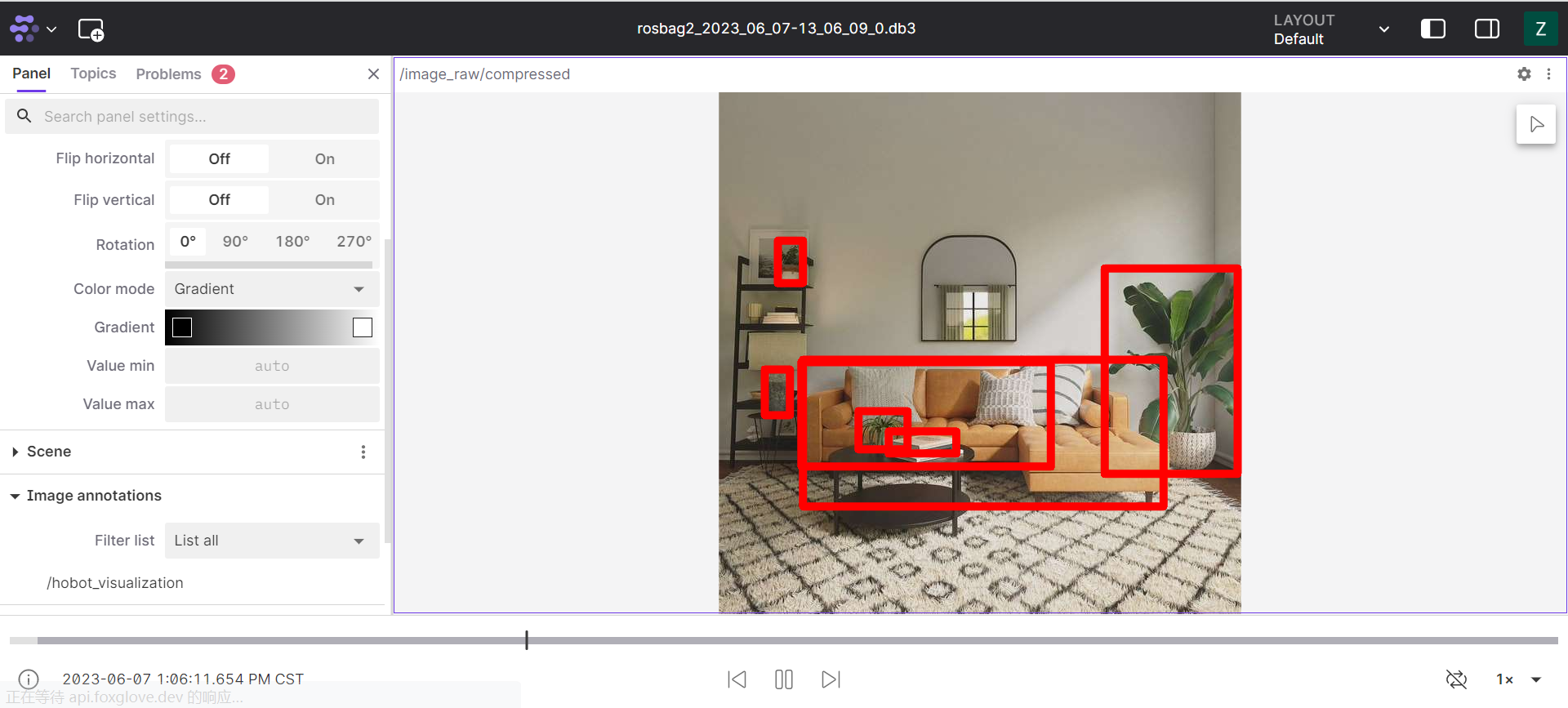
In the demo, we use the hobot_visualization package developed by TogetheROS to convert intelligent inference results into ROS2 rendering topic information.
Code repository: https://github.com/D-Robotics/hobot_visualization
Supported Platforms
| Platform | Runtime Environment |
|---|---|
| RDK X3, RDK X3 Module | Ubuntu 20.04 (Foxy), Ubuntu 22.04 (Humble) |
| RDK X5, RDK X5 Module, RDK S100 | Ubuntu 22.04 (Humble) |
| RDK S600 | Ubuntu 24.04 (Jazzy) |
Prerequisites
RDK Platform
-
Confirm the F37 camera is correctly connected to RDK
-
Confirm the PC can access RDK over the network
-
Confirm TogetheROS.Bot has been successfully installed
Usage
RDK Platform
- Log in to the RDK platform via SSH and start the board-side programs:
- Foxy
- Humble
# Configure tros.b environment
source /opt/tros/setup.bash
# Configure tros.b environment
source /opt/tros/humble/setup.bash
- Humble
# Configure tros.b environment
source /opt/tros/humble/setup.bash
- Humble
# Configure tros.b environment
source /opt/tros/humble/setup.bash
- Jazzy
# Configure tros.b environment
source /opt/tros/jazzy/setup.bash
export CAM_TYPE=fb
cp -r /opt/tros/${TROS_DISTRO}/lib/dnn_node_example/config/ .
ros2 launch hobot_visualization hobot_vis_render.launch.py dnn_example_config_file:=config/yolov2workconfig.json
At the same time, use SSH to log in to another terminal and record topic information on the board:
- Foxy
- Humble
# Configure tros.b environment
source /opt/tros/setup.bash
# Configure tros.b environment
source /opt/tros/humble/setup.bash
- Humble
# Configure tros.b environment
source /opt/tros/humble/setup.bash
- Humble
# Configure tros.b environment
source /opt/tros/humble/setup.bash
- Jazzy
# Configure tros.b environment
source /opt/tros/jazzy/setup.bash
# Record rosbag data, which will be generated in the current working directory
ros2 bag record -a
- Play rosbag data on the Foxglove online page
-
Enter (https://foxglove.dev/studio) in a PC browser (Chrome/Firefox/Edge) to access the Foxglove website
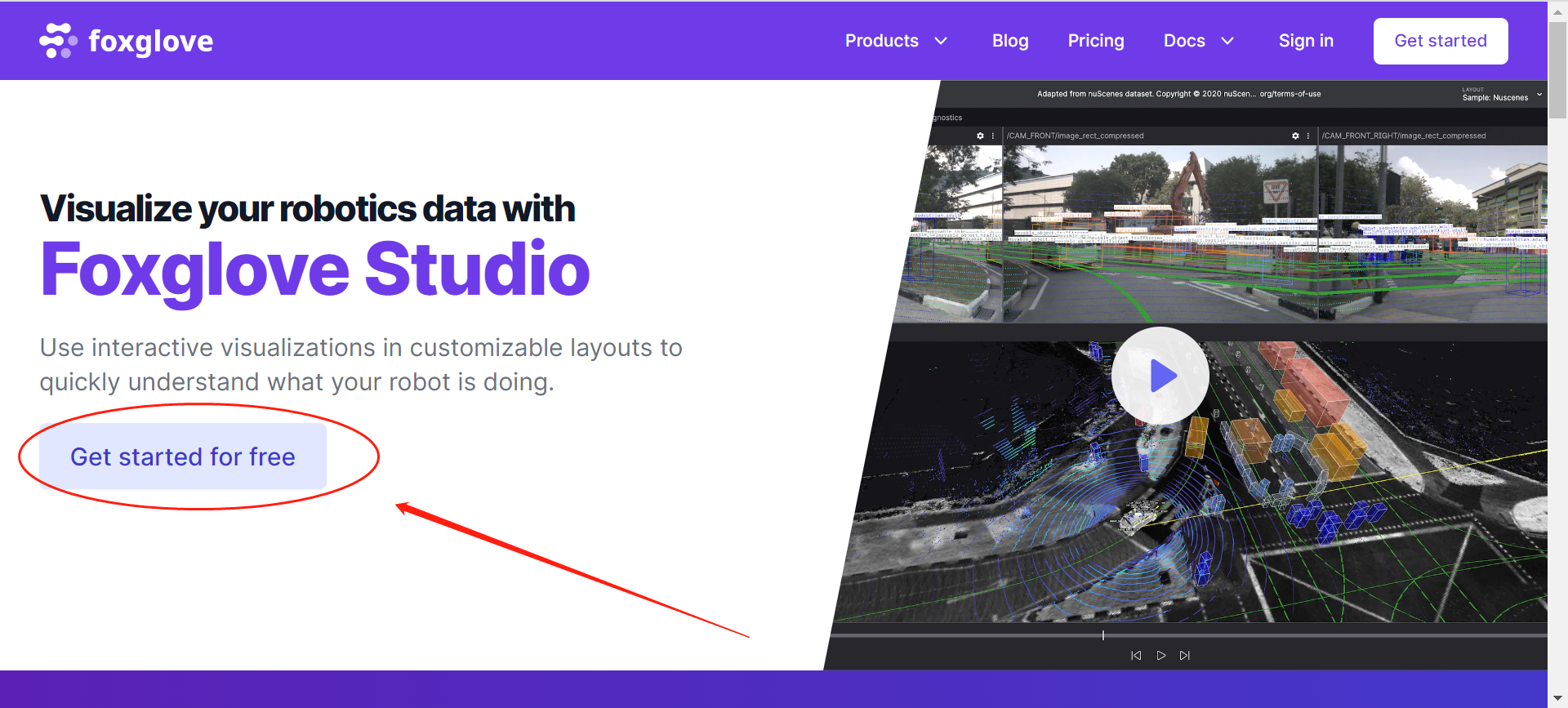
PS: Registration is required for first-time use. You can register using a Google account or a third-party email.
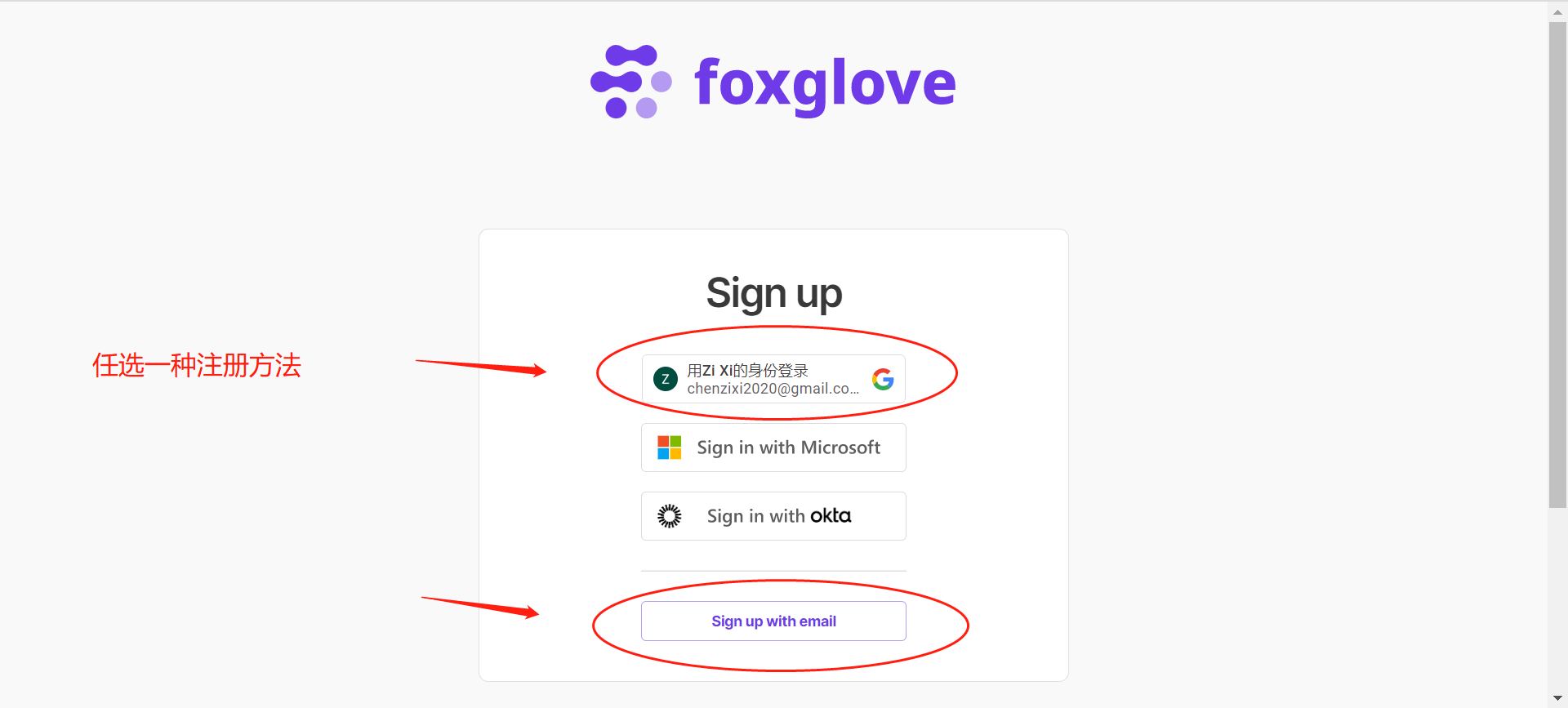
-
Enter the visualization interface
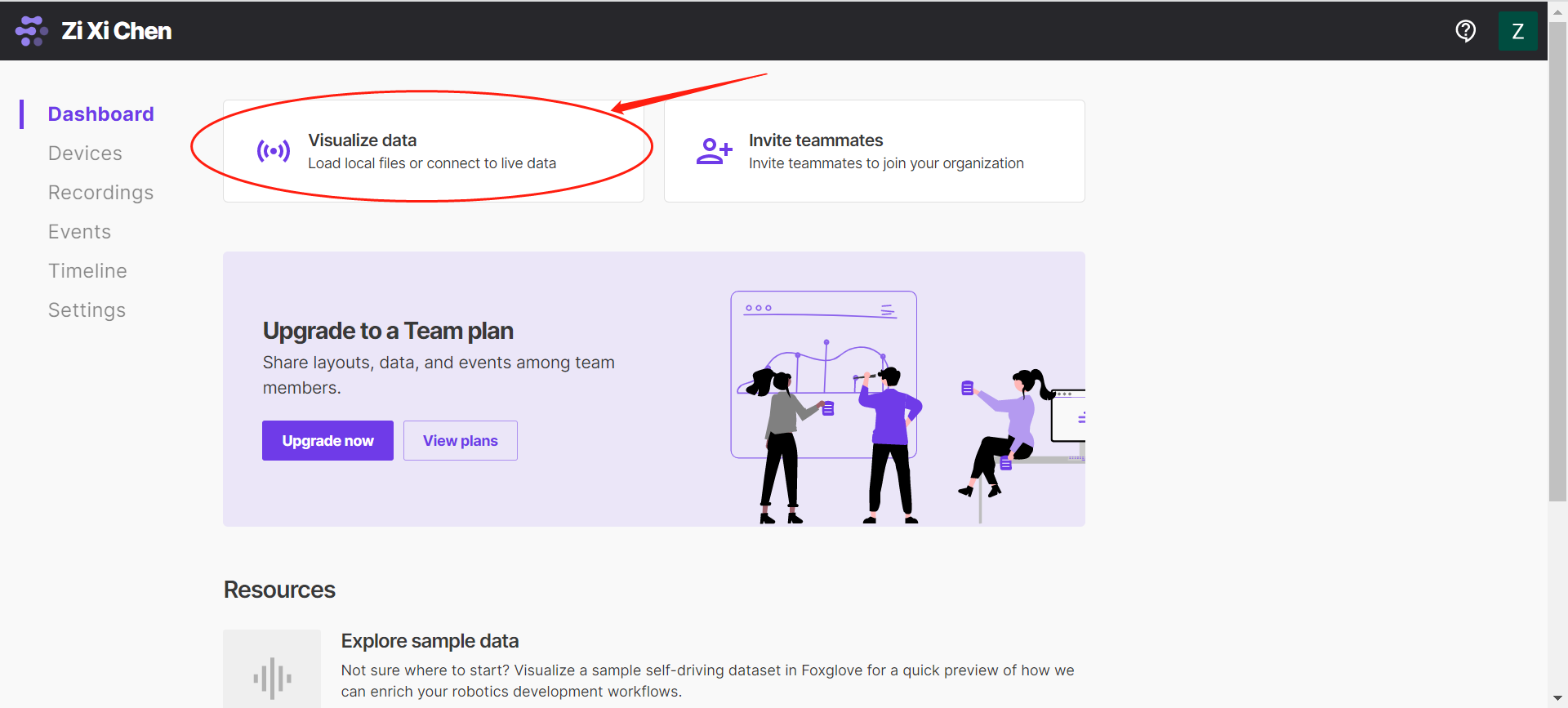
-
Click to select the local rosbag file
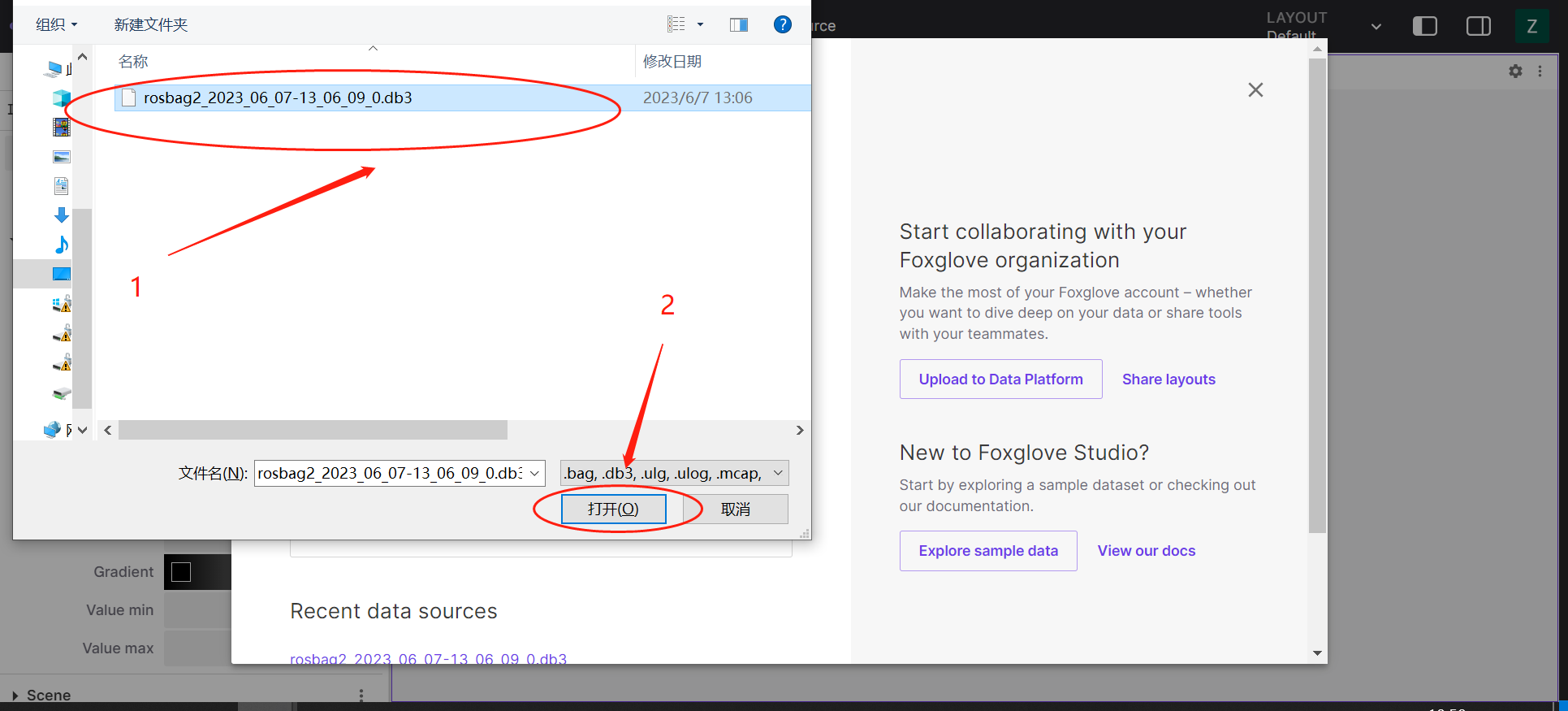
-
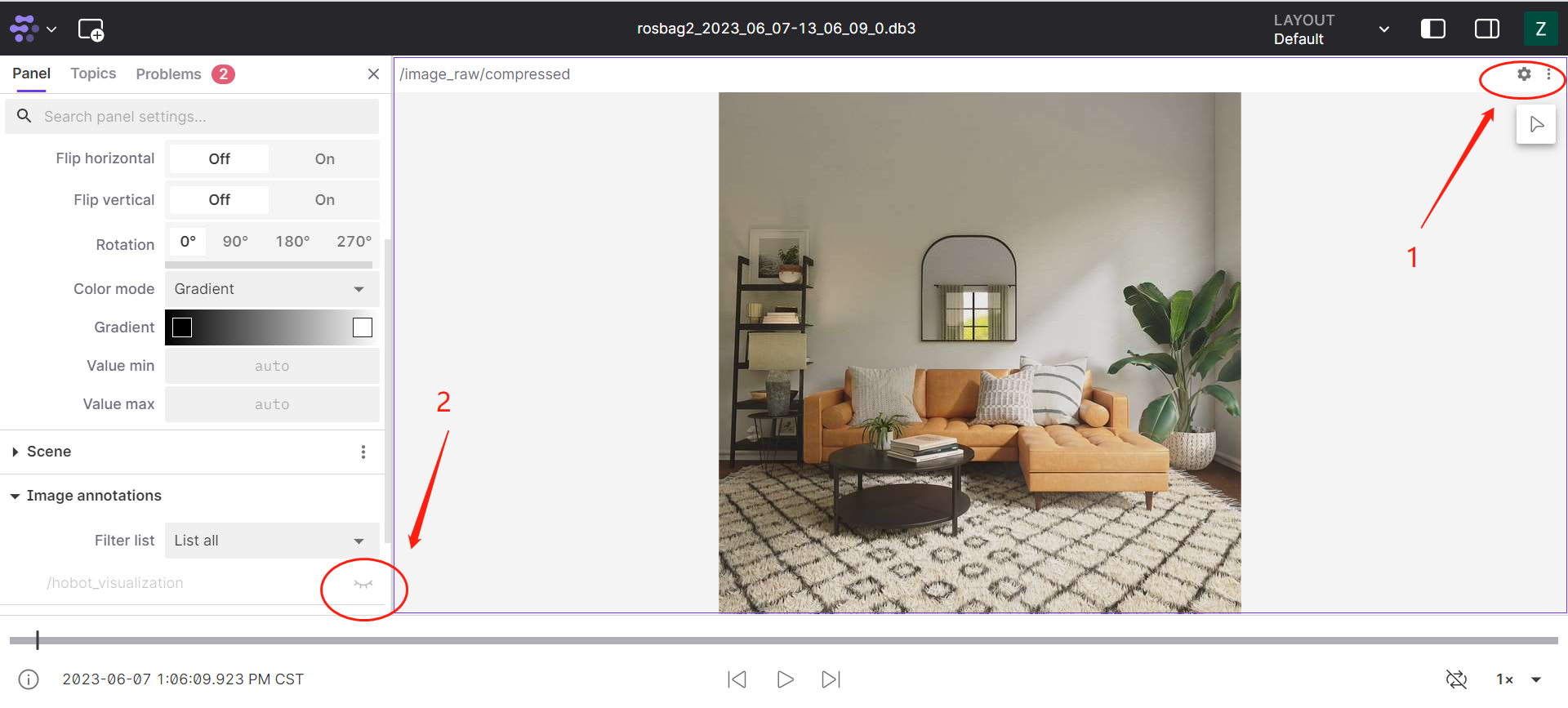
Open the layout interface. In the upper right corner of the layout interface, click Settings, select the icon, and enable marker rendering message playback
-
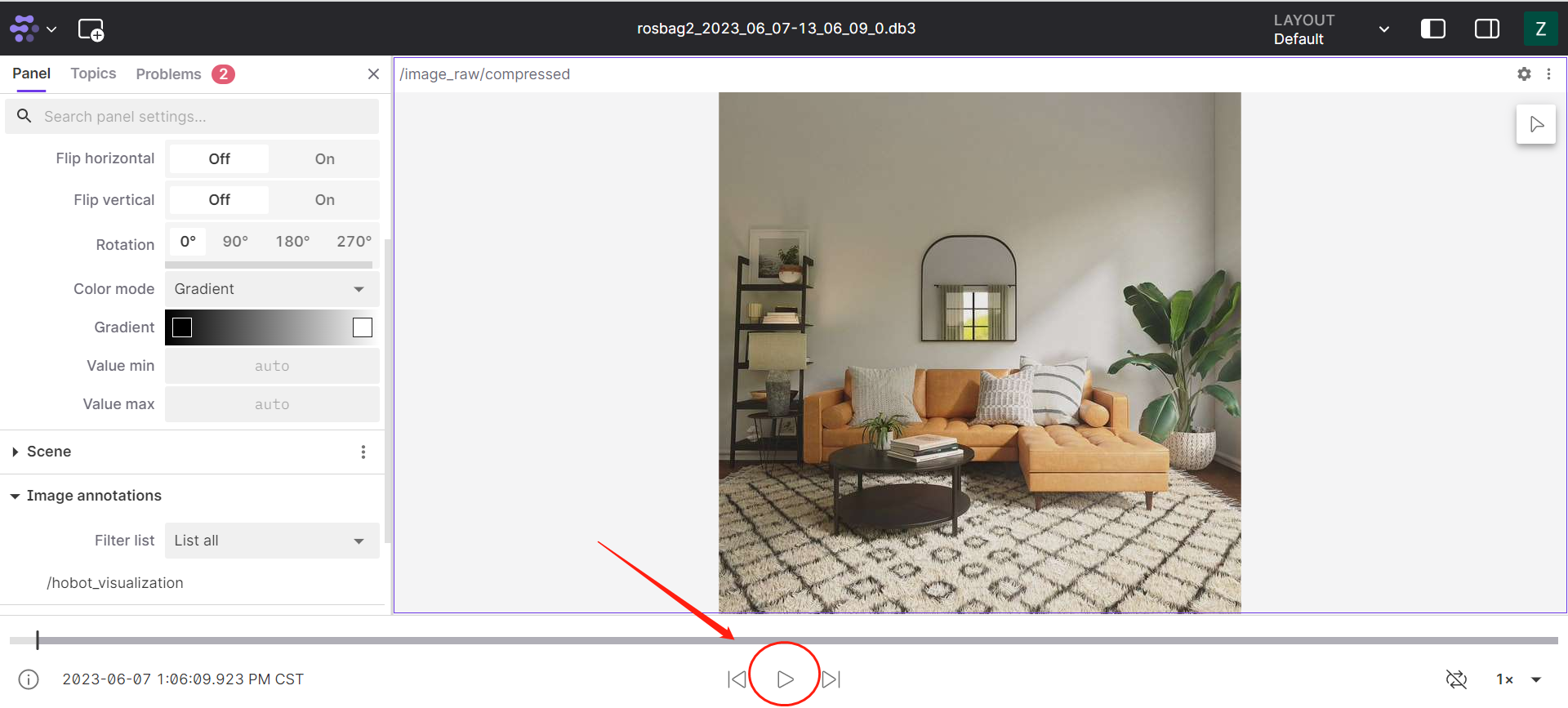
Click Play
-
View the data
Notes
-
For Foxglove to visualize image data, ROS2 official message formats must be used with image encoding formats supported by Foxglove. For details, see (https://docs.foxglove.dev/docs/visualization/panels/image ).
-
When recording messages with rosbag, topic information from other devices may also be recorded. To ensure clean rosbag data, you can set
export ROS_DOMAIN_ID=xxx, such asexport ROS_DOMAIN_ID=1.