5.2.4 Image Processing Acceleration
Gaussian Filtering
Overview
Implements Gaussian filtering with two acceleration types: BPU acceleration and NEON acceleration. BPU acceleration currently supports only the int16 format, and NEON acceleration currently supports only int16 and uint16 formats.
Code repository: https://github.com/D-Robotics/hobot_cv
Supported Platforms
| Platform | Runtime | Example Functionality |
|---|---|---|
| RDK X3, RDK X3 Module | Ubuntu 20.04 (Foxy), Ubuntu 22.04 (Humble) | Read ToF images and apply Gaussian filtering |
Preparation
RDK Platform
-
The RDK has been flashed with the Ubuntu system image.
-
TogetheROS.Bot has been successfully installed on the RDK.
Usage
BPU Acceleration
The parameter ranges supported in the current version are as follows:
-
Filter type: Gaussian filtering
-
Supported data types: int16
-
Supported resolution: 320x240.
-
Filter kernel: Gaussian 3x3
-
sigmax: 0
-
sigmay: 0
NEON Acceleration
The parameter ranges supported in the current version are as follows:
-
Filter type: Gaussian filtering
-
Supported data types: int16, uint16
-
Filter kernel: Gaussian 3x3, 5x5
-
sigmax: 0
-
sigmay: 0
The package provides a simple test program that takes a local ToF image as input and calls hobot_cv interfaces to perform Gaussian filtering. For detailed interface descriptions, refer to README.md in the hobot_cv package.
RDK Platform
- Foxy
- Humble
# Configure tros.b environment
source /opt/tros/setup.bash
# Configure tros.b environment
source /opt/tros/humble/setup.bash
# Copy the models and configuration files required to run the example from the tros.b installation path.
cp -r /opt/tros/${TROS_DISTRO}/lib/hobot_cv/config/ .

# Launch the BPU acceleration test program pkg
ros2 launch hobot_cv hobot_cv_gaussian_blur.launch.py

# Launch the NEON acceleration test program pkg
ros2 launch hobot_cv hobot_cv_neon_blur.launch.py
Result Analysis
BPU Acceleration
Output:

===================
image name :images/frame1_4.png
infe cost time:1314
guss_time cost time:2685
hobotcv save rate:0.510615

analyse_result start
---------GaussianBlur
out_filter type:2,cols:320,rows:240,channel:1
cls_filter type:2,cols:320,rows:240,channel:1
out_filter minvalue:96,max:2363
out_filter min,x:319,y:115
out_filter max,x:147,y:239
cls_filter minvalue:96,max:2364
cls_filter min,x:319,y:115
cls_filter max,x:147,y:239

diff diff diff
mat_diff minvalue:0,max:2
mat_diff min,x:2,y:0
mat_diff max,x:110,y:14

error sum:8.46524e+06,max:2,mean_error:0.439232
analyse_result,time_used_ms_end:2
analyse_result end

-------------------------
Where:
infe cost time:1314 // Indicates that hobotcv accelerated Gaussian filtering took 1314 microseconds.
guss_time cost time:2685 // Indicates that OpenCV Gaussian filtering took 2685 microseconds.
hobotcv save rate = (guss_time cost time - infe cost time) / guss_time cost time = 0.510615
Based on the comparison above, performance improved by 50% after hobot_cv acceleration.
error sum:8.46524e+06,max:2,mean_error:0.439232 // Total error for a single image: 8.46524e+06; maximum per-pixel error: 2; mean error: 0.439232
Mean error = sum / (width * height) = 8.46524e+06 / (320 * 240)
Performance comparison between hobot_cv Gaussian filtering with BPU acceleration and OpenCV Gaussian filtering:
| Interface Type | Filter Kernel Size | Time (ms) | Single-Core CPU Usage (%) |
|---|---|---|---|
| Hobotcv gaussian | Size(3,3) | 1.10435 | 15.9 |
| Opencv gaussian | Size(3,3) | 2.41861 | 49.7 |
NEON Acceleration
Output:
[neon_example-1] ===================
[neon_example-1] image name :config/tof_images/frame1_4.png
[neon_example-1] hobotcv mean cost time:674
[neon_example-1] opencv mean cost time:1025
[neon_example-1] hobotcv mean save rate:0.342439
[neon_example-1]
[neon_example-1] analyse_result start
[neon_example-1] ---------Mean_Blur
[neon_example-1] error sum:8.43744e+06,max:1,mean_error:0.430833
[neon_example-1]
[neon_example-1] hobotcv gaussian cost time:603
[neon_example-1] opencv gaussian cost time:2545
[neon_example-1] hobotcv gaussian save rate:0.763065
[neon_example-1]
[neon_example-1] analyse_result start
[neon_example-1] ---------Gaussian_Blur
[neon_example-1] error sum:9.13206e+06,max:1,mean_error:0.466302
[neon_example-1]
[neon_example-1] -------------------------
hobotcv gaussian cost time:603 // The hobotcv Gaussian filtering NEON acceleration interface took 603 microseconds. opencv gaussian cost time:2545 // Indicates that OpenCV Gaussian filtering took 2545 microseconds. hobotcv gaussian save rate = (opencv cost time - hobotcv cost time) / opencv cost time = 0.763065 Based on the comparison above, Gaussian filtering performance improved by 76% after hobotcv acceleration.
Performance comparison between hobot_cv Gaussian filtering with NEON acceleration and OpenCV Gaussian filtering:
| Interface Type | Filter Kernel Size | Time (ms) | Single-Core CPU Usage (%) |
|---|---|---|---|
| Hobotcv gaussian | Size(3,3) | 0.430284 | 27.1 |
| Opencv gaussian | Size(3,3) | 2.42225 | 47 |
| Hobotcv gaussian | Size(5,5) | 0.854871 | 39.1 |
| Opencv gaussian | Size(5,5) | 3.15647 | 99.8 |
Mean Filtering
Overview
Implements mean filtering with NEON acceleration. Currently supports only int16 and uint16 formats.
Code repository: https://github.com/D-Robotics/hobot_cv
Supported Platforms
| Platform | Runtime | Example Functionality |
|---|---|---|
| RDK X3, RDK X3 Module | Ubuntu 20.04 (Foxy), Ubuntu 22.04 (Humble) | Read ToF images and apply mean filtering |
Preparation
RDK Platform
-
The RDK has been flashed with the Ubuntu system image.
-
TogetheROS.Bot has been successfully installed on the RDK.
Usage
The parameter ranges supported in the current version are as follows:
-
Filter type: Mean filtering
-
Supported data types: int16, uint16
-
Filter kernel: 3x3, 5x5
The package provides a simple test program that takes a local ToF image as input and calls hobot_cv interfaces to perform mean filtering. For detailed interface descriptions, refer to README.md in the hobot_cv package.
RDK Platform
- Foxy
- Humble
# Configure tros.b environment
source /opt/tros/setup.bash
# Configure tros.b environment
source /opt/tros/humble/setup.bash
# Copy the configuration files required to run the example from the TogetheROS installation path.
cp -r /opt/tros/${TROS_DISTRO}/lib/hobot_cv/config/ .

# Launch the test program pkg
ros2 launch hobot_cv hobot_cv_neon_blur.launch.py
Result Analysis
Output:
[neon_example-1] ===================
[neon_example-1] image name :config/tof_images/frame1_4.png
[neon_example-1] hobotcv mean cost time:674
[neon_example-1] opencv mean cost time:1025
[neon_example-1] hobotcv mean save rate:0.342439
[neon_example-1]
[neon_example-1] analyse_result start
[neon_example-1] ---------Mean_Blur
[neon_example-1] error sum:8.43744e+06,max:1,mean_error:0.430833
[neon_example-1]
[neon_example-1] -------------------------
Where:
hobotcv mean cost time:674 // The hobot_cv mean filtering NEON acceleration interface took 674 microseconds. opencv mean cost time:1025 // Indicates that OpenCV mean filtering took 1025 microseconds. hobotcv mean save rate = (opencv cost time - hobotcv cost time) / opencv cost time = 0.342439 Based on the comparison above, mean filtering performance improved by 34% after hobotcv acceleration.
error sum:8.43744e+06,max:1,mean_error:0.430833 // Total error for a single mean-filtered image: 8.43744e+06; maximum per-pixel error: 1; mean error: 0.430833 Mean filtering mean error = sum / (width x height) = 8.43744e+06 / (320 x 240)
hobot_cv vs OpenCV Performance Comparison
| Interface Type | Filter Kernel Size | Time (ms) | Single-Core CPU Usage (%) |
|---|---|---|---|
| Hobotcv mean | Size(3,3) | 0.466397 | 31.8 |
| Opencv mean | Size(3,3) | 0.676677 | 40.2 |
| Hobotcv mean | Size(5,5) | 0.737171 | 47.7 |
| Opencv mean | Size(5,5) | 0.798177 | 52.9 |
crop
Overview
Implements image cropping. Currently supports only the NV12 format.
Code repository: https://github.com/D-Robotics/hobot_cv
Supported Platforms
| Platform | Runtime | Example Functionality |
|---|---|---|
| RDK X3, RDK X3 Module | Ubuntu 20.04 (Foxy), Ubuntu 22.04 (Humble) | Read images and crop them |
| RDK X5, RDK X5 Module | Ubuntu 22.04 (Humble) | Read images and crop them |
Preparation
RDK Platform
-
The RDK has been flashed with the Ubuntu system image.
-
TogetheROS.Bot has been successfully installed on the RDK.
Usage
RDK Platform
- Foxy
- Humble
# Configure tros.b environment
source /opt/tros/setup.bash
# Configure tros.b environment
source /opt/tros/humble/setup.bash
# Copy the models and configuration files required to run the example from the tros.b installation path.
cp -r /opt/tros/${TROS_DISTRO}/lib/hobot_cv/config/ .

# Launch the launch file
ros2 launch hobot_cv hobot_cv_crop.launch.py
Result Analysis
[INFO] [launch]: Default logging verbosity is set to INFO
[INFO] [crop_example-1]: process started with pid [3064]
[crop_example-1] [INFO] [1655951627.255477663] [example]: crop image to 960x540 pixels, time cost: 1 ms
[crop_example-1] [INFO] [1655951627.336889080] [example]: crop image to 960x540 pixels, time cost: 1 ms
[INFO] [crop_example-1]: process has finished cleanly [pid 3064]
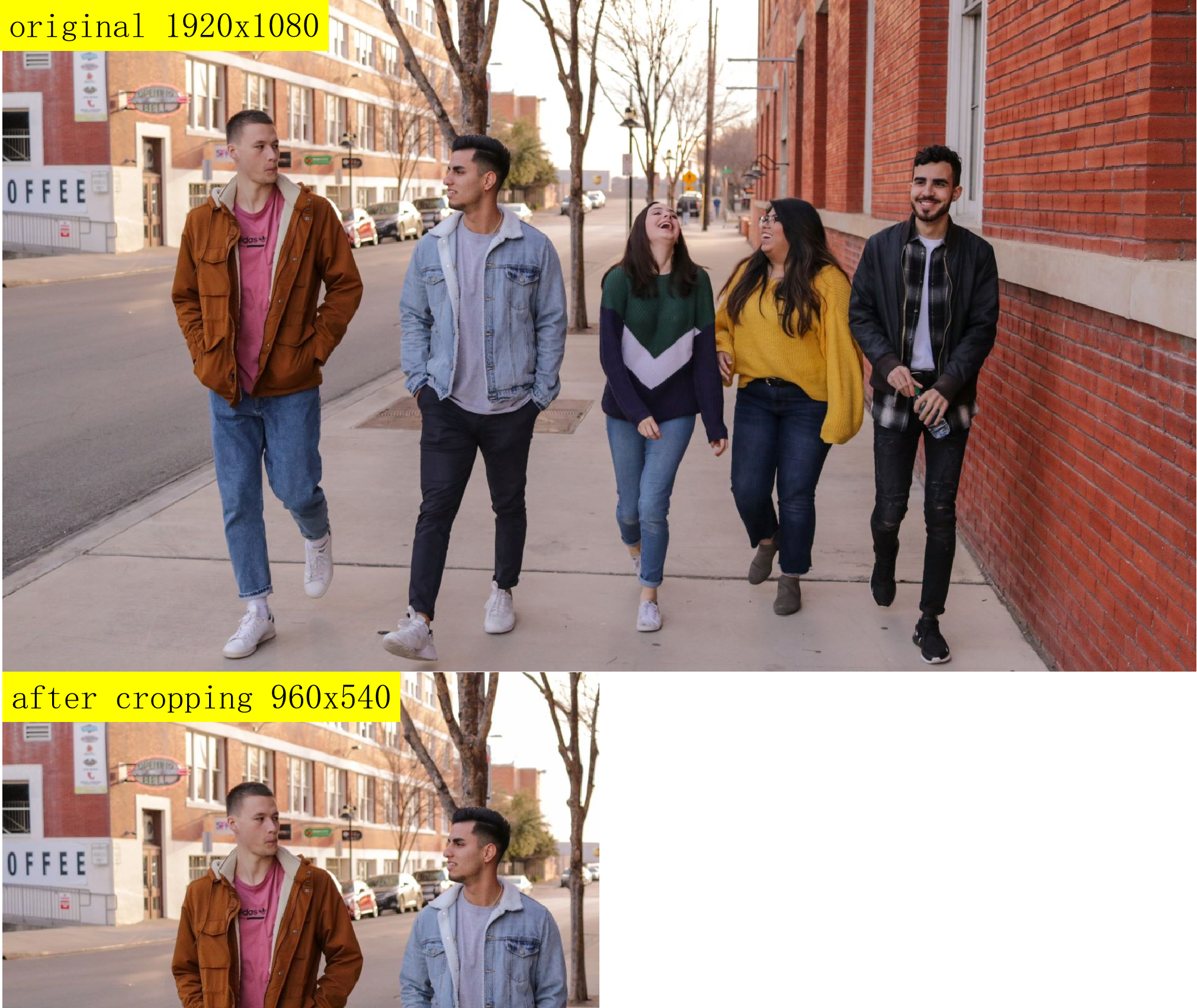
According to the log, the test program completed crop processing on a local 1920x1080 image with the following timing:
| Image Processing | Runtime |
|---|---|
| 1920x1080 cropped to 960x540 | 1ms |
The original local image at 1920x1080 and the cropped top-left 960x540 region are shown below:
resize
Overview
Implements image scaling. Currently supports only the NV12 format.
Code repository: https://github.com/D-Robotics/hobot_cv
Supported Platforms
| Platform | Runtime |
|---|---|
| RDK X3, RDK X3 Module | Ubuntu 20.04 (Foxy), Ubuntu 22.04 (Humble) |
| RDK X5, RDK X5 Module | Ubuntu 22.04 (Humble) |
| RDK S100 | Ubuntu 22.04 (Humble) |
| RDK S600 | Ubuntu 24.04 (Jazzy) |
Preparation
RDK Platform
-
The RDK has been flashed with the Ubuntu system image.
-
TogetheROS.Bot has been successfully installed on the RDK.
Usage
RDK
- Foxy
- Humble
- Jazzy
# Configure tros.b environment
source /opt/tros/setup.bash
# Configure tros.b environment
source /opt/tros/humble/setup.bash
# Configure tros.b environment
source /opt/tros/jazzy/setup.bash
- Humble
# Configure tros.b environment
source /opt/tros/humble/setup.bash
- Jazzy
# Configure tros.b environment
source /opt/tros/jazzy/setup.bash
# Copy the models and configuration files required to run the example from the TogetheROS installation path.
cp -r /opt/tros/${TROS_DISTRO}/lib/hobot_cv/config/ .

# Launch the launch file
ros2 launch hobot_cv hobot_cv_resize.launch.py
Result Analysis
RDK X3 Platform resize
[INFO] [launch]: Default logging verbosity is set to INFO
[INFO] [resize_example-1]: process started with pid [3083]
[resize_example-1] [INFO] [1655951649.930987924] [example]:
[resize_example-1] source image config/test.jpg is 1920x1080 pixels
[resize_example-1] [INFO] [1655951649.931155799] [example]: resize image to 960x540 pixels, time cost: 297 ms
[resize_example-1] [INFO] [1655951650.039223757] [example]: resize image to 960x540 pixels, time cost: 15 ms
[INFO] [resize_example-1]: process has finished cleanly [pid 3083]
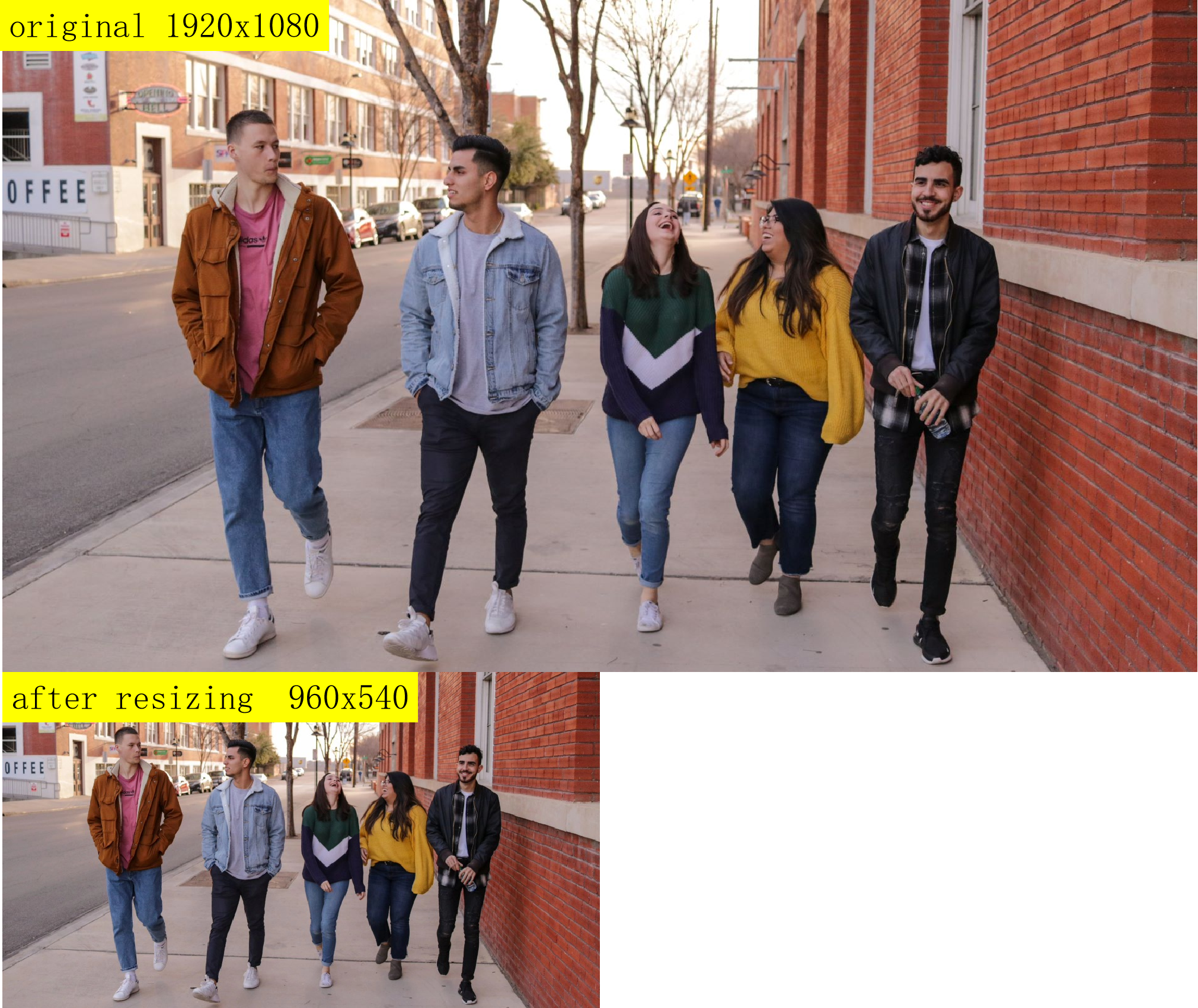
According to the log, the test program completed resize processing on a local 1920x1080 image. The interface was called twice with the following timing for each call:
| Image Processing | First Run Time | Second Run Time |
|---|---|---|
| 1920x1080 resized to 960x540 | 297ms | 15ms |
The first run takes longer because the VPS hardware needs to be configured. If the hardware configuration attributes are not changed afterward, the hardware processes directly and the time cost decreases significantly.
The original local image at 1920x1080 and the resized 960x540 image are shown below:
RDK X3 Platform Performance Comparison
Use the top command to check CPU usage; the CPU usage shown is the test process CPU percentage. Time is measured in ms, averaged over 1000 iterations in a loop. Lock the CPU frequency during testing:
sudo bash -c 'echo performance > /sys/devices/system/cpu/cpufreq/policy0/scaling_governor'
| src wxh | dst wxh | VPS Time | VPS Interface CPU Usage | BPU Time | BPU Interface CPU Usage | OpenCV Time | OpenCV Processing CPU Usage |
|---|---|---|---|---|---|---|---|
| 512x512 | 128x128 | 1.53789 | 25.9 | 1.11054 | 89 | 1.71119 | 100.3 |
| 640x640 | 320x320 | 2.48536 | 28.5 | 1.82232 | 88 | 1.82384 | 338.9 |
| 896x896 | 384x384 | 4.54422 | 24.6 | 2.81954 | 79.7 | 7.84396 | 273.1 |
| 1024x1024 | 512x512 | 6.01103 | 25.2 | 3.89325 | 81.7 | 2.55761 | 381.7 |
| 1920x1088 | 512x512 | 11.0406 | 20.6 | 5.8513 | 71.1 | 8.19324 | 380.1 |
| 1920x1080 | 960x544 | 11.1562 | 22.3 | 7.09085 | 77.7 | 15.2978 | 382.4 |
rotate
Overview
rotate implements image rotation. Currently supports only NV12 format images, with rotation angles of 90, 180, and 270 degrees.
Code repository: https://github.com/D-Robotics/hobot_cv
Supported Platforms
| Platform | Runtime | Example Functionality |
|---|---|---|
| RDK X3, RDK X3 Module | Ubuntu 20.04 (Foxy), Ubuntu 22.04 (Humble) | Read images and rotate them |
Preparation
RDK Platform
-
The RDK has been flashed with the Ubuntu system image.
-
TogetheROS.Bot has been successfully installed on the RDK.
Usage
RDK Platform
- Foxy
- Humble
# Configure tros.b environment
source /opt/tros/setup.bash
# Configure tros.b environment
source /opt/tros/humble/setup.bash
# Copy the models and configuration files required to run the example from the tros.b installation path.
cp -r /opt/tros/${TROS_DISTRO}/lib/hobot_cv/config/ .

# Launch the launch file
ros2 launch hobot_cv hobot_cv_rotate.launch.py
Result Analysis
[INFO] [launch]: Default logging verbosity is set to INFO
[INFO] [rotate_example-1]: process started with pid [3096]
[rotate_example-1] [INFO] [1655951661.173422471] [example]: rotate image 180 , time cost: 415 ms
[rotate_example-1]
[rotate_example-1] [INFO] [1655951661.416188013] [example]: second rotate image 180 , time cost: 40 ms
[rotate_example-1]
[INFO] [rotate_example-1]: process has finished cleanly [pid 3096]
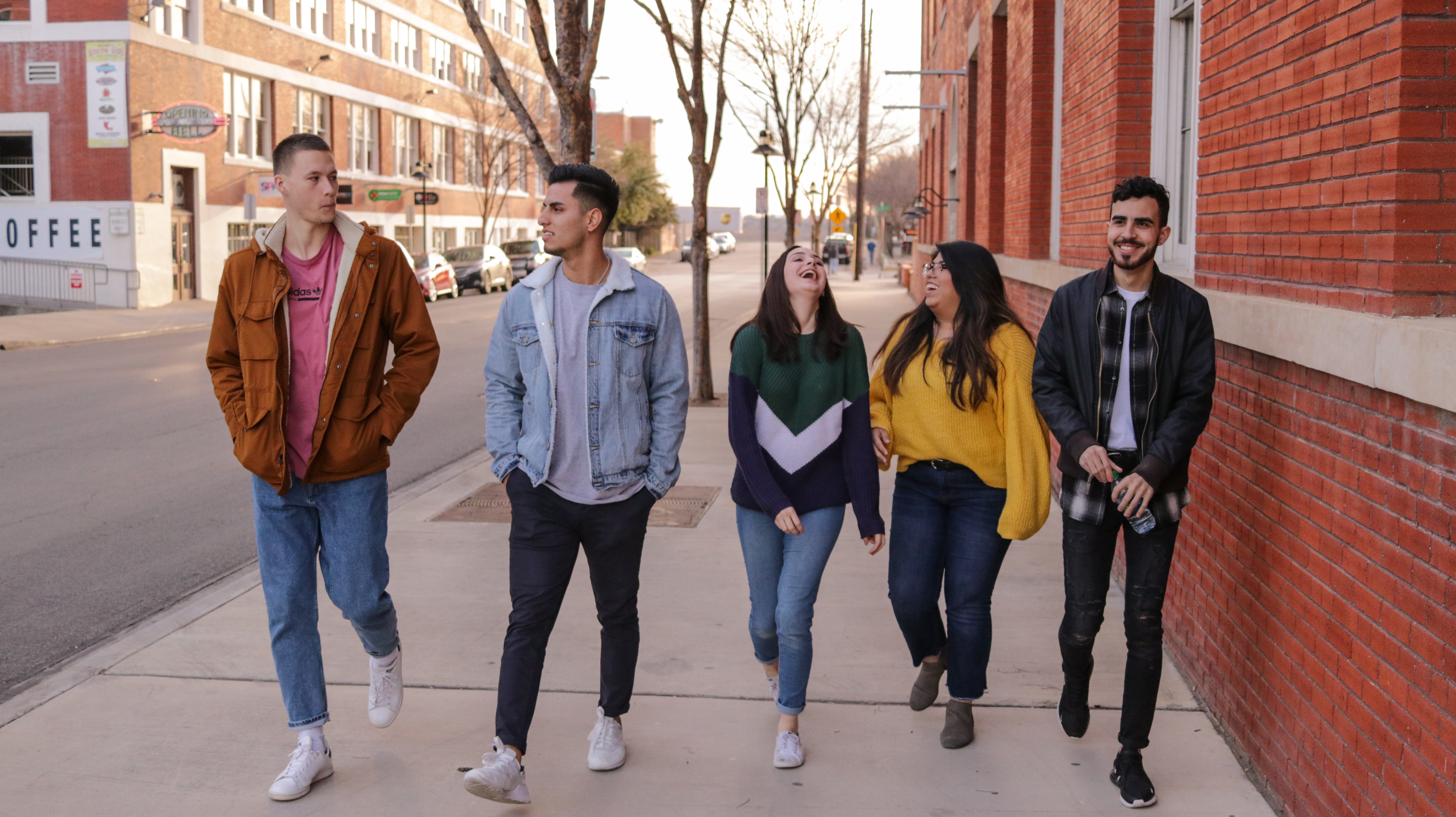
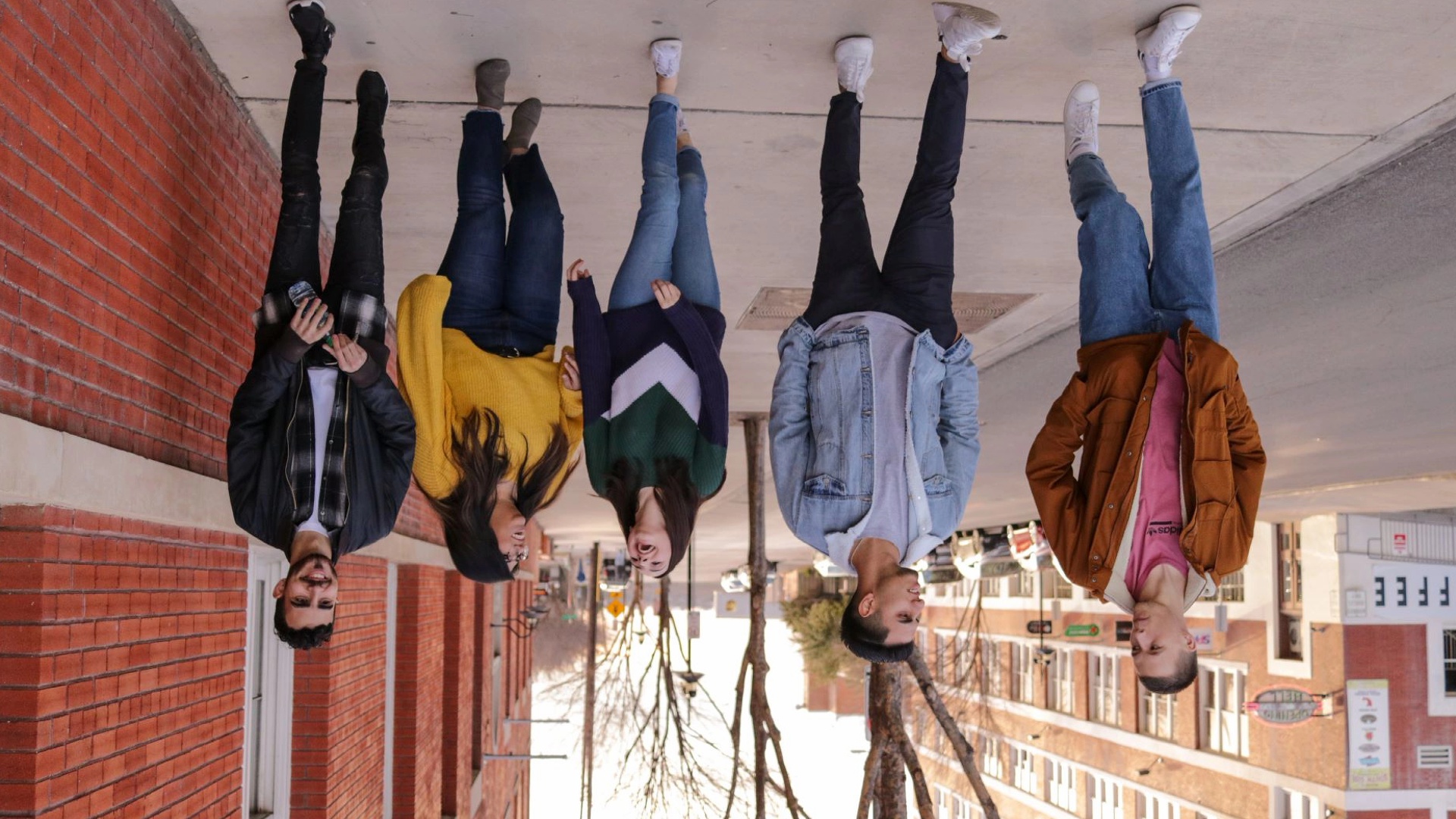
According to the log, the test program completed rotate processing on a local 1920x1080 image. The interface was called twice with the following timing for each call:
| Image Processing | First Run Time | Second Run Time |
|---|---|---|
| 1920x1080 rotated 180 degrees | 415ms | 40ms |
The first run takes longer because the VPS hardware needs to be configured. If the hardware configuration attributes are not changed afterward, the hardware processes directly and the time cost decreases significantly.
The original local image at 1920x1080 and the rotated 1920x1080 image are shown below:
hobot_cv vs OpenCV Performance Comparison
Use the top command to check CPU usage; the CPU usage shown is the test process CPU percentage. Time is measured in ms, averaged over 1000 iterations in a loop. Lock the CPU frequency during testing:
sudo bash -c 'echo performance > /sys/devices/system/cpu/cpufreq/policy0/scaling_governor'
| src wxh | Rotation Angle | hobotcv Time | hobotcv Interface CPU Usage | OpenCV Time | OpenCV Processing CPU Usage |
|---|---|---|---|---|---|
| 1920x1080 | 90 | 37.6568 | 61.6 | 55.8886 | 100.0 |
| 640x640 | 180 | 7.3133 | 66.8 | 5.1806 | 100.0 |
| 896x896 | 270 | 14.7723 | 62.5 | 13.6497 | 100.0 |
pyramid
Overview
Implements image pyramid scaling. Currently supports only the NV12 format.
Code repository: https://github.com/D-Robotics/hobot_cv
Supported Platforms
| Platform | Runtime | Example Functionality |
|---|---|---|
| RDK X3, RDK X3 Module | Ubuntu 20.04 (Foxy), Ubuntu 22.04 (Humble) | Read images and perform pyramid scaling |
Preparation
RDK Platform
-
The RDK has been flashed with the Ubuntu system image.
-
TogetheROS.Bot has been successfully installed on the RDK.
Usage
RDK Platform
- Foxy
- Humble
# Configure tros.b environment
source /opt/tros/setup.bash
# Configure tros.b environment
source /opt/tros/humble/setup.bash
# Copy the models and configuration files required to run the example from the tros.b installation path.
cp -r /opt/tros/${TROS_DISTRO}/lib/hobot_cv/config/ .

# Launch the launch file
ros2 launch hobot_cv hobot_cv_pyramid.launch.py
Result Analysis
[INFO] [launch]: Default logging verbosity is set to INFO
[INFO] [pyramid_example-1]: process started with pid [3071]
[pyramid_example-1] [INFO] [1655951639.110992960] [example]: pyramid image , time cost: 299 ms
[pyramid_example-1]
[pyramid_example-1] [INFO] [1655951639.432398919] [example]: pyramid image , time cost: 19 ms
[pyramid_example-1]
[INFO] [pyramid_example-1]: process has finished cleanly [pid 3071]
According to the log, the test program completed pyramid downscaling on a local 1920x1080 image. The interface was called twice with the following timing for each call:
| Image Processing | First Run Time | Second Run Time |
|---|---|---|
| 1920x1080 pyramid six-layer base layer output | 299ms | 19ms |
The first run takes longer because the VPS hardware needs to be configured. If the hardware configuration attributes are not changed afterward, the hardware processes directly and the time cost decreases significantly.
The original local image at 1920x1080 and the pyramid-scaled image are shown below:
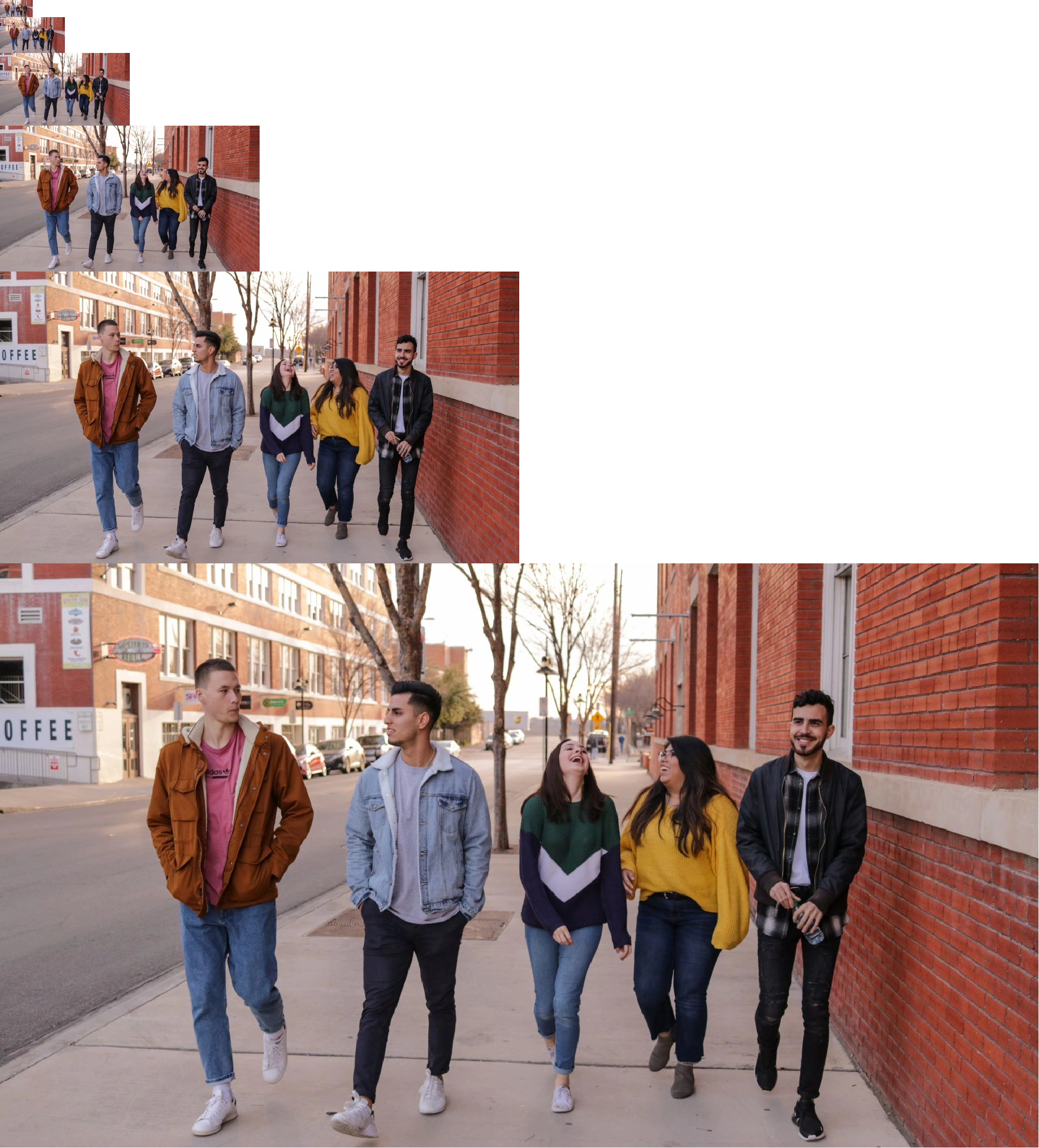
Outputs six base layers; each layer's size is half that of the previous layer.
Performance Comparison
With a 1920x1080 input image, five upward layers are generated to obtain images at 960x540, 480x270, 240x134, 120x66, and 60x32 resolutions. OpenCV and hobotcv efficiency are compared as follows:
CPU usage is shown as single-core percentage; time is measured in ms.
| VPS Interface Time | VPS Interface CPU Usage | OpenCV Time | OpenCV Interface CPU Usage |
|---|---|---|---|
| 19ms | 42.5 | 56 | 100 |
color
Overview
Implements conversion between nv12 and bgr24 image formats.
Code repository: https://github.com/D-Robotics/hobot_cv
Supported Platforms
| Platform | Runtime | Example Functionality |
|---|---|---|
| RDK X5, RDK X5 Module, RDK S100 | Ubuntu 22.04 (Humble) | Conversion between nv12 and bgr24 |
| RDK S600 | Ubuntu 24.04 (Jazzy) | Conversion between nv12 and bgr24 |
Preparation
RDK Platform
-
The RDK has been flashed with the Ubuntu system image.
-
TogetheROS.Bot has been successfully installed on the RDK.
Usage
RDK Platform
- Humble
- Jazzy
# Configure tros.b environment
source /opt/tros/humble/setup.bash
# Configure tros.b environment
source /opt/tros/jazzy/setup.bash
- Humble
# Configure tros.b environment
source /opt/tros/humble/setup.bash
- Jazzy
# Configure tros.b environment
source /opt/tros/jazzy/setup.bash
# Copy the models and configuration files required to run the example from the tros.b installation path.
cp -r /opt/tros/${TROS_DISTRO}/lib/hobot_cv/config/ .

# Launch the launch file
ros2 launch hobot_cv hobot_cv_conversion.launch.py
Result Analysis
[INFO] [launch]: All log files can be found below /root/.ros/log/2025-03-25-14-50-55-535138-ubuntu-4139
[INFO] [launch]: Default logging verbosity is set to INFO
[INFO] [test_conersion-1]: process started with pid [4140]
[test_conersion-1] [INFO] [1742885455.683144151] [hobot_cv]: bgr24_to_nv12 opencv time cost: 4 ms
[test_conersion-1] [INFO] [1742885455.685469463] [hobot_cv]: nv12_to_bgr24 neon 1 time cost: 2 ms
[test_conersion-1] [INFO] [1742885455.836798125] [hobot_cv]: nv12_to_bgr24 neon 2 time cost: 2 ms
[test_conersion-1] [INFO] [1742885455.992973665] [hobot_cv]: bgr24_to_nv12 neon 1 time cost: 1 ms
[test_conersion-1] [INFO] [1742885455.997803043] [hobot_cv]: nv12_to_bgr24 opencv time cost: 4 ms
[test_conersion-1] [INFO] [1742885456.156813423] [hobot_cv]: bgr24_to_nv12 neon 2 time cost: 1 ms
[test_conersion-1] [INFO] [1742885456.161413872] [hobot_cv]: nv12_to_bgr24 opencv time cost: 4 ms
[INFO] [test_conersion-1]: process has finished cleanly [pid 4140]