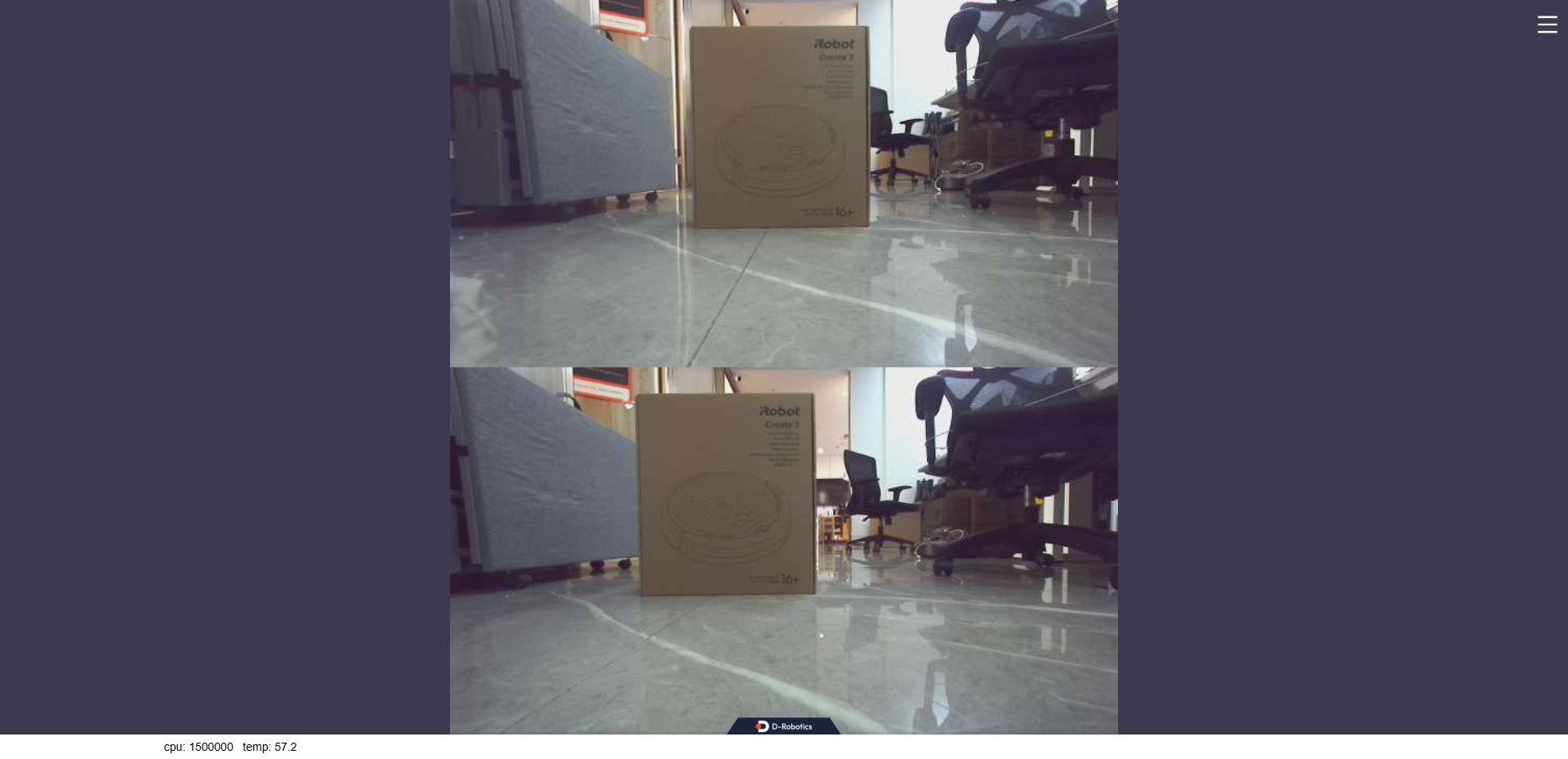
5.2.1 Data Acquisition
USB Image Capture
Introduction
To enable environmental perception, robot products are typically equipped with cameras to capture image data. USB cameras are easy to obtain, convenient to use, and highly compatible. TogetheROS.Bot adds support for USB cameras and supports ROS2 standard image messages.
Code repository: https://github.com/D-Robotics/hobot_usb_cam.git
Supported Platforms
| Platform | Runtime Environment |
|---|---|
| RDK X3, RDK X3 Module | Ubuntu 20.04 (Foxy), Ubuntu 22.04 (Humble) |
| RDK X5, RDK X5 Module | Ubuntu 22.04 (Humble) |
| RDK S100, RDK S100P | Ubuntu 22.04 (Humble) |
| RDK S600 | Ubuntu 24.04 (Jazzy) |
Preparation
RDK Platform
-
Verify that your USB camera works properly, and connect it to the RDK USB port
-
The RDK has been flashed with the Ubuntu system image
-
tros.b has been successfully installed on the RDK
-
Confirm that the PC can access the RDK over the network
Usage (default usb_pixel_format is mjpeg)
The RDK platform is used as an example below:
-
Log in to the RDK via SSH and confirm the USB camera device name.
/dev/video8is used as an example here -
Start the USB camera with the following commands
- Foxy
- Humble
- Jazzy
# Configure tros.b environment
source /opt/tros/setup.bash
# Configure tros.b environment
source /opt/tros/humble/setup.bash# Configure tros.b environment
source /opt/tros/jazzy/setup.bash- Humble
# Configure tros.b environment
source /opt/tros/humble/setup.bash- Jazzy
# Configure tros.b environment
source /opt/tros/jazzy/setup.bash# Start with launch:
ros2 launch hobot_usb_cam hobot_usb_cam.launch.py usb_video_device:=/dev/video8 -
If the program outputs the following information, the node has started successfully
[INFO] [launch]: All log files can be found below /root/.ros/log/2024-01-18-19-44-39-419588-ubuntu-3951
[INFO] [launch]: Default logging verbosity is set to INFO
[INFO] [hobot_usb_cam-1]: process started with pid [3953]
[hobot_usb_cam-1] [WARN] [1705578280.808870437] [hobot_usb_cam]: framerate: 30
[hobot_usb_cam-1] [WARN] [1705578280.809851560] [hobot_usb_cam]: pixel_format_name: mjpeg
[hobot_usb_cam-1] [WARN] [1705578280.936697507] [hobot_usb_cam]: This devices supproted formats:
[hobot_usb_cam-1] [WARN] [1705578280.936858791] [hobot_usb_cam]: Motion-JPEG: 640 x 480 (30 Hz)
[hobot_usb_cam-1] [WARN] [1705578280.936912830] [hobot_usb_cam]: Motion-JPEG: 1920 x 1080 (30 Hz)
[hobot_usb_cam-1] [WARN] [1705578280.936960328] [hobot_usb_cam]: Motion-JPEG: 320 x 240 (30 Hz)
[hobot_usb_cam-1] [WARN] [1705578280.937007285] [hobot_usb_cam]: Motion-JPEG: 800 x 600 (30 Hz)
[hobot_usb_cam-1] [WARN] [1705578280.937053241] [hobot_usb_cam]: Motion-JPEG: 1280 x 720 (30 Hz)
[hobot_usb_cam-1] [WARN] [1705578280.937098906] [hobot_usb_cam]: Motion-JPEG: 1024 x 576 (30 Hz)
[hobot_usb_cam-1] [WARN] [1705578280.937144528] [hobot_usb_cam]: YUYV 4:2:2: 640 x 480 (30 Hz)
[hobot_usb_cam-1] [WARN] [1705578280.937190068] [hobot_usb_cam]: YUYV 4:2:2: 1920 x 1080 (5 Hz)
[hobot_usb_cam-1] [WARN] [1705578280.937235858] [hobot_usb_cam]: YUYV 4:2:2: 320 x 240 (30 Hz)
[hobot_usb_cam-1] [WARN] [1705578280.937282064] [hobot_usb_cam]: YUYV 4:2:2: 800 x 600 (20 Hz)
[hobot_usb_cam-1] [WARN] [1705578280.937328020] [hobot_usb_cam]: YUYV 4:2:2: 1280 x 720 (10 Hz)
[hobot_usb_cam-1] [WARN] [1705578280.937373518] [hobot_usb_cam]: YUYV 4:2:2: 1024 x 576 (15 Hz) -
View USB camera images in the web browser. Open another terminal:
- Foxy
- Humble
- Jazzy
# Configure tros.b environment
source /opt/tros/setup.bash
# Configure tros.b environment
source /opt/tros/humble/setup.bash
# Configure tros.b environment
source /opt/tros/jazzy/setup.bash
- Humble
# Configure tros.b environment
source /opt/tros/humble/setup.bash
- Jazzy
# Configure tros.b environment
source /opt/tros/jazzy/setup.bash
# Start websocket
ros2 launch websocket websocket.launch.py websocket_image_topic:=/image websocket_only_show_image:=true
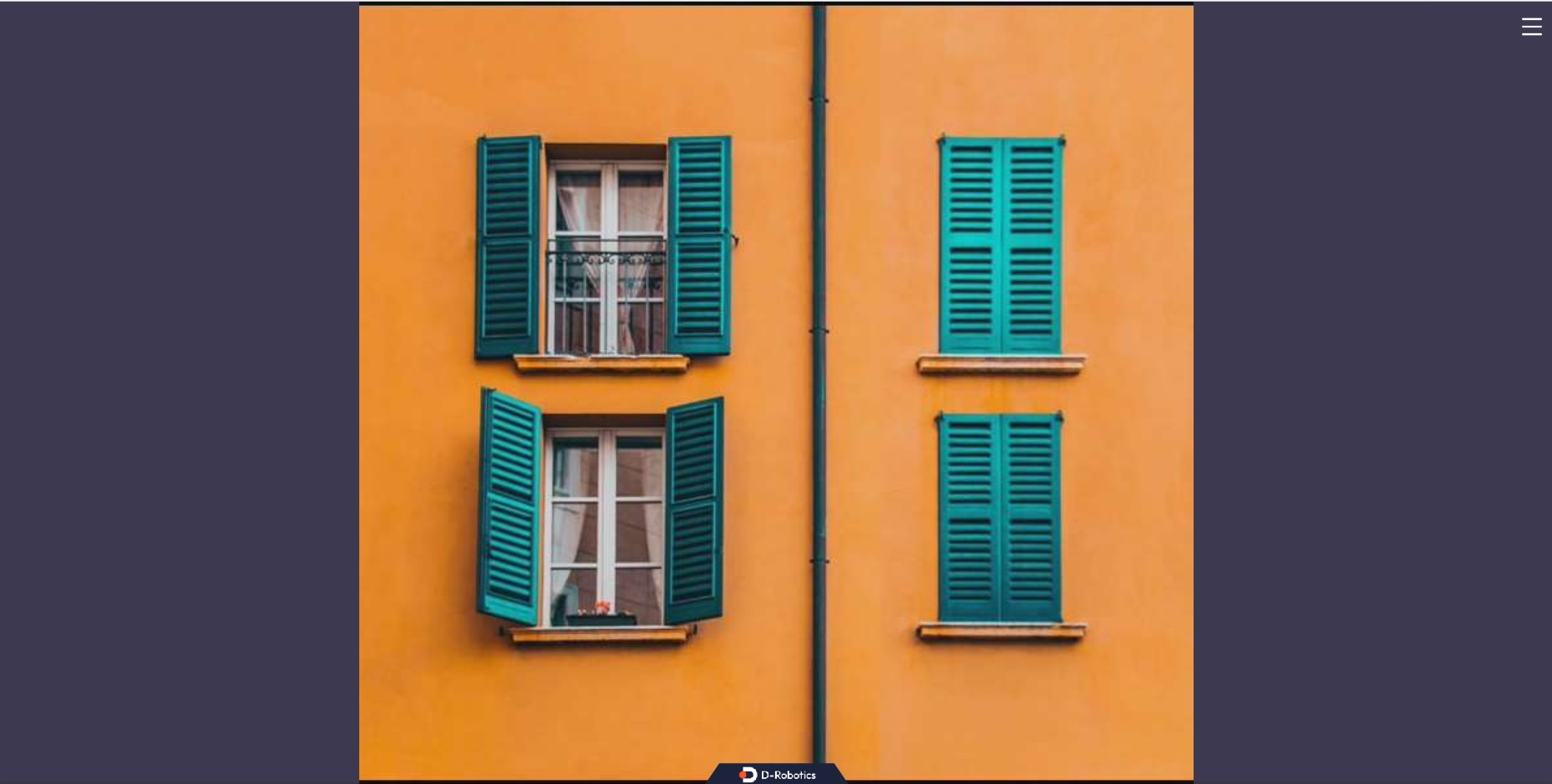
- On the PC, open a browser (
Chrome/Firefox/Edge), enterIP:8000(where IP is the RDK IP address), and click Web Display in the upper-left corner to view the live USB camera feed.
Usage 2 (usb_pixel_format is yuyv2rgb)
The RDK platform is used as an example below:
-
Log in to the RDK via SSH and confirm the USB camera device name.
/dev/video8is used as an example here -
Start the USB camera with the following commands
- Foxy
- Humble
- Jazzy
# Configure tros.b environment
source /opt/tros/setup.bash
# Configure tros.b environment
source /opt/tros/humble/setup.bash# Configure tros.b environment
source /opt/tros/jazzy/setup.bash- Humble
# Configure tros.b environment
source /opt/tros/humble/setup.bash- Jazzy
# Configure tros.b environment
source /opt/tros/jazzy/setup.bash# Start with launch:
ros2 launch hobot_usb_cam hobot_usb_cam.launch.py usb_video_device:=/dev/video8 usb_pixel_format:=yuyv2rgb usb_image_width:=640 usb_image_height:=480 -
If the program outputs the following information, the node has started successfully
[INFO] [launch]: All log files can be found below /root/.ros/log/2024-01-18-19-44-39-419588-ubuntu-3951
[INFO] [launch]: Default logging verbosity is set to INFO
[INFO] [hobot_usb_cam-1]: process started with pid [3953]
[hobot_usb_cam-1] [WARN] [1705578280.808870437] [hobot_usb_cam]: framerate: 30
[hobot_usb_cam-1] [WARN] [1705578280.809851560] [hobot_usb_cam]: pixel_format_name: yuyv2rgb
[hobot_usb_cam-1] [WARN] [1705578280.936697507] [hobot_usb_cam]: This devices supproted formats:
[hobot_usb_cam-1] [WARN] [1705578280.936858791] [hobot_usb_cam]: Motion-JPEG: 640 x 480 (30 Hz)
[hobot_usb_cam-1] [WARN] [1705578280.936912830] [hobot_usb_cam]: Motion-JPEG: 1920 x 1080 (30 Hz)
[hobot_usb_cam-1] [WARN] [1705578280.936960328] [hobot_usb_cam]: Motion-JPEG: 320 x 240 (30 Hz)
[hobot_usb_cam-1] [WARN] [1705578280.937007285] [hobot_usb_cam]: Motion-JPEG: 800 x 600 (30 Hz)
[hobot_usb_cam-1] [WARN] [1705578280.937053241] [hobot_usb_cam]: Motion-JPEG: 1280 x 720 (30 Hz)
[hobot_usb_cam-1] [WARN] [1705578280.937098906] [hobot_usb_cam]: Motion-JPEG: 1024 x 576 (30 Hz)
[hobot_usb_cam-1] [WARN] [1705578280.937144528] [hobot_usb_cam]: YUYV 4:2:2: 640 x 480 (30 Hz)
[hobot_usb_cam-1] [WARN] [1705578280.937190068] [hobot_usb_cam]: YUYV 4:2:2: 1920 x 1080 (5 Hz)
[hobot_usb_cam-1] [WARN] [1705578280.937235858] [hobot_usb_cam]: YUYV 4:2:2: 320 x 240 (30 Hz)
[hobot_usb_cam-1] [WARN] [1705578280.937282064] [hobot_usb_cam]: YUYV 4:2:2: 800 x 600 (20 Hz)
[hobot_usb_cam-1] [WARN] [1705578280.937328020] [hobot_usb_cam]: YUYV 4:2:2: 1280 x 720 (10 Hz)
[hobot_usb_cam-1] [WARN] [1705578280.937373518] [hobot_usb_cam]: YUYV 4:2:2: 1024 x 576 (15 Hz) -
Encode to mjpeg using hobot codec
- Foxy
- Humble
- Jazzy
# Configure tros.b environment
source /opt/tros/setup.bash# Configure tros.b environment
source /opt/tros/humble/setup.bash# Configure tros.b environment
source /opt/tros/jazzy/setup.bash- Humble
# Configure tros.b environment
source /opt/tros/humble/setup.bash- Jazzy
# Configure tros.b environment
source /opt/tros/jazzy/setup.bash
# Start with launch:
ros2 launch hobot_codec hobot_codec_encode.launch.py codec_in_mode:=ros codec_in_format:=rgb8 codec_out_mode:=ros codec_sub_topic:=/image codec_pub_topic:=/image_mjpeg -
View USB camera images in the web browser. Open another terminal:
- Foxy
- Humble
- Jazzy
# Configure tros.b environment
source /opt/tros/setup.bash
# Configure tros.b environment
source /opt/tros/humble/setup.bash# Configure tros.b environment
source /opt/tros/jazzy/setup.bash- Humble
# Configure tros.b environment
source /opt/tros/humble/setup.bash- Jazzy
# Configure tros.b environment
source /opt/tros/jazzy/setup.bash# Start websocket
ros2 launch websocket websocket.launch.py websocket_image_topic:=/image_mjpeg websocket_only_show_image:=true -
On the PC, open a browser (Chrome/Firefox/Edge), enter
http://IP:8000(where IP is the RDK IP address), and click Web Display in the upper-left corner to view the live USB camera feed
Notes
-
The USB camera needs to be calibrated, and the path to the camera calibration file must be configured; otherwise, camera intrinsics cannot be published, but other functions are not affected
-
To set the camera calibration file path, follow these steps:
- Foxy
- Humble
- Jazzy
# Configure tros.b environment
source /opt/tros/setup.bash# Configure tros.b environment
source /opt/tros/humble/setup.bash# Configure tros.b environment
source /opt/tros/jazzy/setup.bash- Humble
# Configure tros.b environment
source /opt/tros/humble/setup.bash- Jazzy
# Configure tros.b environment
source /opt/tros/jazzy/setup.bash
# Start with launch
ros2 launch hobot_usb_cam hobot_usb_cam.launch.py usb_camera_calibration_file_path:=(actual absolute path to calibration file) -
Changing pixel_format configuration
hobot_usb_cam supports the following configuration sets: "mjpeg","mjpeg2rgb","rgb8","yuyv","yuyv2rgb","uyvy","uyvy2rgb","m4202rgb","mono8","mono16","y102mono8"
Start the USB camera with the default parameters from the first method to query the formats supported by the device hardware, as shown in the log below:
[hobot_usb_cam-1] [WARN] [1705548544.174669672] [hobot_usb_cam]: This devices supproted formats:
[hobot_usb_cam-1] [WARN] [1705548544.174844917] [hobot_usb_cam]: Motion-JPEG: 640 x 480 (30 Hz)
[hobot_usb_cam-1] [WARN] [1705548544.174903166] [hobot_usb_cam]: Motion-JPEG: 1920 x 1080 (30 Hz)
[hobot_usb_cam-1] [WARN] [1705548544.174950581] [hobot_usb_cam]: Motion-JPEG: 320 x 240 (30 Hz)
[hobot_usb_cam-1] [WARN] [1705548544.174996788] [hobot_usb_cam]: Motion-JPEG: 800 x 600 (30 Hz)
[hobot_usb_cam-1] [WARN] [1705548544.175043412] [hobot_usb_cam]: Motion-JPEG: 1280 x 720 (30 Hz)
[hobot_usb_cam-1] [WARN] [1705548544.175089161] [hobot_usb_cam]: Motion-JPEG: 1024 x 576 (30 Hz)
[hobot_usb_cam-1] [WARN] [1705548544.175135035] [hobot_usb_cam]: YUYV 4:2:2: 640 x 480 (30 Hz)
[hobot_usb_cam-1] [WARN] [1705548544.175180325] [hobot_usb_cam]: YUYV 4:2:2: 1920 x 1080 (5 Hz)
[hobot_usb_cam-1] [WARN] [1705548544.175226449] [hobot_usb_cam]: YUYV 4:2:2: 320 x 240 (30 Hz)
[hobot_usb_cam-1] [WARN] [1705548544.175272365] [hobot_usb_cam]: YUYV 4:2:2: 800 x 600 (20 Hz)
[hobot_usb_cam-1] [WARN] [1705548544.175318697] [hobot_usb_cam]: YUYV 4:2:2: 1280 x 720 (10 Hz)
[hobot_usb_cam-1] [WARN] [1705548544.175365195] [hobot_usb_cam]: YUYV 4:2:2: 1024 x 576 (15 Hz)a. Query the image formats supported by the USB camera. As shown in the log above, the device supports mjpeg and YUYV;
b. Only "mjpeg","mjpeg2rgb","yuyv","yuyv2rgb" can be set; otherwise, the hobot_usb_cam program will exit.
MIPI Image Capture
Introduction
To enable environmental perception, robot products are typically equipped with sensors such as cameras and ToF devices. To reduce sensor adaptation and usage costs for users, TogetheROS.Bot wraps various commonly used sensors into the hobot_sensor module and supports ROS standard image messages. When the configured sensor parameters do not match the connected camera, the program automatically adapts to the correct sensor type. The currently supported MIPI sensor types are listed below:
| No. | Name | Illustration | Parameters | Supported Platforms | Reference Link |
|---|---|---|---|---|---|
| 1 | F37 | 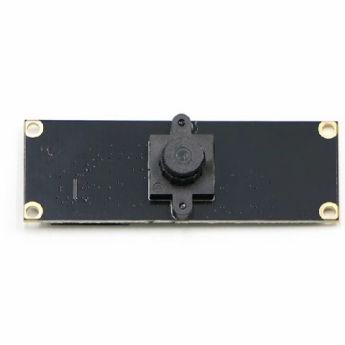 | 2MP | RDK X3, RDK X3 Module | F37 |
| 2 | GC4663 | 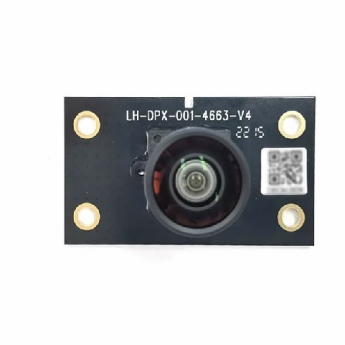 | 4MP | RDK X3, RDK X3 Module | GC4663 |
| 4 | IMX477 | 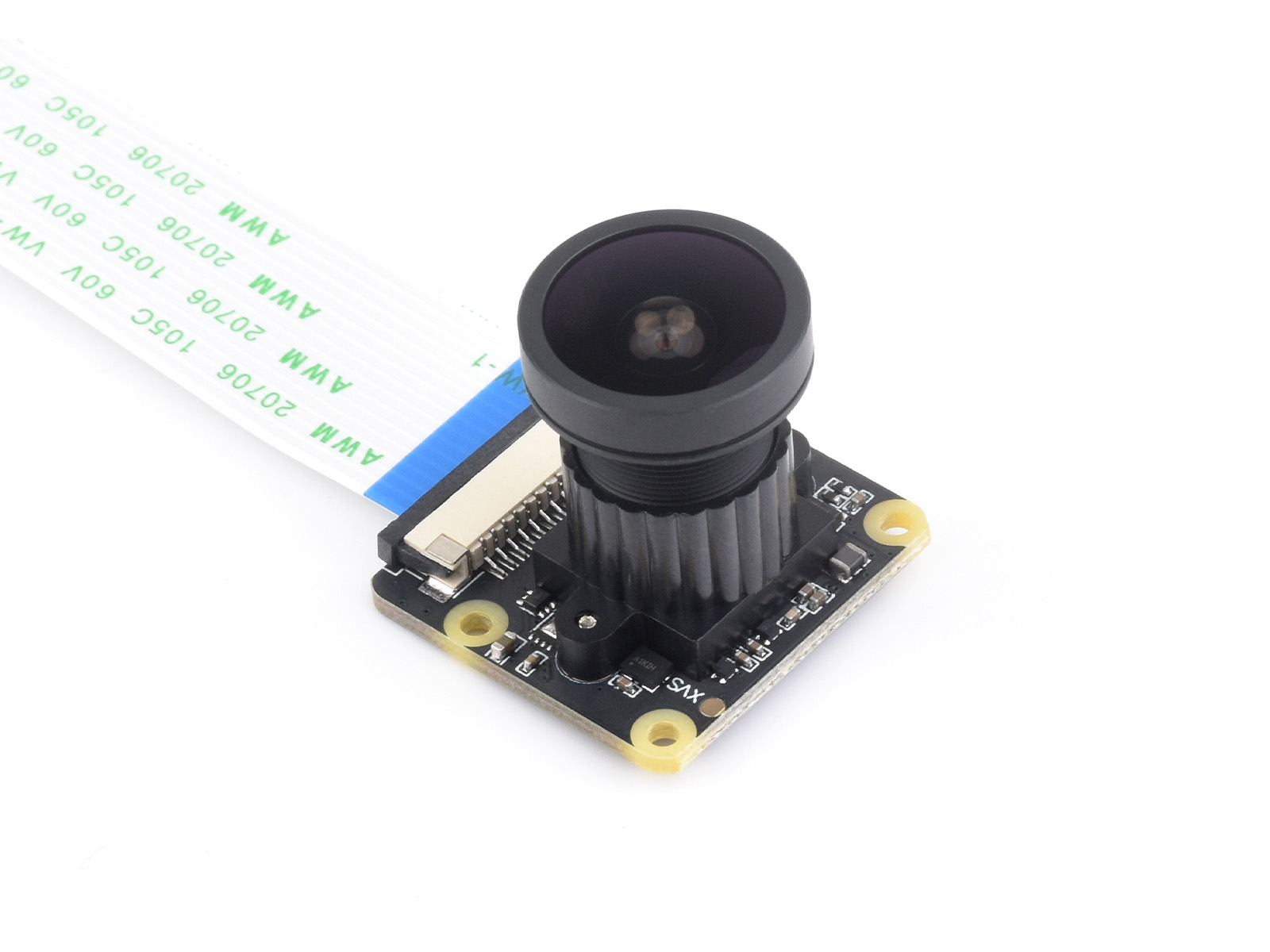 | 2MP | RDK X3, RDK X3 Module | IMX477 |
| 5 | OV5647 | 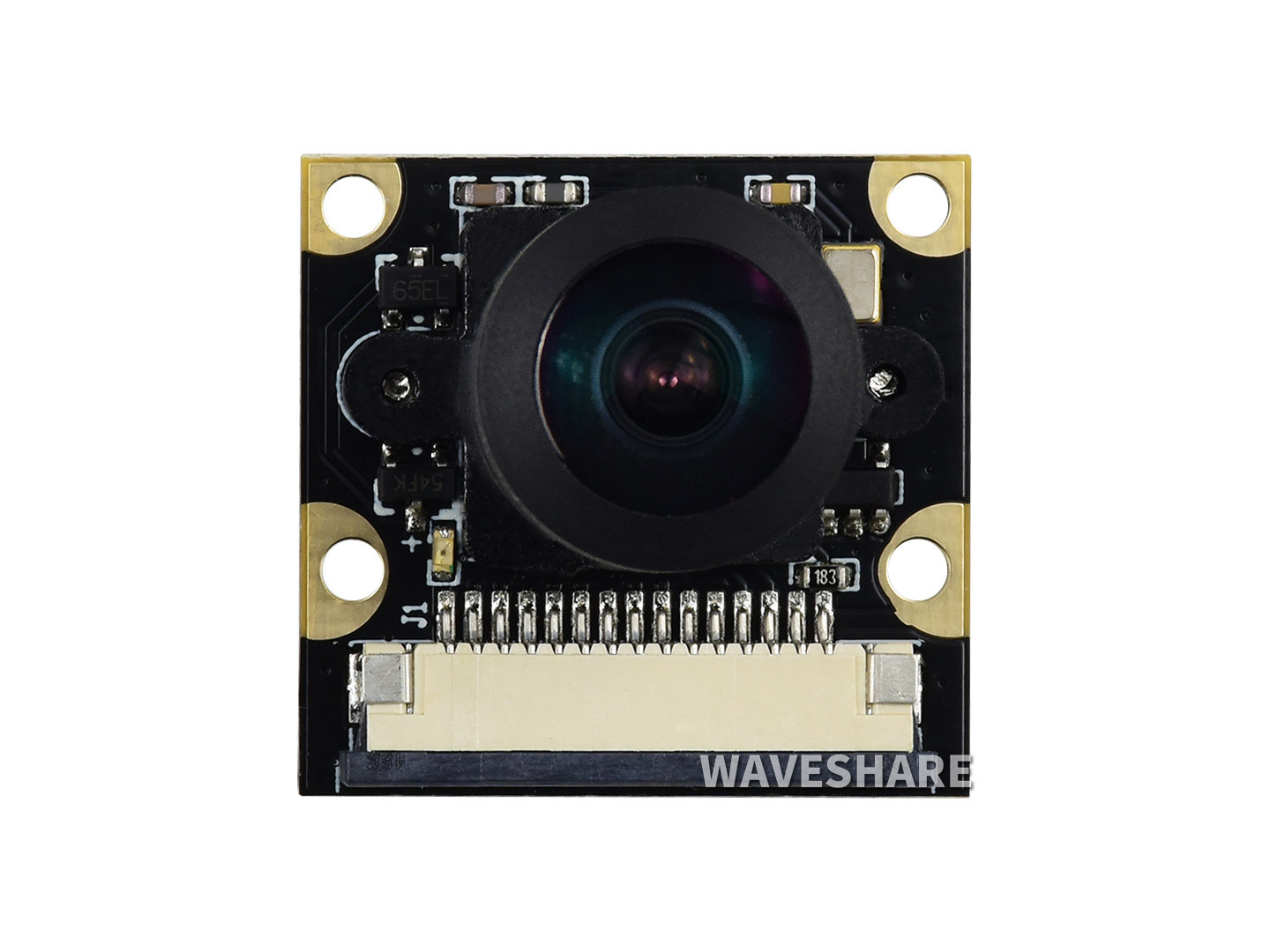 | 2MP | RDK X3, RDK X3 Module, RDK X5, RDK X5 Module | OV5647 |
| 6 | IMX415 |  | 2MP | RDK X5, RDK X5 Module | IMX415 |
Code repository: https://github.com/D-Robotics/hobot_mipi_cam.git
Preparation
RDK Platform
-
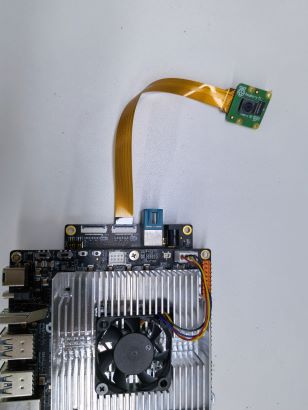
Confirm that the camera is connected to the RDK correctly.
The following figure shows how to connect an F37 camera to RDK X3:
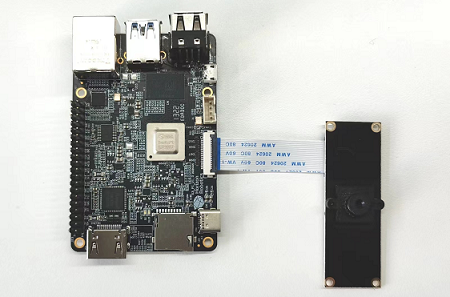
The following figure shows how to connect an imx219 camera to RDK S100:
-
The RDK has been flashed with the Ubuntu system image
-
tros.b has been successfully installed on the RDK
-
Confirm that the PC can access the RDK over the network
Usage
RDK Platform
The following describes how to acquire and preview camera data:
-
Log in to the RDK via SSH
-
Start the hobot_sensor node with the following commands
- Foxy
- Humble
- Jazzy
# Configure tros.b environment
source /opt/tros/setup.bash
# Configure tros.b environment
source /opt/tros/humble/setup.bash# Configure tros.b environment
source /opt/tros/jazzy/setup.bash# Start with launch
ros2 launch mipi_cam mipi_cam.launch.py -
If the program outputs the following information, the node has started successfully
[INFO] [launch]: All log files can be found below /root/.ros/log/2022-06-11-15-16-13-641715-ubuntu-8852
[INFO] [launch]: Default logging verbosity is set to INFO
[INFO] [mipi_cam-1]: process started with pid [8854]
... -
View camera images in the web browser. Because raw data is published, JPEG encoding is required. Open two additional terminals: one to subscribe to MIPI data and encode it as JPEG, and one to publish via webservice
- Foxy
- Humble
- Jazzy
# Configure tros.b environment
source /opt/tros/setup.bash# Configure tros.b environment
source /opt/tros/humble/setup.bash# Configure tros.b environment
source /opt/tros/jazzy/setup.bash# Start encoding
ros2 launch hobot_codec hobot_codec_encode.launch.py
# Open another terminal and configure the tros.b environment
# Start websocket
ros2 launch websocket websocket.launch.py websocket_image_topic:=/image_jpeg websocket_only_show_image:=true -
On the PC, open a browser (Chrome/Firefox/Edge), enter
http://IP:8000(where IP is the RDK IP address), and click Web Display in the upper-left corner to view the live F37 output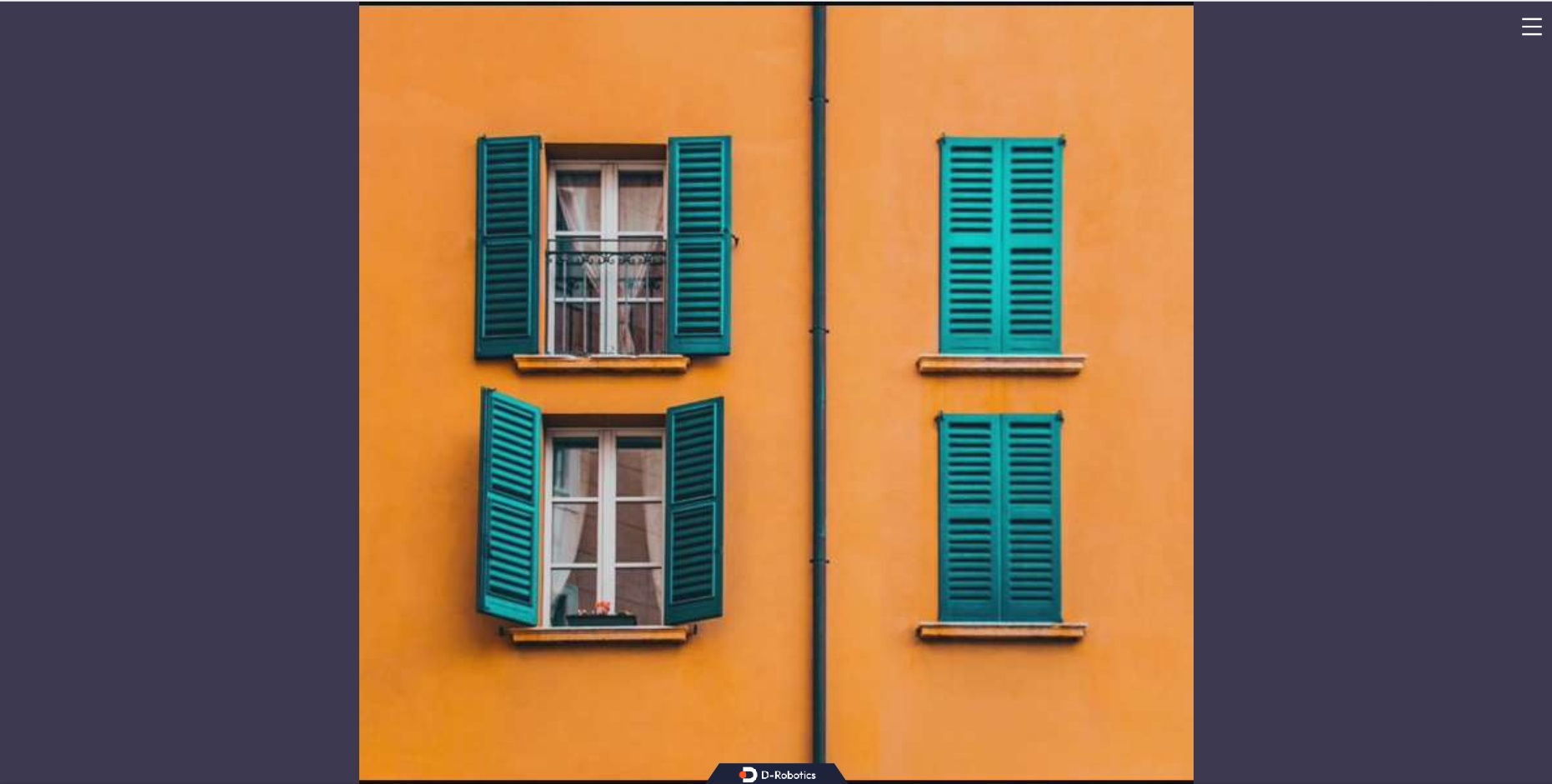
-
Query camera intrinsics on the PC (actual values depend on the loaded calibration file). Commands and results are shown below:
- Foxy
- Humble
- Jazzy
root@ubuntu:~# source /opt/ros/foxy/setup.bash
root@ubuntu:~# source /opt/ros/humble/setup.bash
root@ubuntu:~# source /opt/ros/jazzy/setup.bash
root@ubuntu:~# ros2 topic echo /camera_info
header:
stamp:
sec: 1662013622
nanosec: 672922214
frame_id: default_cam
height: 1080
width: 1920
distortion_model: plumb_bob
d:
- 0.169978
- -0.697303
- -0.002944
- -0.004961
- 0.0
k:
- 1726.597634
- 0.0
- 904.979671
- 0.0
- 1737.359551
- 529.123375
- 0.0
- 0.0
- 1.0
r:
- 1.0
- 0.0
- 0.0
- 0.0
- 1.0
- 0.0
- 0.0
- 0.0
- 1.0
p:
- 1685.497559
- 0.0
- 881.6396
- 0.0
- 0.0
- 1756.460205
- 526.781147
- 0.0
- 0.0
- 0.0
- 1.0
- 0.0
binning_x: 0
binning_y: 0
roi:
x_offset: 0
y_offset: 0
height: 0
width: 0
do_rectify: false
Notes
-
mipi_cam provides calibration files for F37 and GC4663 cameras. By default, it reads the F37 calibration file
F37_calibration.yaml. If you use GC4663, change the camera calibration file path as follows:- Foxy
- Humble
- Jazzy
# Configure tros.b environment
source /opt/tros/setup.bash# Configure tros.b environment
source /opt/tros/humble/setup.bash# Configure tros.b environment
source /opt/tros/jazzy/setup.bash# Start with launch
ros2 launch mipi_cam mipi_cam.launch.py mipi_video_device:=GC4663 mipi_camera_calibration_file_path:=/opt/tros/${TROS_DISTRO}/lib/mipi_cam/config/GC4663_calibration.yaml -
Camera hot-plug precautions
Do not connect or disconnect the camera while the development board is powered on, as this can easily damage the camera module.
-
If the hobot_sensor node fails to start, troubleshoot using the following steps:
- Check hardware connections
- Verify that the tros.b environment is configured
- Verify that parameters are correct. For details, refer to README.md
-
If two image streams publish to the same topic at the same time, image conflicts will occur. Therefore, when starting a second camera stream, remap the topic. Use the following command to start the second camera (X5 and S100 only):
- Humble
# Configure tros.b environment
source /opt/tros/humble/setup.bash- Humble
# Configure tros.b environment
source /opt/tros/humble/setup.bash# Start with run
ros2 run mipi_cam mipi_cam --ros-args --remap /image_raw:=/image_raw_alias
# Or start with launch
ros2 launch mipi_cam mipi_cam_topic_remap.launch.py
Stereo MIPI Image Capture
Introduction
To enable stereo environmental perception, robot products are typically equipped with stereo cameras, ToF devices, and other sensors. To reduce sensor adaptation and usage costs for users, TogetheROS.Bot wraps various commonly used sensors into the hobot_sensor module and supports ROS standard image messages. When the configured sensor parameters do not match the connected camera, the program automatically adapts to the correct sensor type. The currently supported MIPI sensor types are listed below:
| Type | Model | Specification | Supported Platforms |
|---|---|---|---|
| Camera | SC230ai | 2MP | RDK X5, RDK X5 Module, RDK S100, RDK S100P, RDK S600 |
| Camera | SC132gs | 2MP | RDK X5, RDK X5 Module, RDK S100, RDK S100P, RDK S600 |
Code repository: https://github.com/D-Robotics/hobot_mipi_cam.git
Supported Platforms
| Platform | Runtime Environment |
|---|---|
| RDK X5, RDK X5 Module | Ubuntu 22.04 (Humble) |
| RDK 100, RDK S100P | Ubuntu 22.04 (Humble) |
| RDK S600 | Ubuntu 24.04 (Jazzy) |
Preparation
RDK Platform
-
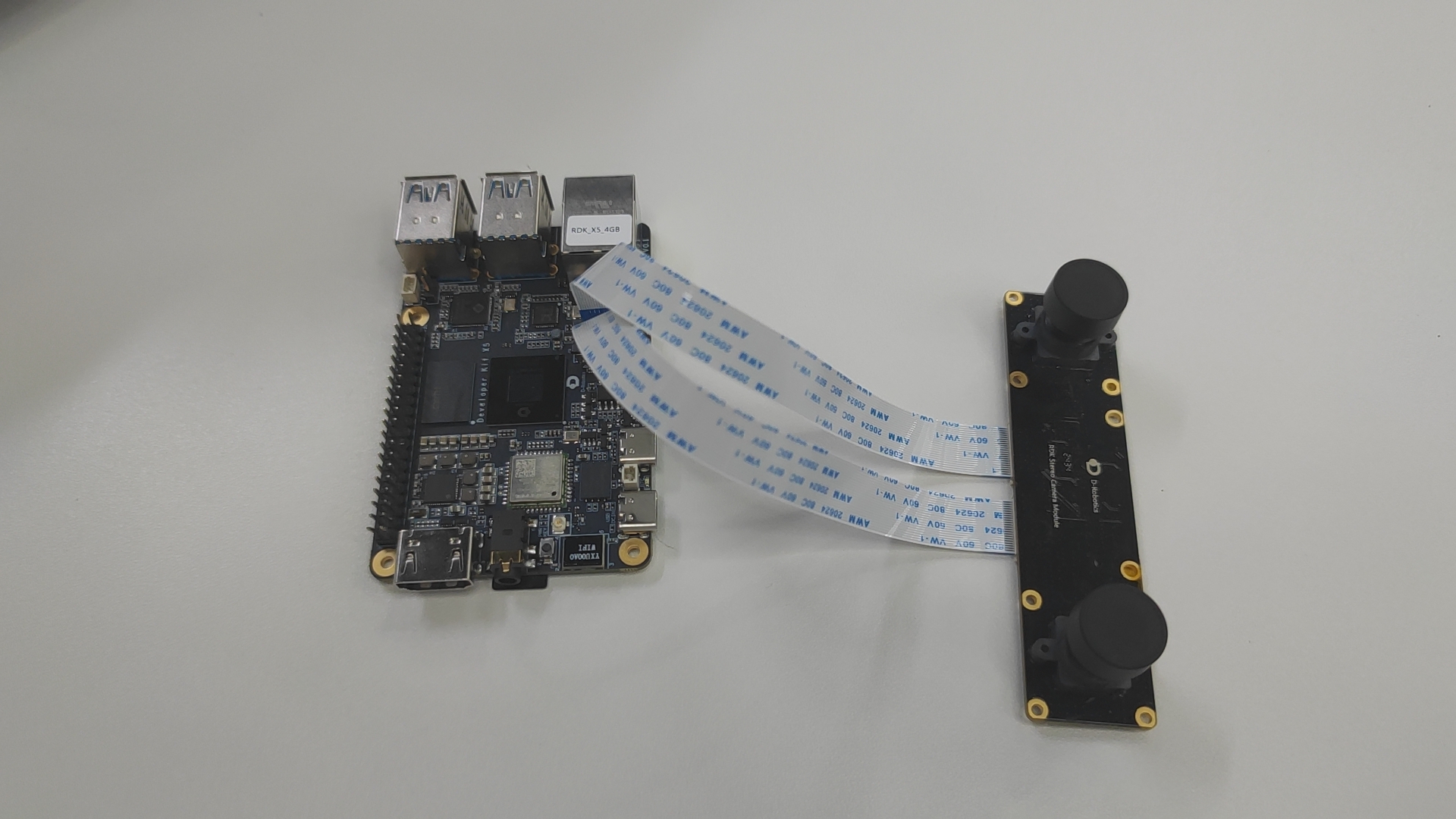
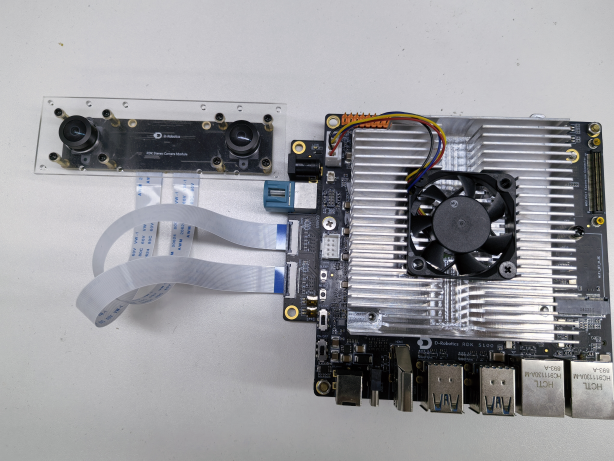
Confirm that the camera is connected to the RDK correctly.
The following figure shows how to connect an SC230ai stereo camera to RDK X5 and RDK X5 Module:
The following figure shows how to connect an SC230ai stereo camera to S100:
-
The RDK has been flashed with the RDK OS system
-
tros.b has been successfully installed on the RDK
-
Confirm that the PC can access the RDK over the network
Usage
RDK Platform
The following uses SC230ai as an example to describe how to acquire and preview camera data:
-
Start only the stereo camera so that other nodes can subscribe to it.
(1) Start the hobot_sensor node with the following commands
- Humble
- Jazzy
# Configure tros.b environment
source /opt/tros/humble/setup.bash# Configure tros.b environment
source /opt/tros/jazzy/setup.bash- Humble
# Configure tros.b environment
source /opt/tros/humble/setup.bash- Jazzy
# Configure tros.b environment
source /opt/tros/jazzy/setup.bash# Start with launch
ros2 launch mipi_cam mipi_cam_dual_channel.launch.py(2) If the program outputs the following information, the node has started successfully
[INFO] [launch]: All log files can be found below /root/.ros/log/2024-09-18-19-15-26-160110-ubuntu-3931
[INFO] [launch]: Default logging verbosity is set to INFO
config_file_path is /opt/tros/humble/lib/mipi_cam/config/
Hobot shm pkg enables zero-copy with fastrtps profiles file: /opt/tros/humble/lib/hobot_shm/config/shm_fastdds.xml
Hobot shm pkg sets RMW_FASTRTPS_USE_QOS_FROM_XML: 1
env of RMW_FASTRTPS_USE_QOS_FROM_XML is 1 , ignore env setting
[INFO] [mipi_cam-1]: process started with pid [3932]
[mipi_cam-1] [WARN] [1726658126.449994704] [mipi_node]: frame_ts_type value: sensor
[mipi_cam-1] [ERROR] [1726658126.455022356] [mipi_factory]: This is't support device type(), start defaule capture.
[mipi_cam-1]
[mipi_cam-1] [WARN] [1726658126.456074125] [mipi_cam]: this board support mipi:
[mipi_cam-1] [WARN] [1726658126.456274529] [mipi_cam]: host 0
[mipi_cam-1] [WARN] [1726658126.456333567] [mipi_cam]: host 2
[mipi_cam-1] [WARN] [1726658128.722451045] [mipi_cam]: [init]->cap default init success.
[mipi_cam-1]
... -
View stereo camera images in the web browser. Because raw data is published, one node is needed to encode JPEG images and another to publish via webservice
(1) Start with the following commands:
- Humble
- Jazzy
# Configure tros.b environment
source /opt/tros/humble/setup.bash# Configure tros.b environment
source /opt/tros/jazzy/setup.bash- Humble
# Configure tros.b environment
source /opt/tros/humble/setup.bash- Jazzy
# Configure tros.b environment
source /opt/tros/jazzy/setup.bash
# Start with launch
ros2 launch mipi_cam mipi_cam_dual_channel_websocket.launch.py(2) On the PC, open a browser (Chrome/Firefox/Edge), enter
http://IP:8000(where IP is the RDK IP address), and click Web Display in the upper-left corner to view the live stereo output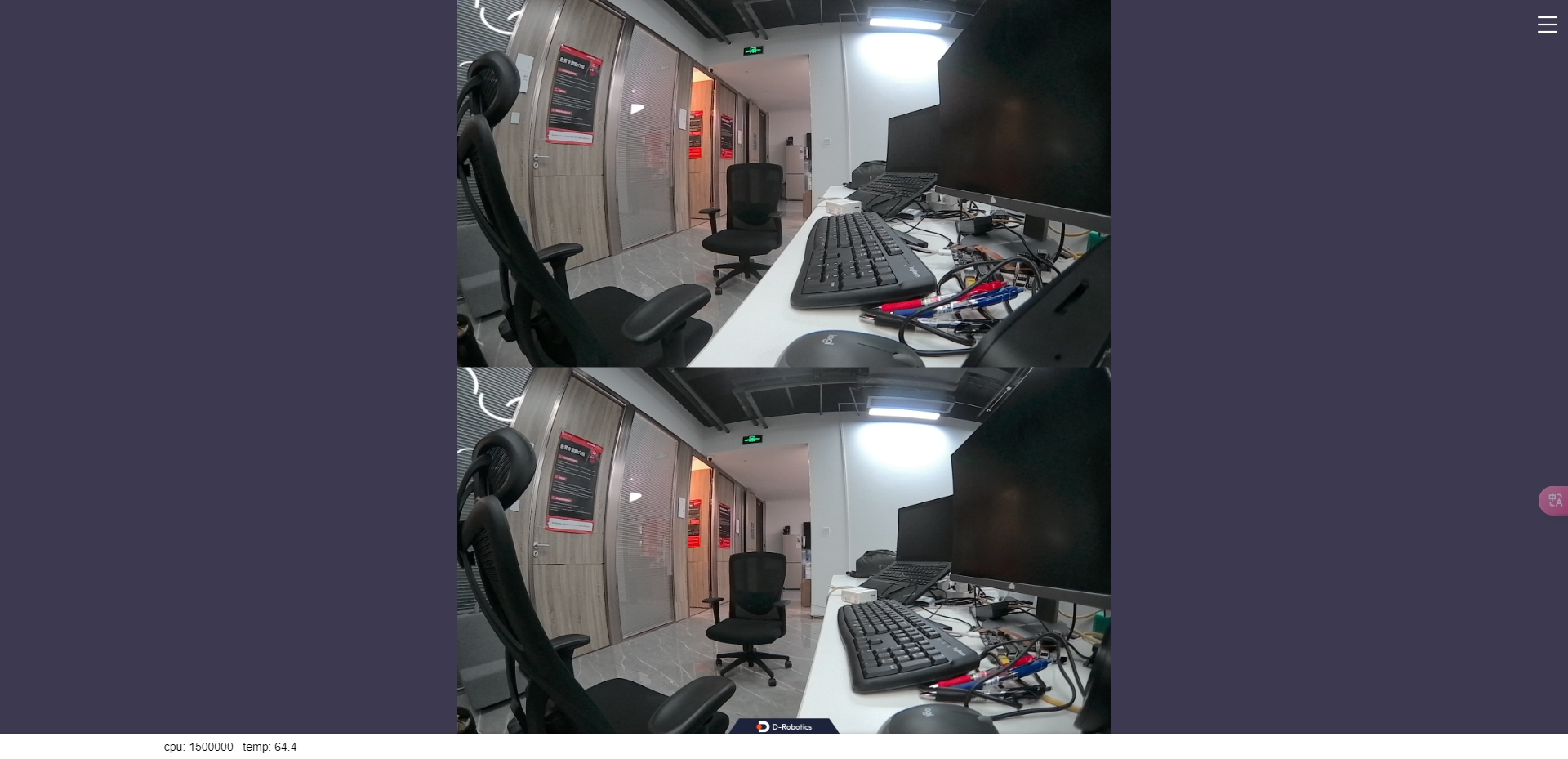
Notes
-
Camera hot-plug precautions
Do not connect or disconnect the camera while the development board is powered on, as this can easily damage the camera module.
-
If the hobot_sensor node fails to start, troubleshoot using the following steps:
- Check hardware connections
- Verify that the tros.b environment is configured
- Verify that parameters are correct. For details, refer to README.md
RGBD Image Capture
Introduction
To enable environmental perception, robot products are typically equipped with sensors such as cameras and ToF devices. To reduce sensor adaptation and usage costs for users, TogetheROS.Bot wraps various commonly used sensors into the hobot_sensor module and supports ROS standard image messages, custom image message output, and camera calibration data publishing. The currently supported RGBD sensor types are listed below:
| Type | Model | Specification | Supported Platforms |
|---|---|---|---|
| Camera | CP3AM | 2MP | RDK X3 |
Code repository: https://github.com/D-Robotics/hobot_rgbd_cam.git
Supported Platforms
| Platform | Runtime Environment | Example Features |
|---|---|---|
| RDK X3 | Ubuntu 20.04 (Foxy), Ubuntu 22.04 (Humble) | Start the RGBD camera and preview RGB and depth images on the PC using rviz2 |
Note: Only RDK X3 is supported. RDK X3 Module is not supported yet.
Preparation
RDK Platform
-
Confirm that the camera is connected to the RDK correctly. The following figure shows how to connect the RGBD module to RDK X3:
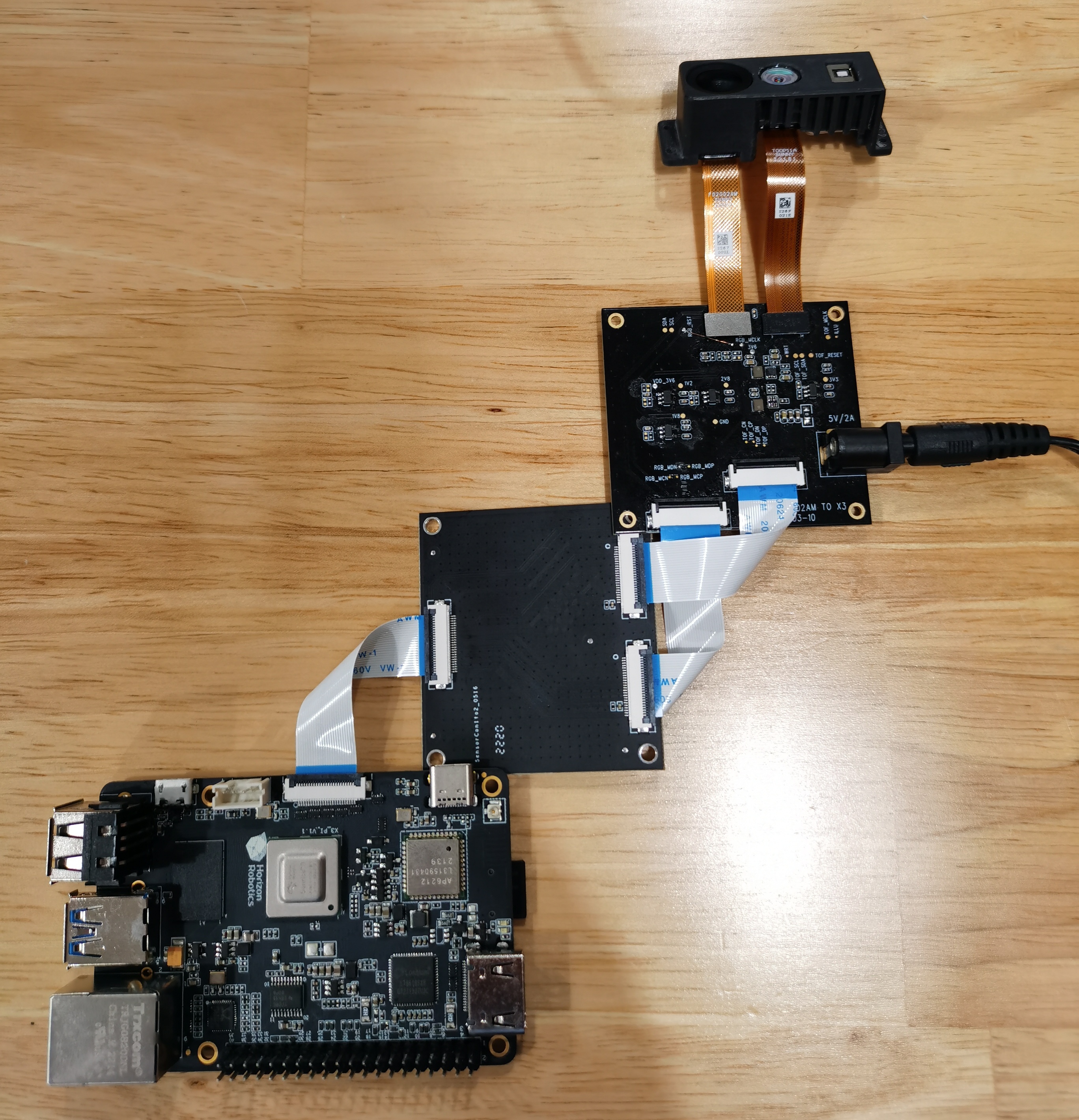
Note: The RGBD module requires an additional adapter board to connect to RDK X3.
-
The RDK has been flashed with the Ubuntu system image.
-
tros.b has been successfully installed on the RDK
-
Confirm that the PC can access the RDK over the network
-
The PC must have ROS2 Foxy and rviz2 installed. Use the following command:
sudo apt install ros-foxy-rviz-common ros-foxy-rviz-default-plugins ros-foxy-rviz2
Usage
RDK Platform
The following uses CP3AM as an example to describe how to acquire and preview camera data:
-
Log in to the RDK via SSH and start the hobot_sensor node with the following commands
- Foxy
- Humble
# Configure tros.b environment
source /opt/tros/setup.bash
# Configure tros.b environment
source /opt/tros/humble/setup.bashcp -r /opt/tros/${TROS_DISTRO}/lib/rgbd_sensor/parameter .
# Start with launch
ros2 launch rgbd_sensor rgbd_sensor.launch.py -
If the program outputs the following information, the node has started successfully
[WARN] [1654573498.706920307] [example]: [wuwl]->This is rgbd!
sh: 1: echo: echo: I/O error
pipeId[1], mipiIdx[1], vin_vps_mode[3]
[ERROR]["LOG"][irs2381c_utility.c:192] 2381 enter sensor_init_setting
[ERROR]["LOG"][irs2381c_utility.c:200] start write 2381c reg
camera read reg: 0xa001 val:0x7
...
[ERROR]["LOG"][irs2381c_utility.c:207] end write 2381c reg
HB_MIPI_InitSensor end
HB_MIPI_SetDevAttr end
pstHbVideoDev->vin_fd = 29
sensorID: 634-2362-2676-68d0
find local calib_file
find local calib_file
SDK Version: V4.4.35 build 20220525 09:27:53.
read file(./calib-0634-2362-2676-68d0.bin), ok, file_len=132096, read_len=132096.......
module config file(user custom) is: ./parameter/T00P11A-17.ini.
parse calib data, data len:132096...
sunny_degzip2 decode_len=155575.
calib data with crc.
parse calib data, ok.
max roi (firstly): (0, 224, 0, 128).
cur roi (firstly): (0, 224, 0, 128).
HB_MIPI_InitSensor end
HB_MIPI_SetDevAttr end
pstHbVideoDev->vin_fd = 55
vencChnAttr.stRcAttr.enRcMode=11
mmzAlloc paddr = 0x1a6e6000, vaddr = 0x917e1000
camera read reg: 0x9400 val:0x1
...
[wuwl-StartCamera]->camT=3, ret=0.
camera read reg: 0x3e val:0x40
[ERROR]["vio_devop"][utils/dev_ioctl.c:121] [499334.399304]dev_node_dqbuf_ispoll[121]: failed to ioctl: dq (14 - Bad address)
[ERROR]["vio_devop"][utils/dev_ioctl.c:189] [499334.399355]entity_node_dqbuf_ispoll[189]: dev type(9) dq failed
[ERROR]["vio_core"][commom_grp/binding_main.c:1034] [499334.399371]comm_dq_no_data[1034]: G1 MIPI_SIF_MODULE module chn0 dq failed! maybe framedrop error_detail -14
[wuwl-StartCamera]->camT=1, ret=0.
[INFO] [1654573500.226606117] [rclcpp]: [childStart]-> ret=0 !
[INFO] [1654573500.226831567] [rclcpp]: [StartStream]->pthread create sucess
[INFO] [1654573500.226963854] [rclcpp]: <========>[doCapStreamLoop]->Start.
[WARN] [1654573500.226998103] [rgbd_node]: [RgbdNode]->mipinode init sucess.
[WARN] [1654573500.227352507] [example]: [wuwl]->rgbd init!
[WARN] [1654573500.228502174] [example]: [wuwl]->rgbd add_node!
[INFO] [1662723985.860666547] [rgbd_node]: publish camera info.
[INFO] [1662723985.866077156] [rgbd_node]: [pub_ori_pcl]->pub pcl w:h=24192:1,nIdx-24192:sz=24192.
[INFO] [1662723985.876428980] [rgbd_node]: [timer_ros_pub]->pub dep w:h=224:129,sz=982464, infra w:h=224:108, sz=24192.
[INFO] [1662723985.946767230] [rgbd_node]: publish camera info.
[INFO] [1662723985.951415418] [rgbd_node]: [pub_ori_pcl]->pub pcl w:h=24192:1,nIdx-24192:sz=24192.
[INFO] [1662723985.960161280] [rgbd_node]: [timer_ros_pub]->pub dep w:h=224:129,sz=982464, infra w:h=224:108, sz=24192.
... -
Query current topics on the PC. Commands and results are shown below:
- Foxy
- Humble
source /opt/ros/foxy/setup.bash
source /opt/ros/humble/setup.bash
ros2 topic list
Output:
/rgbd_CP3AM/depth/image_rect_raw
/rgbd_CP3AM/depth/color/points
/rgbd_CP3AM/color/camera_info
/rgbd_CP3AM/aligned_depth_to_color/color/points
/rgbd_CP3AM/infra/image_rect_raw
/rgbd_CP3AM/color/image_rect_raw
/parameter_events
/rosout
- Subscribe to topics on the PC and preview camera data
- Foxy
- Humble
source /opt/ros/foxy/setup.bash
source /opt/ros/humble/setup.bash
ros2 run rviz2 rviz2
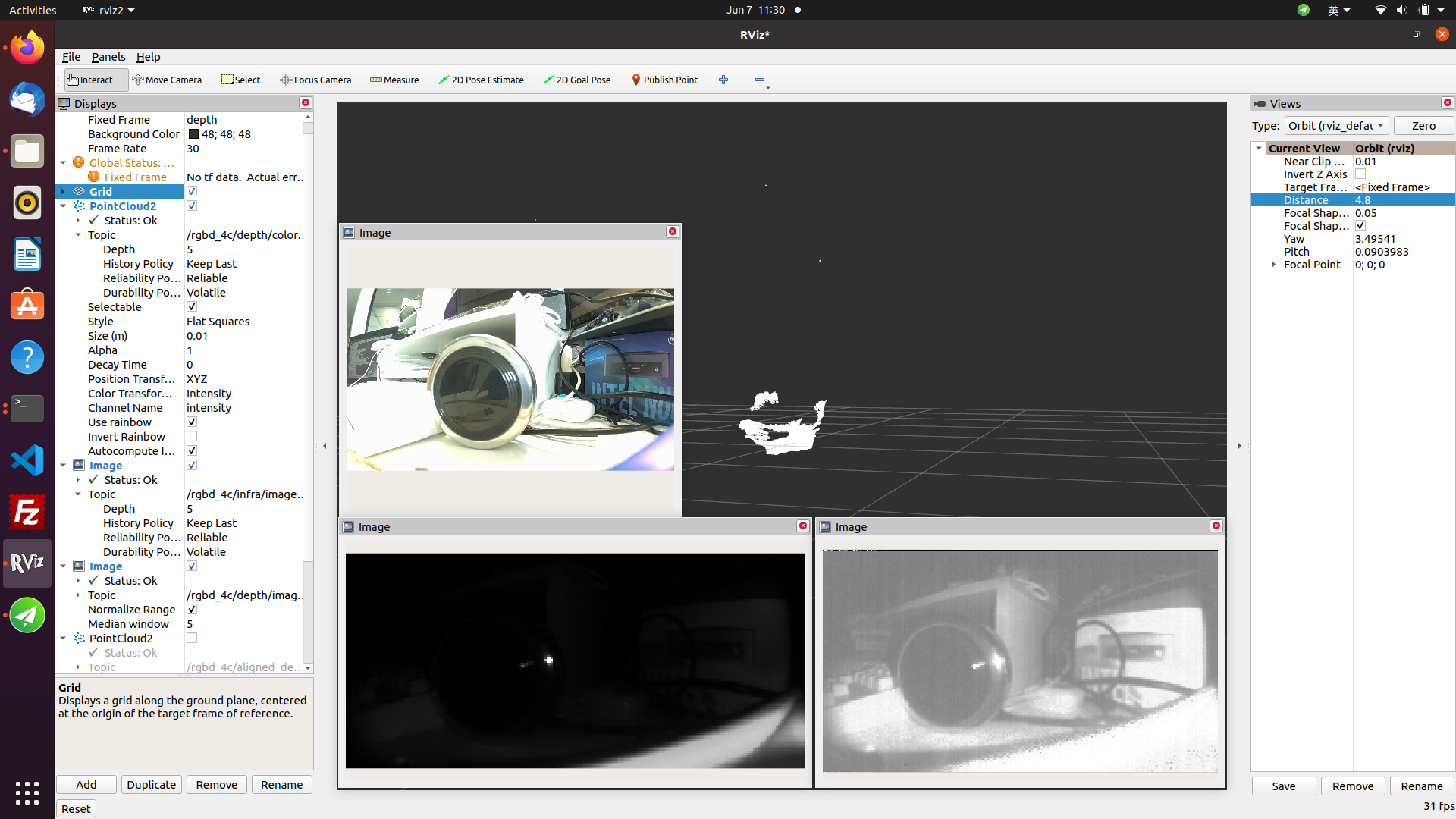
In rviz2, click the Add button and add the topics published by rgbd_sensor (see the rgbd_CP3AM-related topics listed in step 3). To subscribe to point clouds, change Fixed Frame in Global Options to depth to view live point cloud data. In the point cloud topic configuration, set Point Type to points .
- Query camera intrinsics on the PC
- Foxy
- Humble
source /opt/ros/foxy/setup.bash
source /opt/ros/humble/setup.bash
ros2 topic echo /rgbd_CP3AM/color/camera_info
Output:
header:
stamp:
sec: 119811
nanosec: 831645108
frame_id: color
height: 1080
width: 1920
distortion_model: plumb_bob
d:
- -0.32267
- 0.083221
- 0.000164
- -0.002134
- 0.0
k:
- 1066.158339
- 0.0
- 981.393777
- 0.0
- 1068.659998
- 545.569587
- 0.0
- 0.0
- 1.0
r:
- 1.0
- 0.0
- 0.0
- 0.0
- 1.0
- 0.0
- 0.0
- 0.0
- 1.0
p:
- 741.315308
- 0.0
- 968.865379
- 0.0
- 0.0
- 969.43042
- 546.524343
- 0.0
- 0.0
- 0.0
- 1.0
- 0.0
binning_x: 0
binning_y: 0
roi:
x_offset: 0
y_offset: 0
height: 0
width: 0
do_rectify: false
Notes
If the hobot_sensor node fails to start, troubleshoot using the following steps:
- Check hardware connections
- Verify that the tros.b environment is configured
- Verify that parameters are correct. For details, refer to Hobot_Sensors README.md
RealSense Image Capture
Introduction
Stereo cameras are commonly used sensors in robot development and often serve as the robot's "eyes." Stereo cameras are used in many robot applications, such as navigation and obstacle avoidance, object recognition, 3D reconstruction, and human-robot interaction. The RDK platform also supports common stereo cameras on the market, such as RealSense, Orbbec, and ZED series cameras.
RealSense and Orbbec stereo cameras on ROS are implemented using the following architecture: SDK libraries compiled for different hardware platforms are required first. The camera SDK provides APIs for camera startup, configuration, and other operations. ROS wrappers are then built on top of the SDK to enable ROS-based camera control.
Therefore, the typical installation flow for stereo camera ROS packages is: install the camera SDK libraries first, then install the ROS wrapper package.
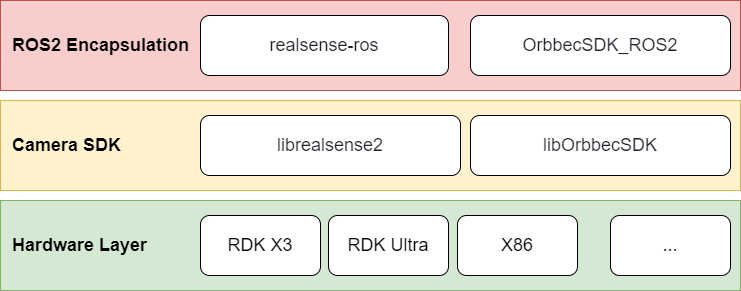
This section describes how to use RealSense cameras on the RDK platform.
Supported Platforms
| Platform | Runtime Environment |
|---|---|
| RDK X3, RDK X3 Module | Ubuntu 20.04 (Foxy), Ubuntu 22.04 (Humble) |
| RDK X5, RDK X5 Module | Ubuntu 22.04 (Humble) |
Preparation
RDK Platform
- Verify that your RealSense camera works properly, and connect the USB cable to the RDK USB port
- The RDK has been flashed with the Ubuntu system image
- tros.b has been successfully installed on the RDK
- Confirm that the PC can access the RDK over the network
Usage
After installing RealSense SDK 2.0 and the RealSense ROS wrapper with apt, you can use RealSense series cameras on the RDK platform.
The GitHub repositories for RealSense SDK 2.0 and the RealSense ROS wrapper are listed below. This tutorial is also based on these repositories. Users can refer to them for more detailed instructions.
- RealSense SDK 2.0: https://github.com/IntelRealSense/librealsense
- RealSense ROS wrapper: https://github.com/IntelRealSense/realsense-ros/tree/ros2-development
1. Log in to the RDK via serial port or SSH and confirm the ROS version
- Foxy
- Humble
# Configure tros.b environment
source /opt/tros/setup.bash
# Print ROS version environment variable
echo $ROS_DISTRO
# Configure tros.b environment
source /opt/tros/humble/setup.bash
# Print ROS version environment variable
echo $ROS_DISTRO
2. Install RealSense SDK 2.0 and RealSense ROS2 wrapper with apt
# Install RealSense SDK 2.0
sudo apt-get install ros-$ROS_DISTRO-librealsense2* -y
# Install RealSense ROS2 wrapper
sudo apt-get install ros-$ROS_DISTRO-realsense2-* -y
3. Start the RealSense camera
After installation, start the RealSense camera with the following ROS command:
ros2 launch realsense2_camera rs_launch.py
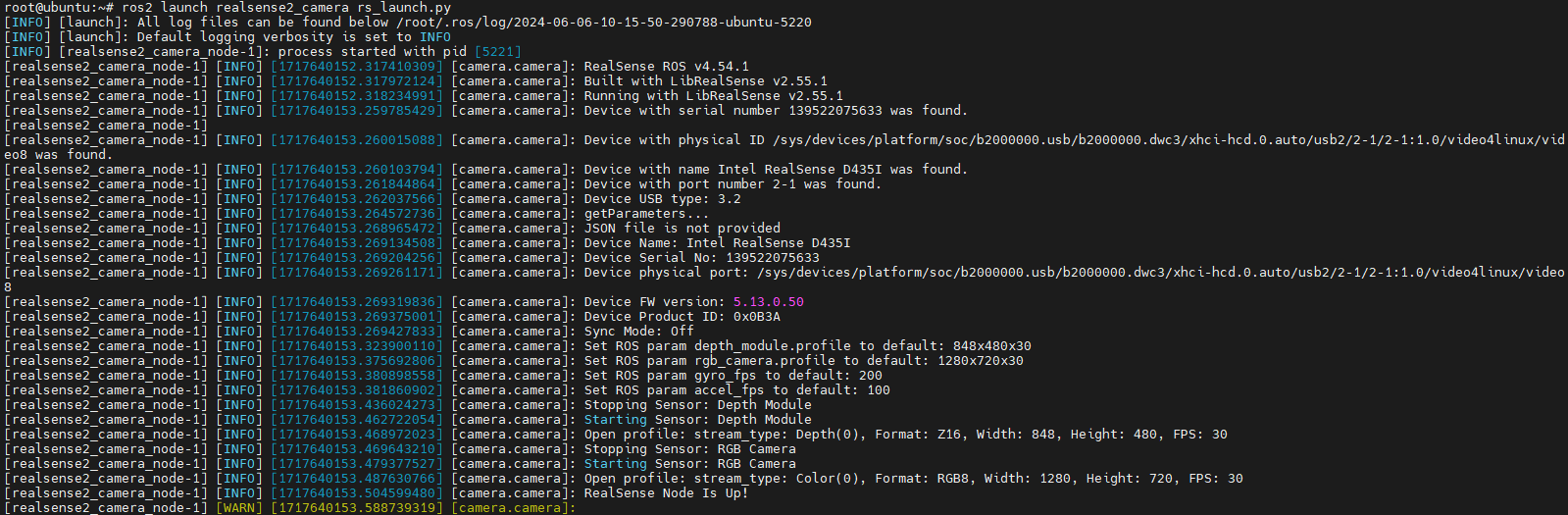
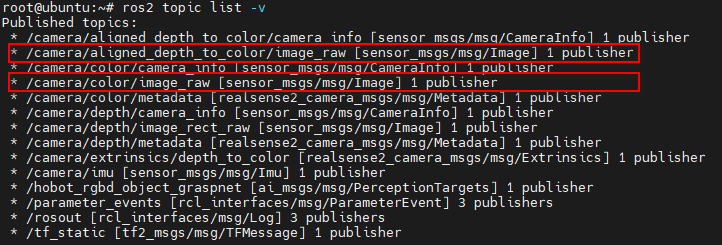
Use ros2 topic list to view topics published by RealSense. Starting the RealSense camera with default parameters enables only the depth and RGB data streams.
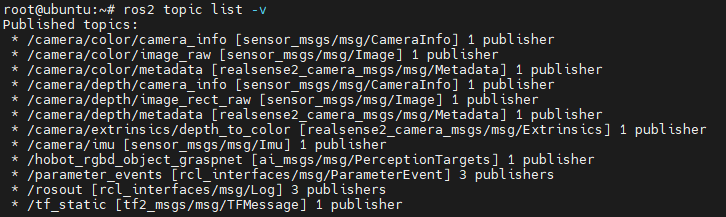
The RealSense ROS wrapper provides many configurable parameters. For example, enable_infra1:=true and pointcloud.enable:=true enable the left IR data stream and point cloud data stream.
ros2 launch realsense2_camera rs_launch.py enable_infra1:=true pointcloud.enable:=true
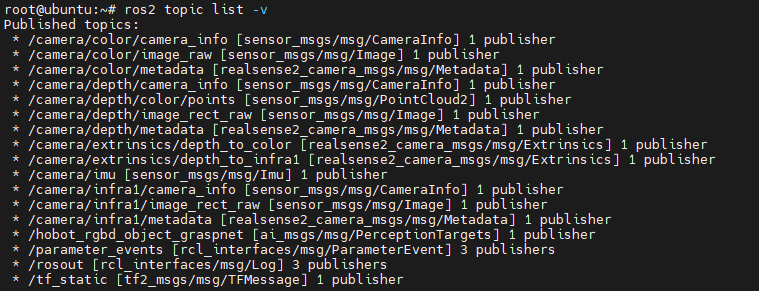
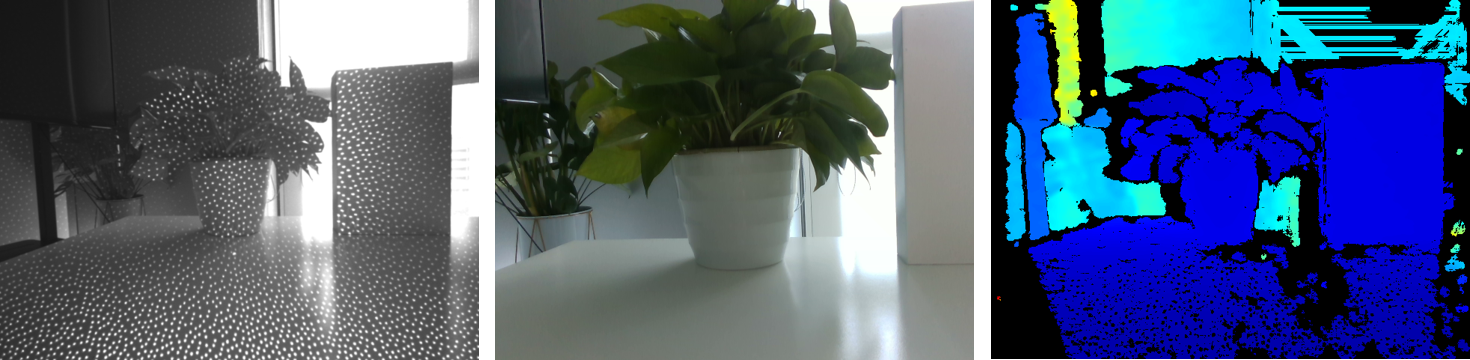
RealSense also exposes several services. Use ros2 service list to view them. For example, you can query the camera serial number, firmware version, and other information through services.
ros2 service call /camera/device_info realsense2_camera_msgs/srv/DeviceInfo
For more topic and service configuration options, refer to the RealSense ROS wrapper GitHub repository.
4. Depth and RGB alignment
In practical applications, depth images often need to be aligned with color images. RealSense provides a corresponding startup method.
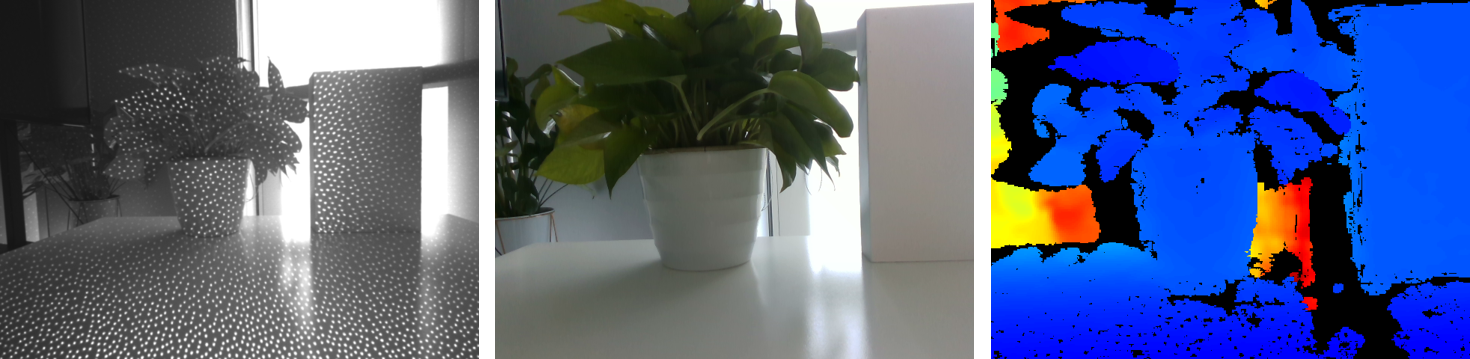
ros2 launch realsense2_camera rs_launch.py enable_rgbd:=true enable_sync:=true align_depth.enable:=true enable_color:=true enable_depth:=true
5. Display images and point clouds
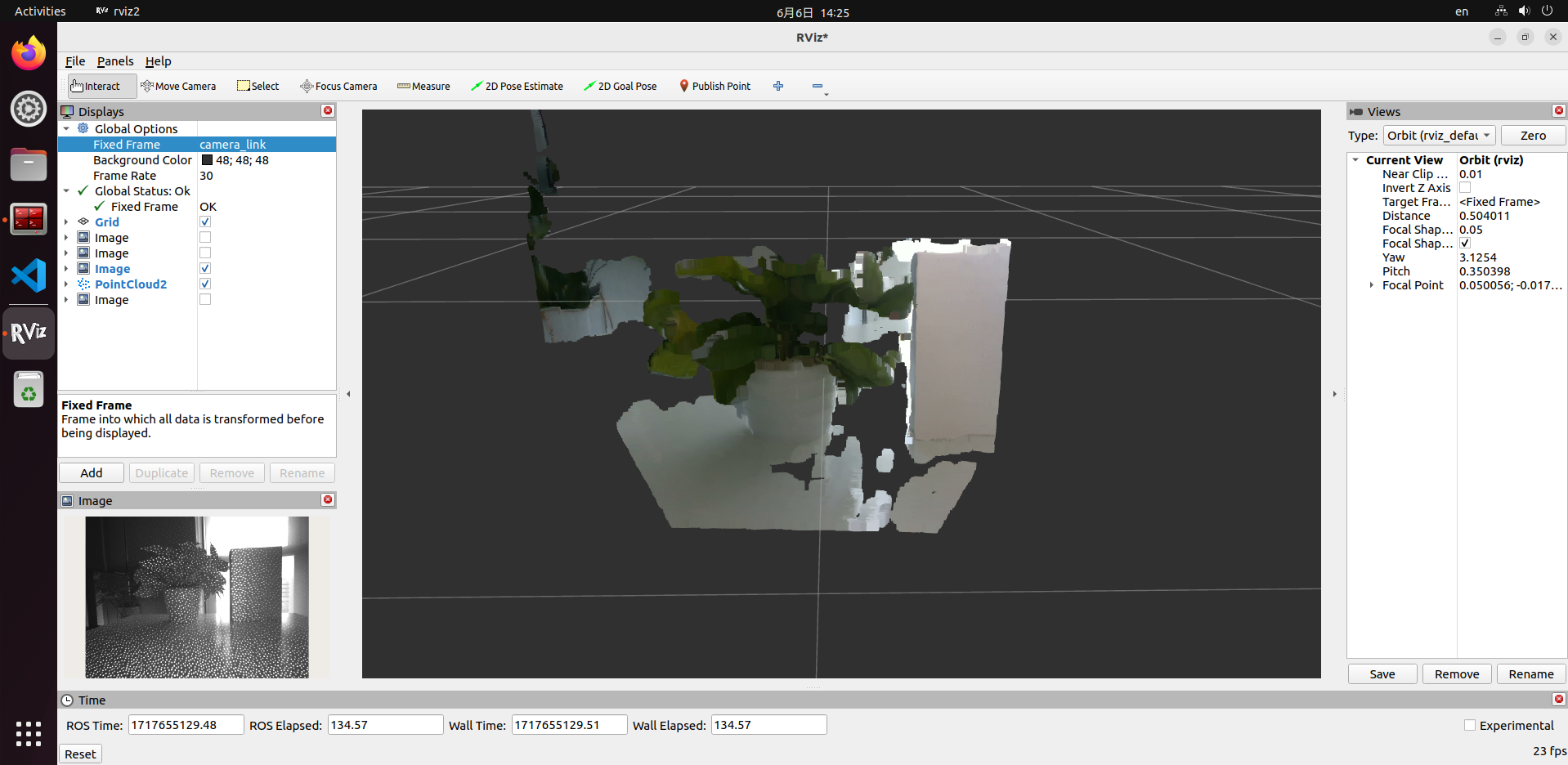
There are several ways to display RealSense images and point clouds. Refer to Data Display. For example, you can use rviz2 on the PC, but this requires network access to the RDK. Data is transmitted over the network, which adds significant load and may cause stuttering.
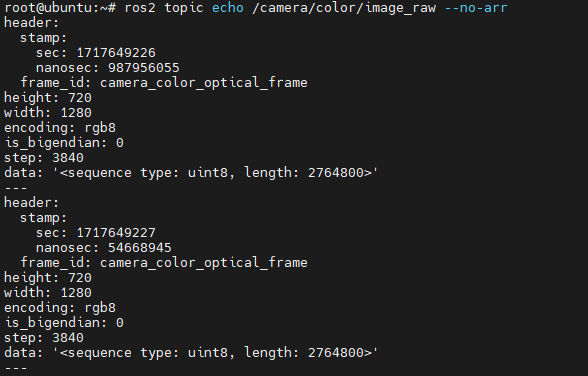
It is recommended to read data directly on the RDK to verify that streaming works correctly. You can use ros2 topic echo topic_name to print data or write code to subscribe to the corresponding topics.
Orbbec Camera Image Capture
Introduction
Stereo cameras are commonly used sensors in robot development and often serve as the robot's "eyes." Stereo cameras are used in many robot applications, such as navigation and obstacle avoidance, object recognition, 3D reconstruction, and human-robot interaction. The RDK platform also supports common stereo cameras on the market, such as RealSense, Orbbec, and ZED series cameras.
RealSense and Orbbec stereo cameras on ROS are implemented using the following architecture: SDK libraries compiled for different hardware platforms are required first. The camera SDK provides APIs for camera startup, configuration, and other operations. ROS wrappers are then built on top of the SDK to enable ROS-based camera control.
Therefore, the typical installation flow for stereo camera ROS packages is: install the camera SDK libraries first, then install the ROS wrapper package.
This section describes how to use Orbbec cameras on the RDK platform.
Supported Platforms
| Platform | Runtime Environment |
|---|---|
| RDK X3, RDK X3 Module | Ubuntu 20.04 (Foxy), Ubuntu 22.04 (Humble) |
| RDK X5, RDK X5 Module | Ubuntu 22.04 (Humble) |
Preparation
RDK Platform
- Verify that your Orbbec camera works properly, and connect the USB cable to the RDK USB 3.0 port (USB 2.0 has been found to cause startup failures in some cases)
- The RDK has been flashed with the Ubuntu system image
- tros.b has been successfully installed on the RDK
- Confirm that the PC can access the RDK over the network
Usage
Orbbec cameras cannot be installed directly with apt. You need to download the source code and compile it before running on the RDK platform.
The GitHub repositories for the Orbbec SDK and Orbbec ROS2 wrapper are listed below. This tutorial is also based on these repositories. Users can refer to them for more detailed instructions.
- Orbbec SDK: https://github.com/orbbec/OrbbecSDK
- Orbbec ROS2 wrapper: https://github.com/orbbec/OrbbecSDK_ROS2
1. Log in to the RDK via serial port or SSH and confirm the ROS version
- Foxy
- Humble
# Configure tros.b environment
source /opt/tros/setup.bash
# Print ROS version environment variable
echo $ROS_DISTRO
# Configure tros.b environment
source /opt/tros/humble/setup.bash
# Print ROS version environment variable
echo $ROS_DISTRO
2. Download and compile the Orbbec ROS2 wrapper source code
# Create a ROS workspace first
mkdir -p tros_ws/src
cd tros_ws/src
# Download the Orbbec ROS2 wrapper source code into the tros_ws/src directory
git clone https://github.com/orbbec/OrbbecSDK_ROS2.git
Note that the OrbbecSDK_ROS2 repository already includes the Orbbec camera SDK libraries in the OrbbecSDK_ROS2/orbbec_camera/SDK directory. The build process on the RDK platform depends on the arm64 version.
After downloading the source code, compile it. At least 4 GB of memory is required for compilation. On the RDK platform, insufficient memory may cause compilation to fail.
There are two solutions:
- Configure swap space as temporary memory
- Use cross-compilation: compile on the PC and run on the RDK
Option 1 is simple and allows direct compilation on the RDK, but compilation is slow due to limited RDK performance. For example, compilation on RDK X3 can take about 30 minutes. Option 2 is faster to compile, but setting up a cross-compilation environment is more complex. This tutorial covers option 1. For option 2, refer to: Cross-Compilation Environment Setup.
The following describes how to use swap space:
# Create a 4 GB swap file at /swapfile
sudo dd if=/dev/zero of=/swapfile bs=1M count=4096
# For security, set swap file permissions so only root can read and write
sudo chmod 600 /swapfile
# Format the file as swap space with mkswap
sudo mkswap /swapfile
# Enable the swap file with swapon
sudo swapon /swapfile
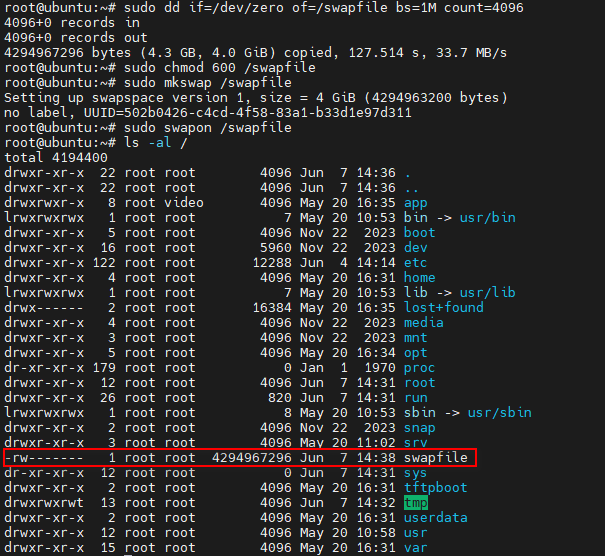
After configuring swap space, use swapon --show , free -h , or htop to check current swap usage. For example, using htop :

This configuration is temporary and will be lost after a reboot. To keep using this swap file after restart, run sudo swapon /swapfile again or add it to /etc/fstab .
# Open /etc/fstab with vim
sudo vim /etc/fstab
# Add the following line and save
/swapfile none swap sw 0 0
# Run sync to flush caches and ensure all data is written to disk
sync

To remove swap space, run the following commands.
# Disable the swap file with swapoff
sudo swapoff /swapfile
# Delete the swap file
sudo rm -rf /swapfile
# If you added a swap entry in /etc/fstab, remove it
sudo vim /etc/fstab
# Delete the following line
/swapfile none swap sw 0 0
After enabling swap space with the steps above, you can compile the project.
# Return to the ROS workspace
cd tros_ws
# Run colcon build. Compilation may take a long time, so please wait patiently
colcon build
Compilation result on RDK X3:
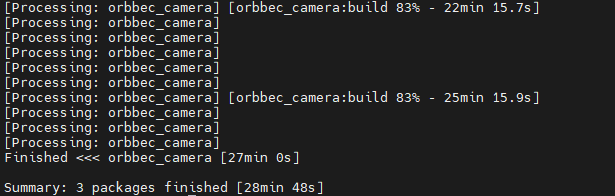
3. Start the Orbbec camera
After compilation, start the Orbbec camera with the following ROS command. OrbbecSDK_ROS2 includes launch files for all Orbbec cameras, including the Astra, Dabai, and Gemini series. Use the corresponding launch file to start the camera. This tutorial uses the Gemini2 camera as an example.
cd tros_ws
source ./install/setup.bash
ros2 launch orbbec_camera gemini2.launch.py
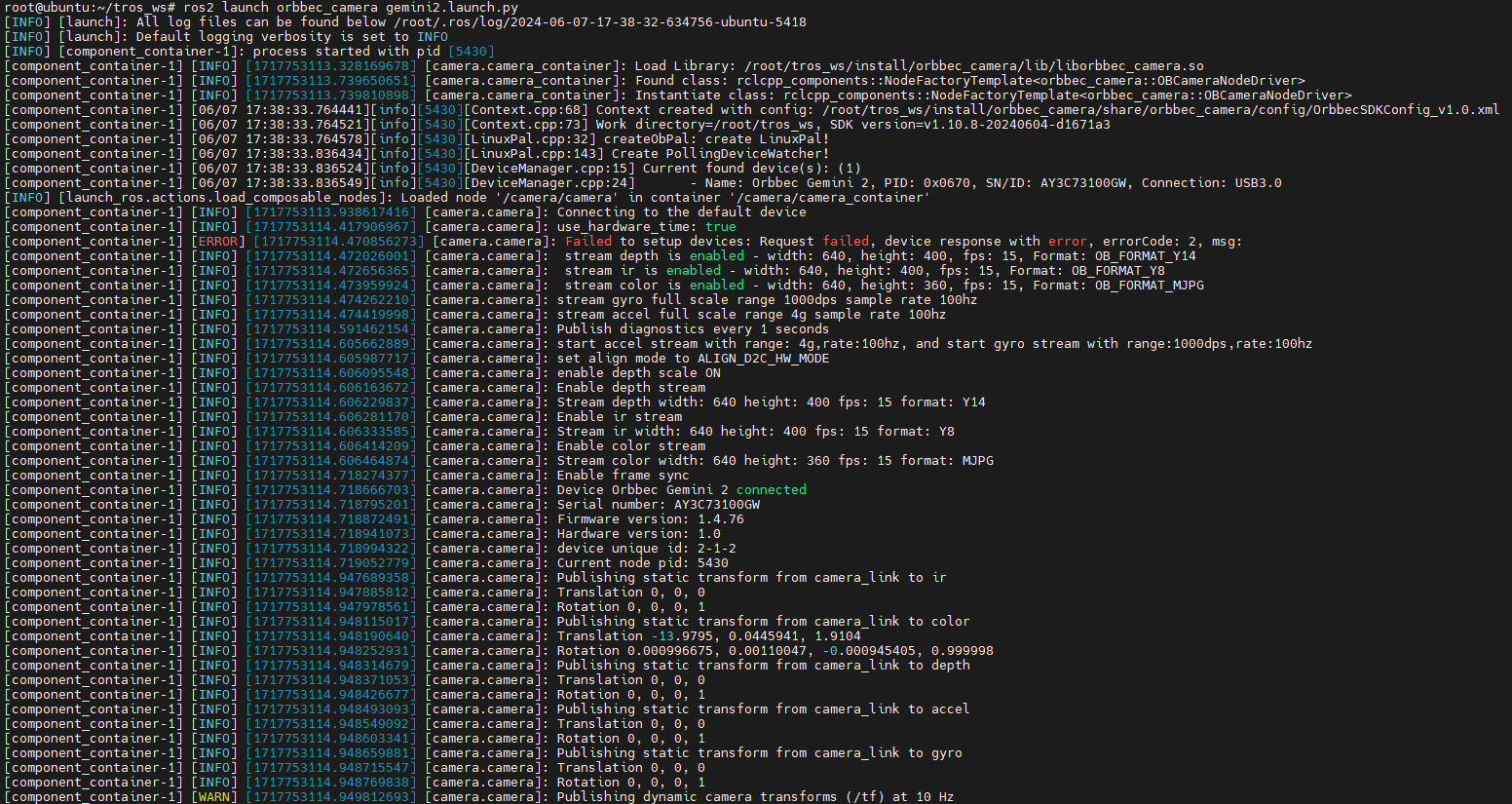
Use ros2 topic list to view topics published by Gemini2. Starting Gemini2 with default parameters enables the depth, RGB, IR, and point cloud data streams.
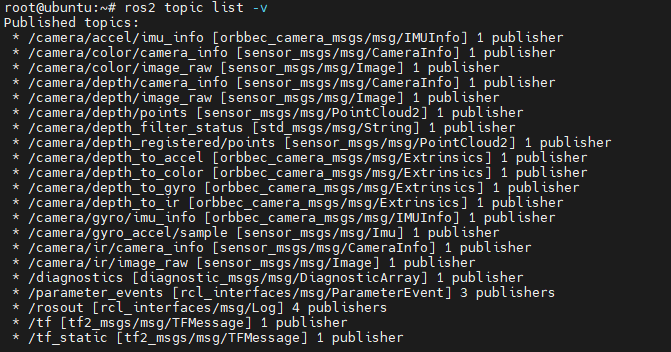
The Orbbec ROS2 wrapper provides many configurable parameters. For example, enable_point_cloud:=false and enable_colored_point_cloud:=false disable the point cloud data stream.
Orbbec cameras also expose several services. Use ros2 service list to view them. For example, you can query the SDK version, query or set exposure time and gain, and enable or disable the laser:
# Query SDK version
ros2 service call /camera/get_sdk_version orbbec_camera_msgs/srv/GetString '{}'
# Disable color camera auto exposure
ros2 service call /camera/set_color_auto_exposure std_srvs/srv/SetBool '{data: false}'
# Enable laser
ros2 service call /camera/set_laser_enable std_srvs/srv/SetBool '{data: true}'
For more topic and service configuration options, refer to the Orbbec ROS2 wrapper GitHub repository.
4. Depth and RGB alignment
In practical applications, depth images often need to be aligned with color images. Orbbec provides a corresponding startup method.
cd tros_ws
source ./install/setup.bash
ros2 launch orbbec_camera gemini2.launch.py depth_registration:=true

5. Display images and point clouds
There are several ways to display Orbbec images and point clouds. Refer to Data Display. For example, you can use rviz2 on the PC, but this requires network access to the RDK. Data is transmitted over the network, which adds significant load and may cause stuttering.
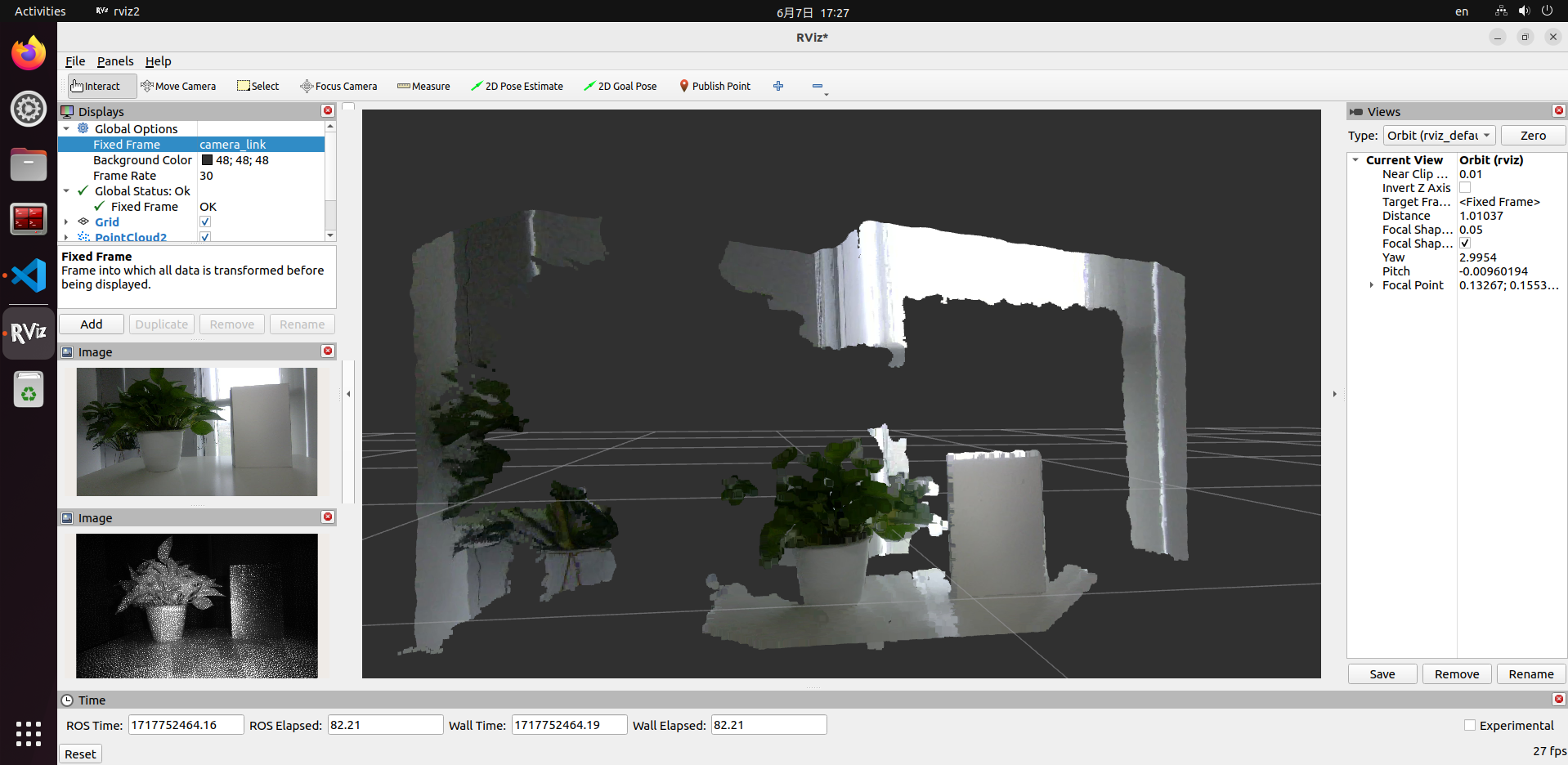
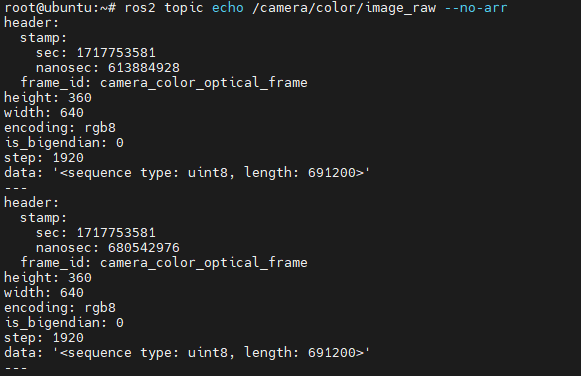
It is recommended to read data directly on the RDK to verify that streaming works correctly. You can use ros2 topic echo topic_name to print data or write code to subscribe to the corresponding topics.
ZED Camera Image Capture
Introduction
Stereo cameras are commonly used sensors in robot development and often serve as the robot's "eyes." Stereo cameras are used in many robot applications, such as navigation and obstacle avoidance, object recognition, 3D reconstruction, and human-robot interaction. The RDK platform also supports common stereo cameras on the market, such as RealSense, Orbbec, and ZED series cameras.
Code repository: https://github.com/D-Robotics/hobot_zed_cam
This section describes how to use ZED cameras on the RDK platform.
Supported Platforms
| Platform | Runtime Environment |
|---|---|
| RDK X5, RDK X5 Module | Ubuntu 22.04 (Humble) |
Preparation
RDK Platform
- Verify that your ZED camera works properly, and connect the USB cable to the RDK USB port
- The RDK has been flashed with the RDK OS system
- tros.b has been successfully installed on the RDK
- Confirm that the PC can access the RDK over the network
Usage
- Log in to the RDK via SSH and start the ZED camera with the following commands
- Humble
# Configure tros.b environment
source /opt/tros/humble/setup.bash
# Start the ZED camera and publish stereo image data
ros2 launch hobot_zed_cam pub_stereo_imgs.launch.py need_rectify:=true
- If the program outputs the following information, the node has started successfully
[anypub_stereo_imgs-1] [INFO] [0946684888.710715101] [pub_stereo_imgs_nv12_node]: => connected to camera sn: 38085162[/dev/video0]
[anypub_stereo_imgs-1] [INFO] [0946684888.779280740] [pub_stereo_imgs_nv12_node]: => calibration file found. Loading...
[anypub_stereo_imgs-1] [INFO] [0946684888.831008271] [pub_stereo_imgs_nv12_node]: => camera Matrix L:
[anypub_stereo_imgs-1] [514.5878861678406, 0, 665.3764572143555, 0;
[anypub_stereo_imgs-1]  0, 514.5878861678406, 320.3872646755642, 0;
[anypub_stereo_imgs-1]  0, 0, 1, 0]
[anypub_stereo_imgs-1] [INFO] [0946684888.831235937] [pub_stereo_imgs_nv12_node]: => camera Matrix R:
[anypub_stereo_imgs-1] [514.5878861678406, 0, 665.3764572143555, 61695.48427422668;
[anypub_stereo_imgs-1]  0, 514.5878861678406, 320.3872646755642, 0;
[anypub_stereo_imgs-1]  0, 0, 1, 0]
[anypub_stereo_imgs-1] [INFO] [0946684888.831287187] [pub_stereo_imgs_nv12_node]: => rectified fx: 514.587886, fy: 514.587886, cx: 665.376457, cy: 320.387265, base_line: 0.119893
[anypub_stereo_imgs-1] [INFO] [0946684888.831357562] [pub_stereo_imgs_nv12_node]: => camera_fx:=514.587886 camera_fy:=514.587886 camera_cx:=665.376457 camera_cy:=320.387265 base_line:=0.119893
[anypub_stereo_imgs-1] [INFO] [0946684888.851400416] [pub_stereo_imgs_nv12_node]: => raw img size: [1280, 720]
[anypub_stereo_imgs-1] [INFO] [0946684888.883419384] [pub_stereo_imgs_nv12_node]: => rectify img size: [1280, 640]
- On the PC, open a browser (
Chrome/Firefox/Edge), enterIP:8000(where IP is the RDK IP address), and click Web Display in the upper-left corner to view the live ZED camera feed.