5.4.2 Navigation2
Feature Overview
Nav2 (Navigation2) is the built-in navigation framework in ROS 2, designed to find a safe way for mobile robots to move from point A to point B. Nav2 can also be applied to other robotic navigation applications, such as dynamic waypoint tracking, which involves dynamic path planning, calculating motor velocities, obstacle avoidance, and more.
The SLAM Mapping section explains how to run SLAM algorithms to create a map. This section describes how to use Nav2 for navigation based on an existing map. Similarly, we use Gazebo to create a virtual environment and robot car on a PC, set the navigation goal using Rviz2, and run the Nav2 program on the RDK for navigation.
Supported Platforms
| Platform | Execution Method | Example Functionality |
|---|---|---|
| RDK X3, RDK X3 Module | Ubuntu 20.04 (Foxy), Ubuntu 22.04 (Humble) | Launch the simulation environment on the PC, start navigation on the RDK, and visualize the navigation results using Rviz2 |
| RDK X5, RDK X5 Module | Ubuntu 22.04 (Humble) | Launch the simulation environment on the PC, start navigation on the RDK, and visualize the navigation results using Rviz2 |
| RDK S100, RDK S100P | Ubuntu 22.04 (Humble) | Launch the simulation environment on the PC, start navigation on the RDK, and visualize the navigation results using Rviz2 |
Prerequisites
RDK Platform
-
The RDK has been flashed with Ubuntu 20.04 or Ubuntu 22.04 system image.
-
tros.b has been successfully installed on the RDK.
-
After successfully installing tros.b, install Nav2.
- Foxy
- Humble
sudo apt update
sudo apt install ros-foxy-navigation2
sudo apt install ros-foxy-nav2-bringup
sudo apt update
sudo apt install ros-humble-navigation2
sudo apt install ros-humble-nav2-bringup
If the sudo apt update command fails or returns an error, refer to the FAQ section Common Issues, specifically Q10: How to handle failures or errors when running apt update? for solutions.
- A PC on the same network segment as the RDK, with Ubuntu 20.04/Ubuntu 22.04, ROS 2 Desktop, the Gazebo simulation environment, and the visualization tool Rviz2 already installed.
- Foxy
- Humble
- Ubuntu 20.04 and ROS 2 Foxy Desktop
- After successfully installing ROS 2 on the PC, install Gazebo and Turtlebot3-related packages as follows:
sudo apt-get install ros-foxy-gazebo-*
sudo apt install ros-foxy-turtlebot3*
sudo apt install ros-foxy-navigation2
sudo apt install ros-foxy-nav2-bringup
- Ubuntu 22.04 and ROS 2 Humble Desktop
- After successfully installing ROS 2 on the PC, install Gazebo and Turtlebot3-related packages as follows:
sudo apt-get install ros-humble-gazebo-*
sudo apt install ros-humble-turtlebot3*
sudo apt install ros-humble-navigation2
sudo apt install ros-humble-nav2-bringup
Usage Instructions
RDK Platform
This section describes how to set up a simulation environment on the PC, configure the navigation goal, run navigation functionality on the RDK, and observe the navigation results.
- On the PC, launch the Gazebo simulation environment:
- Foxy
- Humble
source /opt/ros/foxy/setup.bash
source /opt/ros/humble/setup.bash
export TURTLEBOT3_MODEL=waffle
ros2 launch turtlebot3_gazebo turtlebot3_world.launch.py
If startup fails with the error [ERROR] [gzclient-2]: process has died, run the command source /usr/share/gazebo/setup.sh before relaunching.
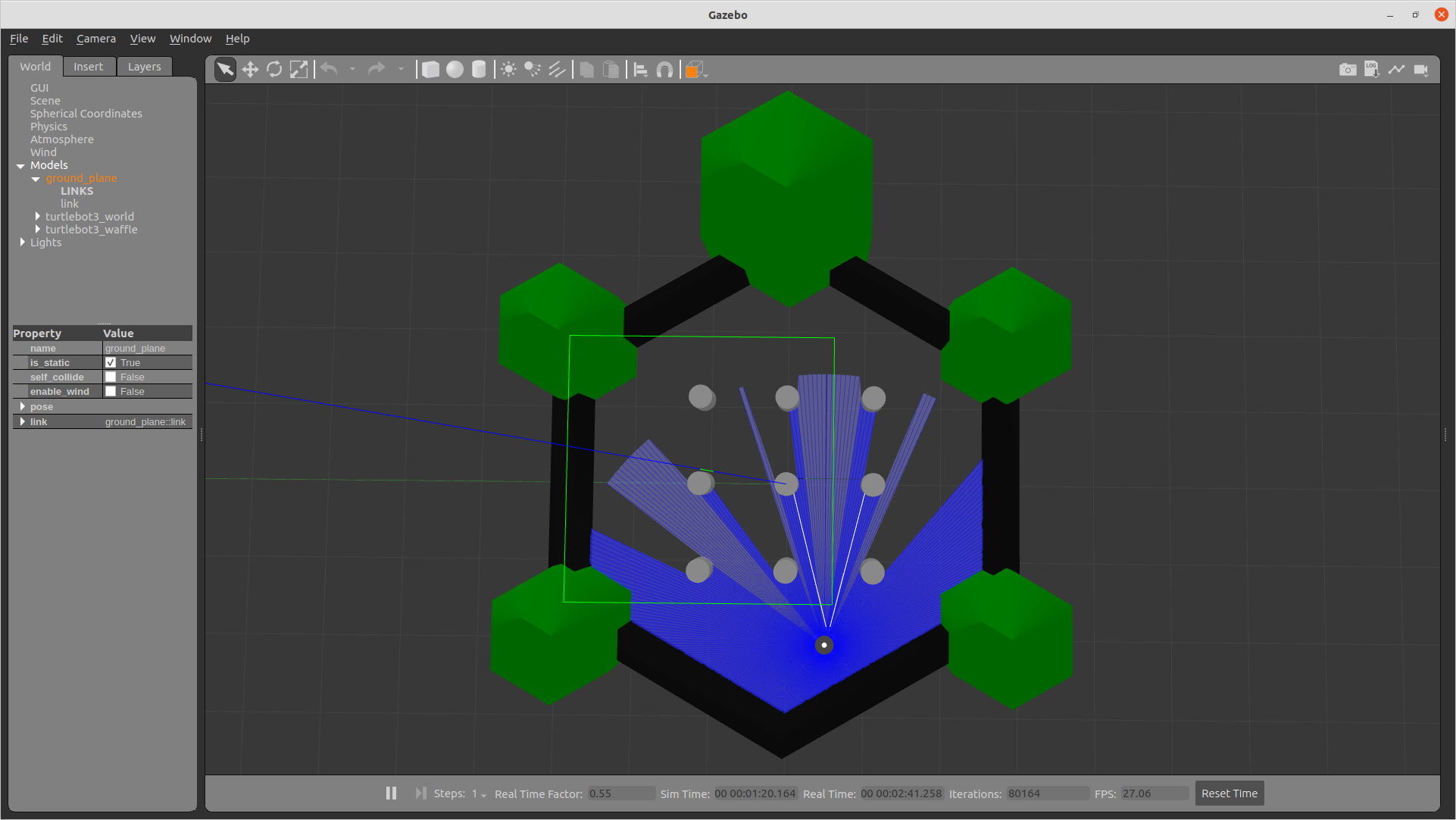
The simulation environment appears as shown below:
-
On the RDK, launch the navigation functionality:
- Foxy
- Humble
# Configure tros.b environment
source /opt/tros/setup.bash
ros2 launch nav2_bringup bringup_launch.py use_sim_time:=True map:=/opt/ros/foxy/share/nav2_bringup/maps/turtlebot3_world.yaml
# Configure tros.b environment
source /opt/tros/humble/setup.bash
ros2 launch nav2_bringup bringup_launch.py use_sim_time:=True map:=/opt/ros/humble/share/nav2_bringup/maps/turtlebot3_world.yaml -
On the PC, launch the Rviz2 tool:
- Foxy
- Humble
source /opt/ros/foxy/setup.bash
source /opt/ros/humble/setup.bash
ros2 launch nav2_bringup rviz_launch.py
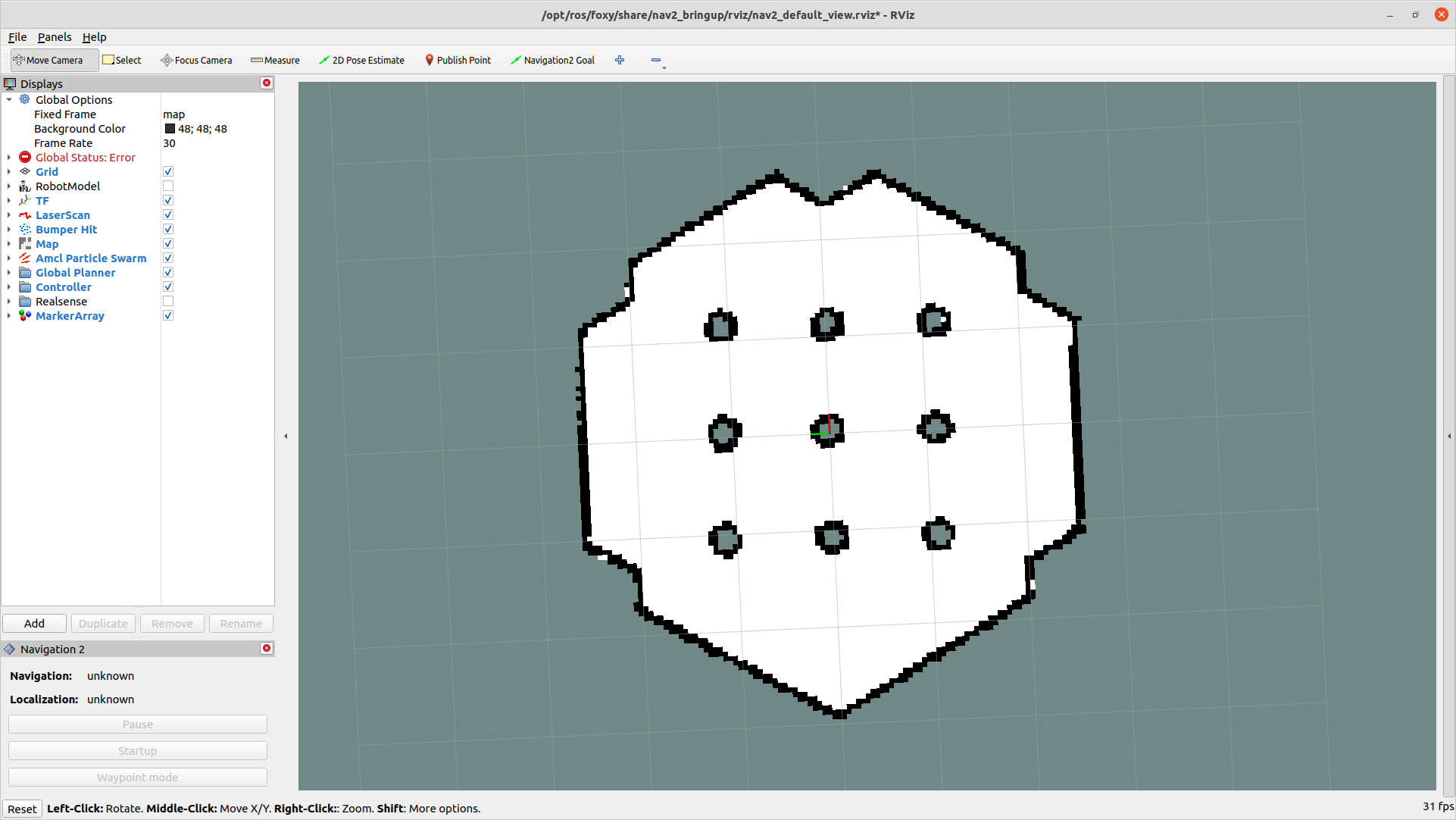
The Rviz2 interface appears as shown below:
-
Set the robot's initial pose and orientation in Rviz2:
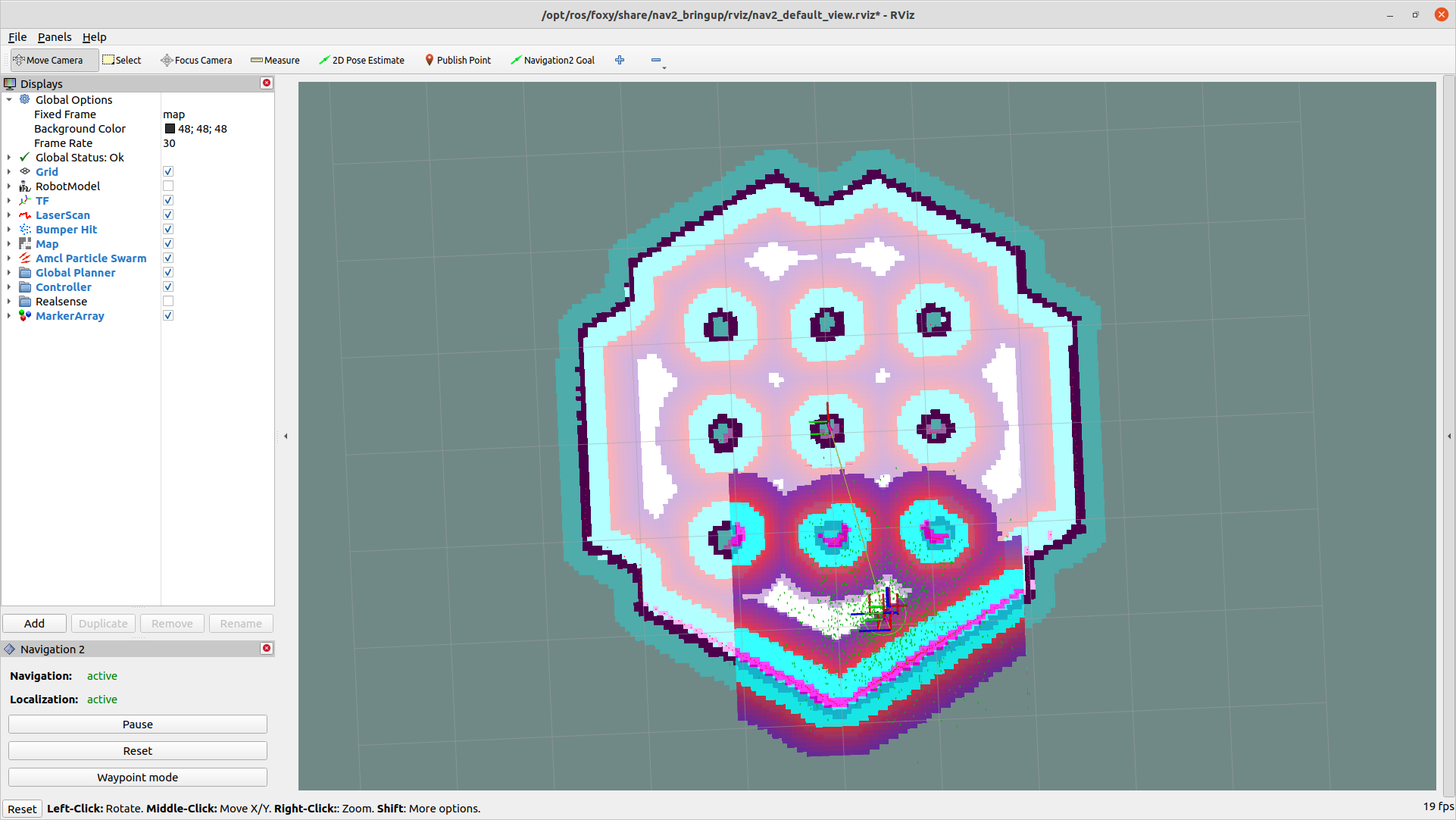
After launching Rviz2, the robot initially does not know its location. By default, Nav2 waits for the user to provide an approximate starting position. Observe the robot’s position in Gazebo and locate it on the map. Click the "2D Pose Estimate" button in Rviz2, then click on the estimated robot position on the map to set its initial pose. Drag forward from the clicked point to define the robot’s initial heading direction, as illustrated below:
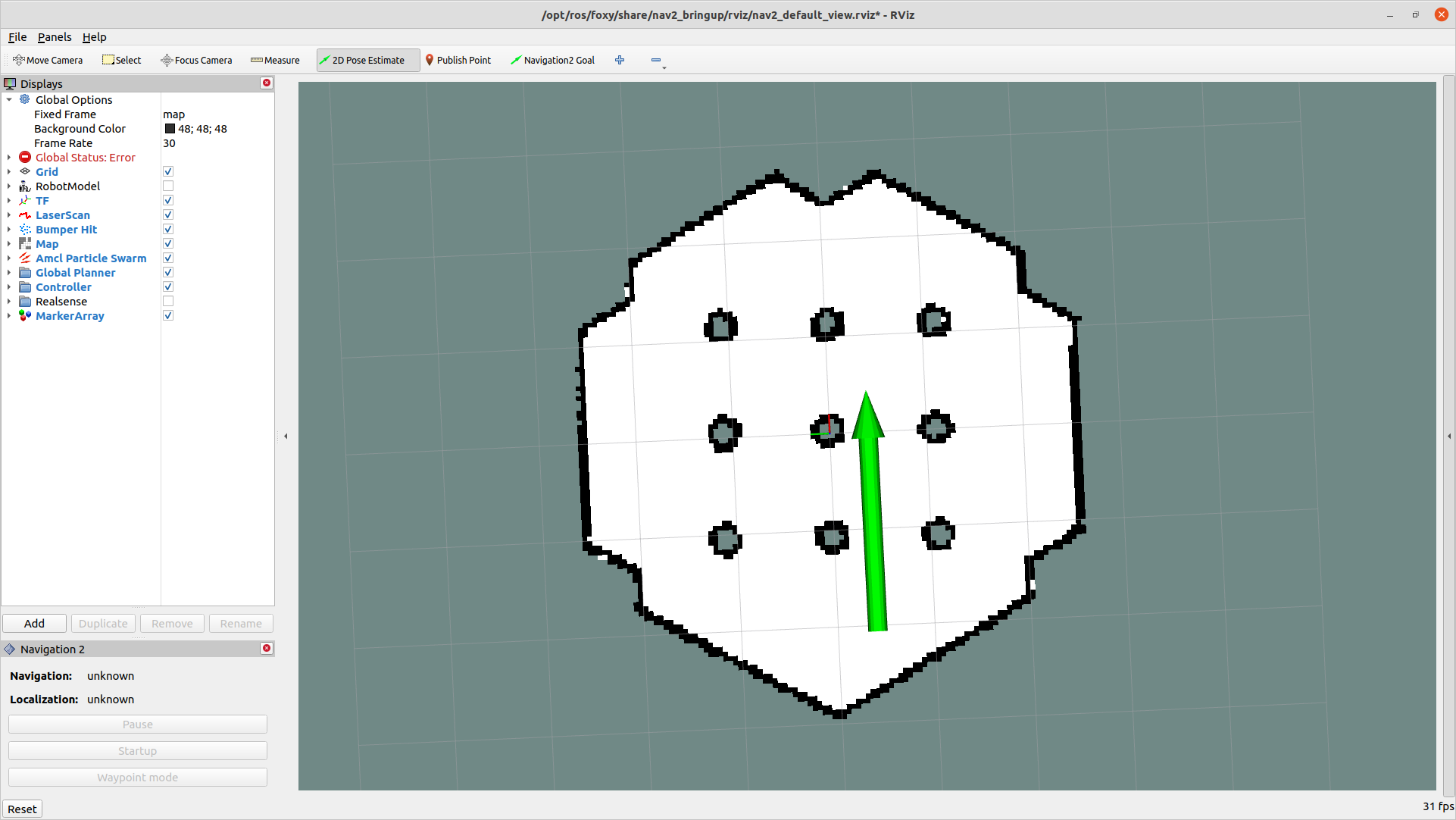
Once the initial pose is set, the transform tree is completed, and Nav2 becomes fully active and ready. At this point, you should see the robot and its point cloud data.
-
Set a navigation goal in Rviz2:
Click the "Navigation2 Goal" button and select a destination.
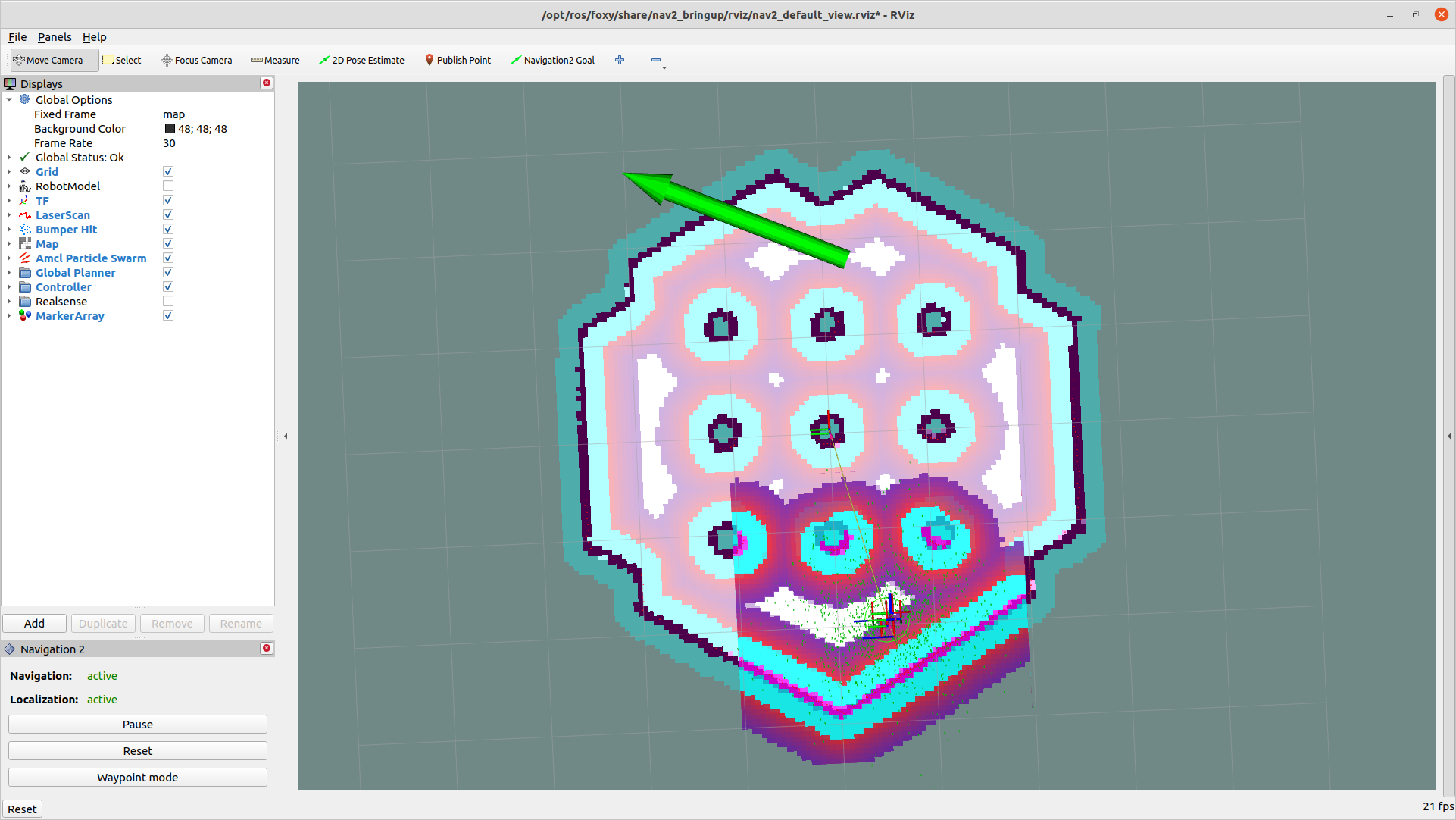
You will now see the robot moving toward the goal.
Results Analysis
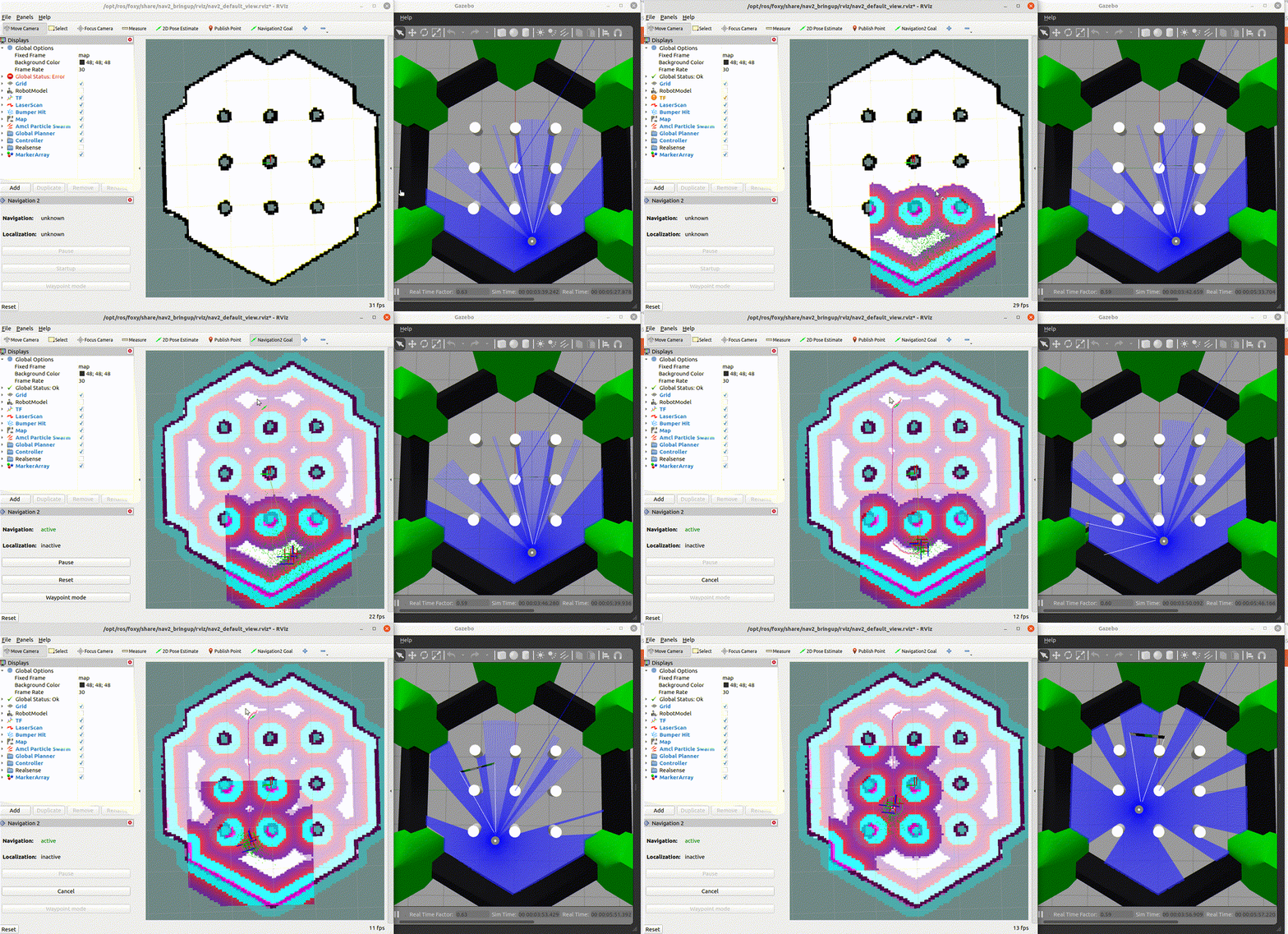
The navigation performance is shown in the figure below: