5.4.4 Human-Following Robot Car
Feature Overview
The Human-Following Robot Car app enables the robot to follow a human by detecting and tracking their movement. The app consists of the following modules: MIPI image acquisition, human detection and tracking, human-following strategy, image encoding/decoding, and a web-based visualization interface. The workflow is illustrated in the diagram below:
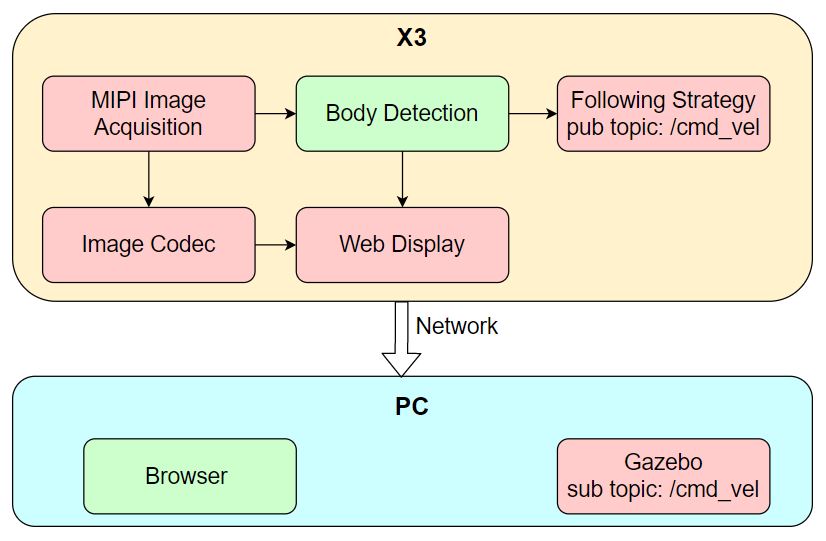
This example uses a simulated robot car in the Gazebo environment on a PC. The control commands generated can also be directly applied to a physical robot car.
Code repository: (https://github.com/D-Robotics/body_tracking)
Supported Platforms
| Platform | Runtime Environment |
|---|---|
| RDK X3, RDK X3 Module | Ubuntu 20.04 (Foxy), Ubuntu 22.04 (Humble) |
| RDK X5, RDK X5 Module | Ubuntu 22.04 (Humble) |
| RDK Ultra | Ubuntu 20.04 (Foxy) |
Prerequisites
RDK Platform
- The RDK has been flashed with either Ubuntu 20.04 or Ubuntu 22.04 system image.
- TogetheROS.Bot has been successfully installed on the RDK.
- An MIPI or USB camera has been installed on the RDK.
- A PC connected to the same network segment as the RDK (via Ethernet or the same Wi-Fi network; the first three segments of the IP addresses must match). The PC requires the following software environment:
- Foxy
- Humble
- Ubuntu 20.04 system and ROS 2 Foxy Desktop
- Gazebo and Turtlebot3-related packages. Installation commands:
sudo apt-get install ros-foxy-gazebo-*
sudo apt install ros-foxy-turtlebot3
sudo apt install ros-foxy-turtlebot3-simulations
- Ubuntu 22.04 system and ROS 2 Humble Desktop
- Gazebo and Turtlebot3-related packages. Installation commands:
sudo apt-get install ros-humble-gazebo-*
sudo apt install ros-humble-turtlebot3
sudo apt install ros-humble-turtlebot3-simulations
Usage Instructions
RDK Platform
After launching the Human-Following Robot Car app, the robot's motion control package selects the nearest human (identified by the largest human detection bounding box width) directly in front of the robot as the target to follow. When the human is far away, the robot moves forward toward them and maintains the human centered in front of it.
After the app starts, you can view the sensor-published images and corresponding algorithm results rendered in a web browser on your PC by navigating to http://IP:8000 (replace "IP" with the RDK's IP address).
To start the simulation environment on your PC:
- Foxy
- Humble
source /opt/ros/foxy/setup.bash
source /opt/ros/humble/setup.bash
export TURTLEBOT3_MODEL=burger
ros2 launch turtlebot3_gazebo empty_world.launch.py
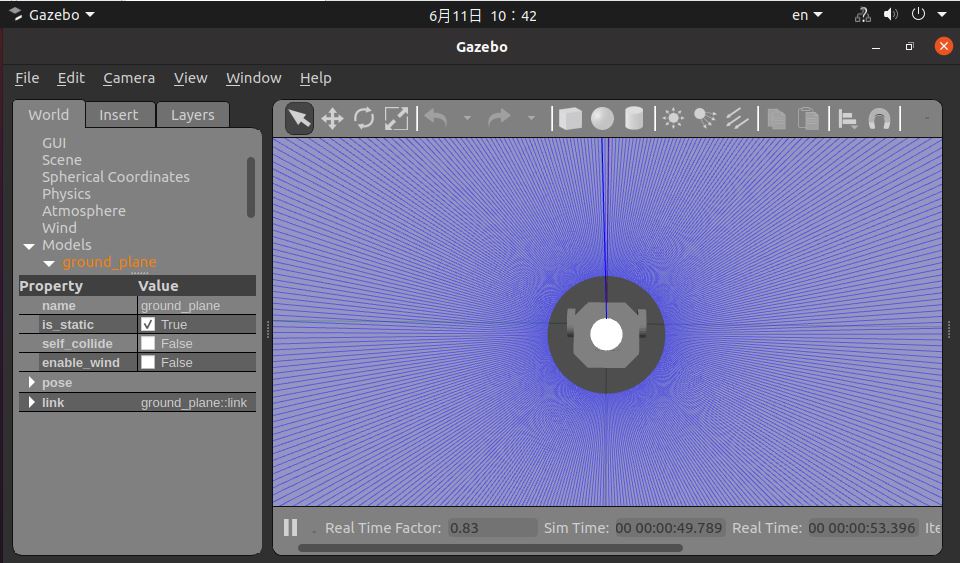
After successful launch, the simulated robot car appears as follows:
Publish images using an MIPI camera
- Foxy
- Humble
# Configure the tros.b environment
source /opt/tros/setup.bash

# Copy required configuration files for the demo from the TogetheROS installation path.
cp -r /opt/tros/${TROS_DISTRO}/lib/mono2d_body_detection/config/ .

# Configure MIPI camera
export CAM_TYPE=mipi

# Launch the launch file
ros2 launch body_tracking body_tracking_without_gesture.launch.py
# Configure the tros.b environment
source /opt/tros/humble/setup.bash

# Copy required configuration files for the demo from the TogetheROS installation path.
cp -r /opt/tros/${TROS_DISTRO}/lib/mono2d_body_detection/config/ .

# Configure MIPI camera
export CAM_TYPE=mipi

# Launch the launch file
ros2 launch body_tracking body_tracking_without_gesture.launch.py
Publish images using a USB camera
- Foxy
- Humble
# Configure the tros.b environment
source /opt/tros/setup.bash

# Copy required configuration files for the demo from the tros.b installation path.
cp -r /opt/tros/${TROS_DISTRO}/lib/mono2d_body_detection/config/ .

# Configure USB camera
export CAM_TYPE=usb

# Launch the launch file
ros2 launch body_tracking body_tracking_without_gesture.launch.py
# Configure the tros.b environment
source /opt/tros/humble/setup.bash

# Copy required configuration files for the demo from the tros.b installation path.
cp -r /opt/tros/${TROS_DISTRO}/lib/mono2d_body_detection/config/ .

# Configure USB camera
export CAM_TYPE=usb

# Launch the launch file
ros2 launch body_tracking body_tracking_without_gesture.launch.py
Result Analysis
When running on the RDK board, the terminal outputs the following information:
[body_tracking-7] [WARN] [1653430533.523069034] [ParametersClass]: TrackCfg param are
[body_tracking-7] activate_wakeup_gesture: 0
[body_tracking-7] track_serial_lost_num_thr: 100
[body_tracking-7] activate_robot_rotate_thr: 45
[body_tracking-7] activate_robot_move_thr: 5
[body_tracking-7] move_step: 0.3
[body_tracking-7] rotate_step: 0.5
[body_tracking-7] img_width: 960
[body_tracking-7] img_height: 544
[body_tracking-7]
[body_tracking-7] [WARN] [1653430533.712812076] [TrackingManager]: update frame_ts 395787, 873
[body_tracking-7] [WARN] [1653430533.713105576] [TrackingManager]: Tracking body start!, track_id: 1, frame_ts: 395787, tracking_sta(0:INITING, 1:TRACKING, 2:LOST): 1, gesture: 0
[body_tracking-7] [WARN] [1653430535.018442618] [TrackingManager]: Do move! body_rect_width: 353, thr: 864, move_step_ratio: 1, body_rect_to_top: 20, img_height: 544, move_step: 0.3
[body_tracking-7] [WARN] [1653430535.220268535] [TrackingManager]: Do rotate move, ts sec: 3397, nanosec: 387800000
[body_tracking-7] [WARN] [1653430535.220408576] [RobotCmdVelNode]: RobotCtl, angular: 0 0 0, linear: 0.3 0 0, pub twist ts: 1653430535220394
The above log snippet captures output after the App starts. Upon launch, it first prints relevant configurations (TrackCfg param). Once a human body is detected, the robot enters the following state (tracking_sta value is 1) and moves forward at 0.3 m/s (RobotCtl, angular: 0 0 0, linear: 0.3 0 0) toward the detected person.
On the PC side, you can use the ros2 topic list command in the terminal to query RDK's topic information:
$ ros2 topic list
/camera_info
/cmd_vel
/hbmem_img04054242060426080500012020112713
/hobot_mono2d_body_detection
/image
/parameter_events
/rosout
Among these, /image is the JPEG-encoded image published by the RDK after capturing from the MIPI sensor; /hobot_mono2d_body_detection is the algorithm message published by the RDK containing human detection results; and /cmd_vel is the motion control command published by the RDK.
On the PC side, you can use the ros2 topic echo /cmd_vel command in the terminal to view the motion control commands published by the RDK:
linear:
  x: 0.5
  y: 0.0
  z: 0.0
angular:
  x: 0.0
  y: 0.0
  z: -0.5
---
linear:
  x: 0.5
  y: 0.0
  z: 0.0
angular:
  x: 0.0
  y: 0.0
  z: -0.5
---
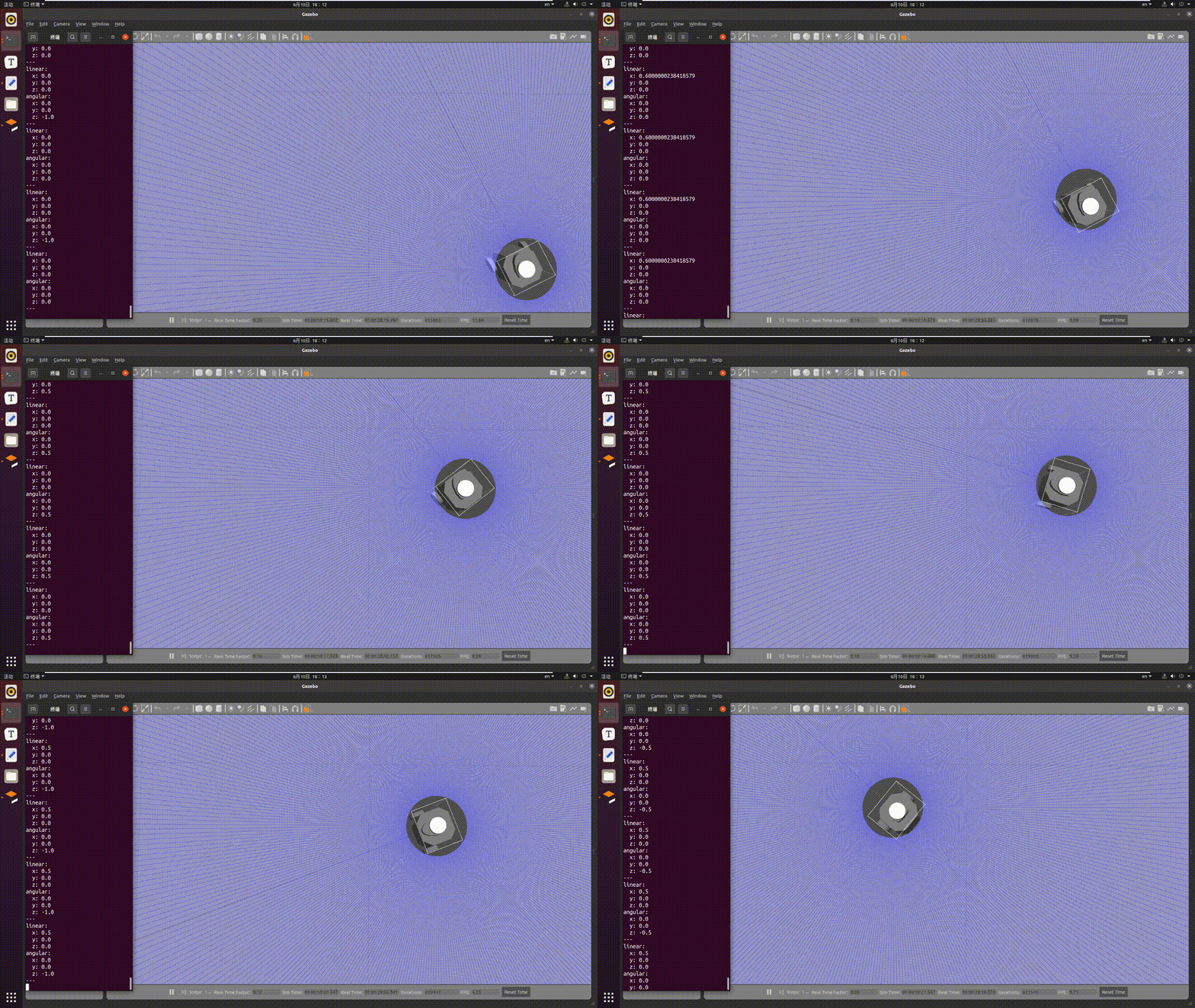
In the PC-side simulation environment, the robot follows human movement. The simulated robot motion effect is shown below: