Hiwonder Carrier Board
Product Overview
This carrier board integrates multiple peripherals. The following are instructions for using the audio section.
Installation
-
Hardware Deployment
Refer to other audio boards for connection. Connect using the 40-pin to 40-pin interface.
-
Software Configuration
-
Use
srpi-configto configure the audio board.
Go to3 Interface Options->I5 Audio
SelectHiwonder Audio Driver HAT: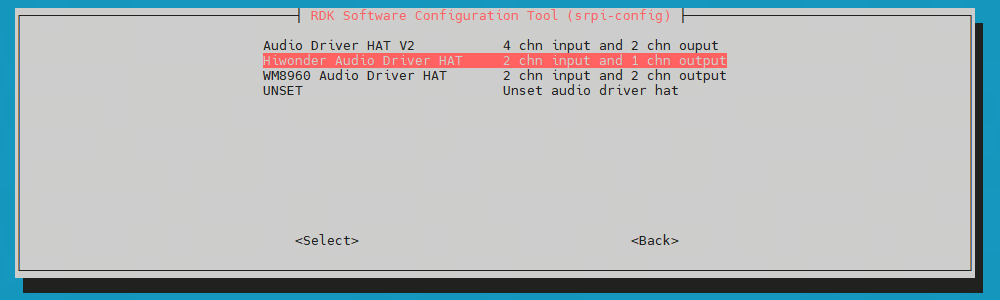
-
Follow the prompts to execute the
rebootcommand, or runsync && rebootto restart the board. Ifcat /proc/asound/cardsshows theduplexaudioi2s1sound card, the carrier board is installed successfully.
root@ubuntu:~# cat /proc/asound/cards
 0 [duplexaudioi2s1]: simple-card - duplex-audio-i2s1
            duplex-audio-i2s1
 1 [duplexaudio    ]: simple-card - duplex-audio
            duplex-audio
-
Uninstallation
-
Use
srpi-configto configure the audio board.
Go to3 Interface Options->I5 Audio
SelectUNSETto uninstall the audio driver and related configurations. -
Remove the carrier board.
Usage
Check if the sound card exists and verify the device number.
To confirm the sound card is registered (as mentioned above):
root@ubuntu:~# cat /proc/asound/cards
 0 [duplexaudioi2s1]: simple-card - duplex-audio-i2s1
            duplex-audio-i2s1
 1 [duplexaudio    ]: simple-card - duplex-audio
            duplex-audio
To check logical devices:
root@ubuntu:~# cat /proc/asound/devices
  2: [ 0- 0]: digital audio playback
  3: [ 0- 1]: digital audio capture
  4: [ 0]   : control
  5: [ 1- 0]: digital audio playback
  6: [ 1- 0]: digital audio capture
  7: [ 1]   : control
 33:        : timer
To check actual device files in user space:
root@ubuntu:~# ls /dev/snd/
by-path  controlC0  controlC1  pcmC0D0p  pcmC0D1c  pcmC1D0c  pcmC1D0p  timer
Based on the above and the onboard Earphone audio port documentation, sound card 0 corresponds to the Hiwonder Audio Driver HAT node; the devices exist, with device numbers 0-0 and 0-1. The actual devices to operate are pcmC0D0p and pcmC0D1c.
The onboard sound card corresponds to 1, with device number 1-0, which is not used here.
-
Recording
Use the following command to record audio:
arecord -Dhw:0,0 -c 2 -r 48000 -f S32_LE -t wav -d 10 /userdata/record1.wav
-
Playback
Use the following command to play back the recorded audio:
aplay -D hw:0,0 /userdata/record1.wav