5.4.9 Smart Box
Feature Description
The Smart Box app is designed to perform intelligent analysis after inputting an IPC video stream. The app consists of an RTSP video stream, video decoding, human body and face detection, image encoding, and a web display interface. The workflow is illustrated below:
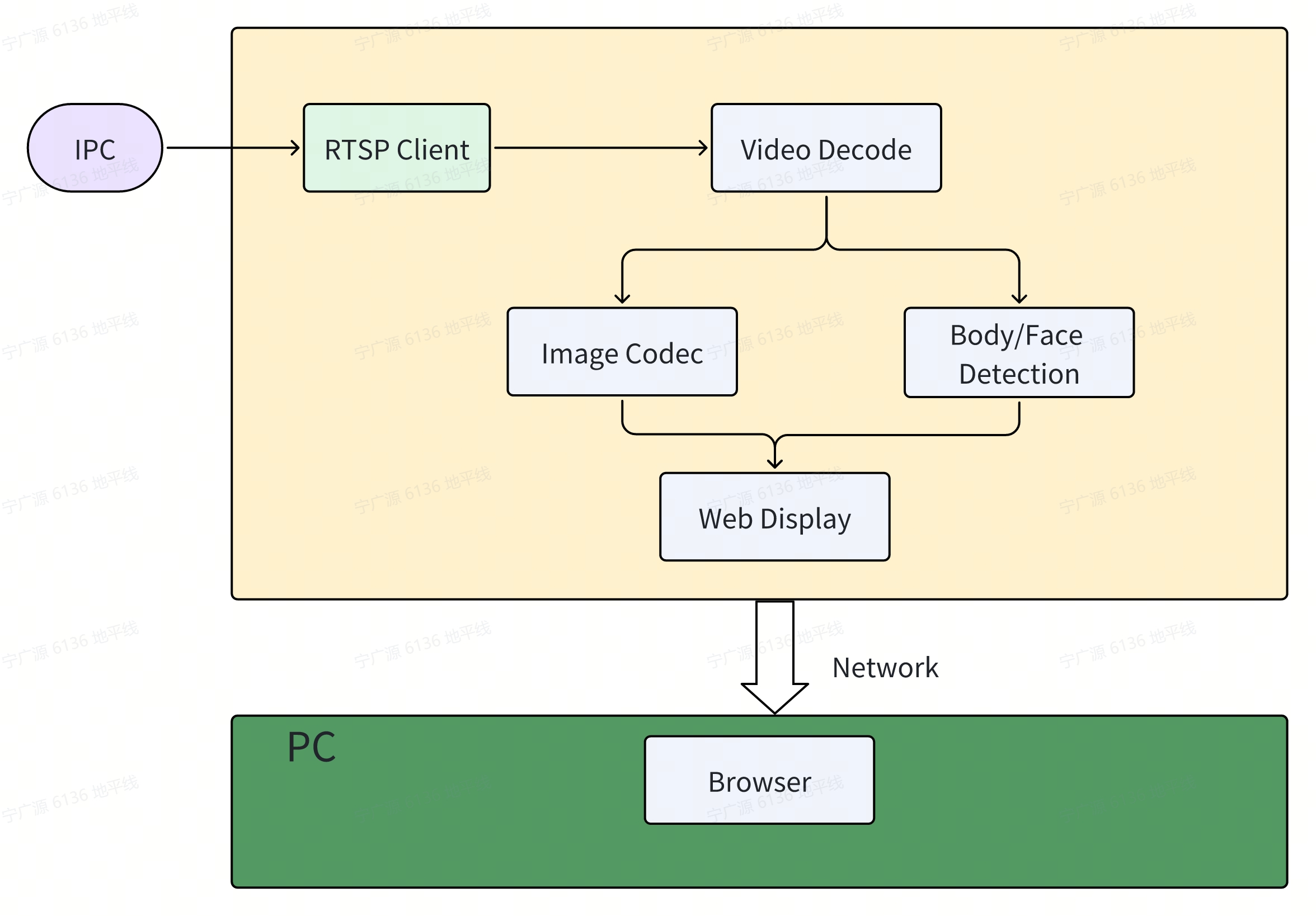
In actual customer applications, the display part is handled by the customer's business system. The main functions of the Smart Box include RTSP video stream, video decoding, human body and face detection, and publishing intelligent results and images to the customer's business system. The workflow is as follows:

Code Repository: (https://github.com/D-Robotics/hobot_rtsp_client.git)
Supported Platforms
| Platform | Operating Mode |
|---|---|
| RDK X3, RDK X3 Module | Ubuntu 22.04 (Humble) |
| RDK X5, RDK X5 Module | Ubuntu 22.04 (Humble) |
| RDK S100, RDK S100P | Ubuntu 22.04 (Humble) |
| RDK S600 | Ubuntu 24.04 (Jazzy) |
Prerequisites
-
The RDK is pre-flashed with the RDK OS system.
-
Install TogetheROS.Bot on the RDK as per apt installation and upgrade.
-
Prepare an IPC device that supports the RTSP protocol for transmitting H264/H265 streams and configure an IP address on the same subnet.
-
A PC on the same subnet as the RDK (wired or connected to the same wireless network, the first three segments of the IP address [e.g., 192.168.1.x] must match).
-
Set the system to performance mode:
sudo bash -c "echo performance > /sys/devices/system/cpu/cpufreq/policy0/scaling_governor"
- When starting multiple channels, configure
ion_sizeto 1G. Refer to srpi-config configuration
- When starting multiple channels, configure
ion_sizeto 1G. Refer to srpi-config configuration
- When starting multiple channels, configure
ion_sizeto 1G. Refer to srpi-config configuration
- When starting multiple channels, configure
ion_sizeto 1G. Refer to srpi-config configuration
Usage Guide
Method for Starting Multiple Channels
Channel 1 (Terminal 1):
- Foxy
- Humble
- Jazzy
# Configure the tros.b environment
source /opt/tros/setup.bash
# Configure the tros.b environment
source /opt/tros/humble/setup.bash
# Configure the tros.b environment
source /opt/tros/jazzy/setup.bash
- Humble
# Configure the tros.b environment
source /opt/tros/humble/setup.bash
- Jazzy
# Configure the tros.b environment
source /opt/tros/jazzy/setup.bash
# Set a different domain
export ROS_DOMAIN_ID=101

# Copy the configuration files needed for running the example from the TogetheROS installation path
cp -r /opt/tros/${TROS_DISTRO}/lib/dnn_node_example/config/ .

# Launch the launch file
ros2 launch hobot_rtsp_client hobot_rtsp_client_ai_websocket_plugin.launch.py hobot_rtsp_url_num:=1 hobot_rtsp_url_0:='rtsp://admin:admin123@10.112.148.57:554/0' hobot_transport_0:='udp'  websocket_channel:=0
Channel 2 (Terminal 2):
- Foxy
- Humble
- Jazzy
# Configure the tros.b environment
source /opt/tros/setup.bash
# Configure the tros.b environment
source /opt/tros/humble/setup.bash
# Configure the tros.b environment
source /opt/tros/jazzy/setup.bash
- Humble
# Configure the tros.b environment
source /opt/tros/humble/setup.bash
- Jazzy
# Configure the tros.b environment
source /opt/tros/jazzy/setup.bash
# Set a different domain
export ROS_DOMAIN_ID=102

# Copy the configuration files needed for running the example from the TogetheROS installation path
cp -r /opt/tros/${TROS_DISTRO}/lib/dnn_node_example/config/ .

# Launch the launch file
ros2 launch hobot_rtsp_client hobot_rtsp_client_ai_websocket_plugin.launch.py hobot_rtsp_url_num:=1 hobot_rtsp_url_0:='rtsp://admin:admin123@10.112.148.58:554/0' hobot_transport_0:='udp'  websocket_channel:=1
...
Notes:
- Set different
ROS_DOMAIN_IDandwebsocket_channelfor different channels. - The above shows how to start 2 channels. Use the same method to start other channels 3~8.
- Launch scripts with
_pluginwill start in component mode, e.g.,hobot_rtsp_client_ai_websocket_plugin.launch.pyandhobot_rtsp_client_ai_plugin.launch.py. - Launch scripts with
_websocketenable web browsing, e.g.,hobot_rtsp_client_ai_websocket_plugin.launch.pyandhobot_rtsp_client_ai_websocket.launch.py. - To increase the number of connection channels and handle multiple video streams, reduce the frame rate by configuring the IPC accordingly.
Algorithm Model Switching
The default algorithm referenced in the launch script is YOLOv8.
Refer to hobot_rtsp_client_ai_websocket_plugin.launch.py :
    ComposableNode(
        package='dnn_node_example',
        plugin='DnnExampleNode',
        name='dnn_example',
        parameters=[
            {"config_file": 'config/yolov8workconfig.json'},
            {"dump_render_img": 0},
            {"feed_type": 1},
            {"is_shared_mem_sub": 0},
            {"msg_pub_topic_name": "/hobot_dnn_detection"}

        ],
        extra_arguments=[{'use_intra_process_comms': True}],
    )
To switch to the YOLOv5 algorithm, modify config_file to "config/yolov5xworkconfig.json" . Refer to YOLO.
Result Analysis
Run the terminal on the RDK board to output the following information:
[hobot_codec_republish-2] [WARN] [1732169402.355433988] [hobot_codec_decoder]: Sub imgRaw fps = -1774563328
[hobot_codec_republish-2] [WARN] [1732169402.906547961] [hobot_codec_decoder]: sub h264 1920x1080, fps: 24.7706, pub nv12, fps: 9.17431, comm delay [-8.8148]ms, codec delay [171.2000]ms
[dnn_node_example-4] [WARN] [1732169402.906916796] [mono2d_body_det]: SharedMemImgProcess Recved img encoding: nv12, h: 1080, w: 1920, step: 1920, index: 2508, stamp: 1732169402_735947000, data size: 3133440, comm delay [170.9541]ms
[hobot_codec_republish-3] [WARN] [1732169403.274412126] [hobot_codec_encoder]: sub nv12 1920x1088, fps: 10.8055, pub jpeg, fps: 10.8055, comm delay [164.9091]ms, codec delay [7.6364]ms
[dnn_node_example-4] [WARN] [1732169403.321086039] [mono2d_body_det]: input fps: 10.81, out fps: 10.81, infer time ms: 92, post process time ms: 10
[hobot_codec_republish-2] [WARN] [1732169403.946849482] [hobot_codec_decoder]: sub h264 1920x1080, fps: 25, pub nv12, fps: 10.5769, comm delay [-7.0000]ms, codec delay [168.2727]ms
Open another terminal and use the ros2 topic list command to query the topic information of the RDK:
$ export ROS_DOMAIN_ID=101
$ ros2 topic list
/hobot_dnn_detection
/image_decode
/image_mjpeg
/parameter_events
/rosout
/rtsp_image_ch_0
Among these, /rtsp_image_ch_0 is the video published by the RDK after obtaining the IPC video via RTSP. /hobot_dnn_detection is the algorithm message published by the RDK containing human body detection results. /image_decode is the NV12 image decoded from the received H264 stream. /image_mjpeg is the JPEG image encoded by the RDK.
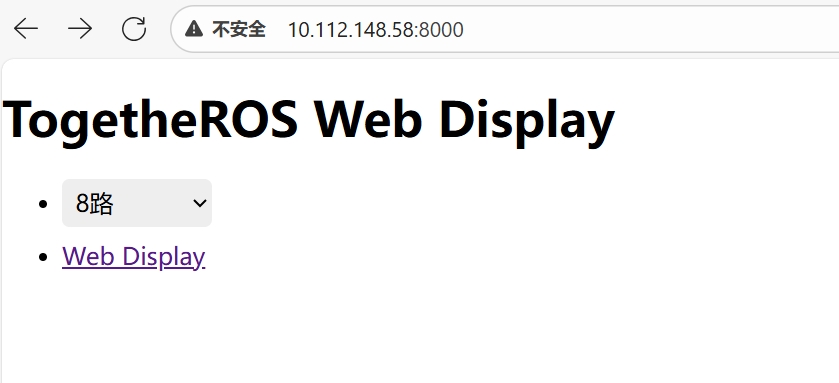
Enter http://IP:8000 in a browser on the PC for split-screen configuration:
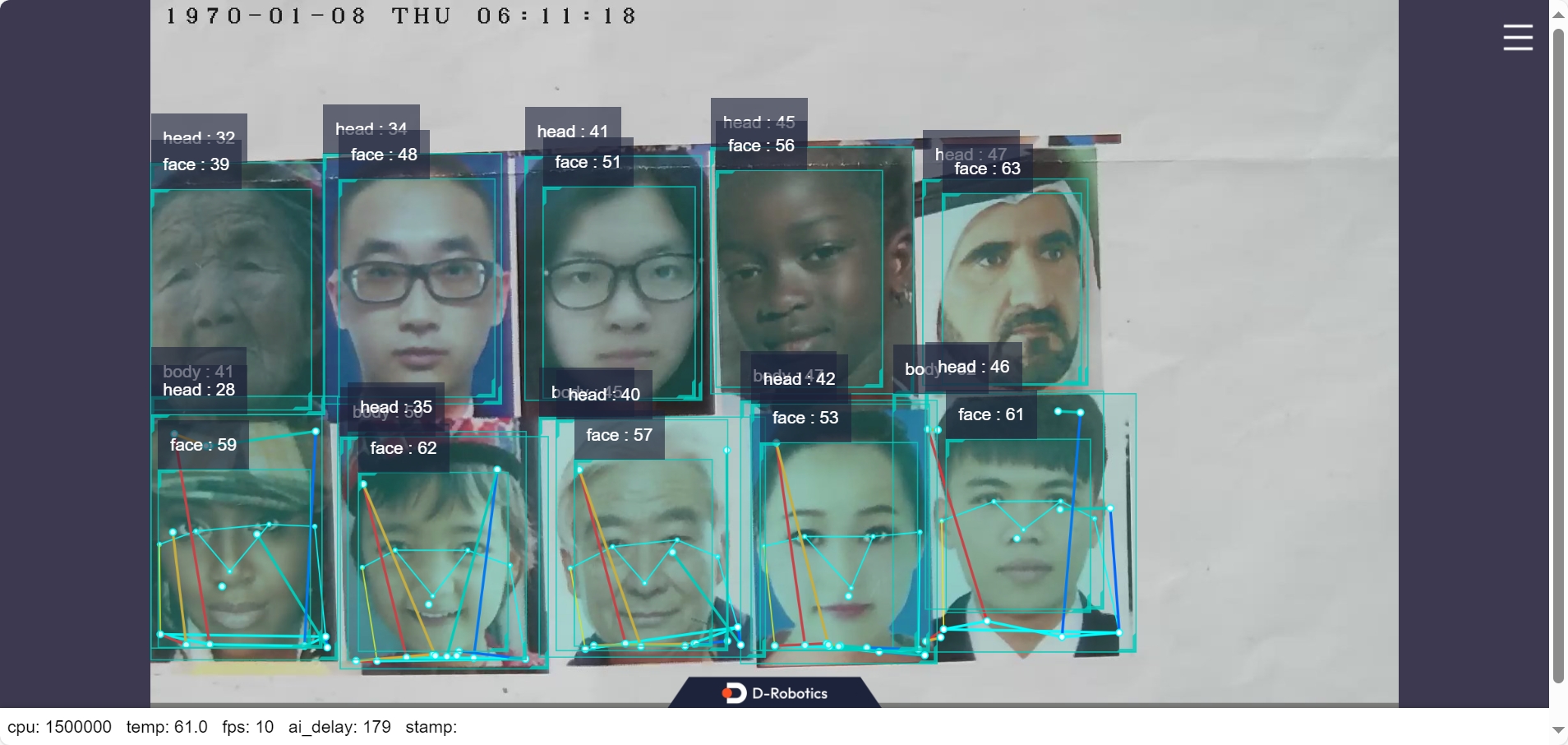
Human body and face detection boxes, key points, and pose detection results are rendered on the web interface (where IP is the IP address of the RDK):