5.4.5 Robot Gesture Control
Overview
The robot gesture control App controls robot movement through gestures, including left/right rotation and forward/backward translation. The App consists of MIPI image capture, human detection and tracking, hand keypoint detection, gesture recognition, gesture control strategy, image encoding/decoding, and a Web display client. The workflow is shown below:
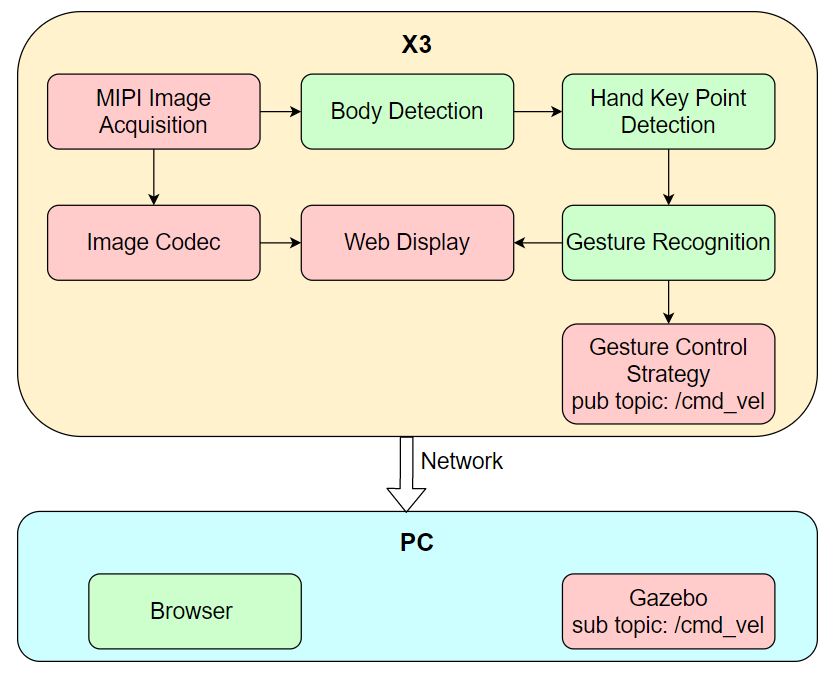
Supported control gestures, corresponding gesture functions, and gesture examples are listed below:
| Control Gesture | Gesture Function | Gesture Example |
|---|---|---|
| 666 gesture/Awesome | Forward | 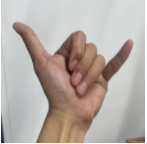 |
| yeah/Victory | Backward | 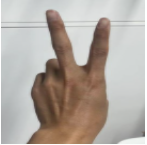 |
| ThumbRight | Turn right | 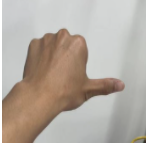 |
| ThumbLeft | Turn left | 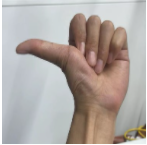 |
The App uses a virtual robot in the PC-side Gazebo simulation environment as an example. The published control commands can also be used directly to control a physical robot.
Code repository: (https://github.com/D-Robotics/gesture_control)
Supported Platforms
| Platform | Runtime Environment | Example Functionality |
|---|---|---|
| RDK X3, RDK X3 Module | Ubuntu 20.04 (Foxy), Ubuntu 22.04 (Humble) | Start MIPI/USB camera to capture images, perform gesture recognition and gesture control, and display control results via Gazebo |
| RDK X5, RDK X5 Module | Ubuntu 22.04 (Humble) | Start MIPI/USB camera to capture images, perform gesture recognition and gesture control, and display control results via Gazebo |
Preparation
RDK Platform
-
The RDK has been flashed with the Ubuntu system image.
-
TogetheROS.Bot has been successfully installed on the RDK.
-
A MIPI or USB camera has been installed on the RDK.
-
A PC on the same network as the RDK (wired or on the same Wi-Fi, with the first three octets of the IP address matching). The PC requires the following environment:
- Foxy
- Humble
- Ubuntu 20.04 and ROS2 Foxy desktop edition
- Gazebo and Turtlebot3 related packages. Installation:
sudo apt-get install ros-foxy-gazebo-*
sudo apt install ros-foxy-turtlebot3
sudo apt install ros-foxy-turtlebot3-simulations
- Ubuntu 22.04 and ROS2 Humble desktop edition
- Gazebo and Turtlebot3 related packages. Installation:
sudo apt-get install ros-humble-gazebo-*
sudo apt install ros-humble-turtlebot3
sudo apt install ros-humble-turtlebot3-simulations
Usage
RDK Platform
After running the robot gesture control App, use the "666 gesture/Awesome" to move the robot forward, "yeah/Victory" to move backward, "ThumbRight" to turn right, and "ThumbLeft" to turn left. Left/right turns rotate toward the person's left/right direction (the direction the thumb points).
After the App starts, images published by the sensor and corresponding algorithm results can be rendered and displayed in a PC browser (enter http://IP:8000 in the browser, where IP is the RDK's IP address).
Start the simulation environment on the PC:
- Foxy
- Humble
source /opt/ros/foxy/setup.bash
source /opt/ros/humble/setup.bash
export TURTLEBOT3_MODEL=burger
ros2 launch turtlebot3_gazebo empty_world.launch.py
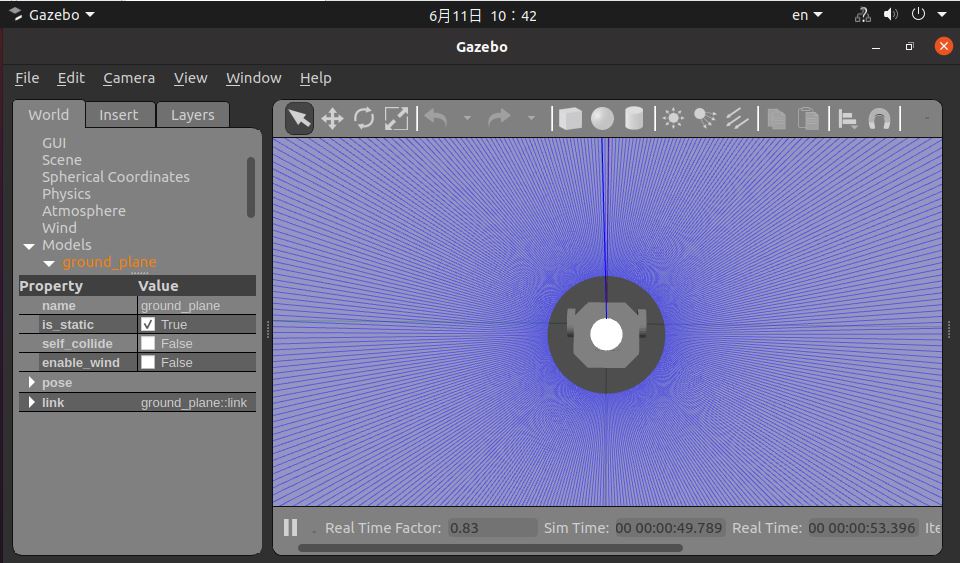
After successful startup, the robot in the simulation environment appears as follows:
Publish images using MIPI camera
- Foxy
- Humble
# 配置tros.b环境
source /opt/tros/setup.bash
# 配置tros.b环境
source /opt/tros/humble/setup.bash
# 从tros.b的安装路径中拷贝出运行示例需要的配置文件。
cp -r /opt/tros/${TROS_DISTRO}/lib/mono2d_body_detection/config/ .
cp -r /opt/tros/${TROS_DISTRO}/lib/hand_lmk_detection/config/ .
cp -r /opt/tros/${TROS_DISTRO}/lib/hand_gesture_detection/config/ .

# 配置MIPI摄像头
export CAM_TYPE=mipi

# 启动launch文件
ros2 launch gesture_control gesture_control.launch.py
Publish images using USB camera
- Foxy
- Humble
# 配置tros.b环境
source /opt/tros/setup.bash
# 配置tros.b环境
source /opt/tros/humble/setup.bash
# 从tros.b的安装路径中拷贝出运行示例需要的配置文件。
cp -r /opt/tros/${TROS_DISTRO}/lib/mono2d_body_detection/config/ .
cp -r /opt/tros/${TROS_DISTRO}/lib/hand_lmk_detection/config/ .
cp -r /opt/tros/${TROS_DISTRO}/lib/hand_gesture_detection/config/ .

# 配置USB摄像头
export CAM_TYPE=usb

# 启动launch文件
ros2 launch gesture_control gesture_control.launch.py
Result Analysis
The RDK terminal outputs the following information:
[gesture_control-7] [WARN] [1652965757.159500951] [GestureControlEngine]: frame_ts_ms: 3698315358, track_id: 2, tracking_sta: 1, gesture: 14
[gesture_control-7] [WARN] [1652965757.159660358] [GestureControlEngine]: do move, direction: 0, step: 0.500000
[gesture_control-7] [WARN] [1652965757.211420964] [GestureControlEngine]: frame_ts_ms: 3698315425, track_id: 2, tracking_sta: 1, gesture: 14
[gesture_control-7] [WARN] [1652965757.211624899] [GestureControlEngine]: do move, direction: 0, step: 0.500000
[gesture_control-7] [WARN] [1652965757.232051230] [GestureControlEngine]: frame_ts_ms: 3698315457, track_id: 2, tracking_sta: 1, gesture: 14
[gesture_control-7] [WARN] [1652965757.232207513] [GestureControlEngine]: do move, direction: 0, step: 0.500000
The log above shows a segment of processing results for gesture-controlled robot movement. When tracking_sta is 1, the system is in gesture control state; when tracking_sta is 0, a gesture has been recognized.
Starting from timestamp frame_ts_ms: 3698315358, the 666 gesture (gesture: 14) controls the robot to move forward at 0.5 m/s (do move, direction: 0, step: 0.500000).
Use the ros2 topic list command on the PC terminal to query RDK topic information:
$ ros2 topic list
/camera_info
/cmd_vel
/hbmem_img04054242060426080500012020112713
/hobot_hand_gesture_detection
/hobot_hand_lmk_detection
/hobot_mono2d_body_detection
/image
/parameter_events
/rosout
/image is the JPEG-encoded image published by the RDK after capturing from the MIPI sensor. /hobot_hand_gesture_detection is the algorithm message published by the RDK containing gesture recognition information. /cmd_vel is the motion control command published by the RDK.
Use the ros2 topic echo /cmd_vel command on the PC terminal to view motion control commands published by the RDK:
linear:
  x: -0.5
  y: 0.0
  z: 0.0
angular:
  x: 0.0
  y: 0.0
  z: 0.0
---
linear:
  x: 0.0
  y: 0.0
  z: 0.0
angular:
  x: 0.0
  y: 0.0
  z: -0.5
---
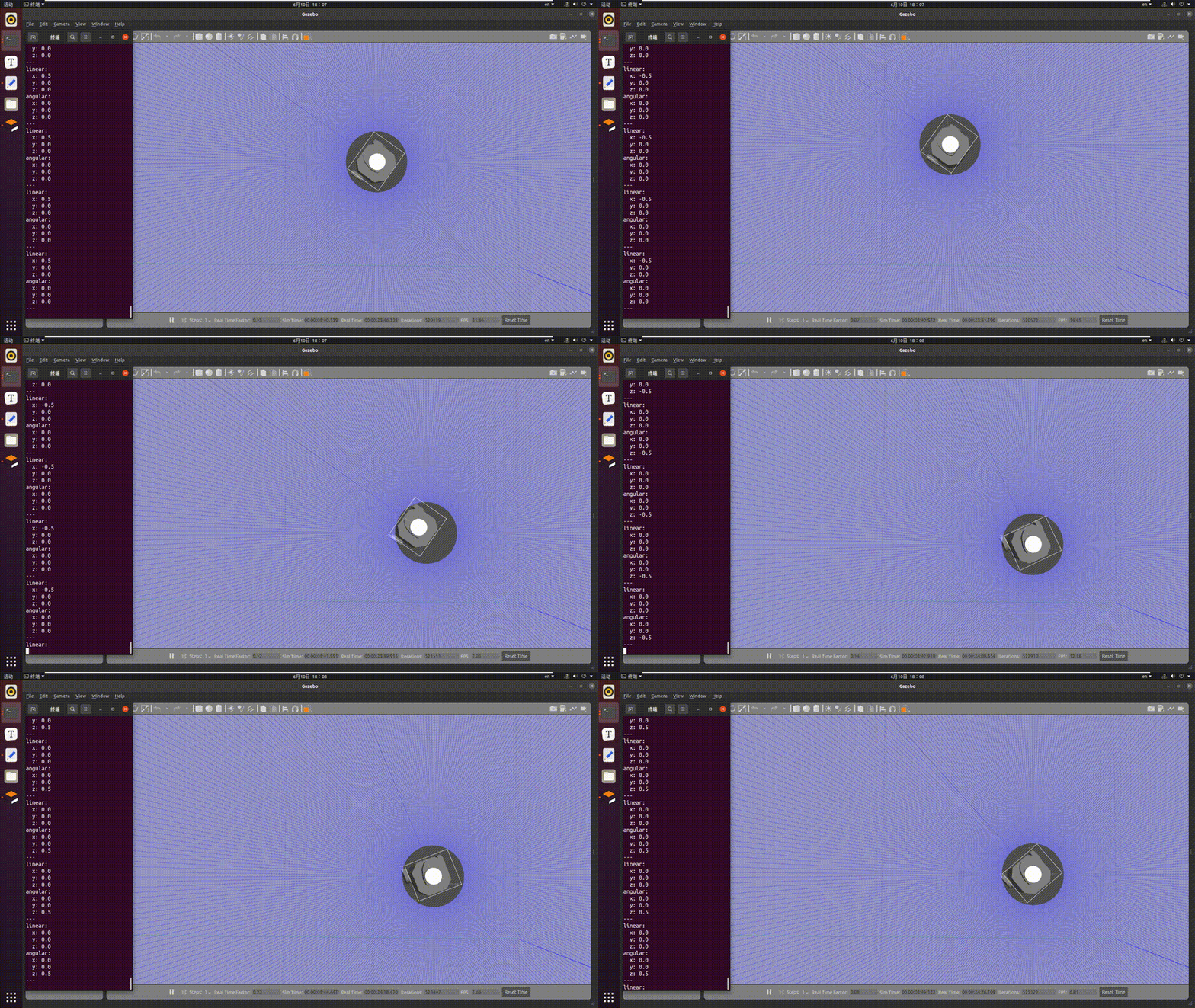
In the PC simulation environment, the robot moves according to gesture actions. The simulation result is shown below: