5.4.6 Voice-Controlled Robot Movement
Overview
The voice-controlled robot movement feature uses voice commands to control the robot to move forward, backward, left, and right. It must be used together with the intelligent voice module of the D-Robotics RDK robot operating system. The workflow is shown below:
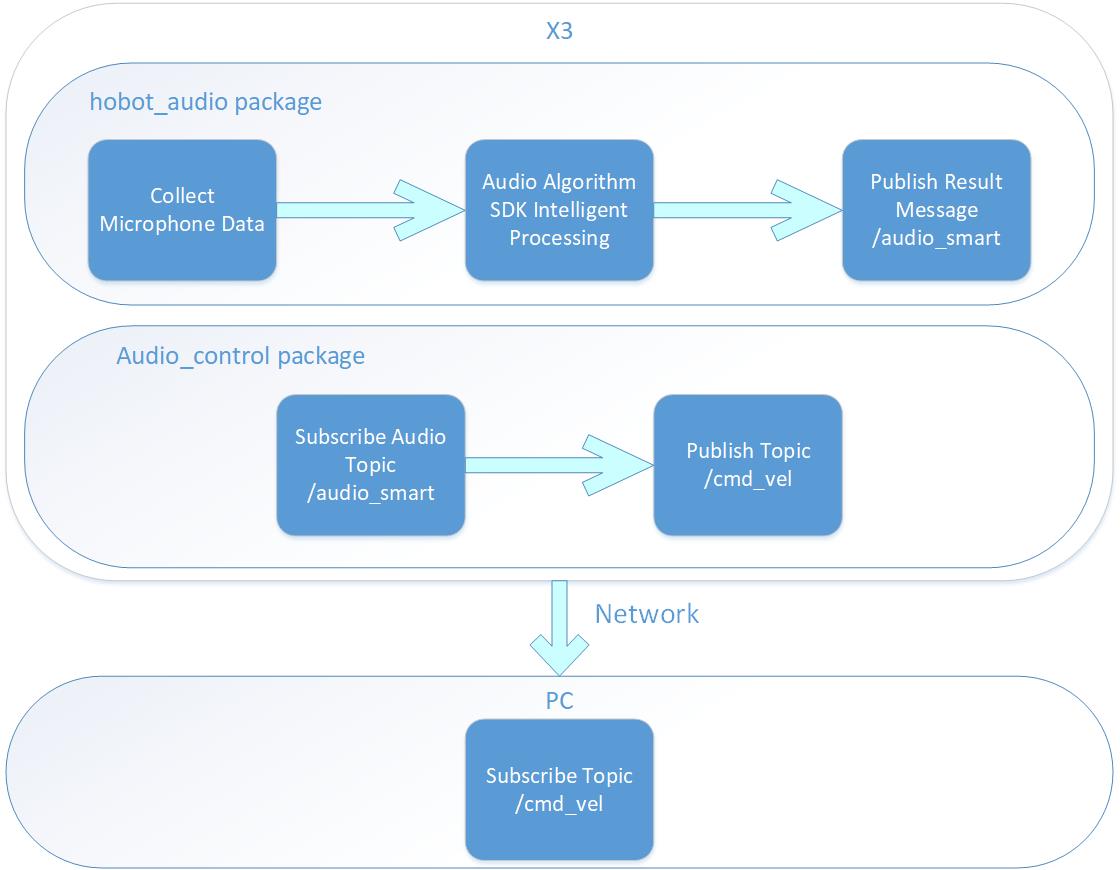
The App uses a virtual robot in the PC-side Gazebo simulation environment as an example. The published control commands can also be used directly to control a physical robot.
Code repository: (https://github.com/D-Robotics/audio_control.git)
Supported Platforms
| Platform | Runtime Environment | Example Functionality |
|---|---|---|
| RDK X3 | Ubuntu 20.04 (Foxy), Ubuntu 22.04 (Humble) | Start the intelligent voice module to parse voice information and perform voice control, displaying control results via Gazebo |
| RDK X5, RDK X5 Module | Ubuntu 22.04 (Humble) | Start the intelligent voice module to parse voice information and perform voice control, displaying control results via Gazebo |
Note: Only RDK X3 is supported. RDK X3 Module is not supported yet.
Preparation
RDK Platform
-
The RDK has been flashed with the Ubuntu image.
-
TogetheROS.Bot has been successfully installed on the RDK.
-
The intelligent voice algorithm package has been successfully installed on the RDK. Installation commands:
- Foxy
- Humble
sudo apt update
sudo apt install tros-hobot-audio
sudo apt update
sudo apt install tros-humble-hobot-audio
If the sudo apt update command fails or reports an error, please refer to the FAQ section Q10: How to handle apt update command failure or error? for resolution.
If the sudo apt update command fails or reports an error, please refer to the FAQ section Q10: How to handle apt update command failure or error? for resolution.
-
A compatible audio board has been connected to the RDK (refer to the Intelligent Voice section).
-
A PC on the same network as the RDK (wired or on the same Wi-Fi, with the first three octets of the IP address matching). The PC requires the following environment:
- Foxy
- Humble
- Ubuntu 20.04 and ROS2 Foxy desktop edition
- Gazebo and Turtlebot3 related packages. Installation:
sudo apt-get install ros-foxy-gazebo-*
sudo apt install ros-foxy-turtlebot3
sudo apt install ros-foxy-turtlebot3-simulations
- Ubuntu 22.04 and ROS2 Humble desktop edition
- Gazebo and Turtlebot3 related packages. Installation:
sudo apt-get install ros-humble-gazebo-*
sudo apt install ros-humble-turtlebot3
sudo apt install ros-humble-turtlebot3-simulations
Usage
Start the simulation environment on the PC:
- Foxy
- Humble
source /opt/ros/foxy/setup.bash
source /opt/ros/humble/setup.bash
export TURTLEBOT3_MODEL=burger
ros2 launch turtlebot3_gazebo empty_world.launch.py
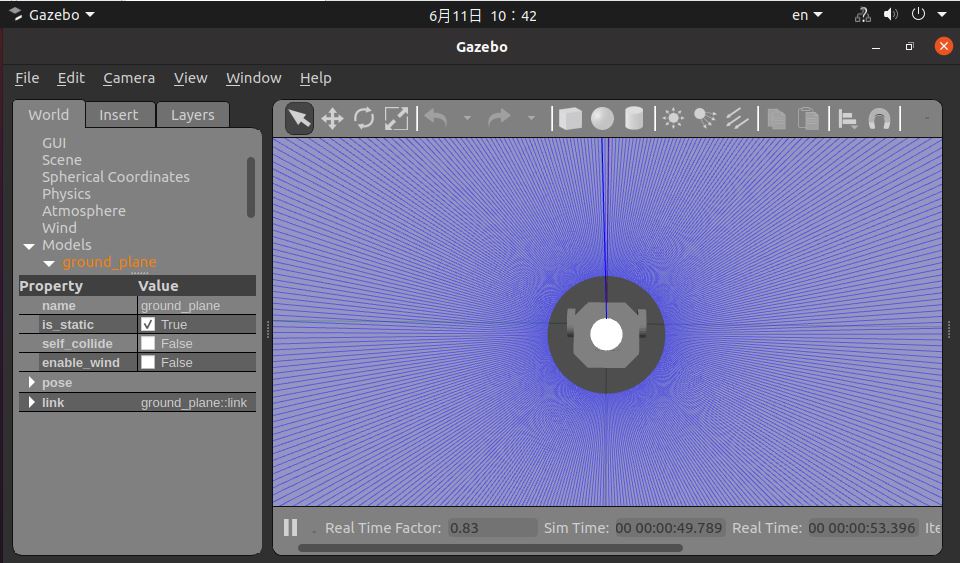
After successful startup, the robot in the simulation environment appears as follows:
Start the program on the RDK platform:
- Copy the audio configuration file
- Foxy
- Humble
# 配置tros.b环境
source /opt/tros/setup.bash
# 配置tros.b环境
source /opt/tros/humble/setup.bash
# 从tros.b的安装路径中拷贝出运行示例需要的配置文件。
cp -r /opt/tros/${TROS_DISTRO}/lib/hobot_audio/config/ .
-
Confirm the microphone device
The microphone device number is set via the
micphone_namefield in the configuration file config/audio_config.json. The default is "hw:0,0", which represents audio device Card0 Device0. The device number can be checked with the commandls /dev/snd, for example "pcmC0D1c"; the last letter c indicates a capture device, C0 indicates Card0, D1 indicates Device1. Change the parameter to "hw:0,1". -
Start the program
- Foxy
- Humble
# 配置tros.b环境
source /opt/tros/setup.bash
# 配置tros.b环境
source /opt/tros/humble/setup.bash#启动launch文件
ros2 launch audio_control audio_control.launch.pyAfter the program starts successfully, use the command words "向前走" (move forward), "向后退" (move backward), "向左转" (turn left), "向右转" (turn right), and "停止运动" (stop) to control robot movement.
Result Analysis
The RDK terminal outputs the following information:
        This is audio control package.

============================================
        audio control usage

Wake up device is "D-Robotics 你好".
Audio control commnad word definitions are:
        "向前走": move front.
        "向后退": move back.
        "向右转": rotate robot to right.
        "向左转": rotate robot to left.
============================================
The log above shows a segment of output after the audio control package starts. The log shows that the wake word configured for this voice control module is "D-Robotics 你好", and the command words for controlling robot movement are: "向前走", "向后退", "向左转", and "向右转".
Use the ros2 topic list command on the PC terminal to query RDK topic information:
$ ros2 topic list
/audio_smart
/cmd_vel
/audio_smart is the algorithm message published by X3 containing intelligent voice results. /cmd_vel is the motion control command published by the RDK.
Use the ros2 topic echo /cmd_vel command on the PC terminal to view motion control commands published by the RDK:
linear:
  x: 0.30000001192092896
  y: 0.0
  z: 0.0
angular:
  x: 0.0
  y: 0.0
  z: 0.0
---
linear:
  x: 0.0
  y: -0.30000001192092896
  z: 0.0
angular:
  x: 0.0
  y: 0.0
  z: -0.5
---
linear:
  x: 0.0
  y: 0.30000001192092896
  z: 0.0
angular:
  x: 0.0
  y: 0.0
  z: 0.5
---
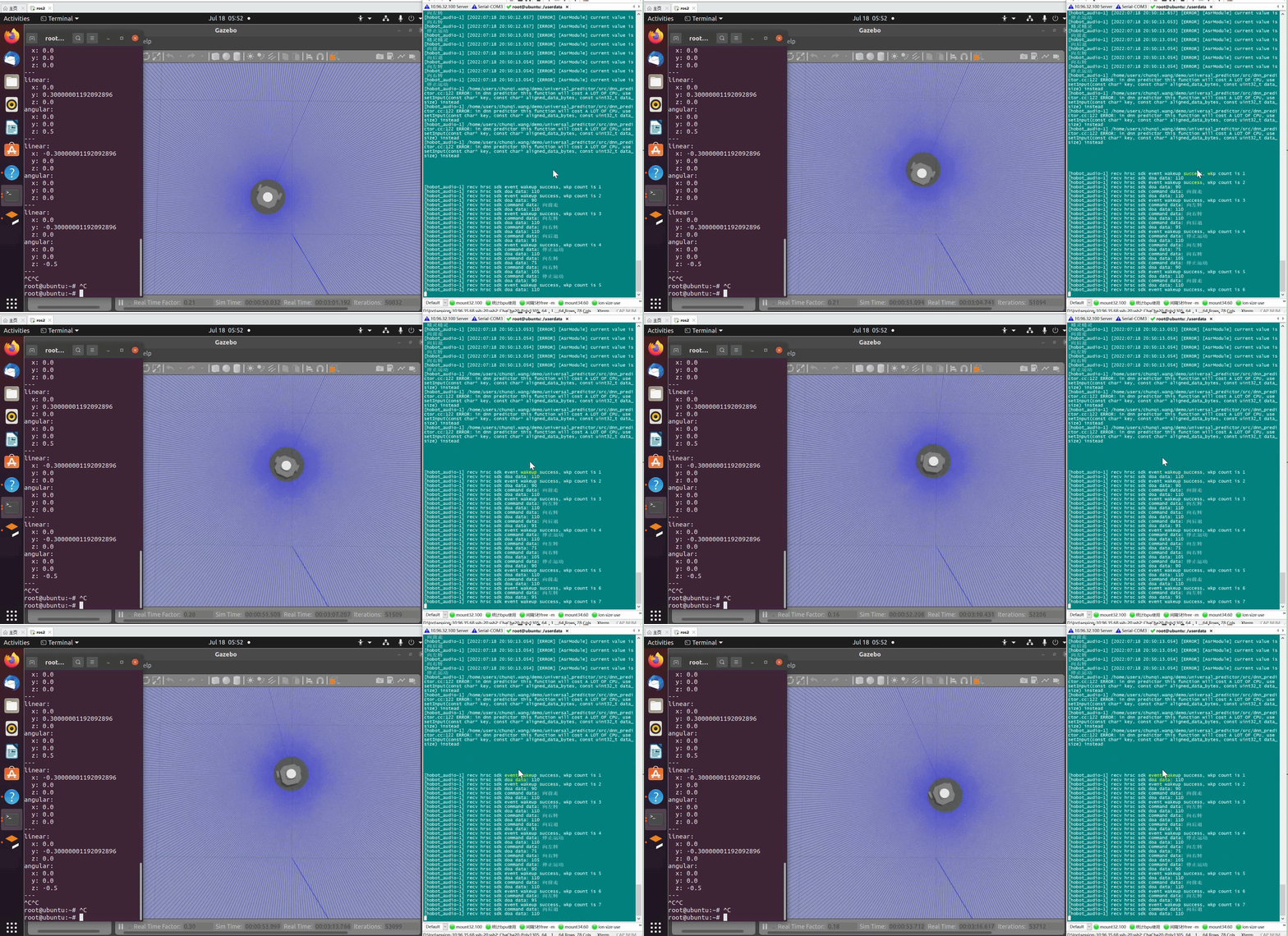
In the PC simulation environment, the robot moves according to voice control command words. The simulation result is shown below: