2.6 First conversation
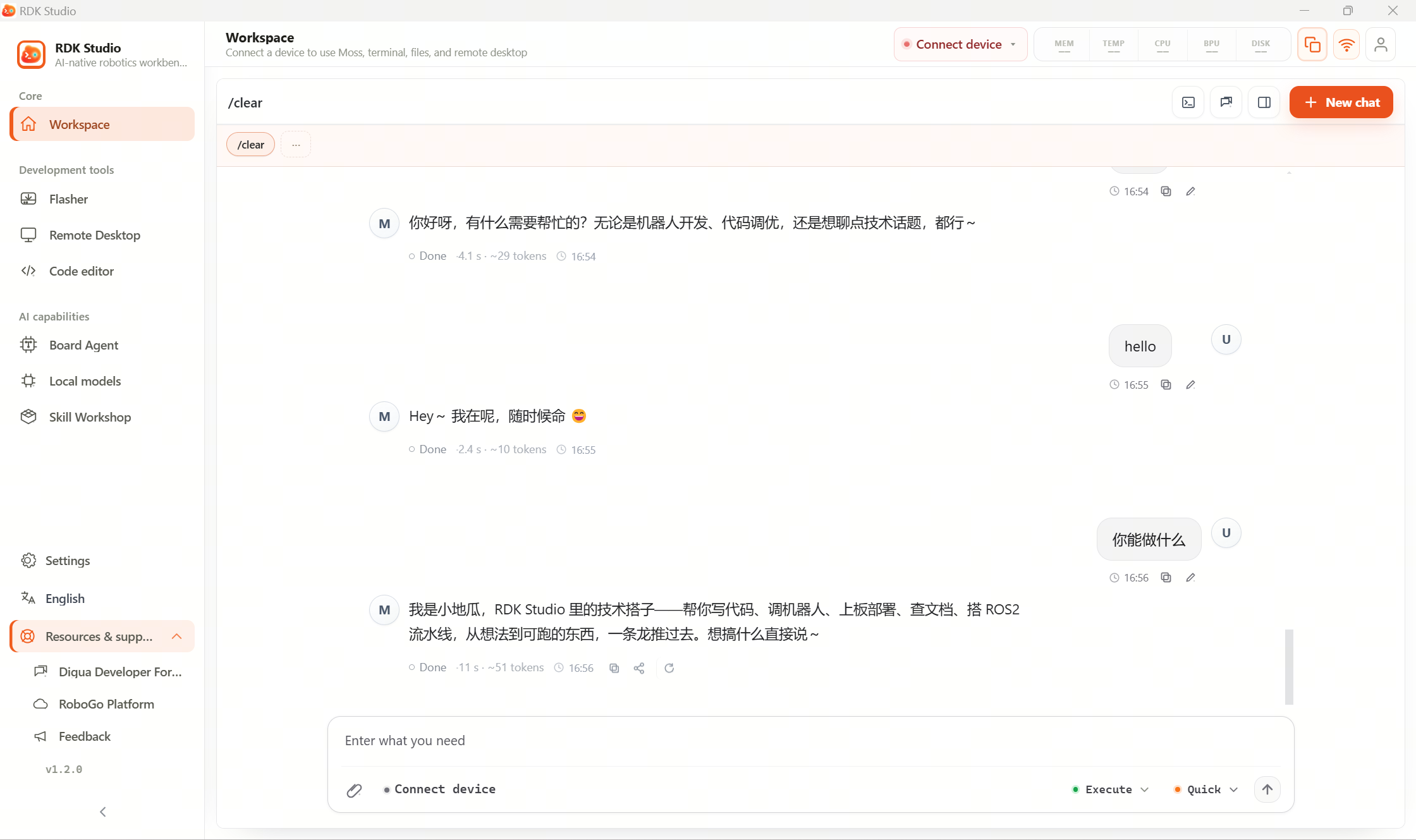
After sign-in and device setup, send your first message to Moss from the workbench. You can brainstorm without a connected device; for on-board actions Moss will remind you to connect first.
Open the workbench
Core → Workbench on the left is Moss’s primary entry. It combines chat with the project workspace; the right rail can surface status, history, diagnostics, changes, files, terminal, and more.
Finishing onboarding’s last step “Start using Moss” may auto-send an example prompt.
Pick work style and reply mode
The composer exposes two switches. Defaults are fine for a first try:
| Switch | Options | Meaning |
|---|---|---|
| Work style | Execute / Plan | Execute runs tasks directly; Plan lists steps and risks first |
| Reply mode | Fast / Reasoning | Fast for simple asks; reasoning for debugging, code, multi-step |
If unsure, start with Execute + Reasoning so Moss inspects the current device thoroughly.
First prompts
If a device is connected:
Check this device's system summary—tell me board model, OS version, disk, memory, and what you'd suggest next.
If not connected yet:
Introduce what RDK Studio and Moss can do for me, then give three example prompts I can try after I connect a device over SSH.
What success looks like
A typical on-device task shows:
- Device chip in the composer shows online/bound state.
- Moss states what it will check.
- Results or terminal output stream into the thread.
- Workspace panels show diagnostics, files, terminal, changes, etc.
- Risky actions prompt for confirmation.
If the device is offline, Moss can still answer and plan but will not pretend remote commands ran.
Prompts worth trying
| Prompt | What Moss does |
|---|---|
Which ROS 2 nodes are running on this device? | SSH to list ROS 2 nodes |
Help me check recent errors under /var/log | Remote commands or file reads for recent errors |
What does this error mean: <paste error> | Uses RDK context plus device state |
Summarize Git changes in the current project directory | Workspace changes or remote Git status |
Give me a plan first—don't execute yet | Stays in or uses plan mode first |
Next steps
- Workbench & Moss workspace → 3.1 Workbench
- AI Dock composer → 3.2 AI Dock
- Board agent deploy → 3.10 OpenClaw
- Local models → 3.12 Local LLMs