2.3 Connect a device
Add-device flows use three entry points: SSH device, RDK Type-C direct, and local serial log.
Only SSH and Type-C save a device to the list; serial opens a local debug terminal only and is not stored as a device.
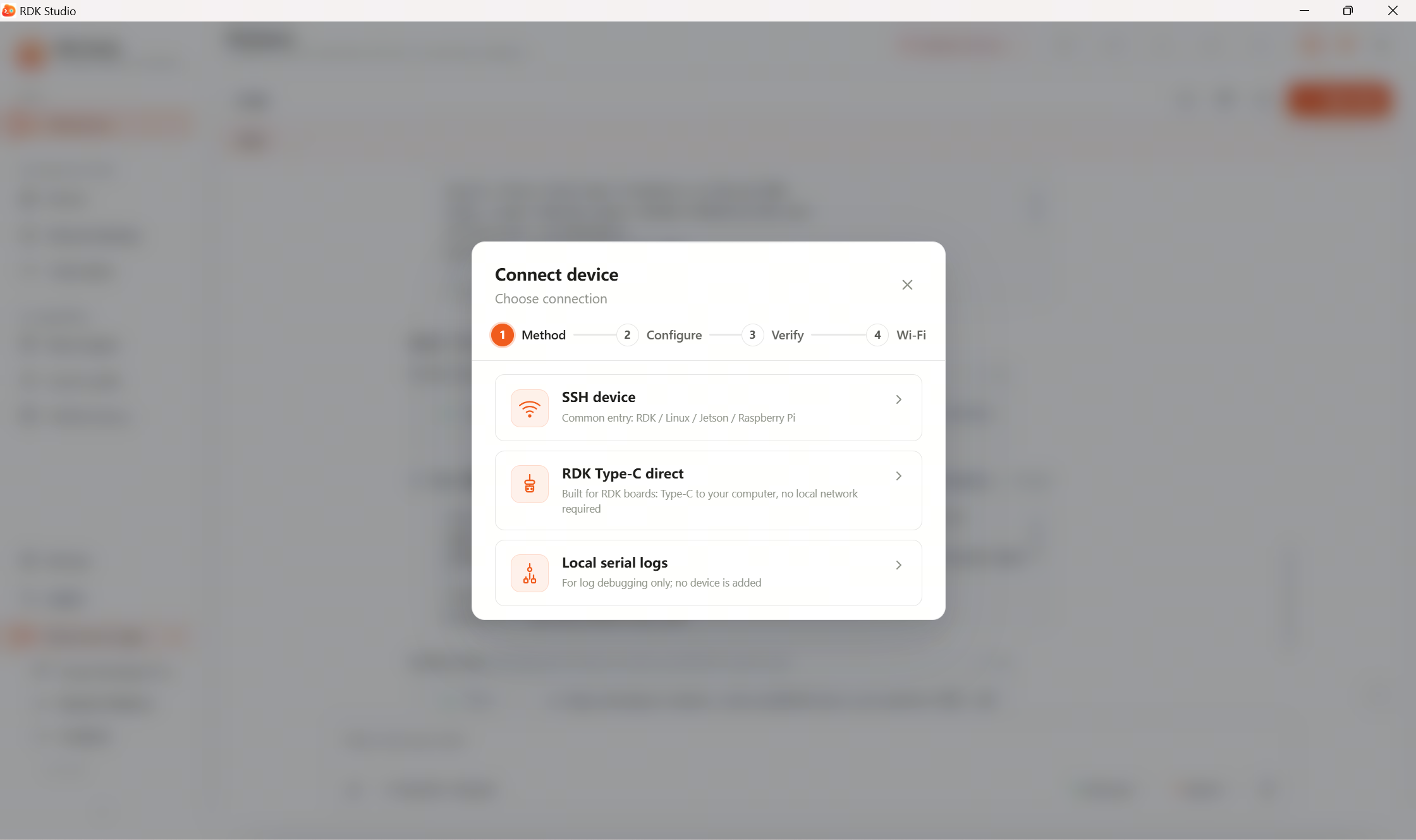
Compare the three
| Entry | Best for | Saved as device? | What you get next |
|---|---|---|---|
| SSH device | You know Host / IP and remote login works | Yes | Moss, terminal, files, code editor, remote desktop, workspace |
| RDK Type-C direct | RDK X5 / S100 next to the PC, no LAN IP | Yes | USB NIC auto-config, then same as SSH |
| Local serial log | Boot failure, no network, need boot log | No | Serial terminal only—no files, Moss tools, or OpenClaw |
SSH is the generic path for RDK, generic Linux, Jetson, Raspberry Pi, Rockchip, and more. RDK-only features show or hide based on detected board type.
How to choose
| Your situation | Recommended entry |
|---|---|
| Device pingable or IP known | 2.3.2 Add device via SSH |
| RDK X5 / S100 plugged into the PC | 2.3.1 Type-C direct |
| Boot failure, no network, need logs | 2.3.3 Serial log |
| Non-RDK Linux host | 2.3.2 Add device via SSH |
After a device is saved
RDK Studio will:
- Add it to the device list and allow it as the active workbench target.
- Verify SSH reachability instead of trusting cache alone.
- Classify the host (RDK, generic Linux, Jetson, Raspberry Pi, Rockchip, etc.).
- Let Moss use the current device, project path, and workspace context.
- Share the same connection across terminal, files, code editor, and remote desktop.
For RDK boards you can continue with Wi-Fi, OpenClaw deploy, RDK hardware context, and flashing features.
Wi-Fi step
After device verification, a dialog may continue to Wi-Fi setup. It reuses the SSH session to scan and join wireless networks on the device.
Skip if the device is already online or you only need Ethernet/Type-C for now.
Details: 2.4 Configure network.
Ask Moss which entry to use
You can describe your goal on the workbench:
- “I know the IP is 192.168.1.23—which add flow should I use?”
- “I plugged RDK X5 Type-C—what’s next?”
- “Board won’t boot—how do I read serial logs?”
Moss will point you to the right UI. Enter Host / IP, username, and password in the add-device dialog—do not paste secrets into chat. Actions that need OS permission, device writes, or risky operations will ask for confirmation in the UI.