2. Quick Start
Precautions
To avoid malfunction or damage to this product, please adhere to the following guidelines:
- Place the product on a stable, flat, and non-conductive surface during use.
- Do not arbitrarily move the swing arm; always return it to its initial position parallel to the housing before use.
- Avoid keeping the servo in a stalled state for an extended period to prevent overcurrent and overheating, which could affect its service life.
- Do not squeeze or twist the camera folding mechanism, and never exceed the maximum folding angle, as this may cause irreversible damage.
- When installing an SD card, remove the protective cover first, and be careful not to insert the SD card into the gap between the housing and the RDK X5.
- Damage caused by connecting incompatible devices to this product will not be covered under warranty or repair support.
- All peripheral devices used with this product must comply with relevant standards in the country of use and be clearly marked to ensure they meet safety and performance requirements.
Package Contents
- RDK X5 Magicbox with built-in 32GB TF card
- Cables: A-to-C ×1, C-to-C ×1
Quick Start Guide Video
Power Supply
- Type-C port, 5V/5A DC input
- Power the Magicbox using a power adapter that supports the PD 3.0 protocol via the power port.
Network Configuration
Method 1: QuickLink Configuration Instructions
-
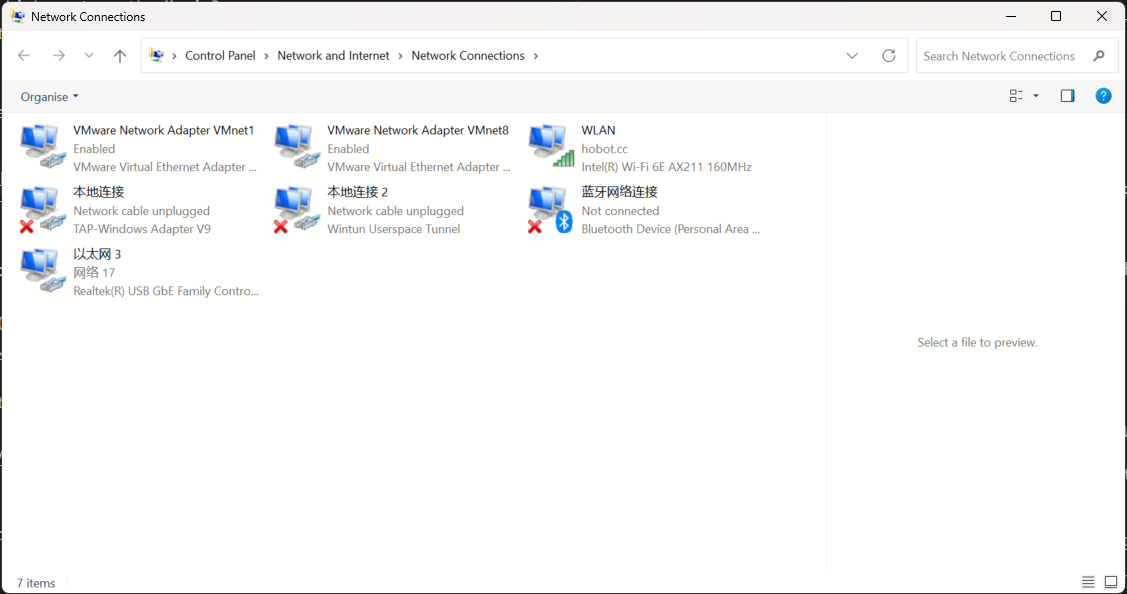
On your PC, navigate to Control Panel → Network and Internet → Network and Sharing Center → Change adapter settings.
-
Connect your PC to the left-side Flash Link port on the Magicbox.
-
Locate the corresponding Ethernet adapter, right-click it, and select Properties.
NotePlease select the correct Ethernet adapter.
-
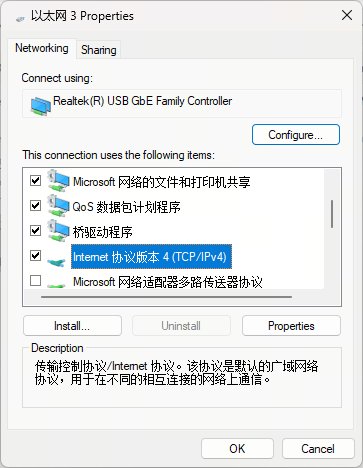
Find and double-click Internet Protocol Version 4 (TCP/IPv4).
-
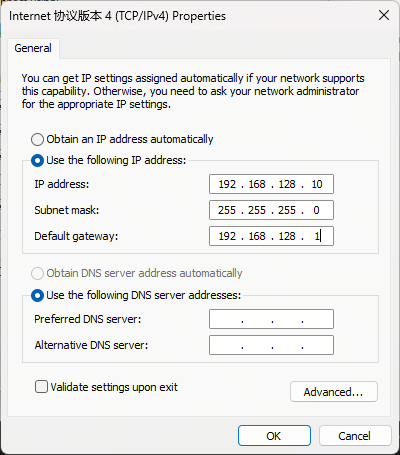
Enter the corresponding network parameters as shown in the image below, then click OK.
-
Open PowerShell and run the following command to verify connectivity to the development board:
ping 192.168.128.10.
Method 2: Wired Ethernet Port Configuration Instructions
-
On your PC, navigate to Control Panel → Network and Internet → Network and Sharing Center → Change adapter settings.
-
Connect your PC to the right-side Ethernet port on the Magicbox.
-
Locate the corresponding Ethernet adapter, right-click it, and select Properties.
NotePlease select the correct Ethernet adapter.
-
Find and double-click Internet Protocol Version 4 (TCP/IPv4).
-
Enter the corresponding network parameters as shown in the image below, then click OK.
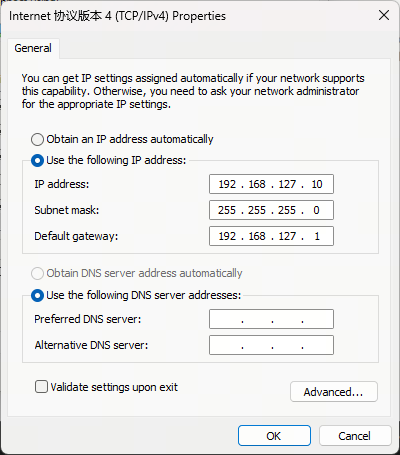
-
Open PowerShell and run the following command to verify connectivity to the development board:
ping 192.168.127.10.
Starting the Magicbox
After powering on, wait approximately 50 seconds. The white LEDs will light up sequentially, and successful startup is indicated by the white LED blinking accompanied by a startup sound.
Example Demonstrations
Use the following command to set the application auto-start switch. When set to ON, the application starts automatically upon boot. It is enabled by default.
# Enable auto-start
systemctl enable magicbox-start

# Disable auto-start
systemctl disable magicbox-start
The directions of the buttons described in this article, from left to right, are based on the Magicbox light strip facing the user.
Stereo Depth Estimation
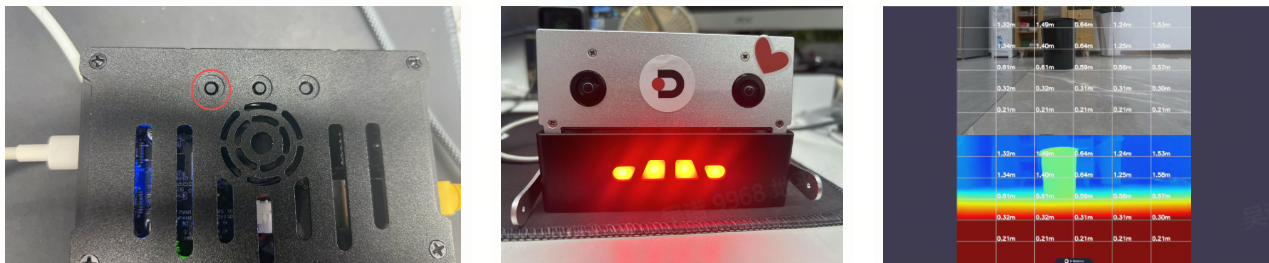
Press the leftmost button—the indicator light turns red. When configuring the network using QuickLink, access http://192.168.128.10:8000 in your browser, When configuring the network using the wired Ethernet port, access http://192.168.127.10:8000 in your browser to view the effect.
Gesture Interaction
Press the middle button—the indicator light turns green. When configuring the network via QuickLink, access http://192.168.128.10:8000 in your browser; when configuring via the wired Ethernet port, access http://192.168.127.10:8000 in your browser to view the effects and interact.
| Gesture | Hand Motion | Triggered Action |
|---|---|---|
| ThumbUp | Thumbs-up | Ears wiggle |
| Victory | "V" sign | Feet lift up |
| ThumbLeft | Thumb points left | Left hand raises |
| ThumbRight | Thumb points right | Right hand raises |
| Okay | "OK" gesture | Lights flash |

Voice Interaction
It is recommended to use in a quiet environment to avoid picking up ambient noise.
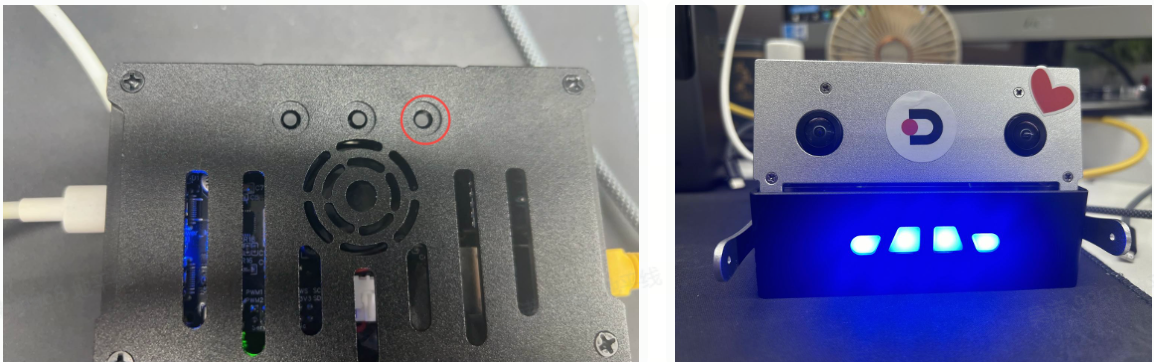
Press the rightmost button—the indicator light turns blue. After hearing the voice prompt “你好,请问有什么可以帮助你的吗”, you may begin speaking.
-
Voice Commands:
- Say “结束对话” to put the Magicbox into sleep mode; the lights will switch to breathing mode.
- Say “你好地瓜” to wake it up; the lights will stay steadily lit, and you can start a conversation.
- Note that occasional misrecognition may occur.
-
Voice Interaction Workflow:
- After receiving voice input, the microphone turns off, the blue LEDs gradually brighten one by one, and the speaker waits to play the large model’s response.
- Once audio playback finishes, the microphone reactivates, and the blue LEDs remain steadily lit, ready for the next round of basic interaction.
Explore More Examples with RDK Studio
Connect the Magicbox using the RDK Studio tool to experience additional example applications. For download, installation, and usage instructions, refer to the RDK Studio User Guide.
Resource Monitoring
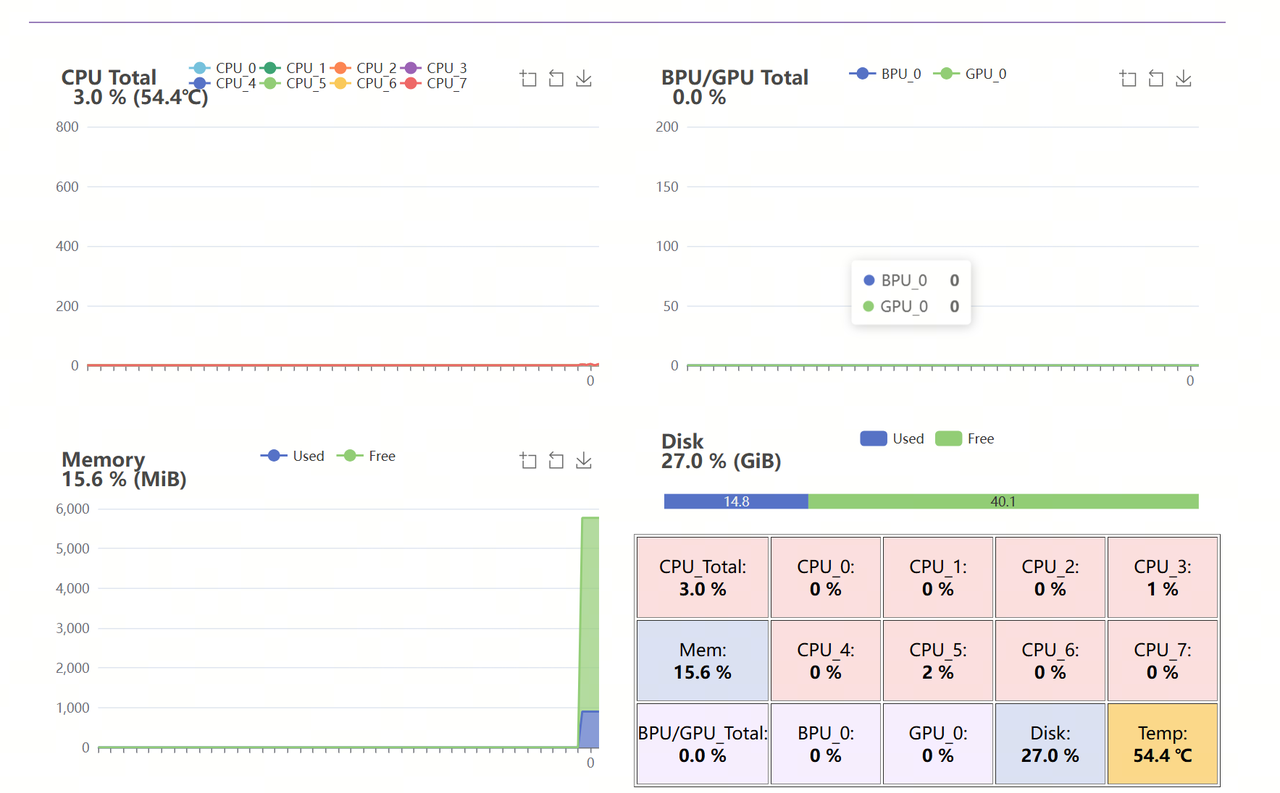
The resource monitoring feature starts automatically upon power-up. When configuring the network via QuickLink, access http://192.168.128.10:7999 in your browser; when configuring via the wired Ethernet port, access http://192.168.127.10:7999 in your browser to view resource consumption such as CPU and BPU.