Flashing preparation
Safety notes
- Do not hot-plug any devices other than USB, HDMI, and Ethernet cables while powered on.
- Use a power adapter from a reputable brand; otherwise, abnormal power supply may cause unexpected system shutdowns.
- Use the onboard POWER ON/OFF button to power the board on and off, and plug or unplug the DC connector only when the adapter is disconnected from power.
Image download
The RDK S100 provides an Ubuntu 22.04 desktop system image with a graphical desktop environment.
The device ships with a test firmware preinstalled. Flash the latest image before you use the device.
-
Go to the image download page and select the latest RDK S100 image > RDK LNX SDK > firmwares > product.zip.
-
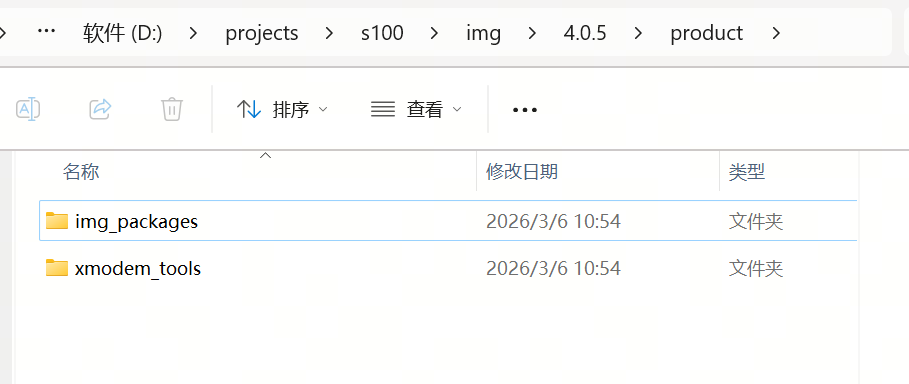
After extraction, you get a product folder. Confirm it contains an img_packages folder and an xmodem_tools folder.
Flashing tool
Download and install the XBurn tool. See Install XBurn.
Cable requirements
Flashing transfers the image over a Type-C data cable. A substandard cable causes transmission errors or flashing failure. The cable must meet the following conditions:
- Shielded: The cable has a metal braid or aluminum foil shield to reduce transmission errors.
- As short as possible: A longer cable increases signal attenuation.
- Data-capable: Some cables only supply power and do not transfer data. Use a cable that supports USB data transfer, not a charge-only cable.
Hardware connection
Use a Type-C data cable to connect a USB port on your PC to the Type-C port of the RDK S100.
Environment setup
Install the drivers and dependencies for your operating system. Complete this before flashing; otherwise XBurn cannot detect the device:
- Windows environment: USB drivers (ADB, Fastboot, DFU) and the CH341 serial driver
- Linux environment: adb/fastboot/dfu-util dependencies and udev rules
- macOS environment: brew dependencies (android-platform-tools, dfu-util)