Wi-Fi Performance Testing
Wi-Fi (pronounced: /ˈwaɪfaɪ/), also known as "wireless network," is a wireless local area network (WLAN) technology based on the IEEE 802.11 standard. Although "Wi-Fi" is often written as "WiFi" or "Wifi," these spellings are not endorsed by the Wi-Fi Alliance. Wi-Fi is widely used to connect computers, smartphones, tablets, and smart home devices, providing convenient network access.
Key Focus Areas for Wi-Fi Performance Testing:
When testing Wi-Fi performance, the following aspects are primarily considered:
- Bandwidth and Throughput: Evaluate the actual available bandwidth of the network to determine how the Wi-Fi performs under high load.
- Latency: Measure transmission latency; increased latency under heavy load can negatively impact real-time applications.
- Packet Loss Rate: Detect the rate of lost data packets; excessive packet loss can compromise data integrity and reliability.
- Signal Strength and Coverage: Analyze signal strength and coverage to ensure stable signal quality within the test area. Signal quality is typically affected by factors such as antenna performance, AP orientation, and distance.
This chapter provides detailed steps and guidelines for performing Wi-Fi performance tests using the iperf3 tool. For instructions on using iperf3, please refer to its official documentation.
Test Preparation
Performance test schematic:
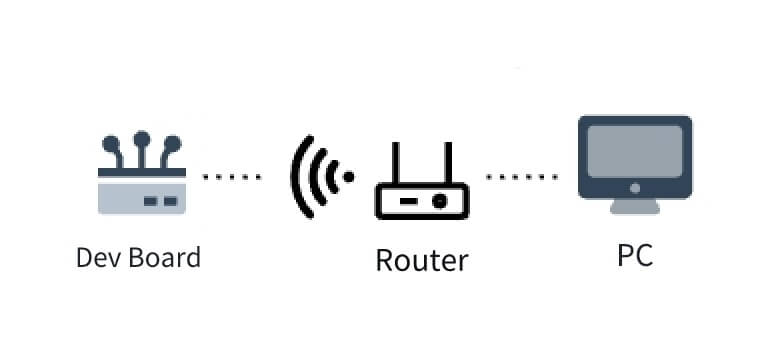
Before conducting Wi-Fi performance tests, ensure the following preparations are complete:
- Enable Wi-Fi on the board: Ensure the development board has Wi-Fi enabled and is connected to the router.
- Identify server and client devices: The development board can act as either a client or a server; the peer device can be a PC or another development board.
- Network connectivity verification: Ensure the development board and the peer device can communicate normally over Wi-Fi.
The network configuration used in this test is as follows:
- Personal Computer (PC) acts as the server with IP address: 192.168.137.1.
- Development board acts as the client with IP address: 192.168.137.124.
Verify connectivity between the development board and the server using the following command:
ping -I wlan0 192.168.137.1
Execution result:
PING 192.168.137.1 (192.168.137.1) 56(84) bytes of data.
64 bytes from 192.168.137.1: icmp_seq=1 ttl=128 time=15.0 ms
64 bytes from 192.168.137.1: icmp_seq=2 ttl=128 time=8.26 ms
64 bytes from 192.168.137.1: icmp_seq=3 ttl=128 time=6.60 ms
Testing Methodology
Step 1: Start the Server
Launch the iperf3 server on the personal computer (PC):
-
Download and install iperf3:
- Go to the iperf official website to download the installation package suitable for your operating system.
-
On Windows, open Command Prompt (cmd) and run the following command to start the server:
iperf3 -s -p 5002
Example server log after startup:
-----------------------------------------------------------
Server listening on 5002
-----------------------------------------------------------
After a successful client connection, the server log will display:
Accepted connection from 192.168.137.124, port 48632
[  5] local 192.168.137.1 port 5002 connected to 192.168.137.124 port 48644
[ ID] Interval           Transfer     Bitrate
[  5]   0.00-1.02   sec  14.8 MBytes   121 Mbits/sec
[  5]   1.02-2.00   sec  14.5 MBytes   123 Mbits/sec
[  5]   2.00-3.02   sec  14.8 MBytes   121 Mbits/sec
[  5]   3.02-4.01   sec  12.8 MBytes   108 Mbits/sec
Step 2: Start the Client
On the development board, launch the iperf3 client to connect to the server and begin testing:
iperf3 -c 192.168.137.1 -i 1 -t 60 -p 5002
Command parameter explanation:
-c: Specifies the server's IP address.
-i: Sets the interval (in seconds) for printing data.
-t: Defines the total test duration (in seconds).
-p: Specifies the server's port number.
Example client log output:
Connecting to host 192.168.137.1, port 5002
[  5] local 192.168.137.124 port 48644 connected to 192.168.137.1 port 5002
[ ID] Interval           Transfer     Bitrate         Retr  Cwnd
[  5]   0.00-1.00   sec  15.1 MBytes   121 Mbits/sec    0    941 KBytes
[  5]   1.00-2.00   sec  15.0 MBytes   126 Mbits/sec    0    512 KBytes
[  5]   2.00-3.00   sec  15.0 MBytes   126 Mbits/sec    0    552 KBytes
[  5]   3.00-4.00   sec  12.5 MBytes   105 Mbits/sec    0    512 KBytes
Test Results
For explanations of fields in the iperf3 output logs and analysis methods, please consult the iperf3 User docs.
Performance Benchmarks
There is no universal set of numerical benchmarks for evaluating Wi-Fi performance, as numerous external factors—including hardware and environmental conditions—significantly influence results. Below are common factors that affect Wi-Fi performance:
- Antenna Quality and Directivity: The quality and directivity of a Wi-Fi device’s antenna impact signal propagation and reception. High-quality antennas with appropriate directivity can enhance signal quality and coverage.
- Channel Interference: Other Wi-Fi networks, wireless devices, or electronic equipment operating on the same or adjacent frequency bands may cause interference, degrading Wi-Fi signal quality and performance.
- Signal Strength and Attenuation: Wi-Fi signal strength is inversely proportional to distance and is further attenuated by obstacles such as walls and furniture.
- Other Wireless Devices: Nearby wireless devices, such as Bluetooth peripherals, wireless keyboards, and mice, may also interfere with Wi-Fi performance.
When evaluating Wi-Fi performance metrics, consider all the above factors holistically and develop optimization strategies to ensure stable and reliable network performance.