2.2 srpi-config Tool Configuration
The srpi-config configuration tool is only applicable to the RDK X3, RDK X5, and RDK X3 Module development boards.
Introduction
srpi-config is a system configuration tool. To open the configuration tool, type the following command in the command line:
sudo srpi-config
sudois a privilege escalation management command. It must be entered here to allow configuration management with root privileges. The defaultsunriseaccount does not have permission to modify system files.
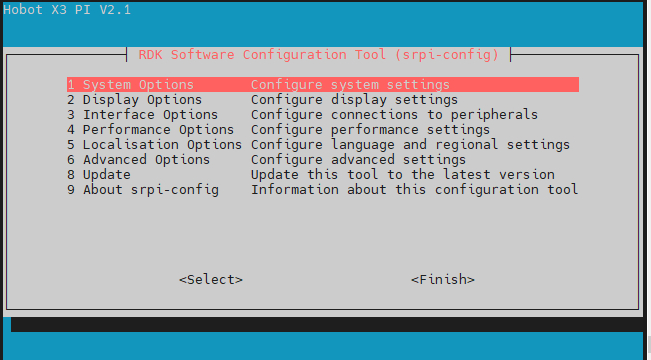
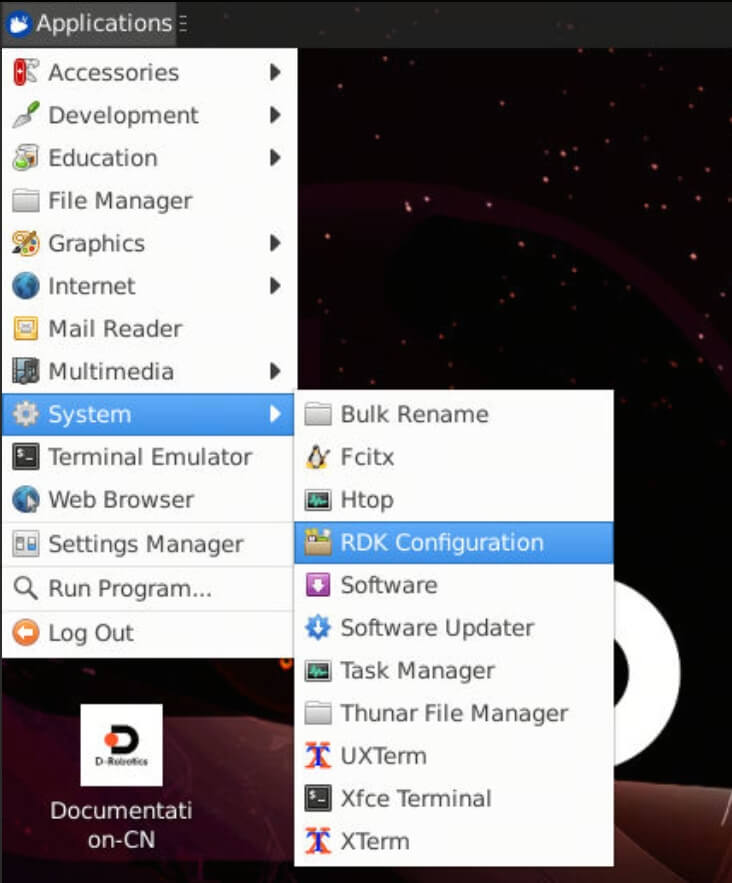
If you are using a desktop system, you can find the RDK Configuration application in the menu to configure it. This will open the same configuration terminal as shown in the image above.
System Options
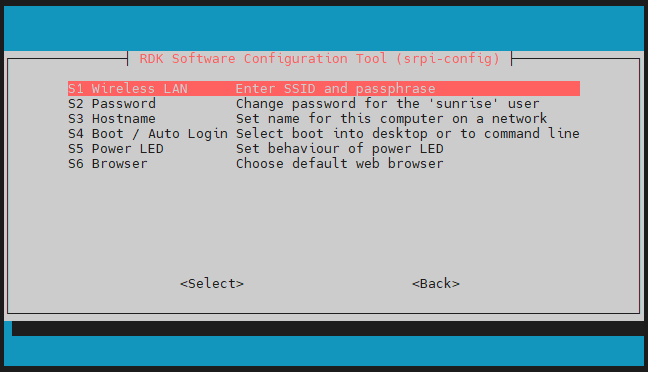
The System Options menu allows you to make configuration changes to various parts such as Wi-Fi network, user password, hostname, system login mode, browser selection, as well as some system-level changes.
-
Wireless LAN
Set the
SSIDandpasswordfor the wireless network. -
Password
Change the "default" user password. The default account is
sunrise. -
Hostname
Set the visible name of the current device on the network.
-
Boot / Auto login
Choose whether to boot to the console or desktop, and whether auto-login is required. If auto-login is selected, the system will log in using the default account
sunrise. -
Power LED
If the RDK model allows, you can change the behavior of the power LED in this option. The default is off or blinking.
-
Browser
If using a desktop system, you can set the default browser. If not configured,
firefoxis used by default. Users can install thechromiumbrowser by running the commandsudo apt install chromium.
Display Options
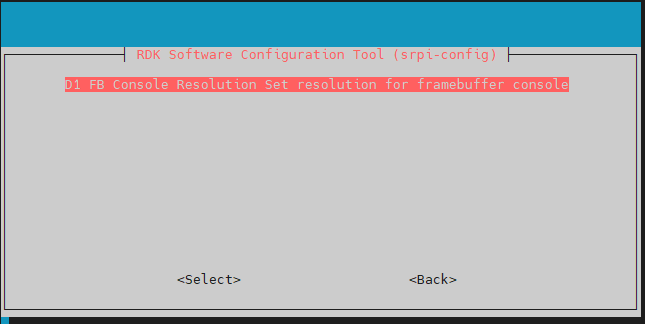
Display Options menu.
-
FB Console Resolution
Supports setting the HDMI display resolution in
Serversystem andconsolemode. -
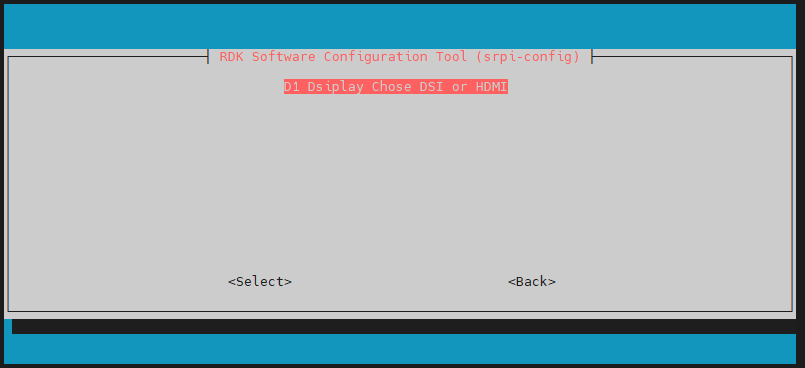
Display Chose DSI or HDMI
Supports switching between
DSIandHDMIdisplays.NoteOnly RDK X5 supports display switching.
Interface Options
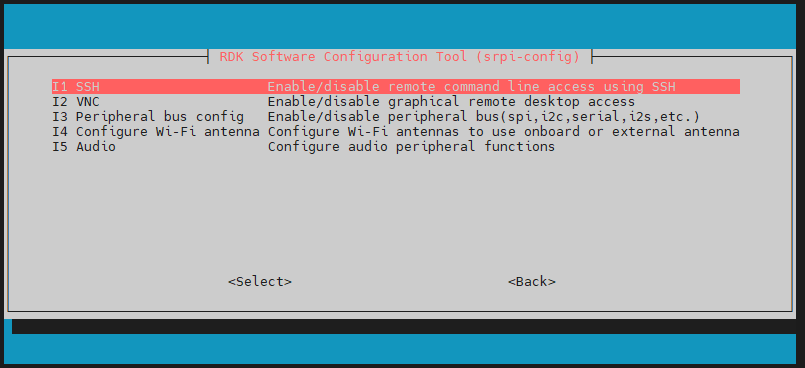
Interface Options menu, with the following options to enable/disable: SSH, VNC, SPI, I2C, I2S, Serial, and other functions.
-
SSH
Enable/disable remote login to the
RDKusing SSH. The system has the SSH option enabled by default. -
VNC
Enable/disable the X11vnc virtual network computing server.
VNC (Virtual Network Console) is short for Virtual Network Console. It is a remote control software. Enable this option when remotely accessing the desktop system.
-
Peripheral bus config
Enable/disable interfaces such as SPI, I2C, Serial Port, I2S, etc., on the 40-pin header. This configuration method directly modifies the
statusof the corresponding bus in the device tree file being used, and it takes effect after a reboot. [RDK X5] X5 adds a PWM interface; In the table below, the interfaces in each row share the same pins, and only one function can be active at a time. When all interfaces in a row are disabled, the pins function as GPIO pins.Function 1 Function 2 serial3 i2c5 i2c0 pwm2 spi2 pwm0 spi2 pwm1 i2c1 pwm3 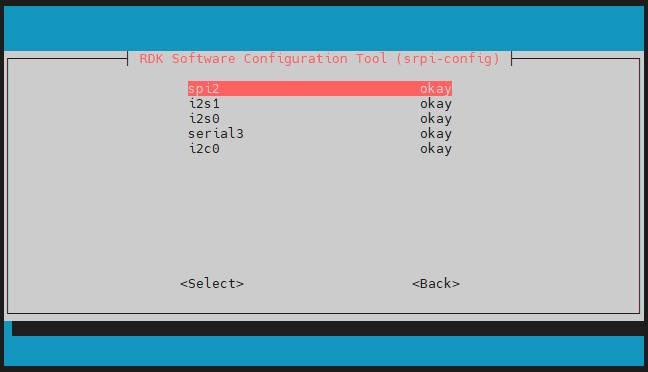
-
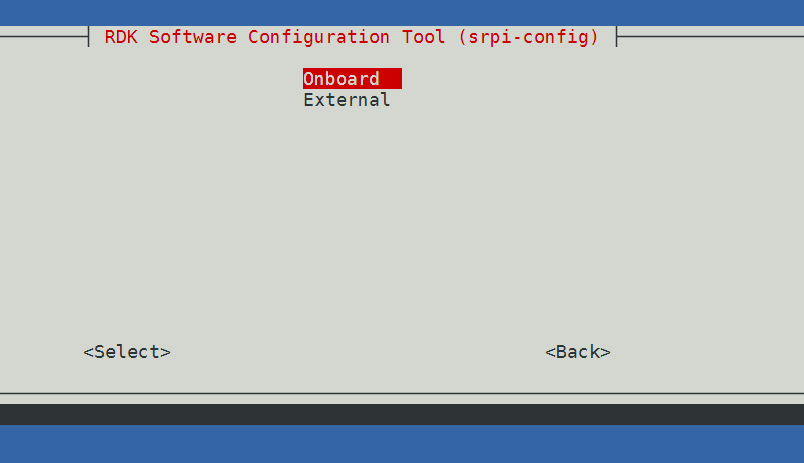
Configure Wi-Fi antenna Switch Wi-Fi antenna mode, supporting the selection of onboard or external antenna. Onboard antenna, External antenna.
Supported by RDK X3 (V2.1), RDK X5 (V0.1 V1.0), RDK X5 MD (less than V1.1).
Check antenna status:
cat /boot/config.txt
antenna_option=trace indicates onboard antenna, antenna_option=cable indicates external antenna.
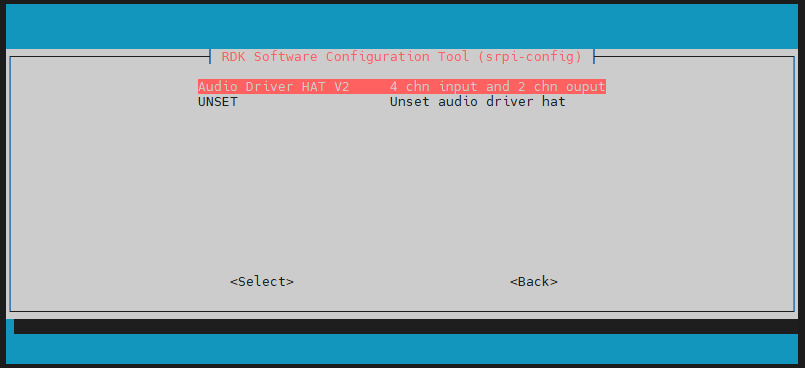
- Audio
Install and uninstall audio adapter boards.
Supported audio adapter boards may include Audio Driver HAT V1, Audio Driver HAT V2, and WM8960 Audio HAT. Different hardware may support different audio adapter boards.
Performance Options
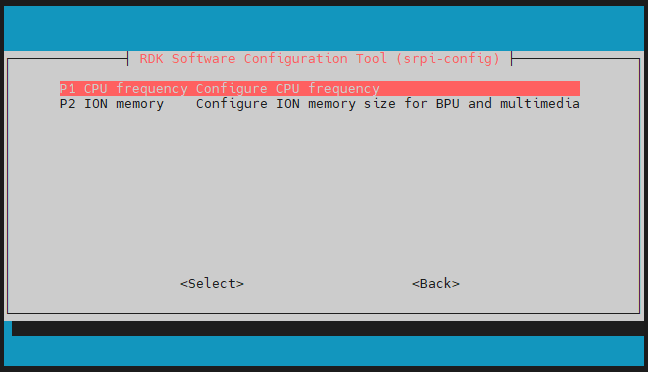
Performance options, including overclocking, CPU operating mode and frequency locking settings, adjusting ION memory size, and other functions.
-
CPU frequency
This tool can be used to overclock the RDK's CPU. It is generally not recommended to enable this. If adequate cooling measures are taken, you can try modifying this option.
For instructions on
CPUscheduling for theX5 series, please refer to X5 CPU Frequency Management. If planning to overclock, be sure to read theCPU Overclockingsection in the documentation to fully understand the risks and precautions.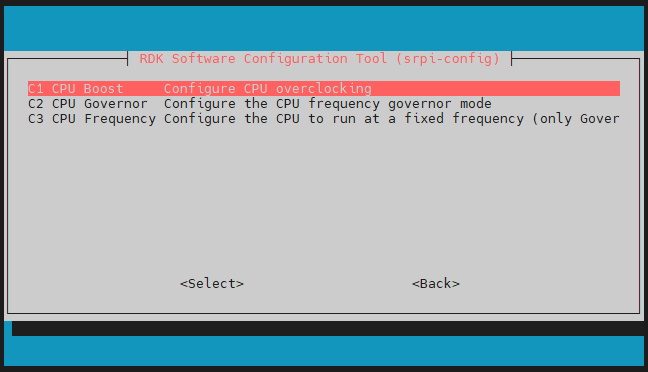
-
ION memory
This option allows you to configure the common size of the ION memory.
ION memory is physical memory space reserved for the BPU and image/video multimedia functions. The default size is 672MB. If you need to run relatively large algorithm models or encode/decode multiple video streams simultaneously, adjust this memory size according to your specific needs.
Localisation Options
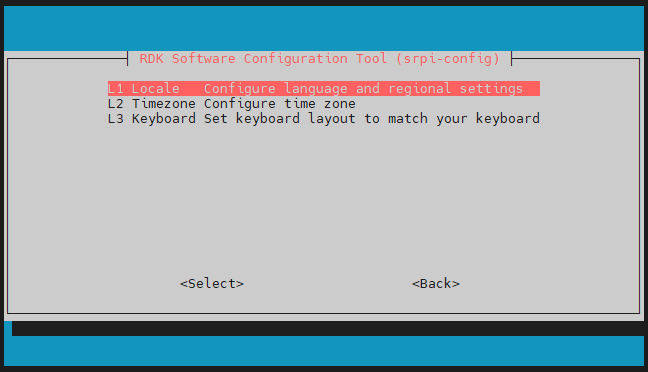
Localisation options, providing you with the following choices: local language, time zone, keyboard layout.
-
Locale
Select a language environment, such as configuring the Chinese environment
zh_CN.UTF-8. Reboot for it to take effect. -
Time Zone
Select your local time zone, starting with the region, e.g., Asia, then select a city, e.g., Shanghai. Type a letter to jump the list down to that point in the alphabet.
-
Keyboard
Reading all keyboard types takes a long time to display. Changes usually take effect immediately, but a reboot may be required.
Advanced Options
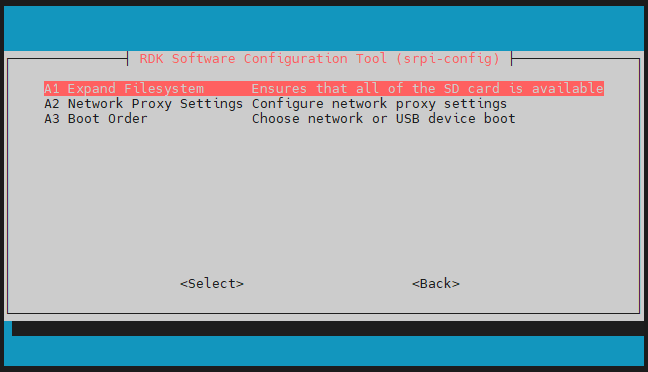
Advanced options, allowing you to set options such as disk expansion and network proxy.
-
Expand Filesystem
This option will expand the installation to fill the entire TF card, providing more space for the file system.
If the system is copied from another system that has already completed initial configuration, the
TFcard capacity of the system may not be automatically adjusted to the current TF card's capacity. This function can be used to conveniently complete the expansion.
-
Network Proxy Settings
Configure the network proxy settings.
-
Boot Order
RDK X3 Module and RDK X5 Module support booting the system from both eMMC and SD card modes. This option is used to switch the boot mode.
Sensor Profiles
Provides multiple sets of Sensor effect library configurations to adapt to different module forms of the same Sensor. Due to differences in optics and calibration between modules, the final imaging effect and intensity will vary, so separate ISP calibration is required.
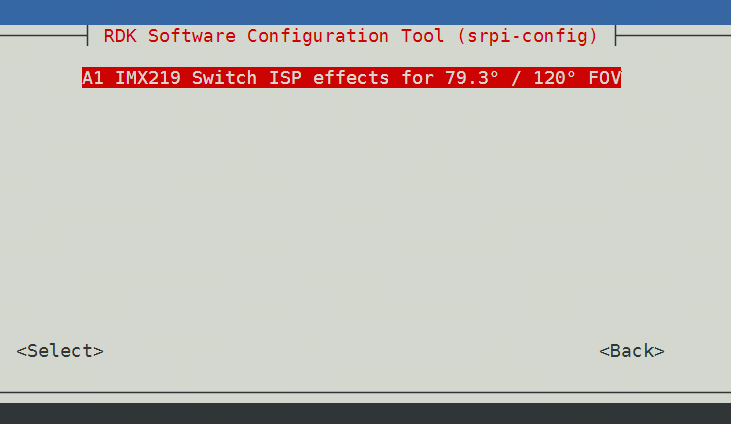
IMX219 Switch ISP
Switch the IMX219 effect library. 1 FOV 79.3° corresponds to the Jetson Nano camera, adapting to 200FOV and 160FOV modules. 2 FOV 120° corresponds to the Raspberry Pi 5 camera, adapting to 120FOV modules.
Update
Update the srpi-config tool to the latest version.
About srpi-config
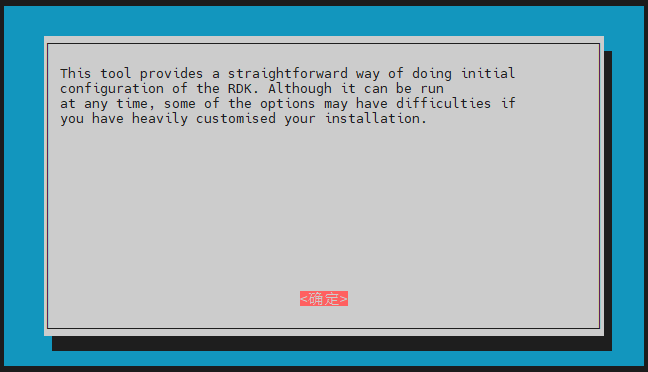
Information about srpi-config.
Selecting this option displays the following information:
Finish Button
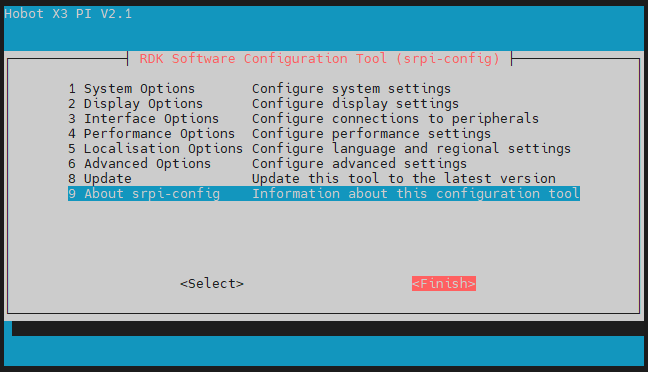
After completing the changes, click the Finish button. If the modifications you made require a reboot to take effect, the system will prompt you whether to restart immediately.